Admin - How to Approve and Manage Timesheets
Last updated: August 21, 2026
🍿 TLDR
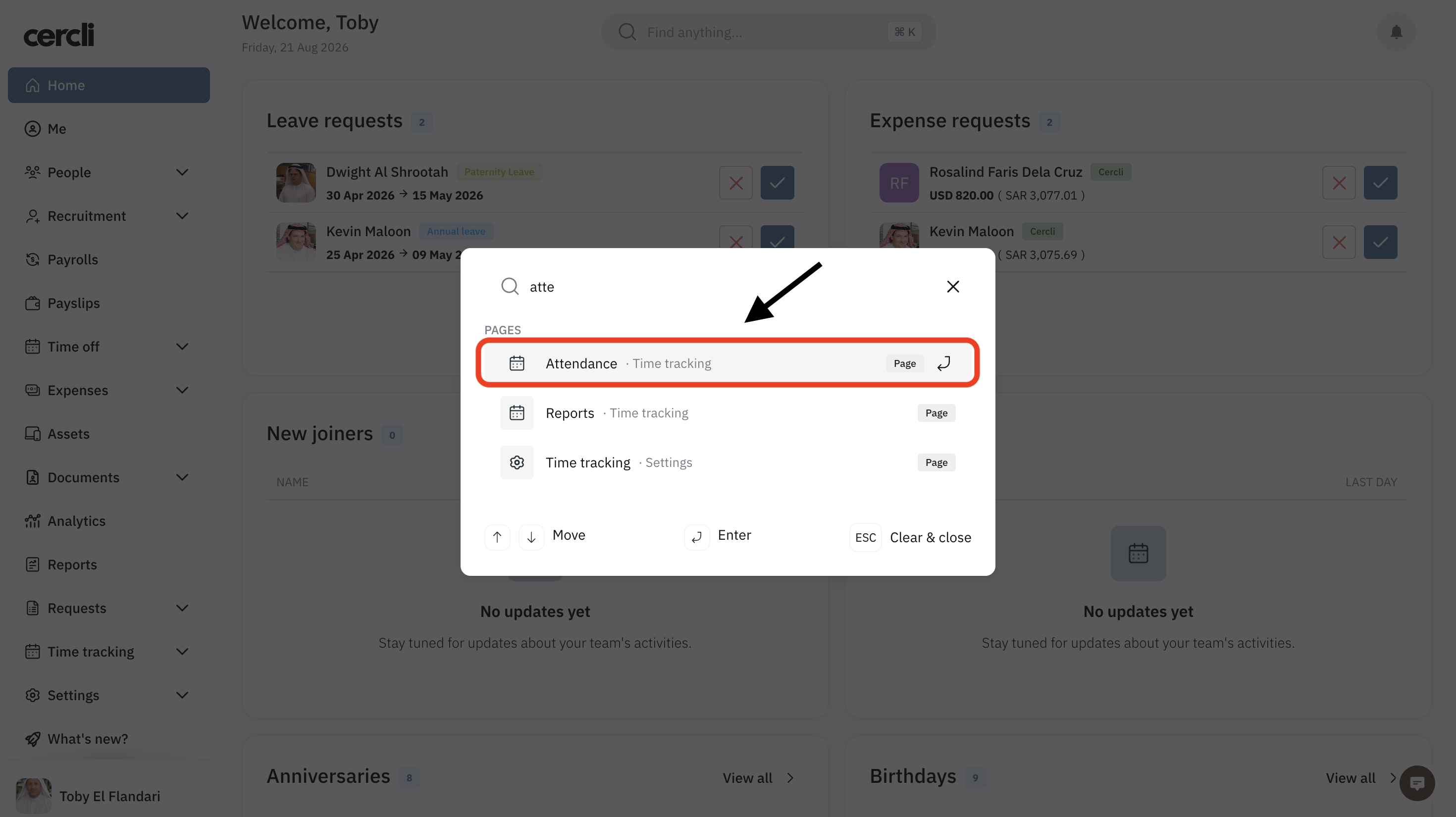
Look for the Attendance tab using the keyboard shortcut (Cmd + K on Mac and Control + K on Windows / Linux).
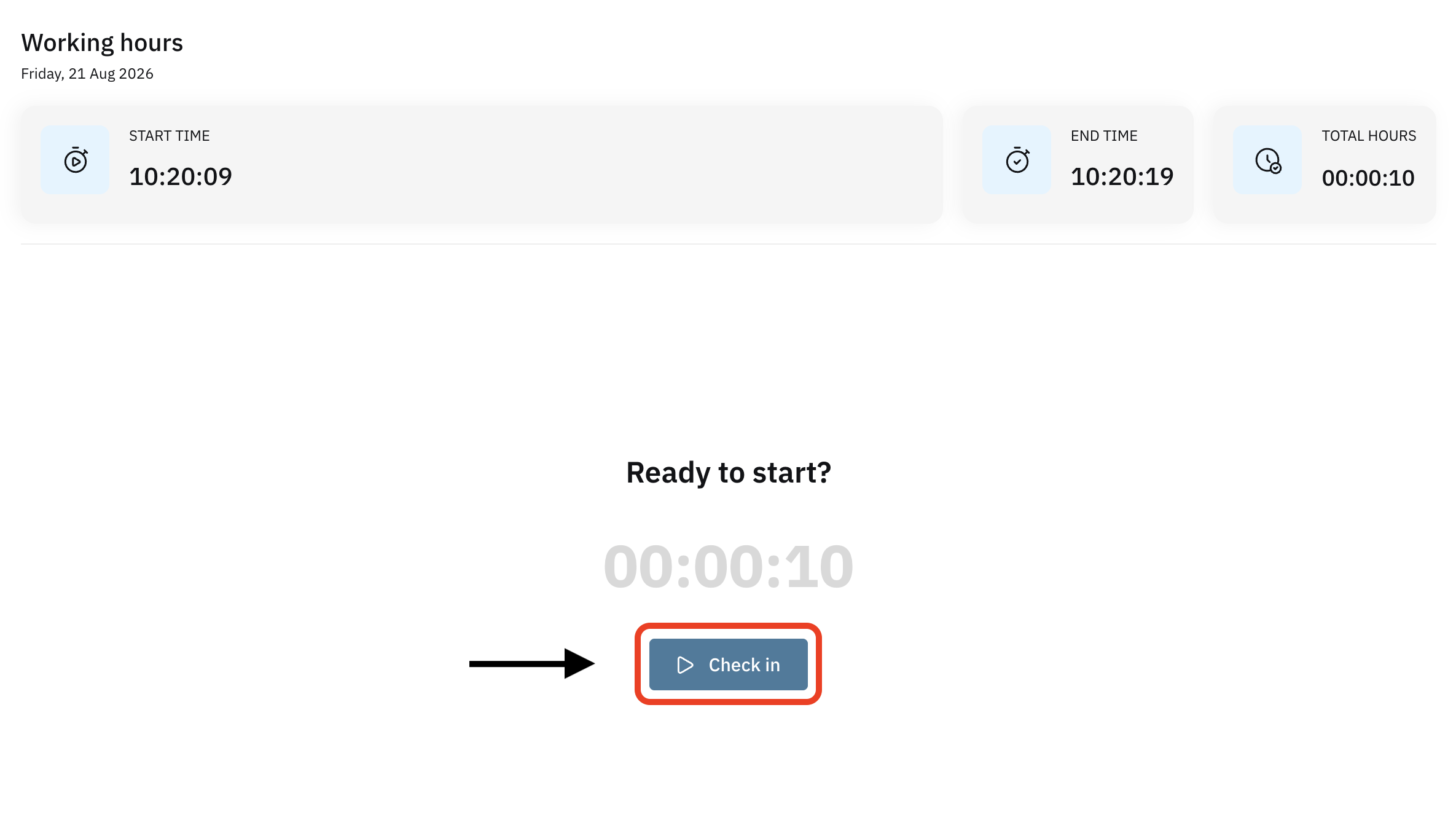
Team members will have to click Check in to start their shift. More detail in this article: 📄 Clock In, Clock Out & Take Breaks
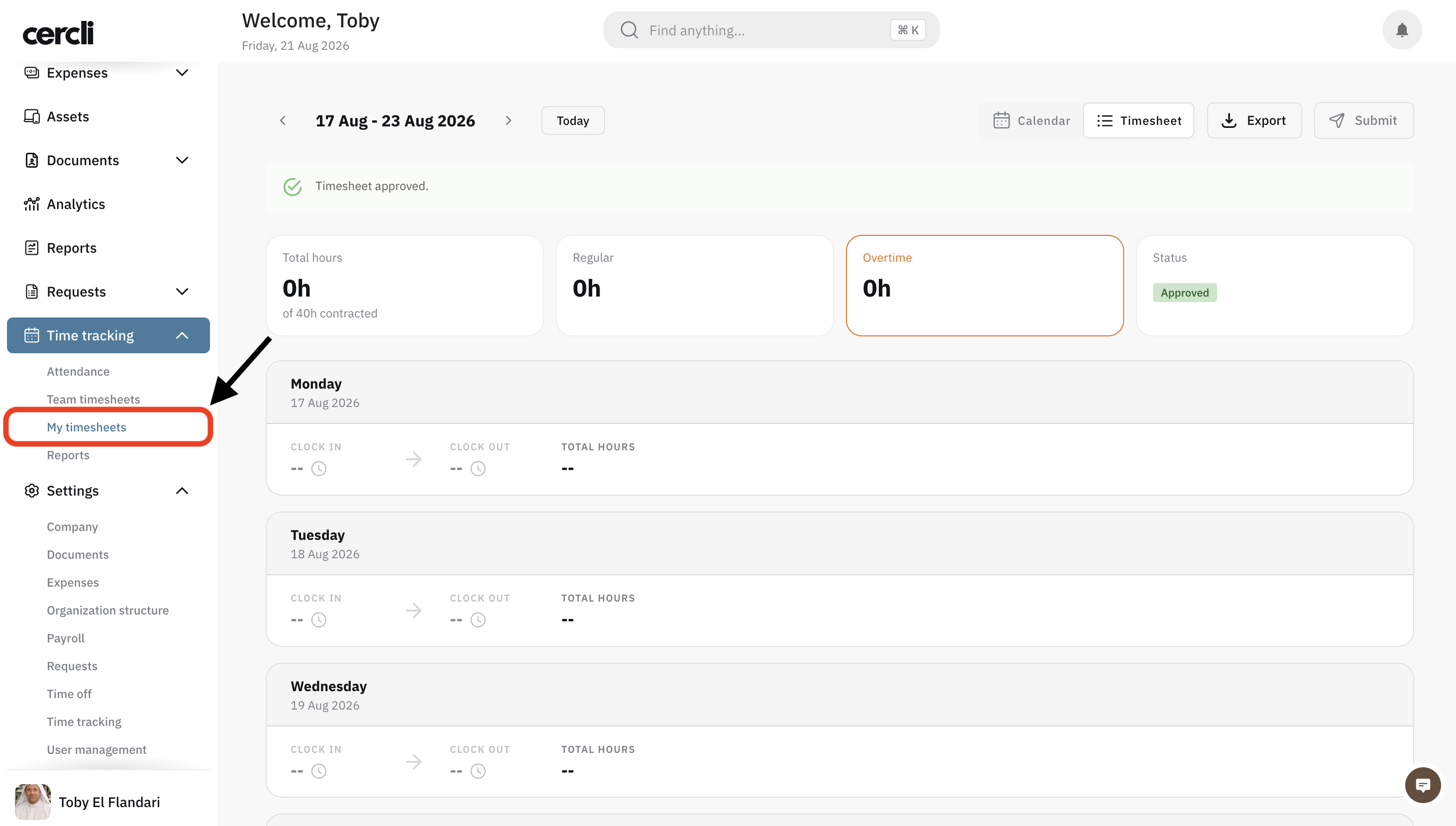
Once the team member has checked out, he or she will be able to see the history under My timesheets tab.
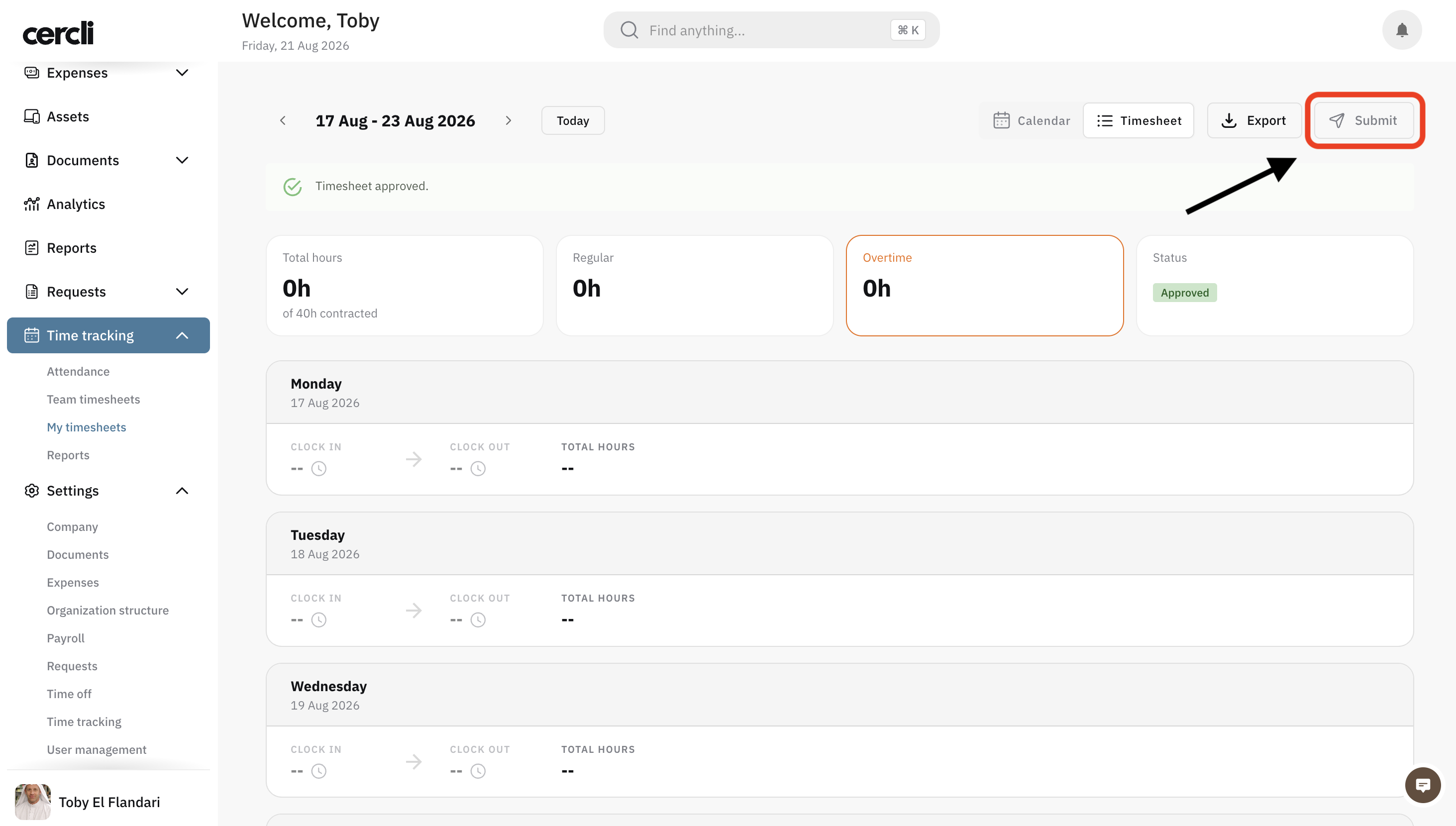
Once the agreed rostering period has come to an end (weekly or monthly timesheet). The team member can click Submit for their manager's approval.
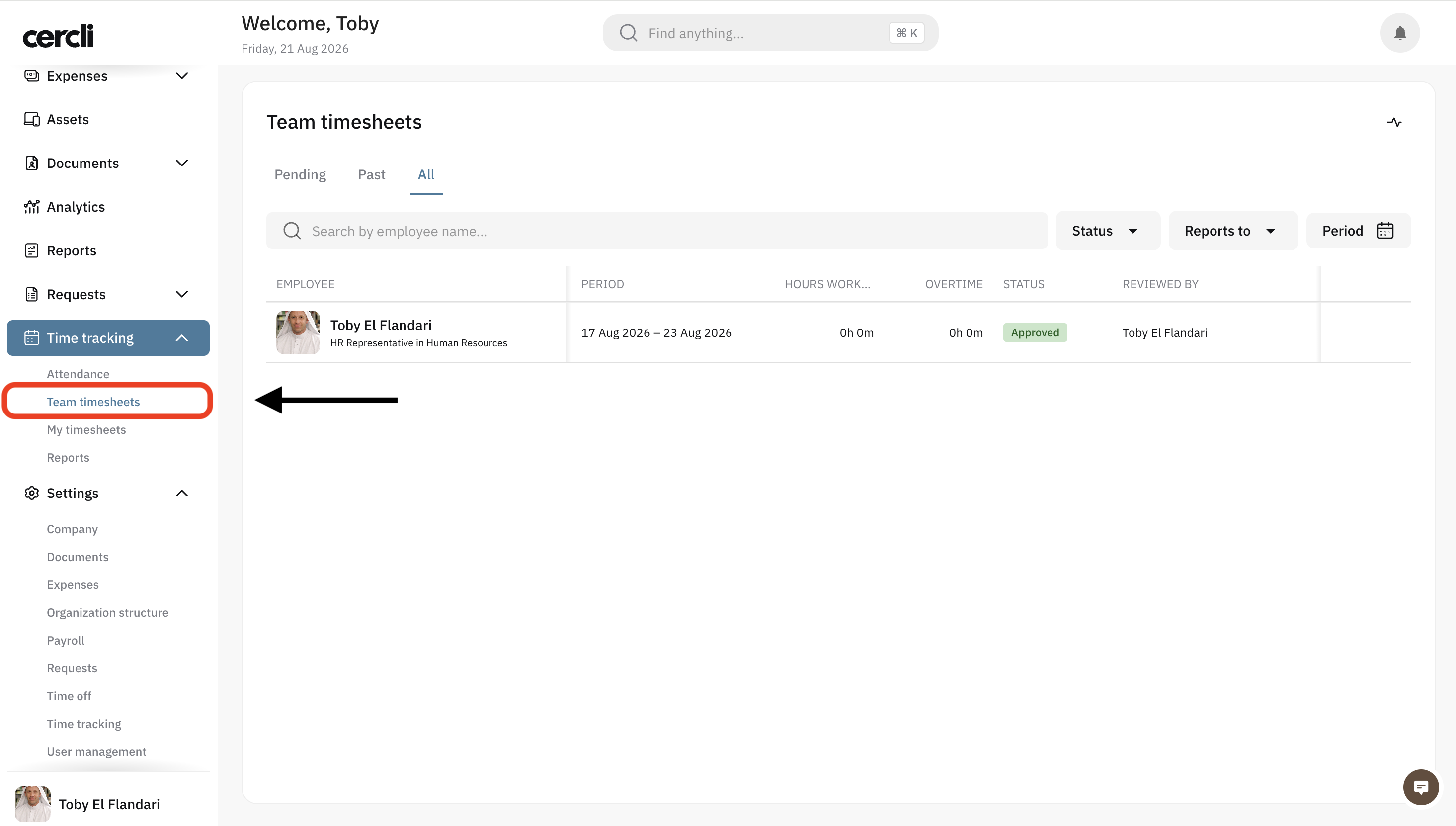
As a manager, you will have access to the Team timesheets tab. Locate the submitted timesheet and approve or reject it. The image below shows an approved timesheet.
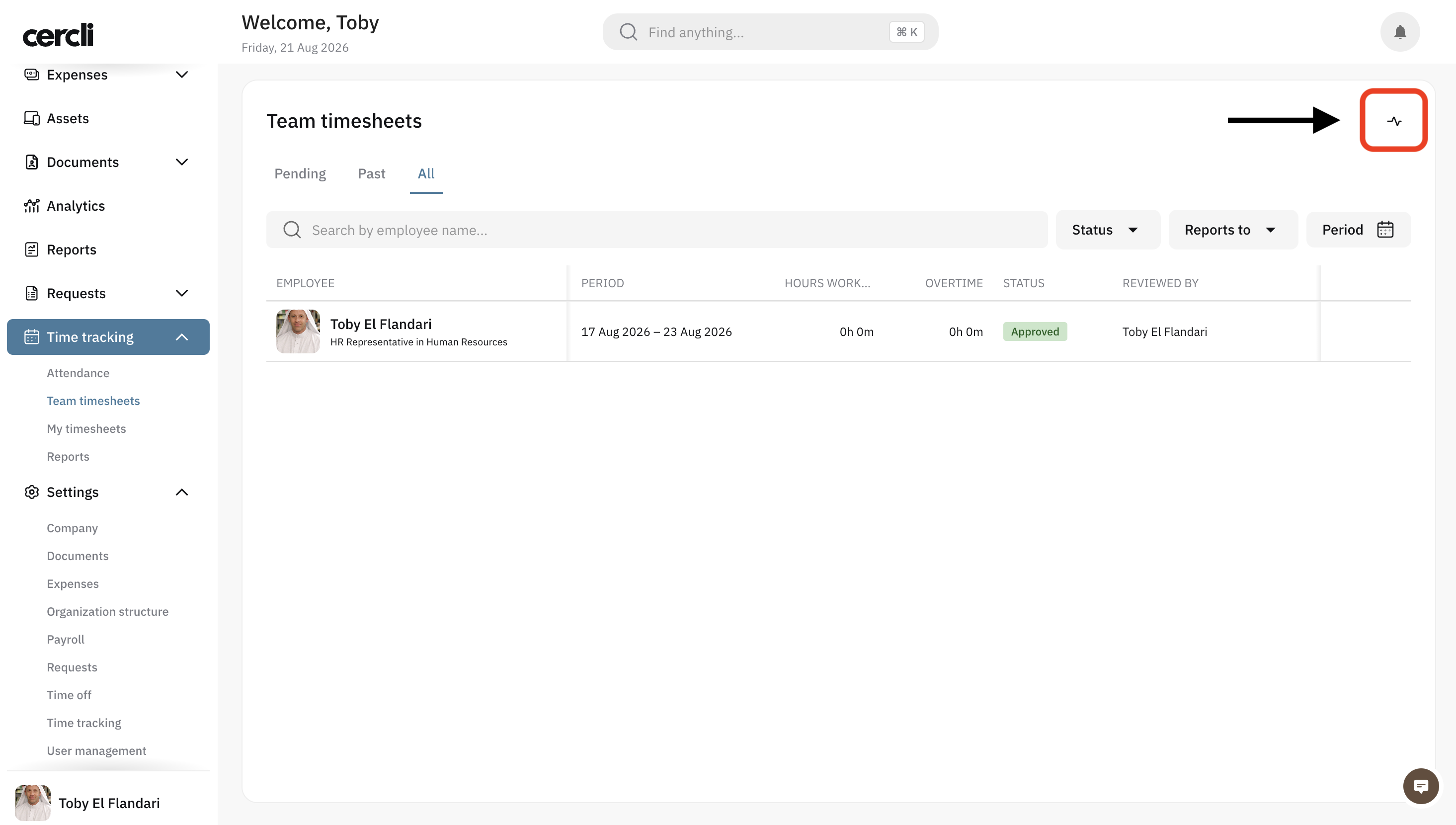
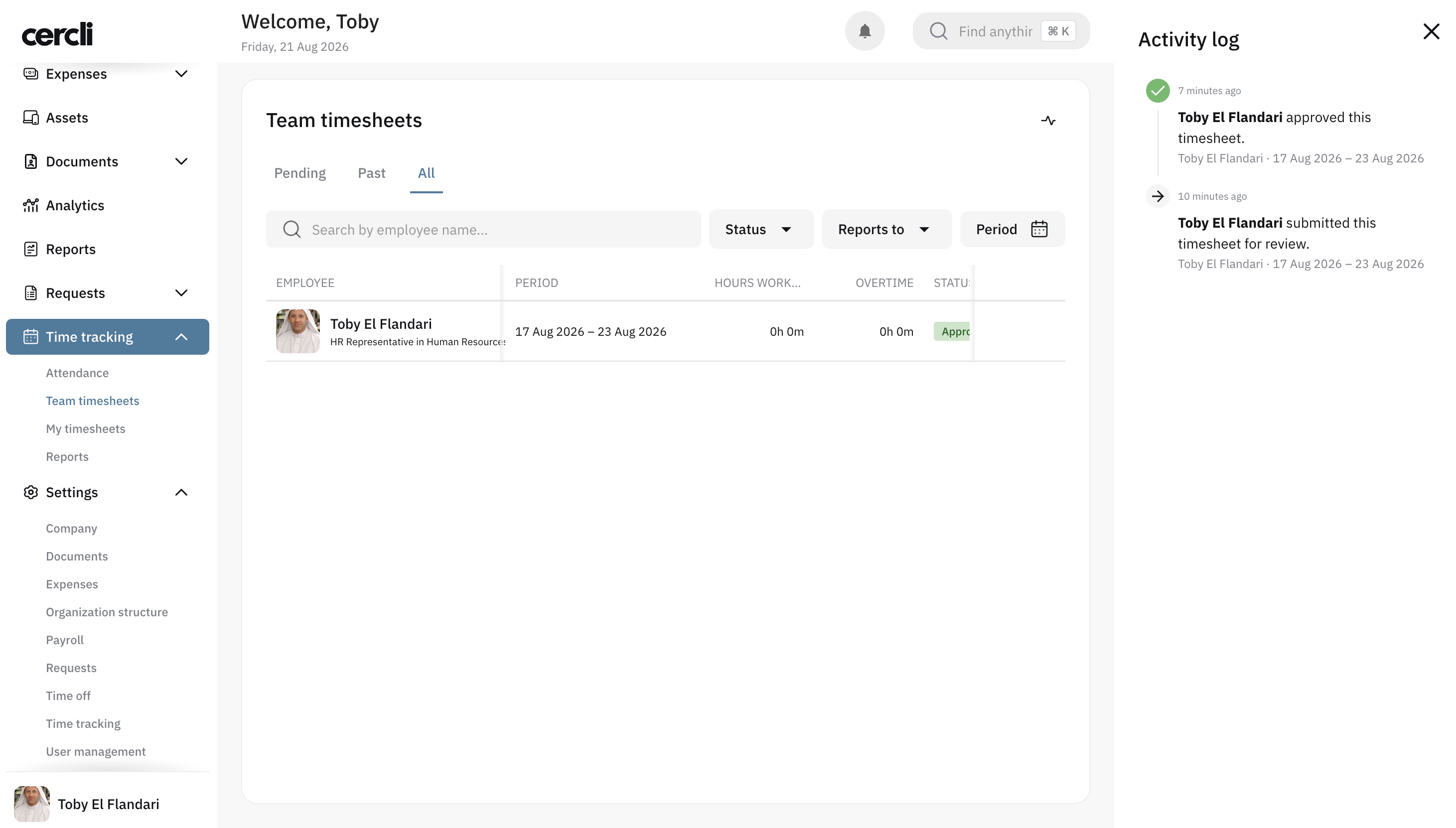
Additionally, within he team timesheets tab, you can click on the top right icon below notifications to view the logs . That is, who approved or rejected the timesheet.
You can view the exact time and person who made the approval.
Notifications
You can setup timesheets notifications (submitted or approved) via Slack, Teams, and email. More detail on the article below.