TM - I Have an Issue with Login. How Do I Access or Sign In to My Cercli Account?
Last updated: April 17, 2026
Most issues fall into one of the following categories: Using the wrong login method, not having accepted an invitation, an expired invitation, or a forgotten password.
Wrong Login Method
The most common reason login fails is that the team member is using a different sign-in method than the one they used when they first created their account.
Sign-up method | Must always use |
Sign in with Google button. No password exists on the account | |
Microsoft | Sign in with Microsoft button. No password exists on the account |
Email and password | Email and password fields. Not Google or Microsoft |
Steps:
Ask the team member which method they used when they first signed up.
Direct them to use that exact method on the login page.
If they are unsure, ask them to try all three sign-in options in sequence.
Password Reset
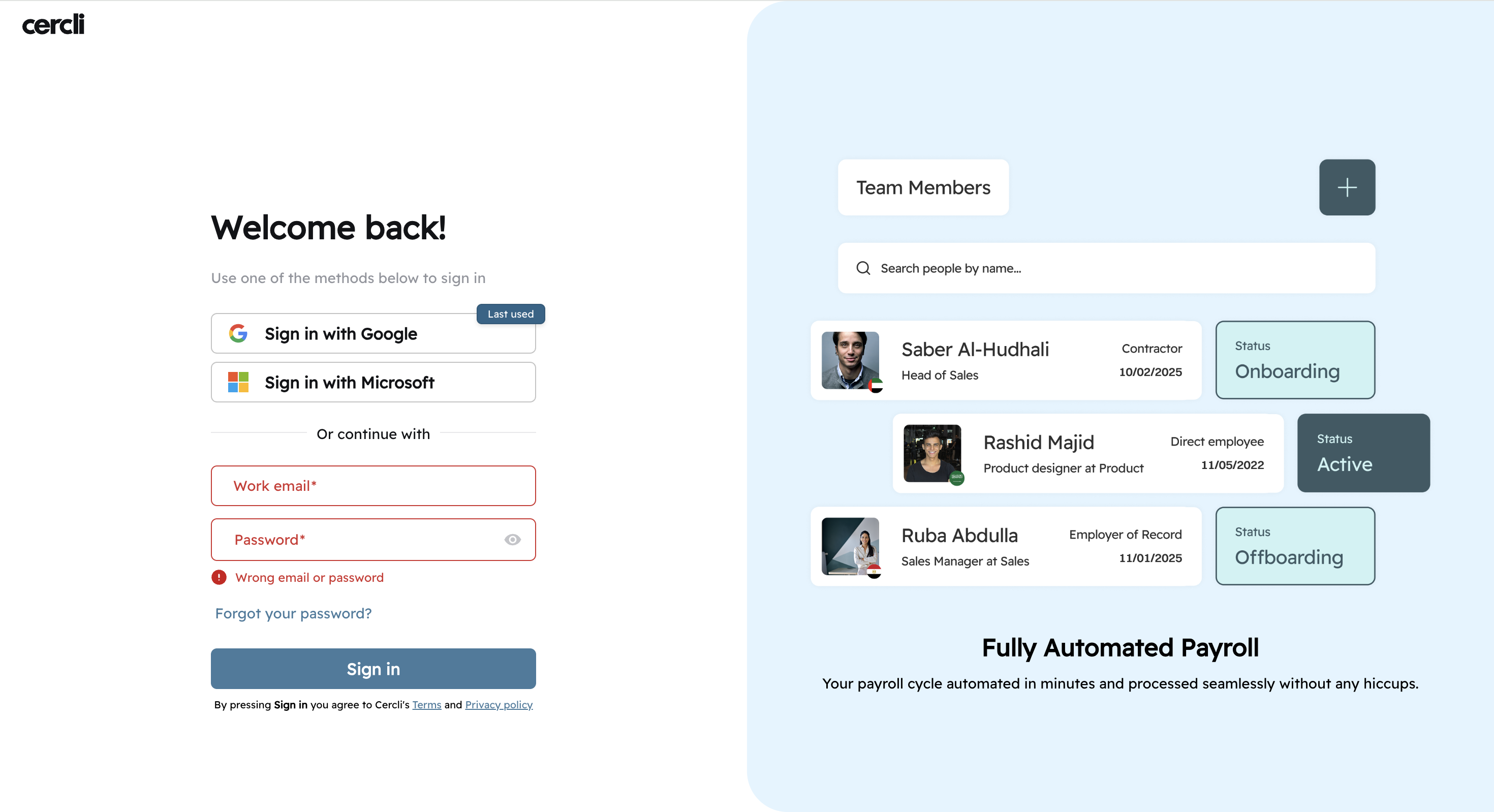
Use this if the team member's account was set up with an email and password and they have forgotten their password.
Go to app.cercli.com/login.
Click
Forgot your password?below the password field.Enter the work email address used to create the Cercli account.
Check the inbox for the password reset email.
Click the link in the email and set a new password.
Return to the login page and enter the email address and new password.
Note: The reset link redirects to the login page - it does not log the team members in automatically. They must enter their credentials again after resetting.
Invitation Not Received or Expired
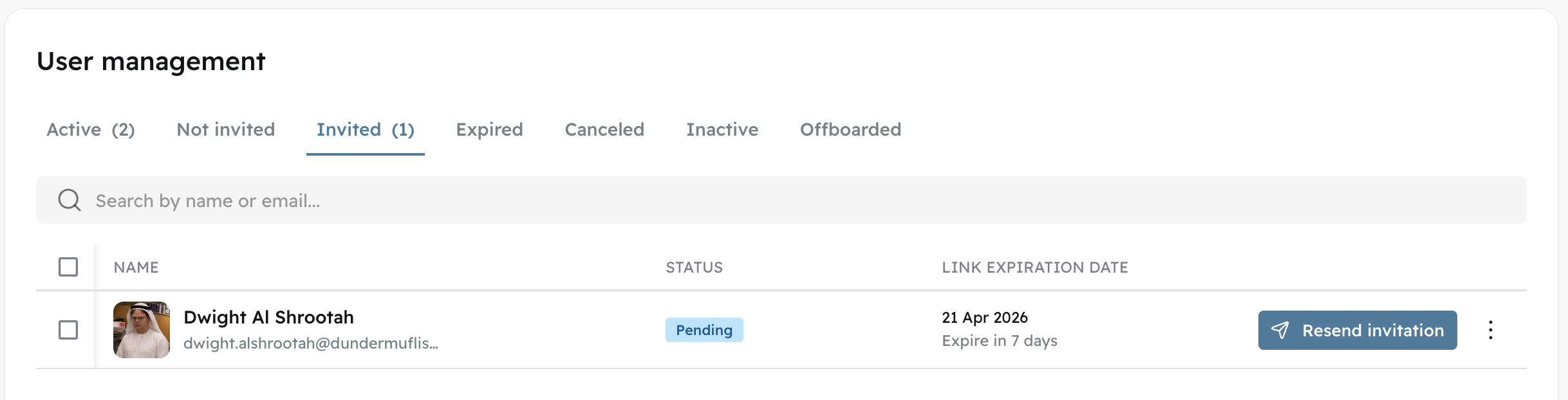
Go to
Settings→User management.At the top of the screen, review the status tabs:
Active,Invited,Not invited,Expired,Cancelled,Inactive, andOffboarded.Locate the team member and check their invite status.
Click
Resend Invitation Linkfrom their profile.Copy the invite link directly from the profile and send it to the team member via Slack, WhatsApp, or another direct channel — this is the most reliable method when email delivery fails.
Confirm the team member clicks
Accept Invitationbefore attempting to log in.
Note: Team members cannot access Cercli by navigating to the platform directly before accepting their invitation. They must click Accept first.
Organization Error
If an employee sees the following error on the login screen:
"Client requires organization membership, but user does not belong to any organization"
This is caused by:
Using the wrong login method
Not having accepted an invitation or the invitation expired
Forgotten password.
Refer to the above sections
Account Blocked
If an employee's account has been blocked after too many failed login attempts:
Contact Cercli support with the employee's work email address.
Check for a typo in the email address - this is a frequent cause of repeated failures.
Confirm the login method being used matches how the account was originally set up (Google, Microsoft, or email and password).