Admin - How to Create a Report
Last updated: April 30, 2026
TLDR 🍿
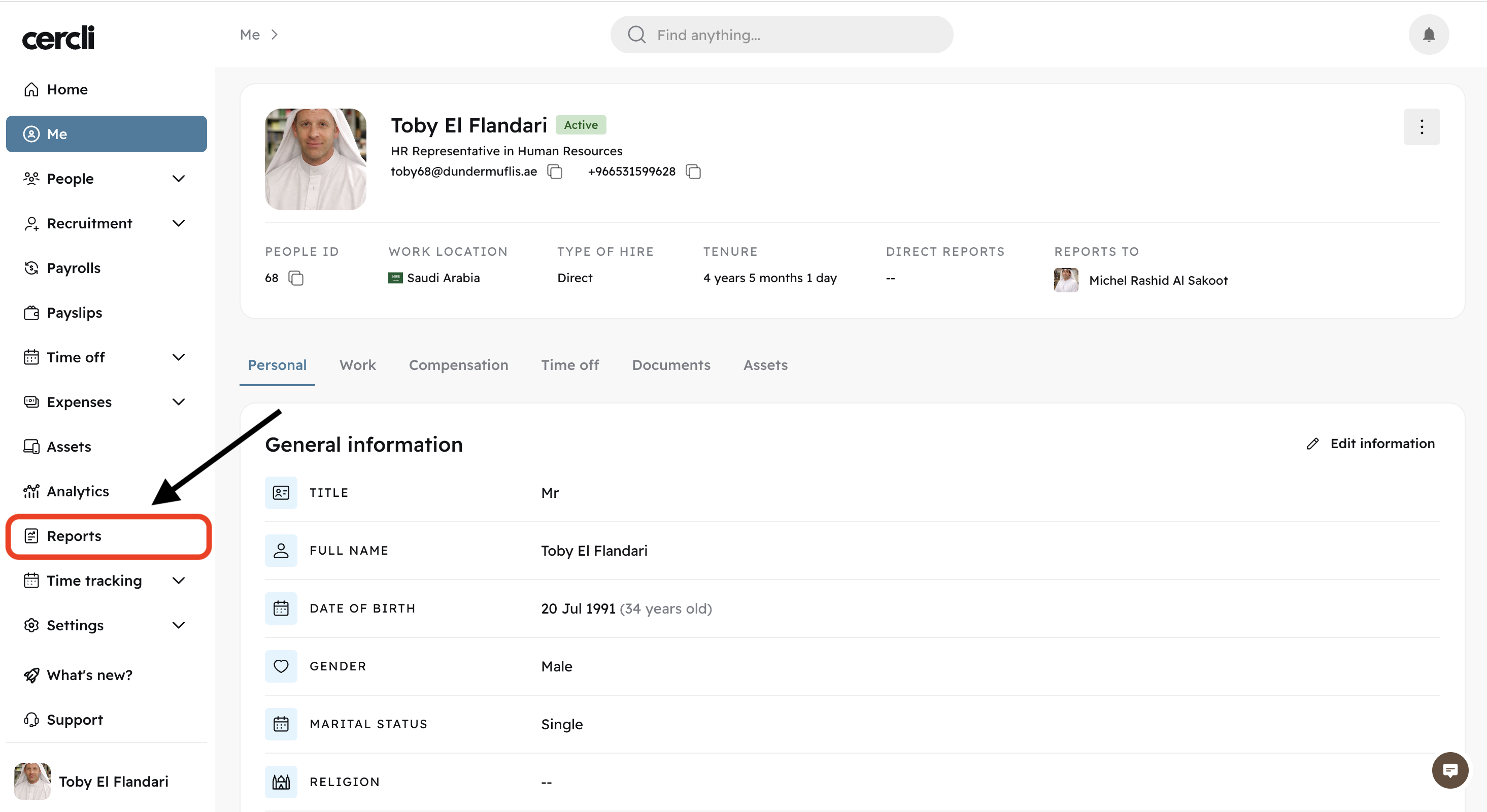
Admins can access reports by going on the left navigation bar, clicking on Reports
This article applies to other report types as well.
Creating a New Template
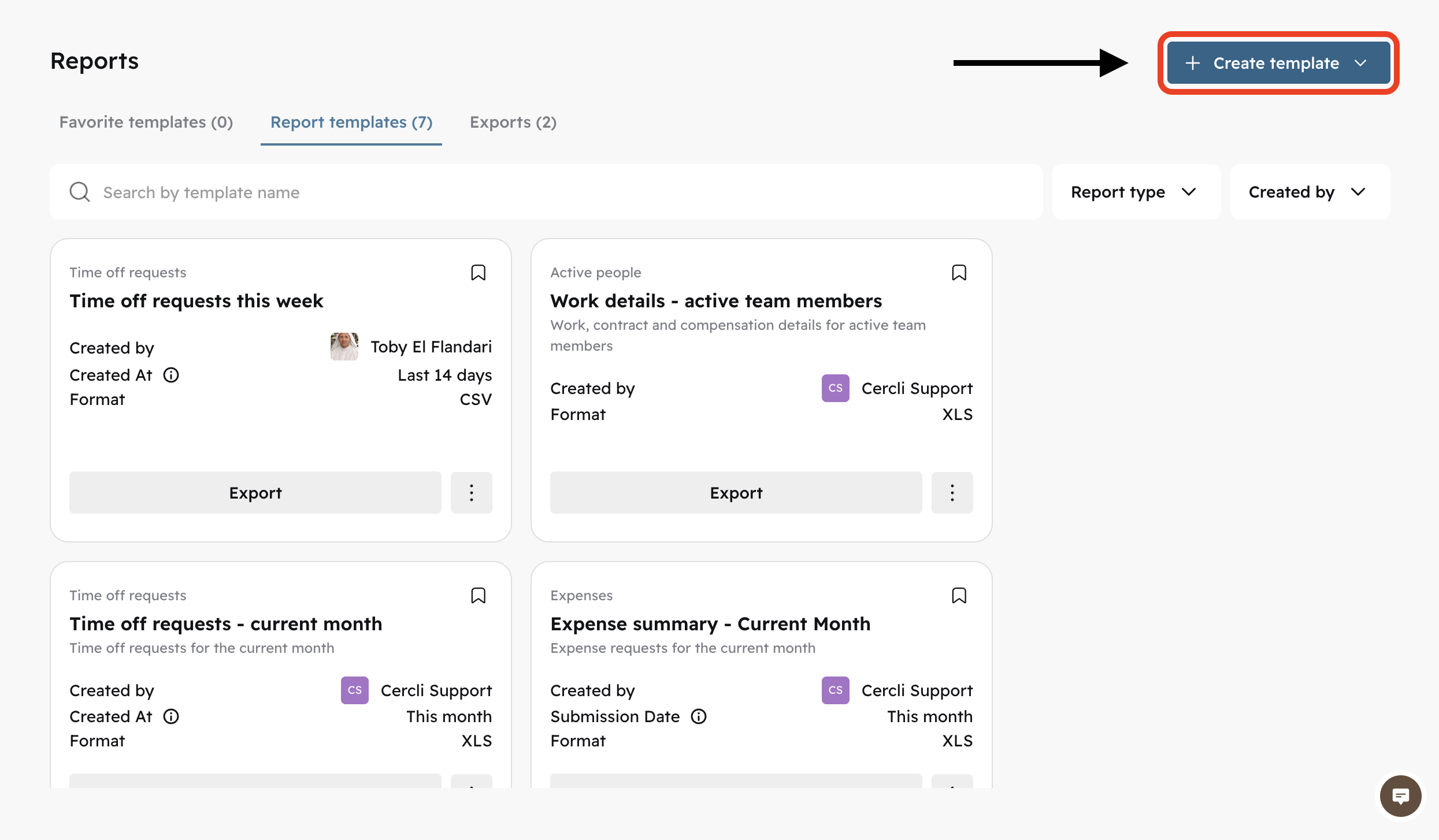
You will see predetermined templates our team has prepared (Time off is already there). To create a new report from scratch click on Create template
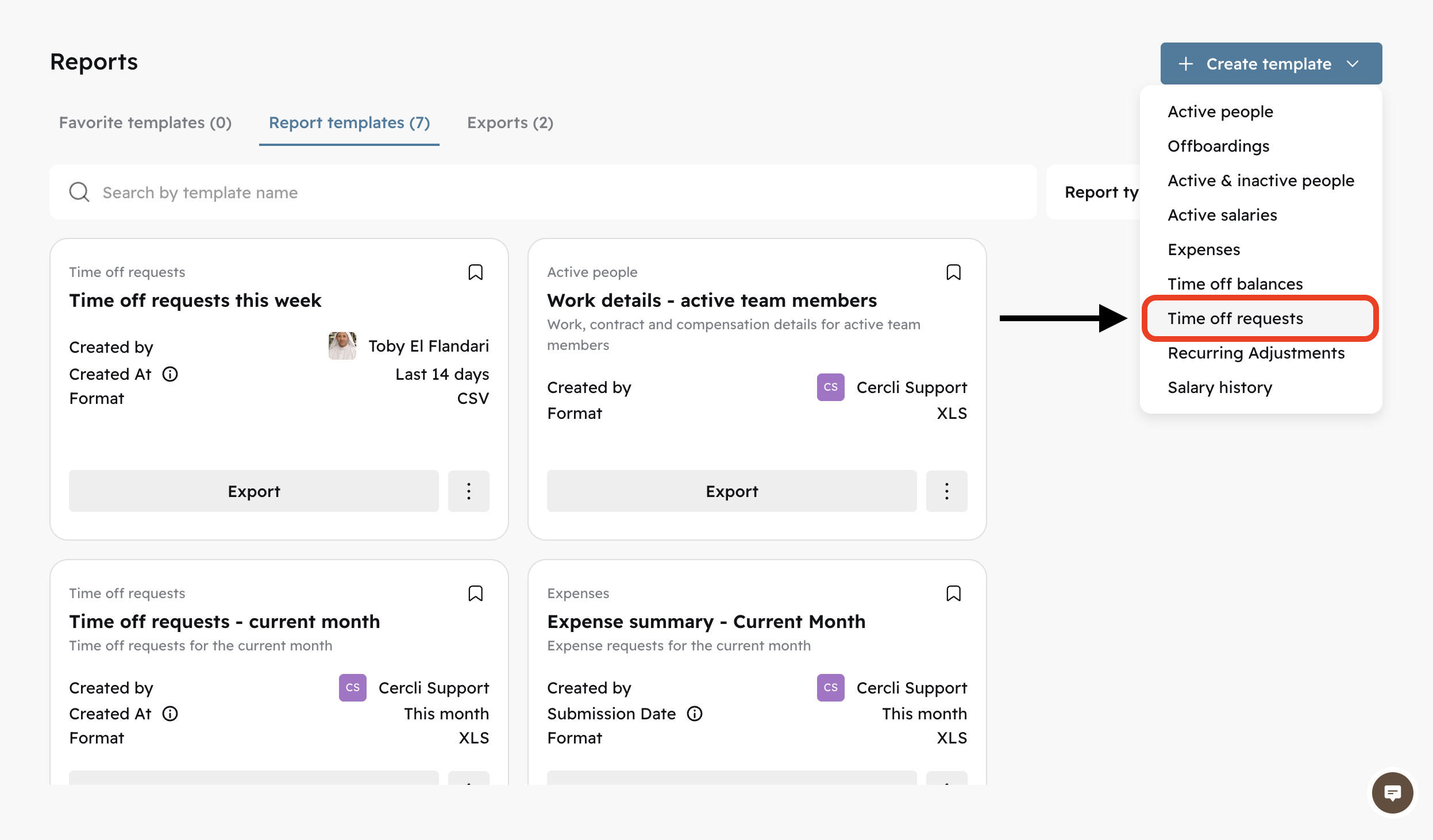
You may select the type of report from the dropdown: Since we're creating a report for Time Off Requests, we're going to select Time off requests .
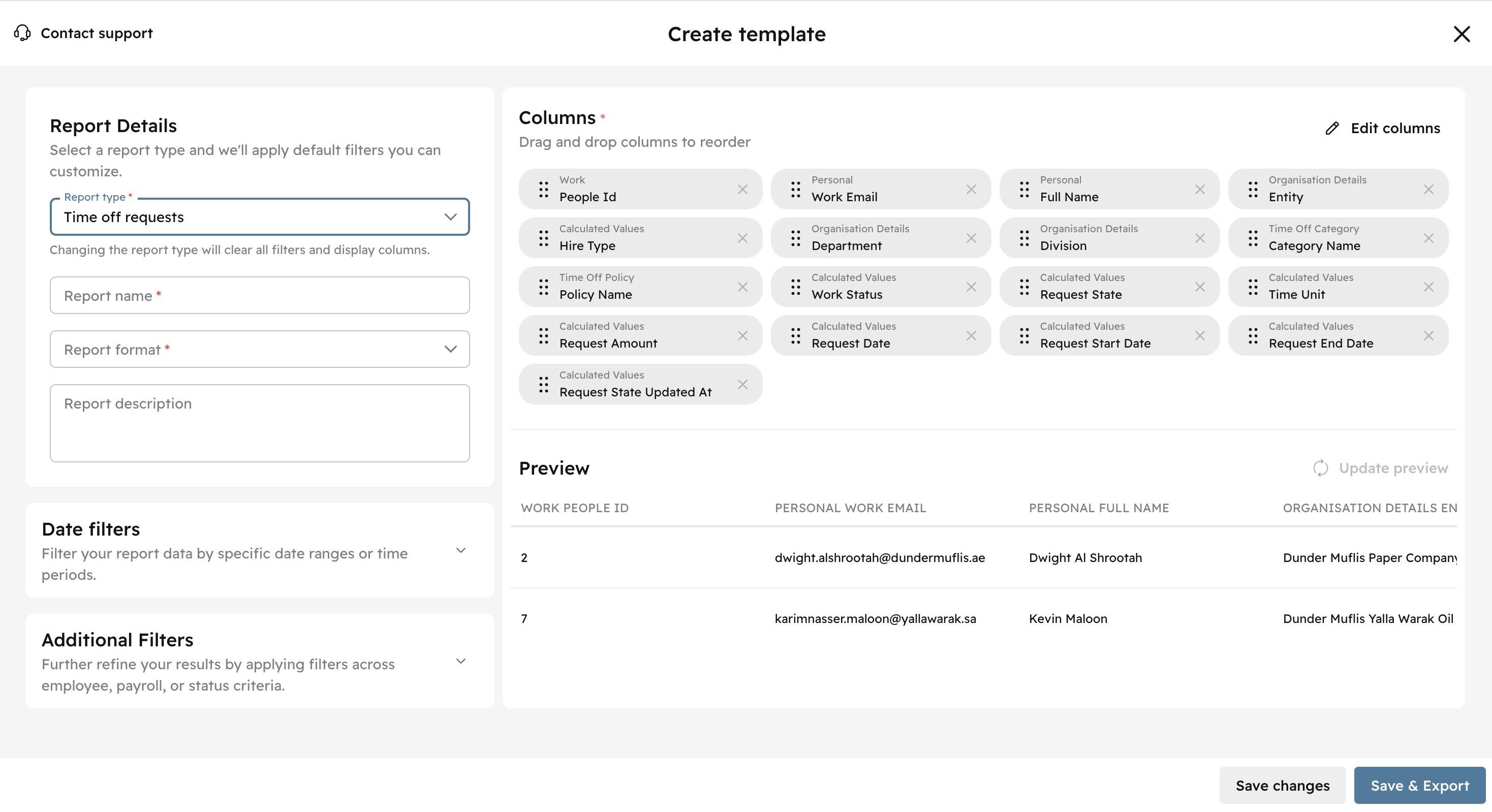
You will be redirected to the report's page. You can name the report, select the format (CSV, XLS, XLSX), apply Date filters, Additional filters, select the Columns you'd like to see, and get a Preview.
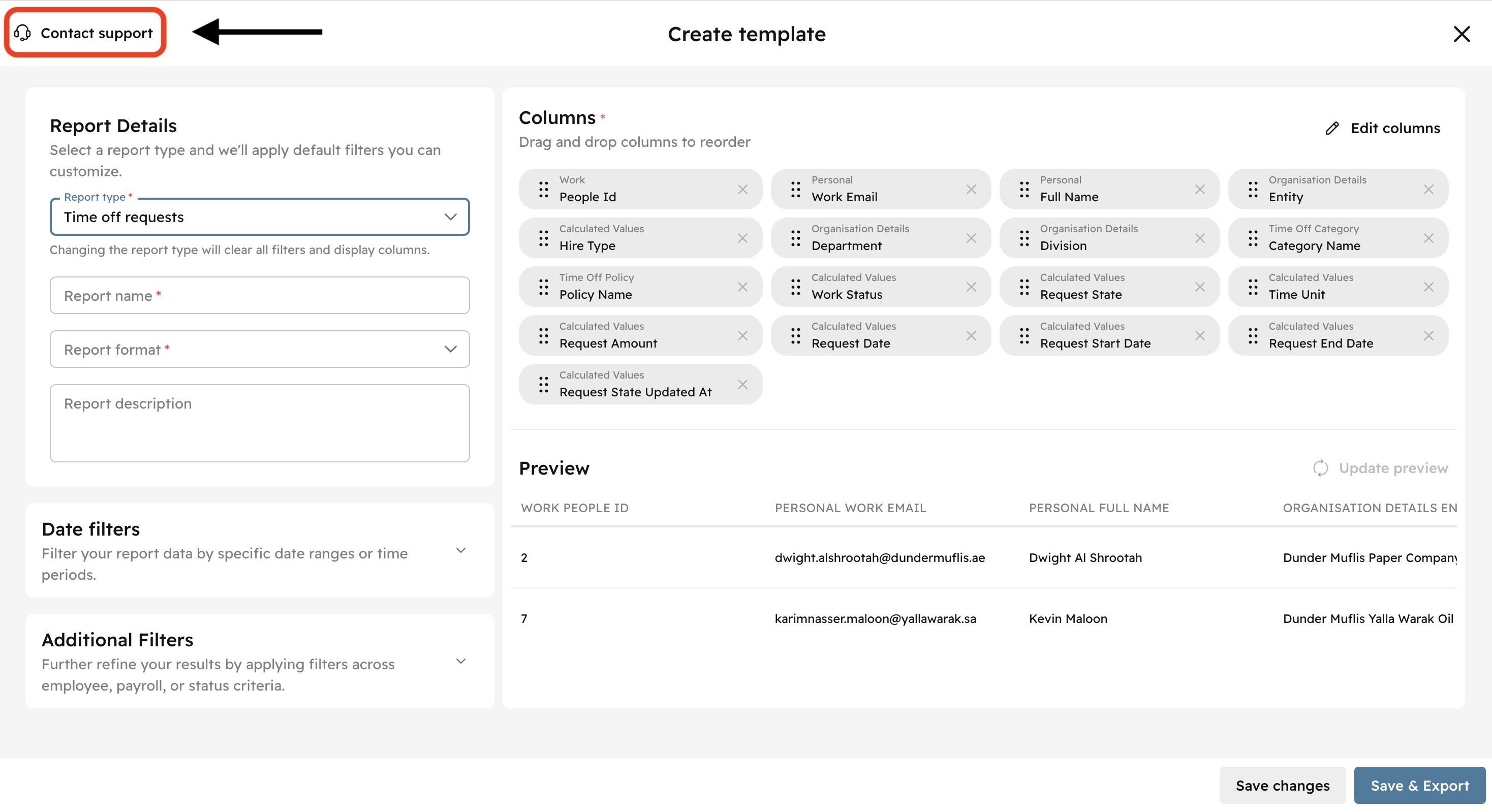
You can also contact our Customer Care team for help by clicking on the top left icon
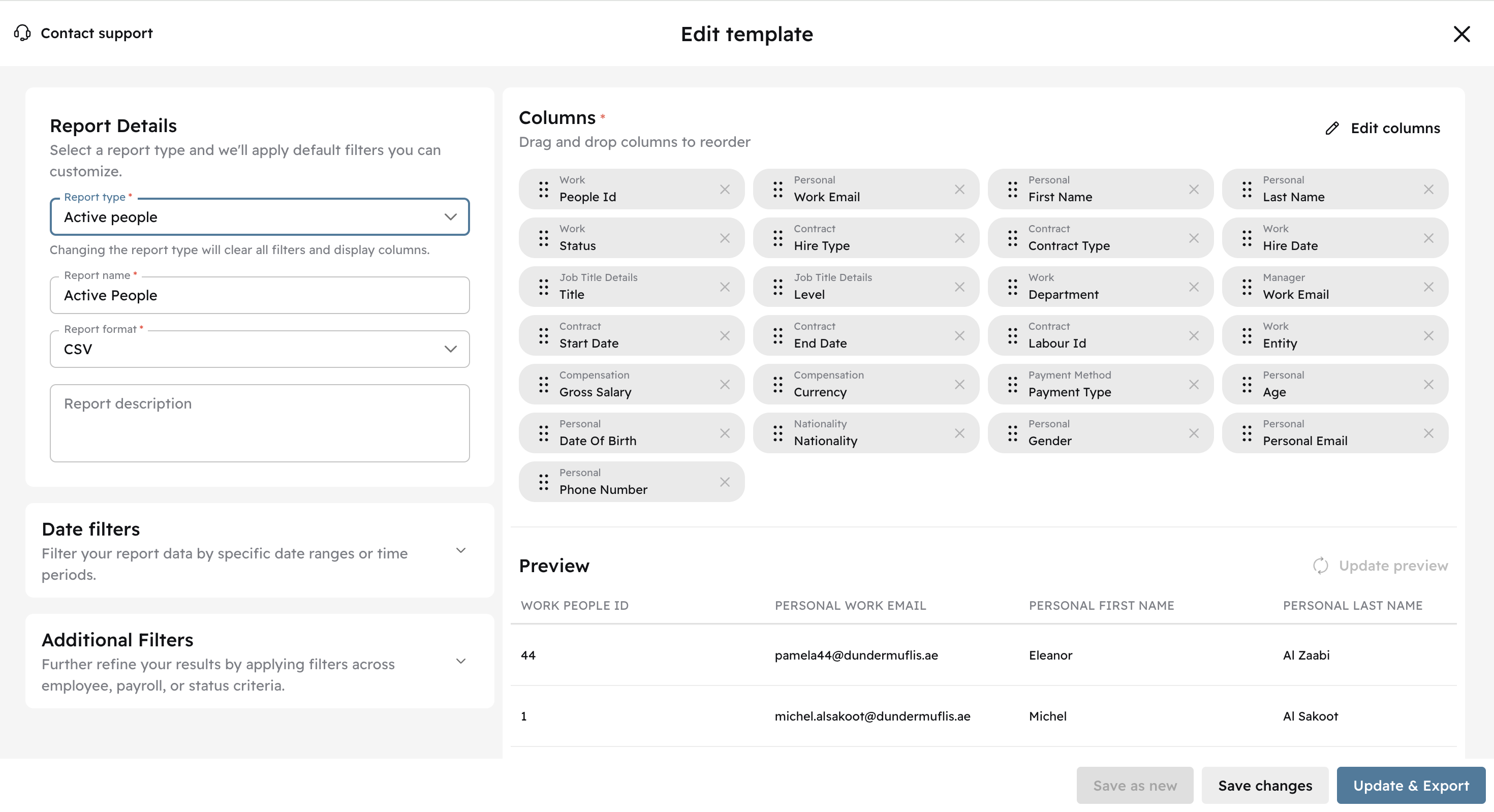
You can create a report for Active people following the same steps. The columns will be different depending on the report.
Applying Date Filters
You can filter based on the hire or end date, or from time off Created At, time off Start Date/End Date or Updated At.
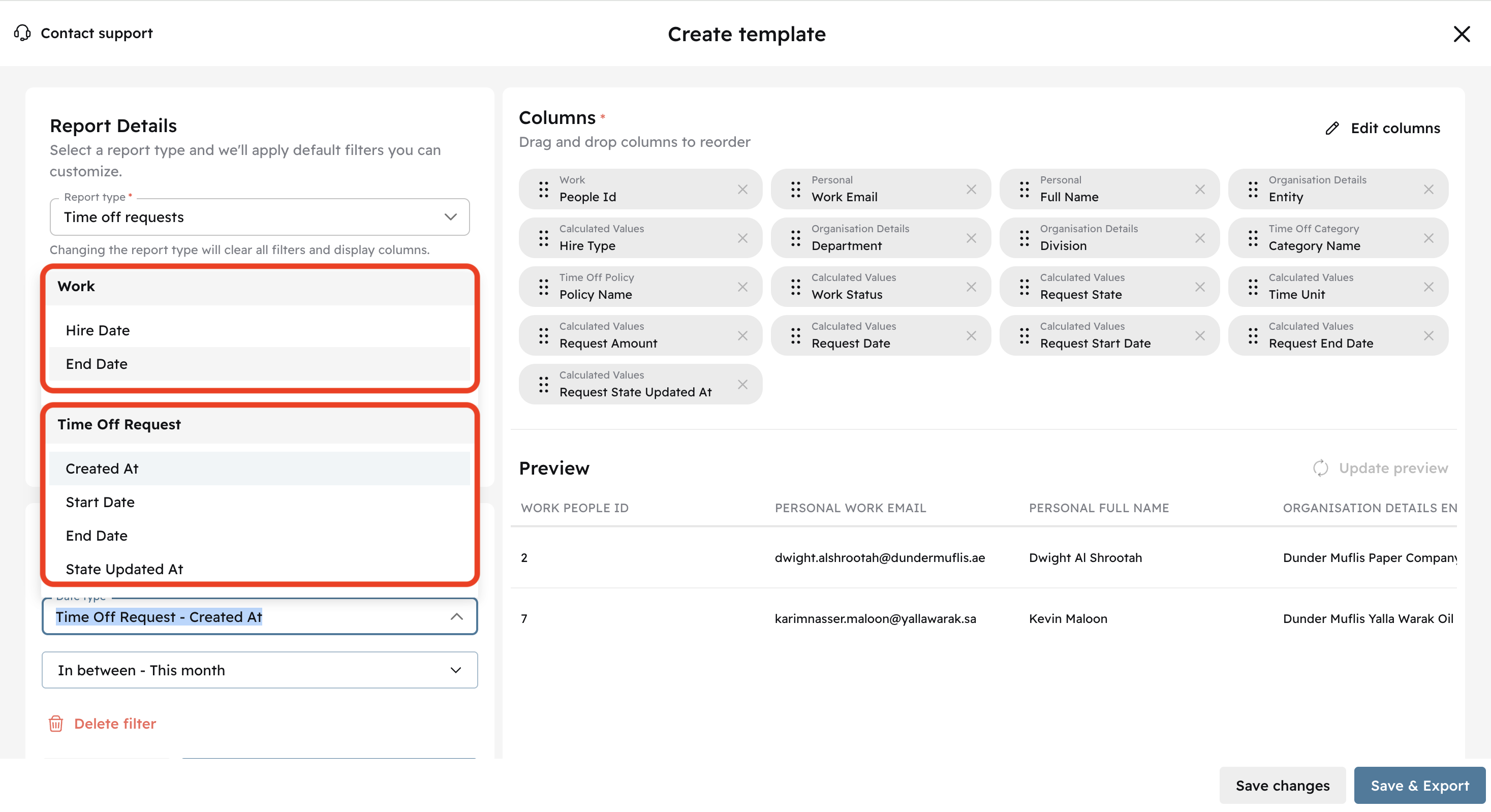
After selecting the date filters you can delve into the range by clicking the selection box below:
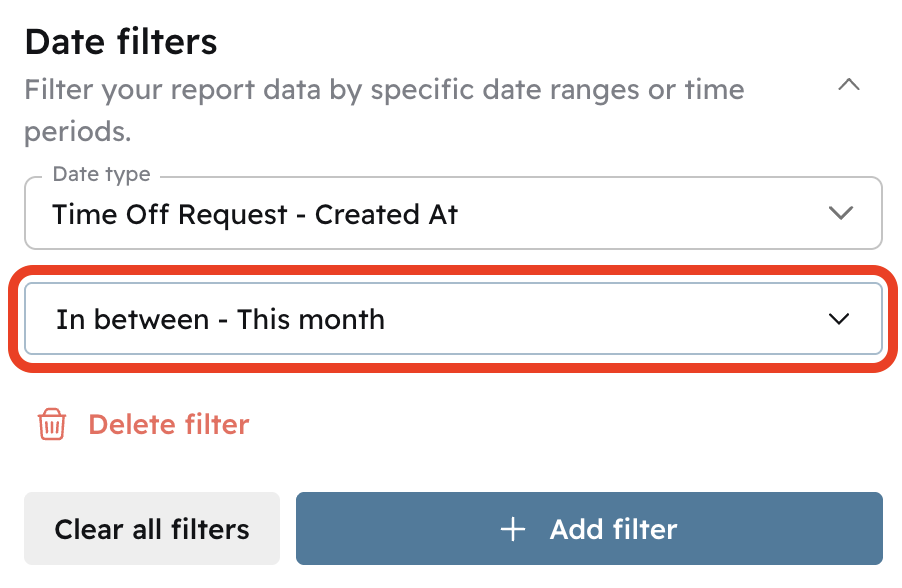
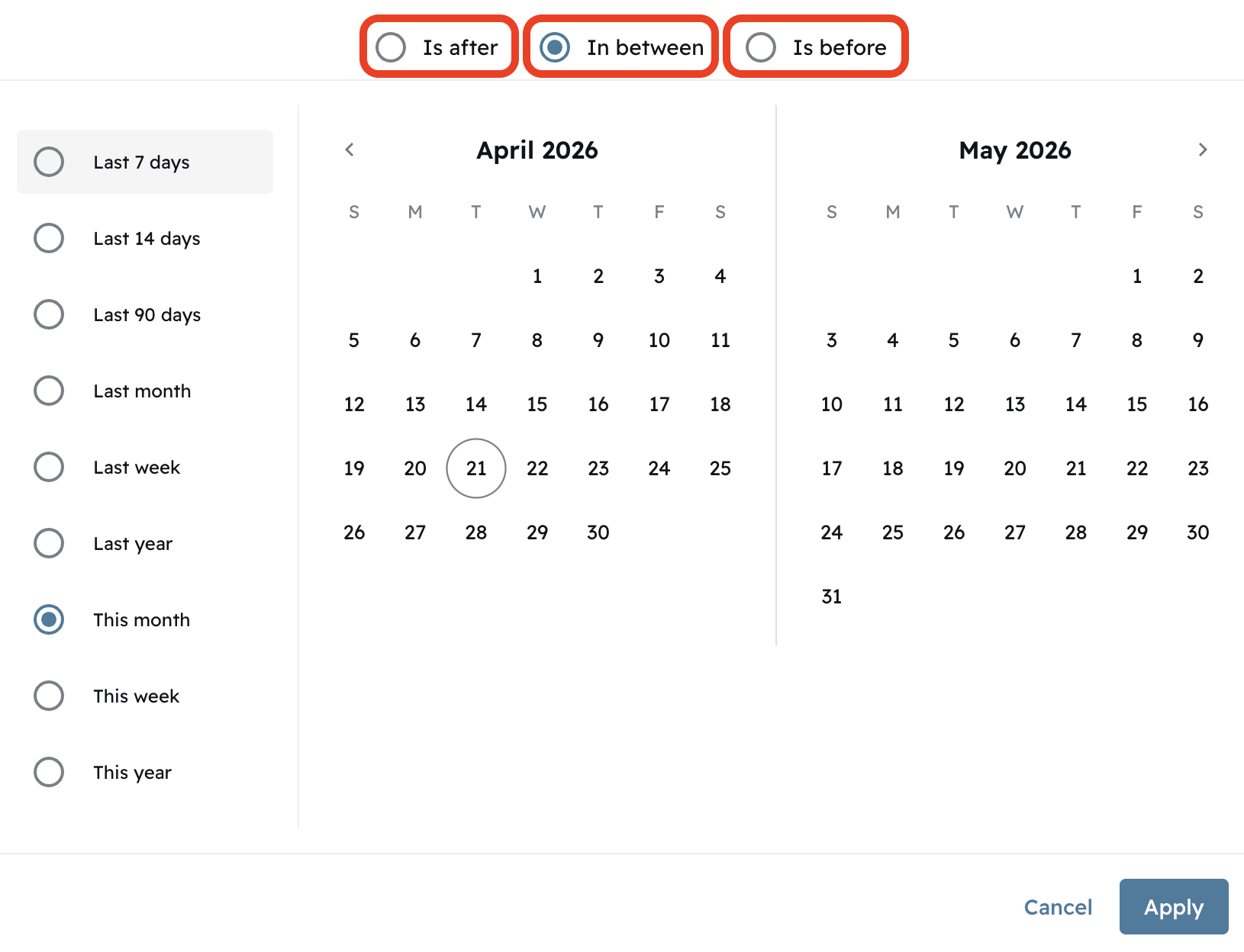
The dropdown will open another box. Select the range you'd want the report to contain.
Click Apply
Click Save & Export to create the report.
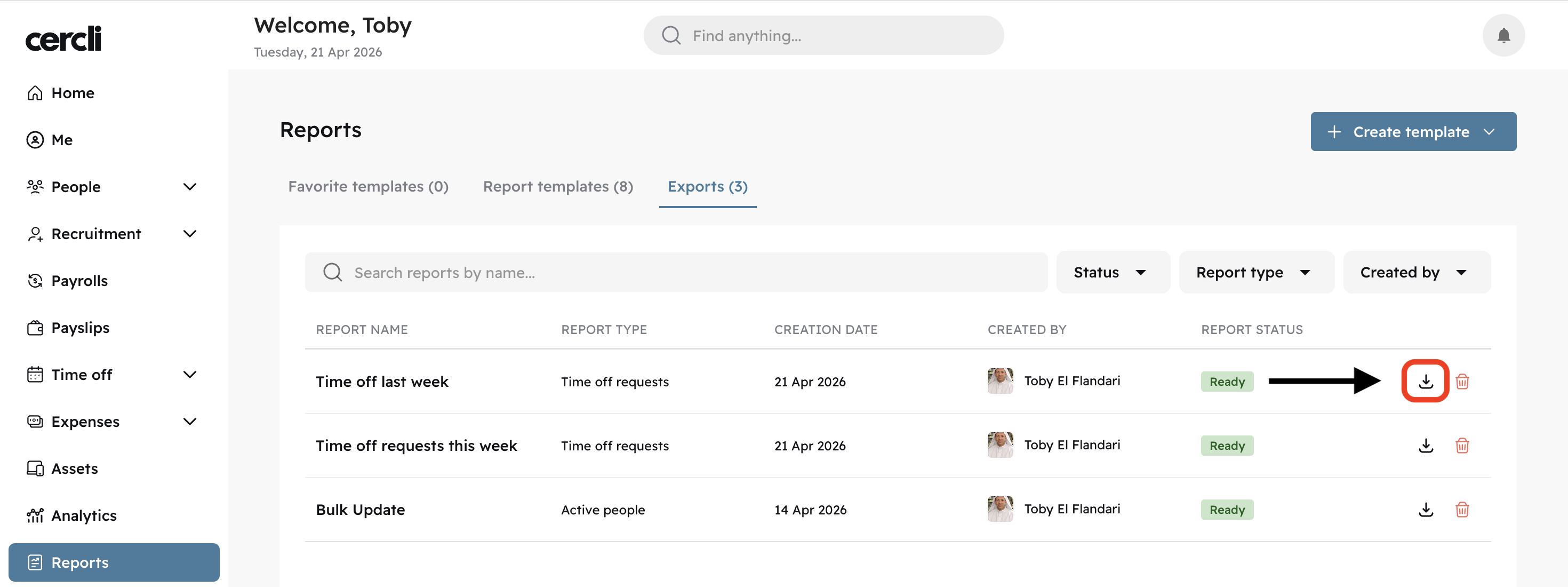
You will be redirected to the main Reports page. You will see the REPORT STATUS showing as processing
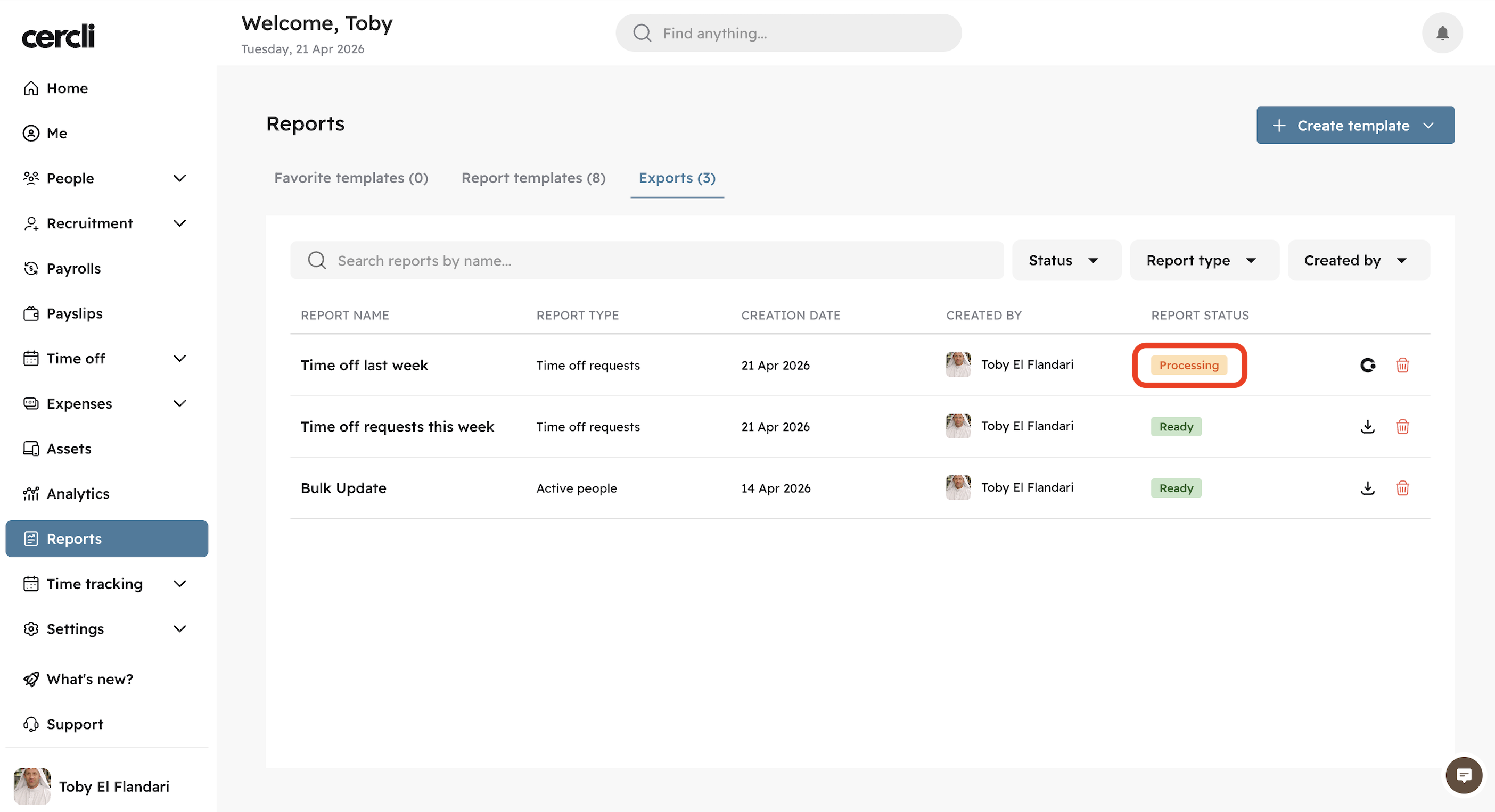
Once the REPORT STATUS shows Ready, you can click the download icon.