Admin -How to Change a Team Member's Role
Last updated: April 23, 2026
You can change a team member's role any time in two different ways:
Going to the team member's profile.
Going to
Settings, underUser Permissions(enables multiple team members' role change).
TLDR 🍿
Going to the team member's profile.
TLDR 🍿
Going through settings.
How Can I Change a User's Role from the Team Member's Profile?
If you already have a user in mind. You can find the user directly.
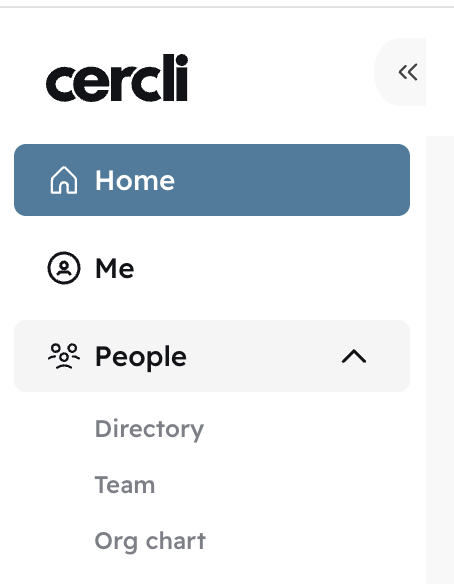
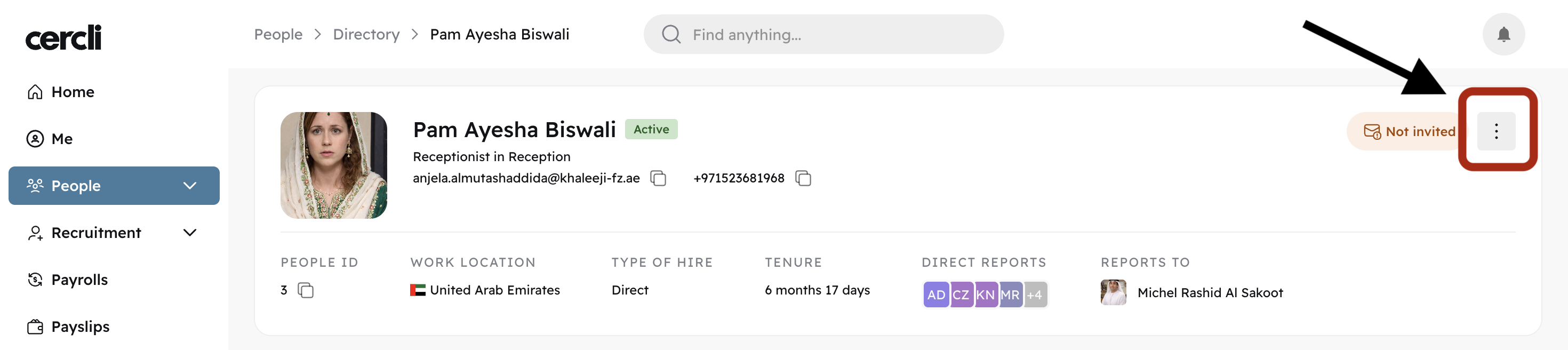
On your left navigation bar, find "People"
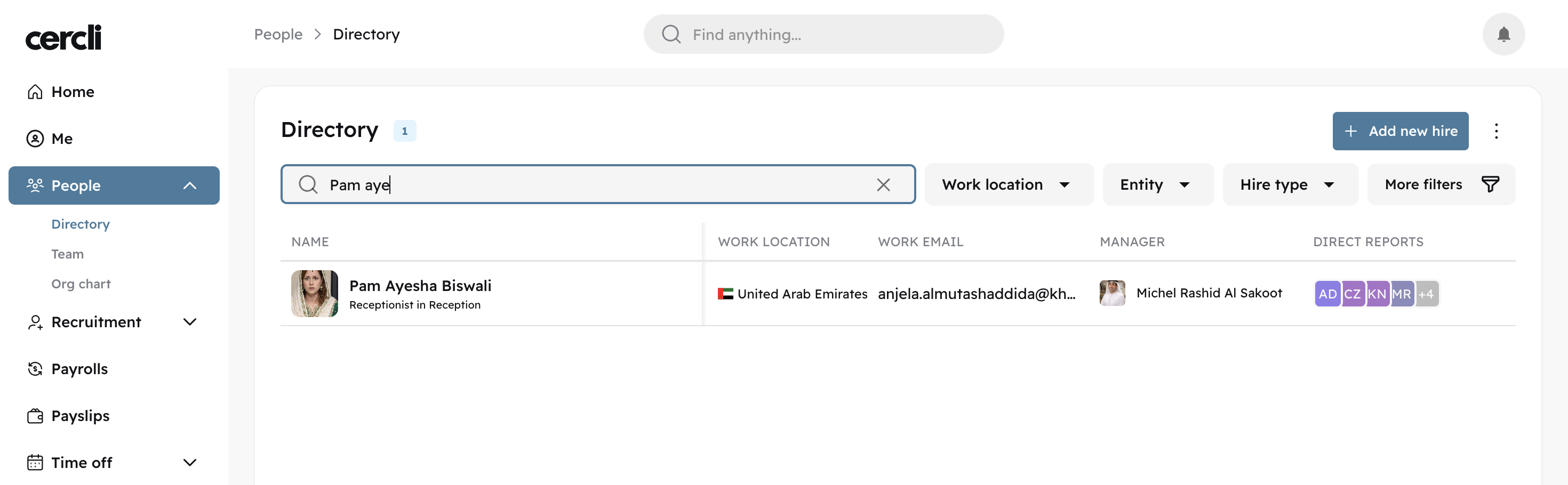
You can find the user by going to either of the three options: Directory, Team, Org chart.
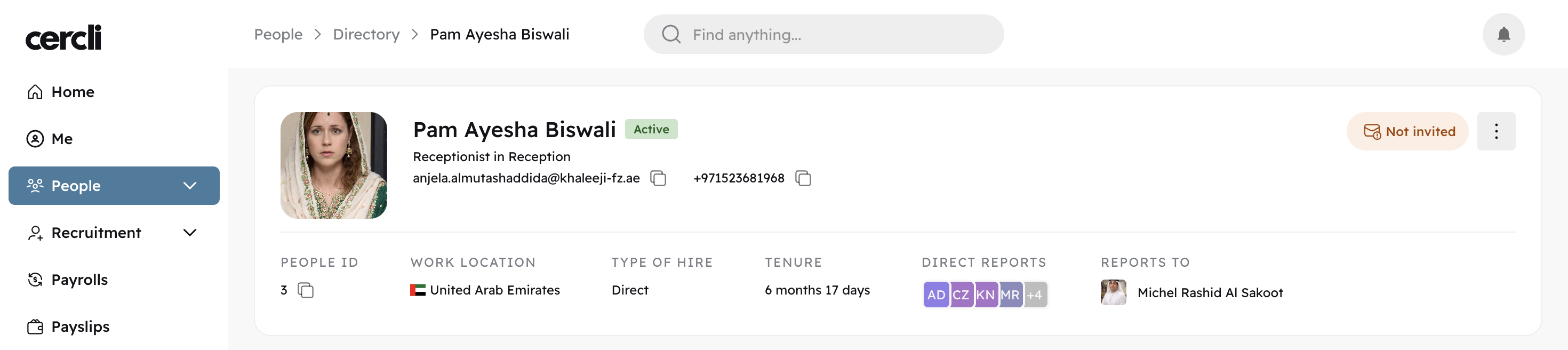
Find the three vertical dots next to the invitation status and click "Change user role"
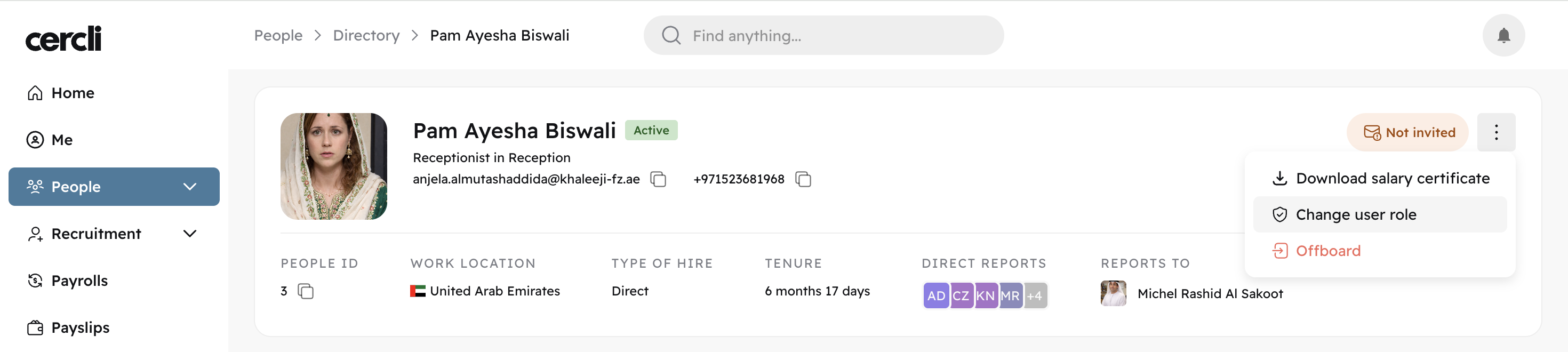
Select the user role: Admin, Team member, Manager
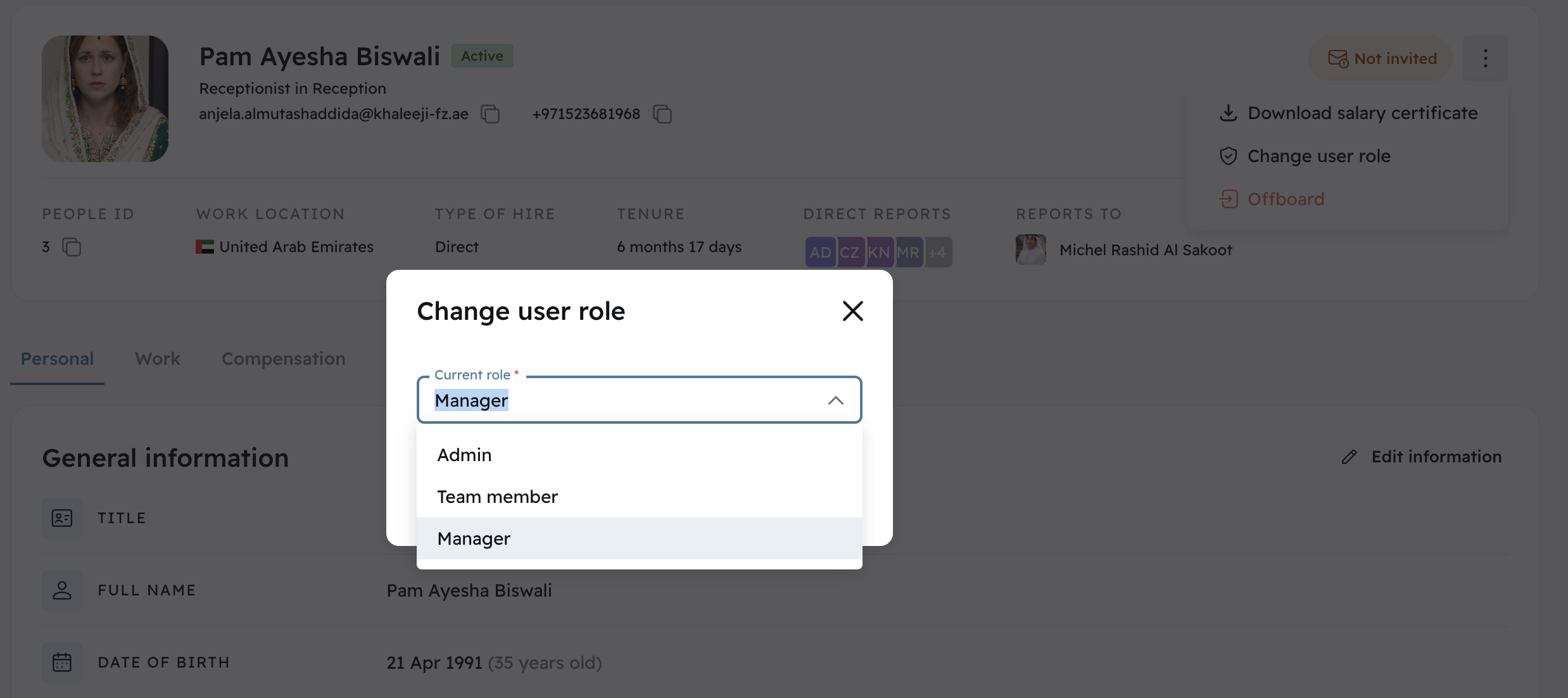
The user can now use the platform according to the permission you granted.
How Can I Change a User's Role from Settings?
Tip: Use this method when changing multiple team members' roles.
On your left side bar, locate "Settings". Go to "User permissions"
Select "Configure role" for the role you'd like to add team members to.
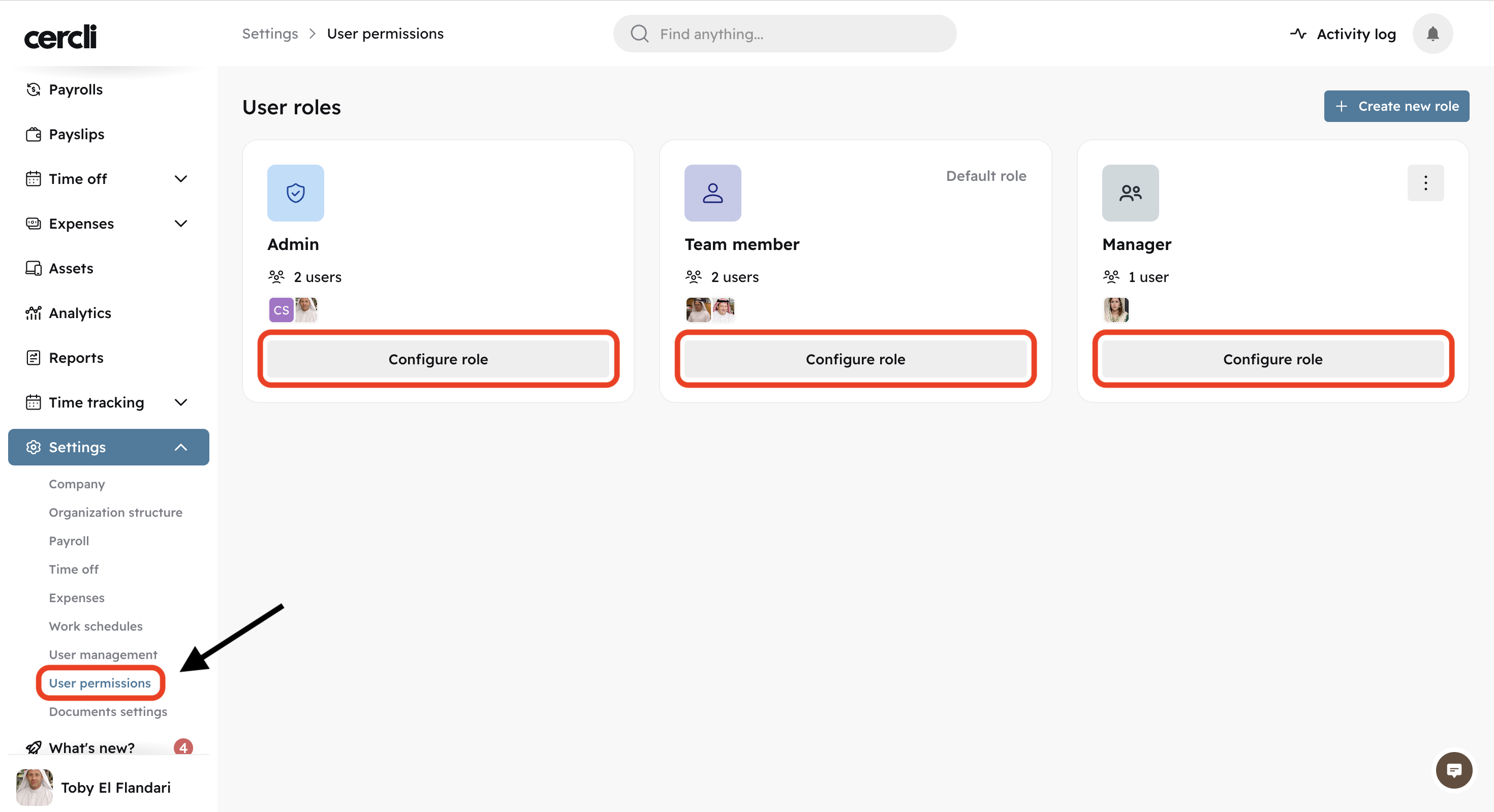
Let's say we want to change Pam's role to Team member instead of Manager.
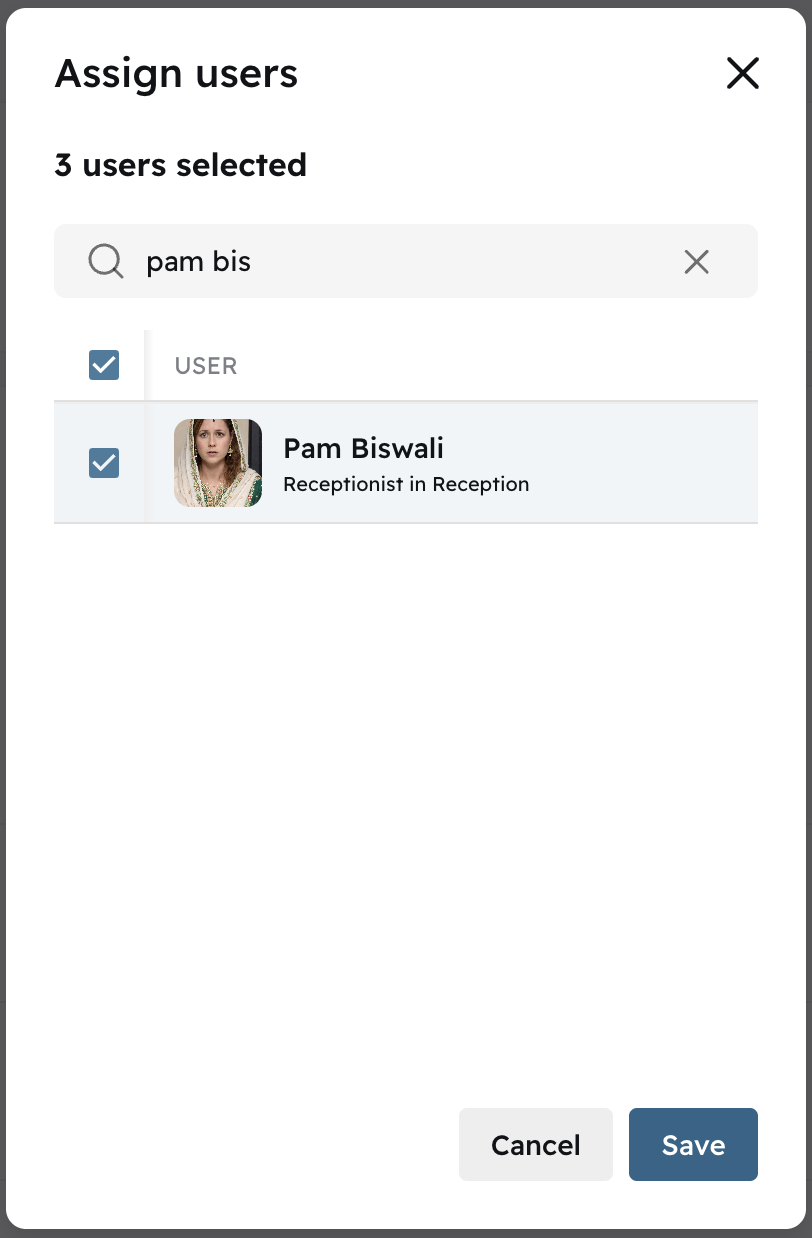
We would click "Configure role" under Team member. Then click on "Edit assigned users"

Find Pam's name and click on "Save" to make the change.
You can select multiple team members