Admin - How to Deactive/Remove or Offboard a Team Member
Last updated: July 29, 2026
TLDR 🍿
To proceed with an offboarding, it is important for the team member to be assigned to a time off policy and have an active contract and compensation.

Offboarding Step by Step
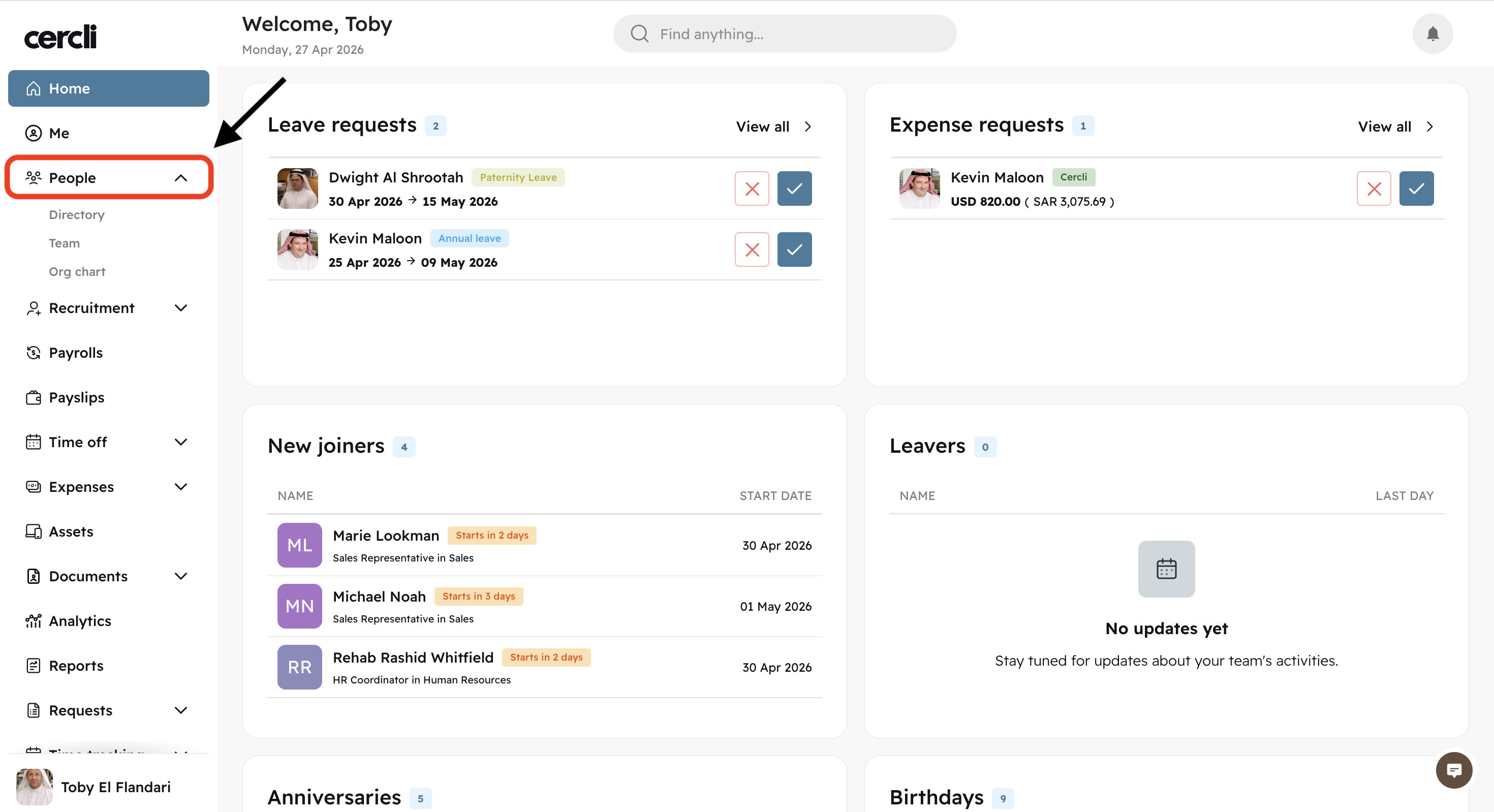
Locate the People tab on the left side bar. You can click on either: Directory, Team, Org chart . The important thing is to open the team member's profile.
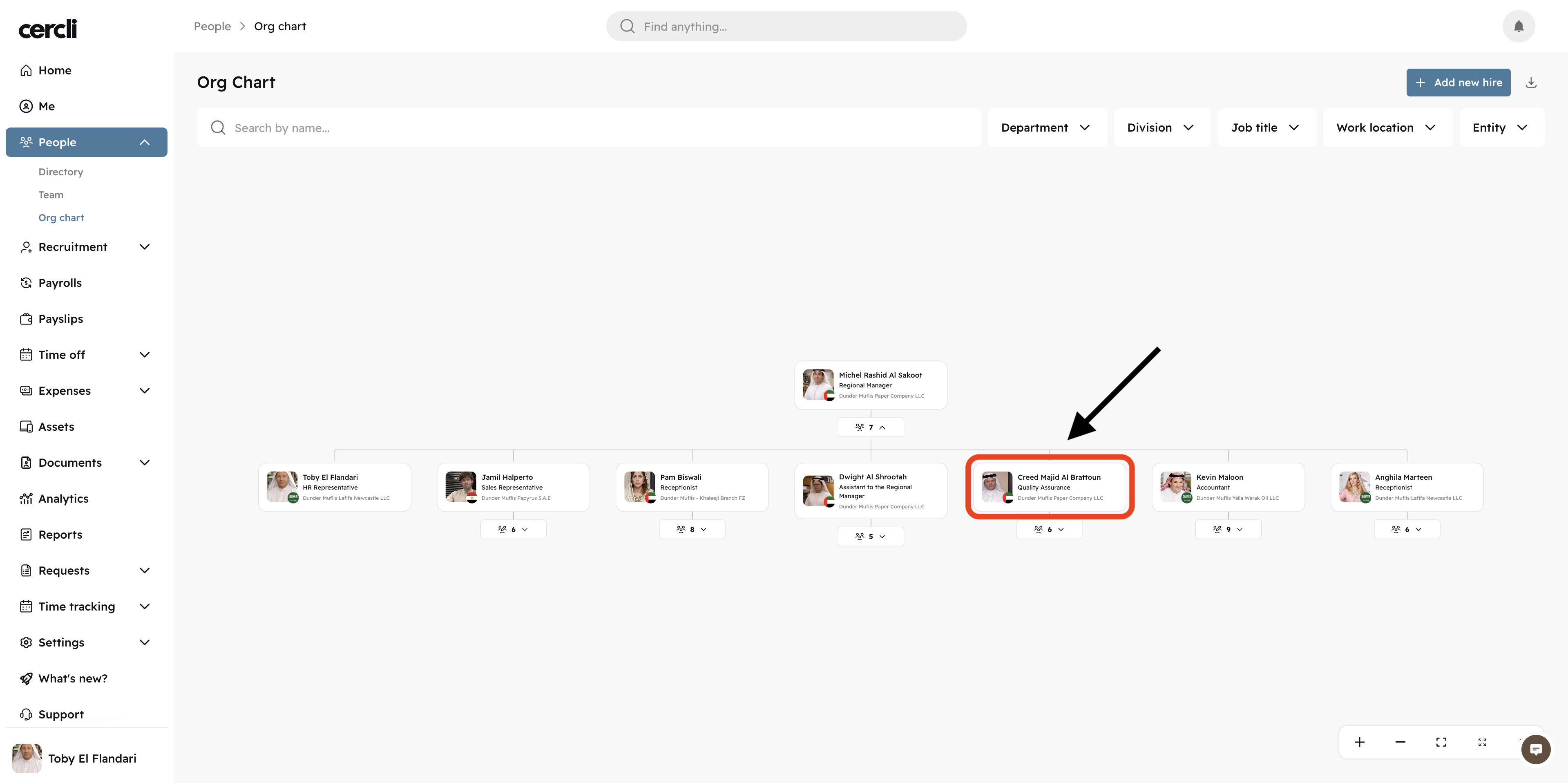
Click on any team member's profile.
On the top right corner of the screen, click on the three vertical dots. And click Offboard.

Offboarding Details
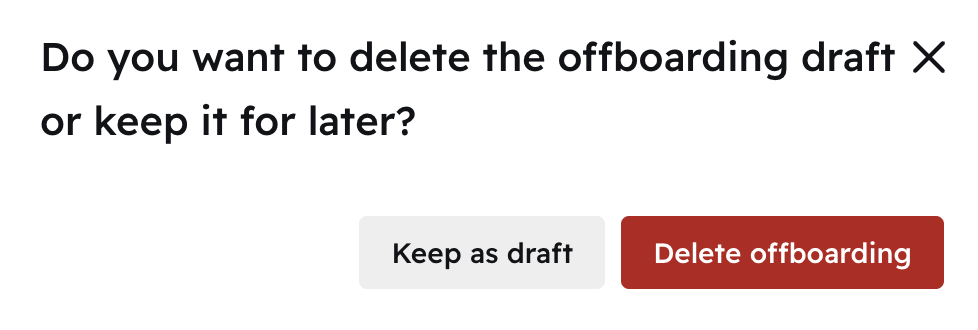
You can come back to the offboarding anytime. Click on the X from the top right of your screen, and select Keep as draft
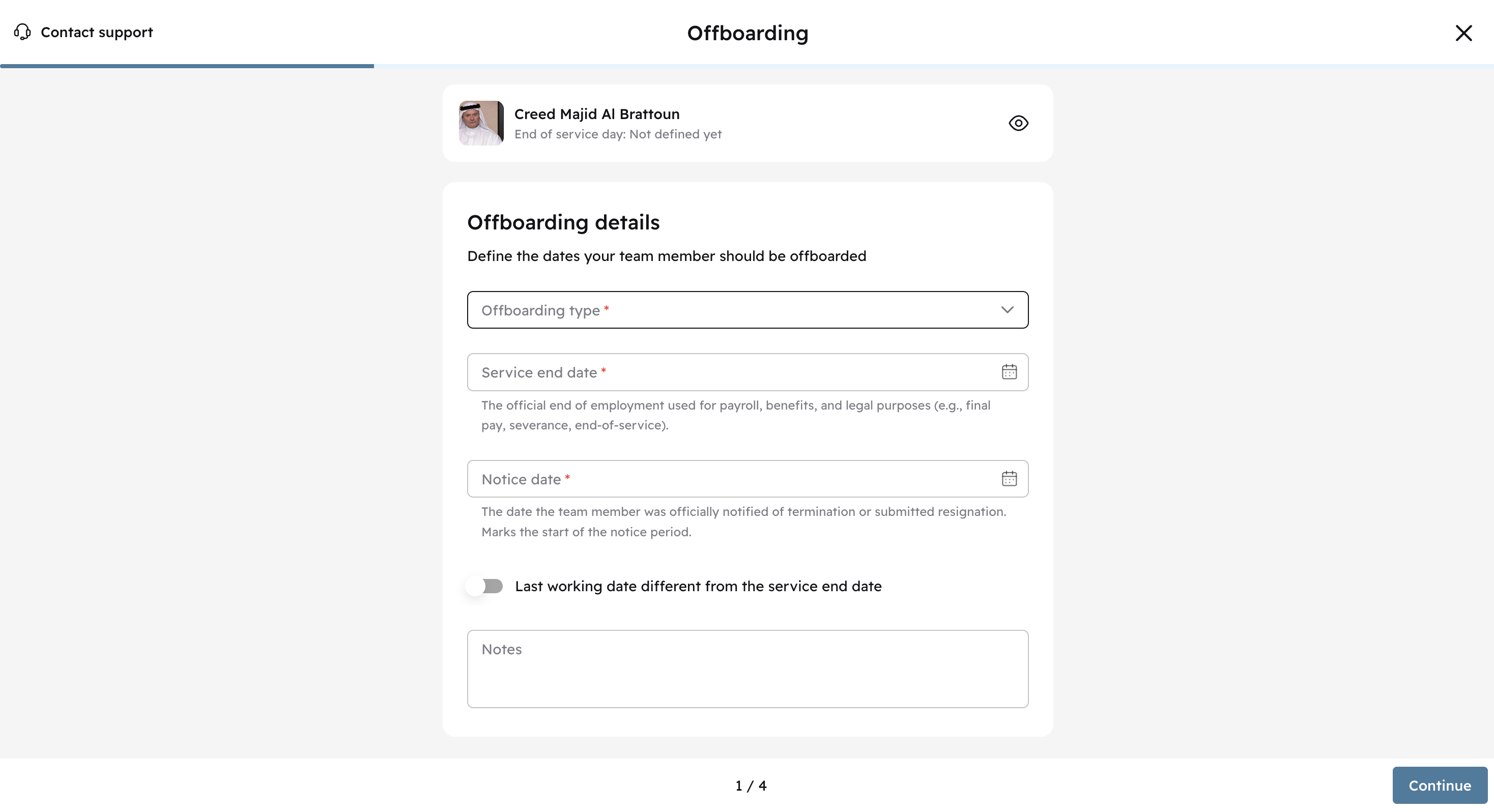
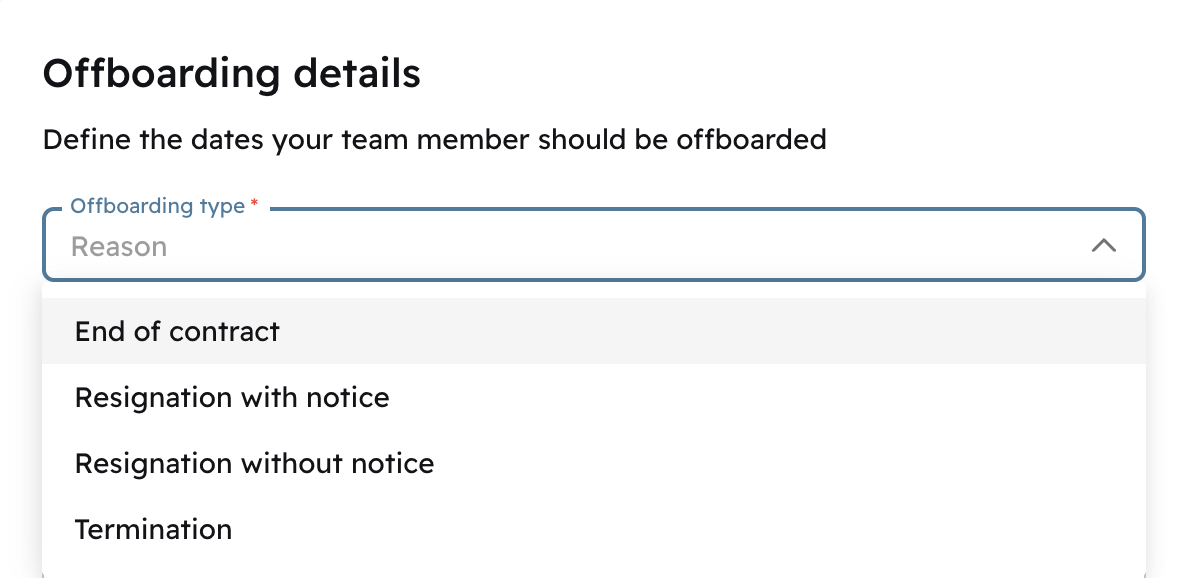
Under Offboarding type. Select a reason from the dropdown.
Select the Service end date (Service end date is contract end date), or click on the toggle switch to select a different date
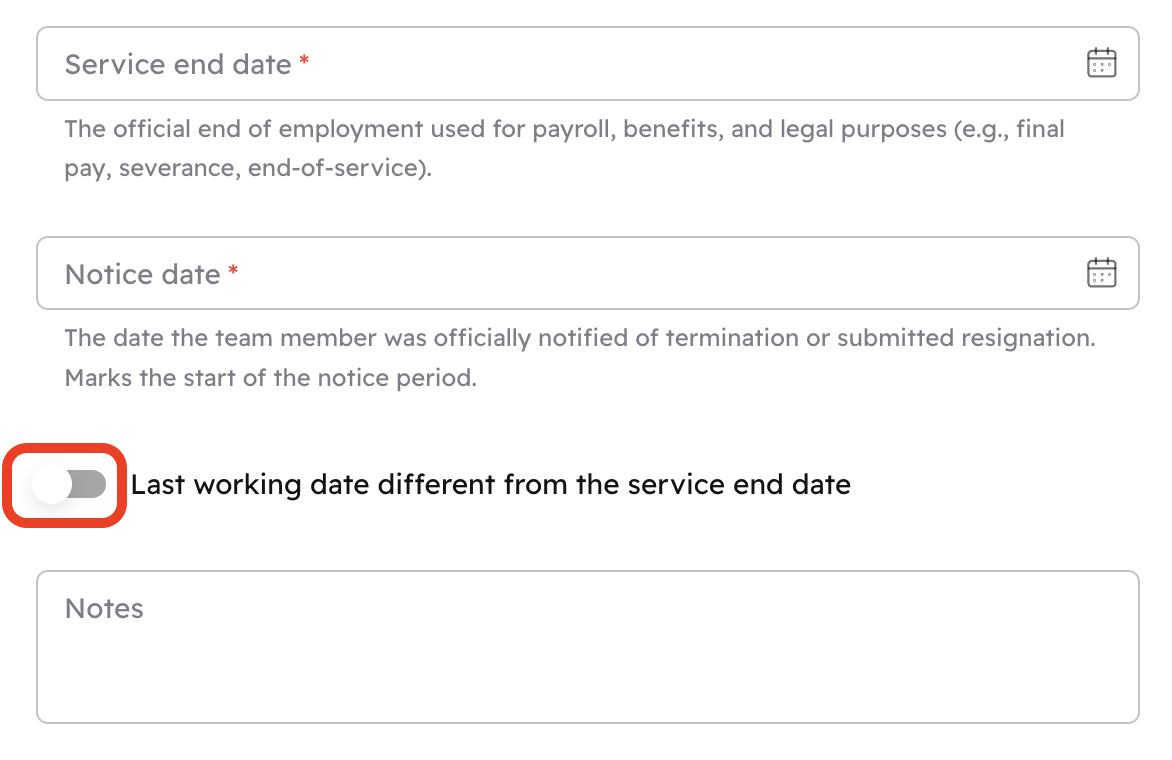
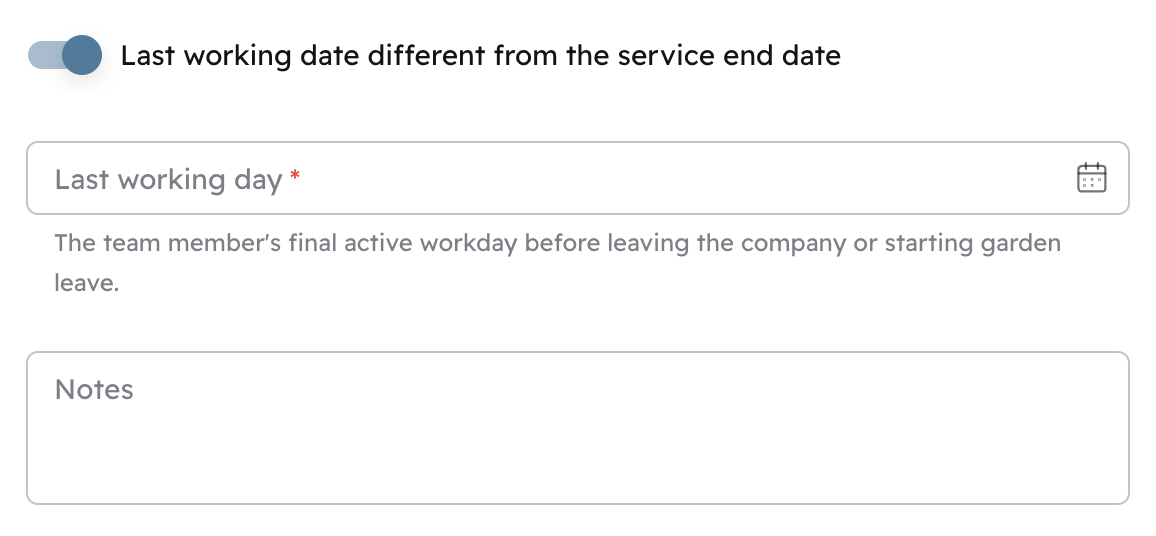
You can use the different service end date as a Garden leave:
Ending before contract end date.
Use it whenever it becomes crucial to officiate the offboarding instantly.
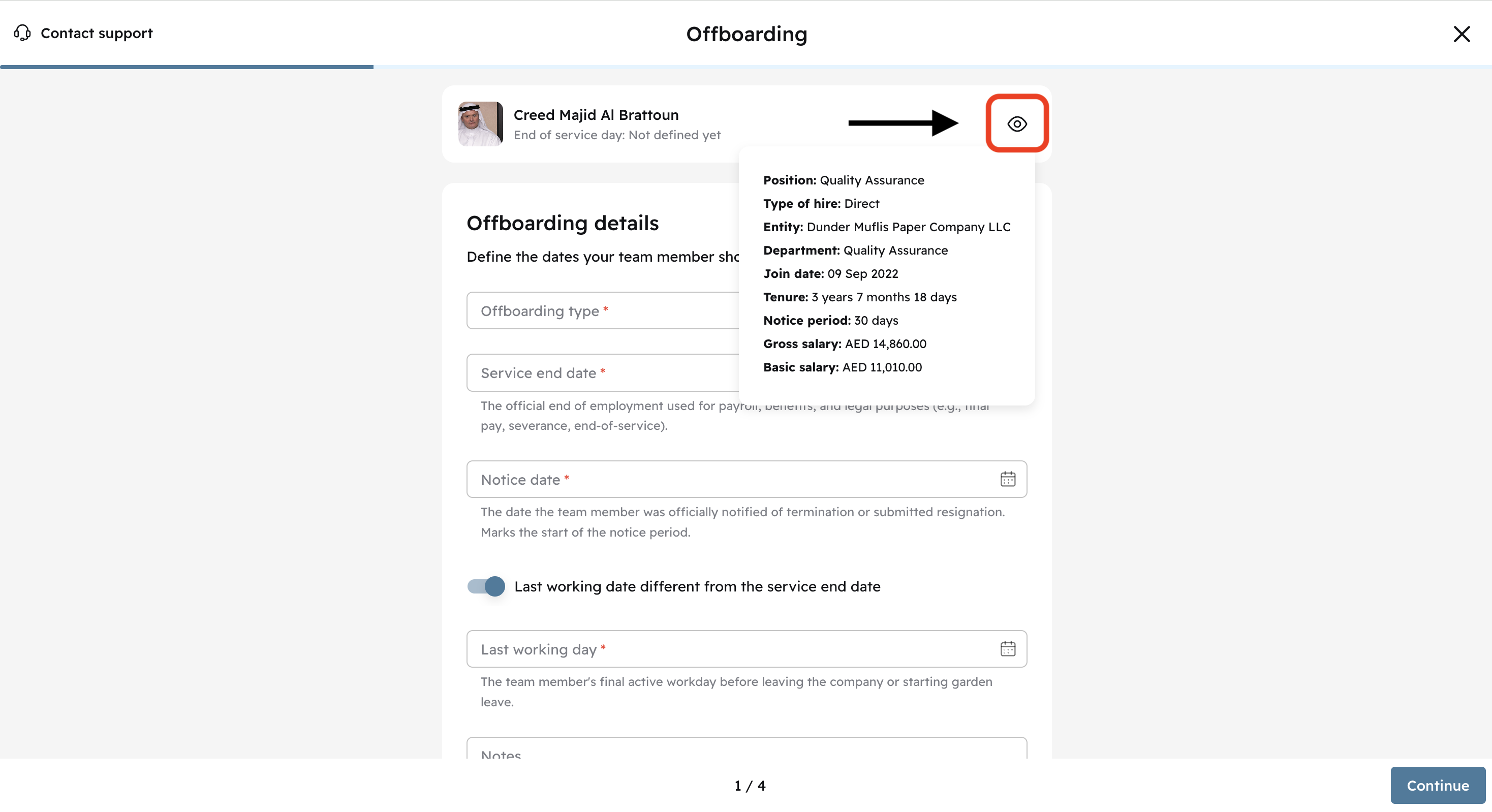
You can view a team member's info summary by clicking on the eye icon. Click Continue after filling out the fields
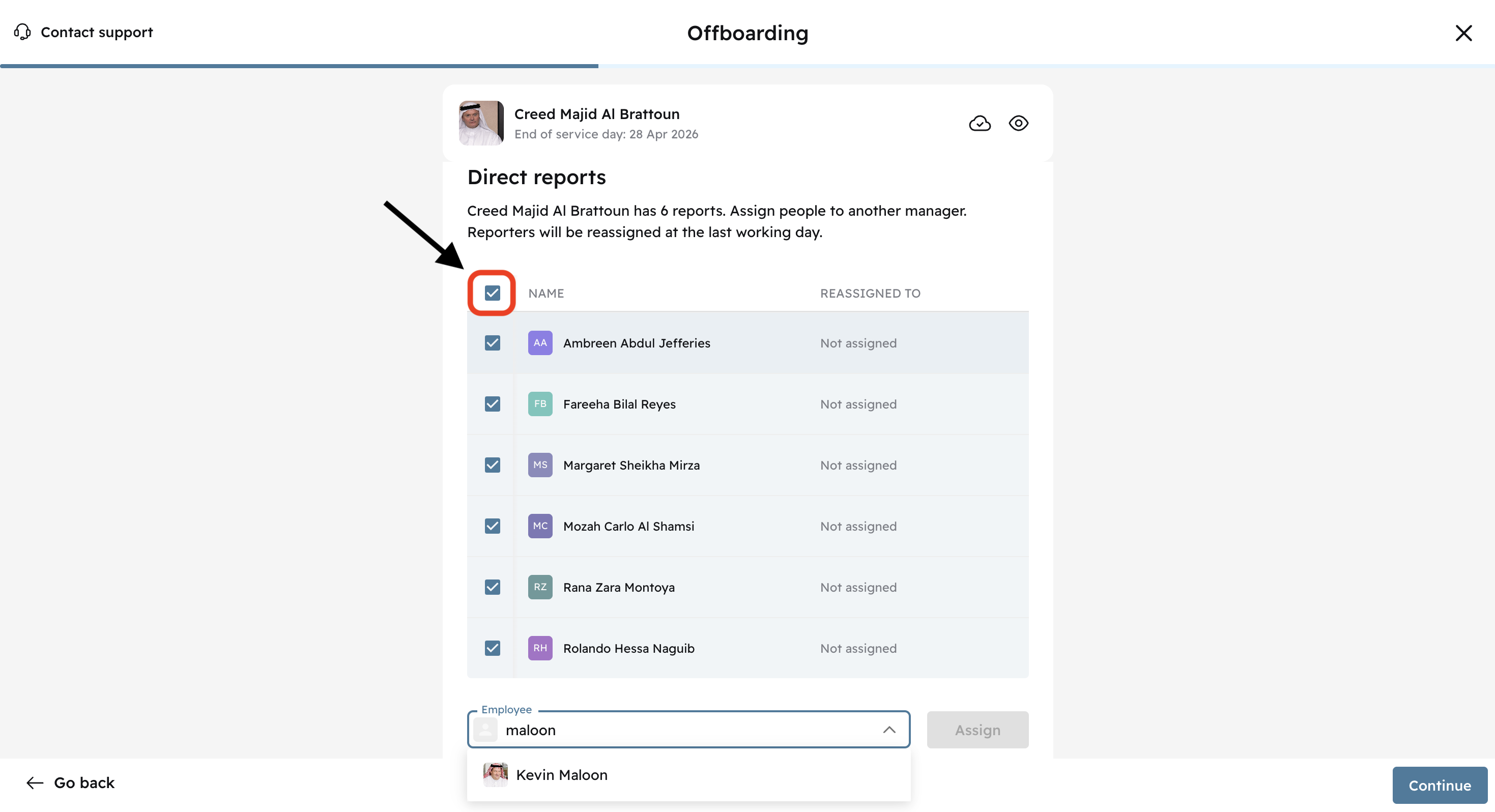
Direct Reports
In this part of the process, if the team member being offboarded had direct reports, you can assign them to another team member. Type the new manager's name.
This will be the person who will approve their requests.
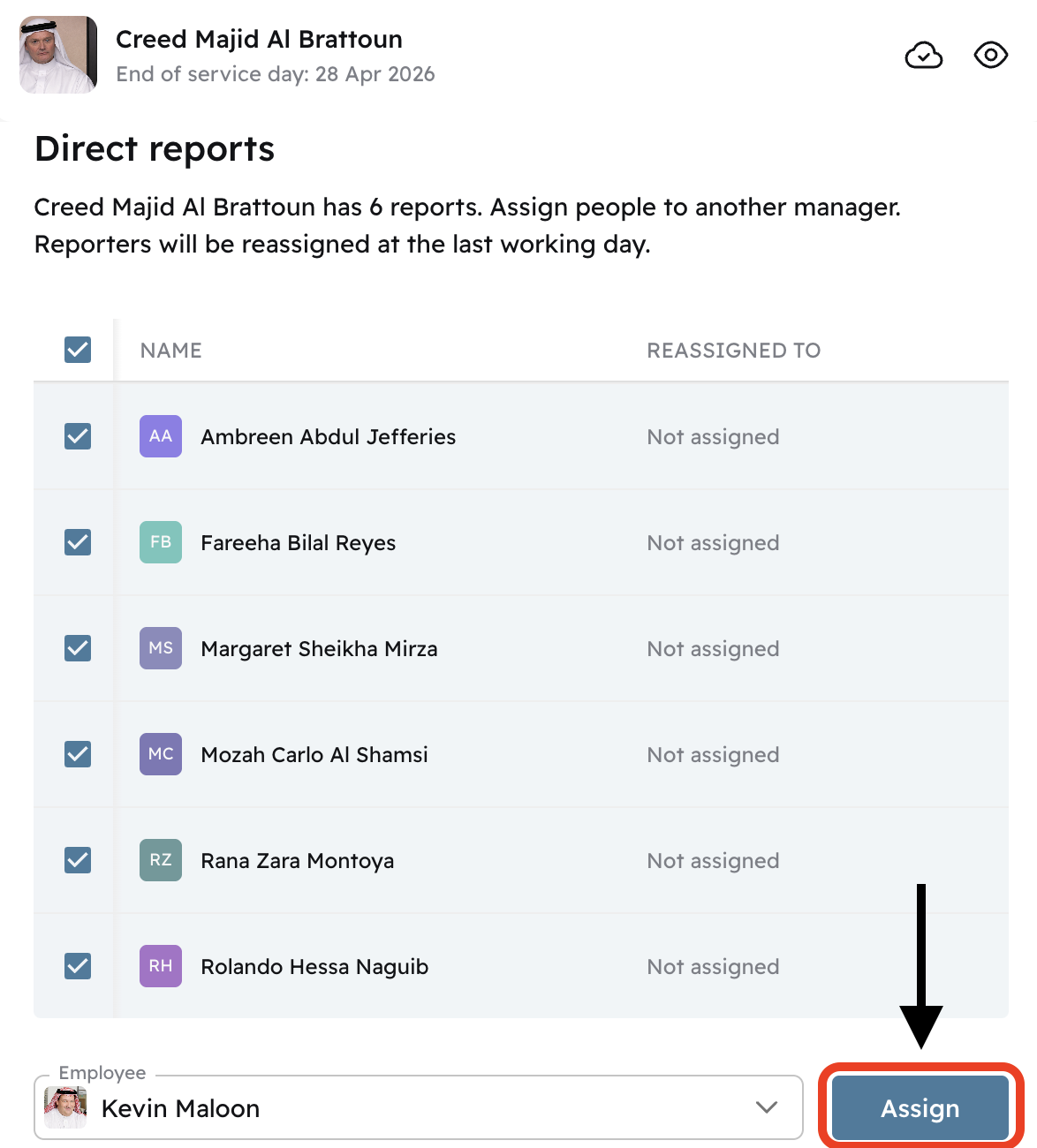
Click Assign
Leave Balances
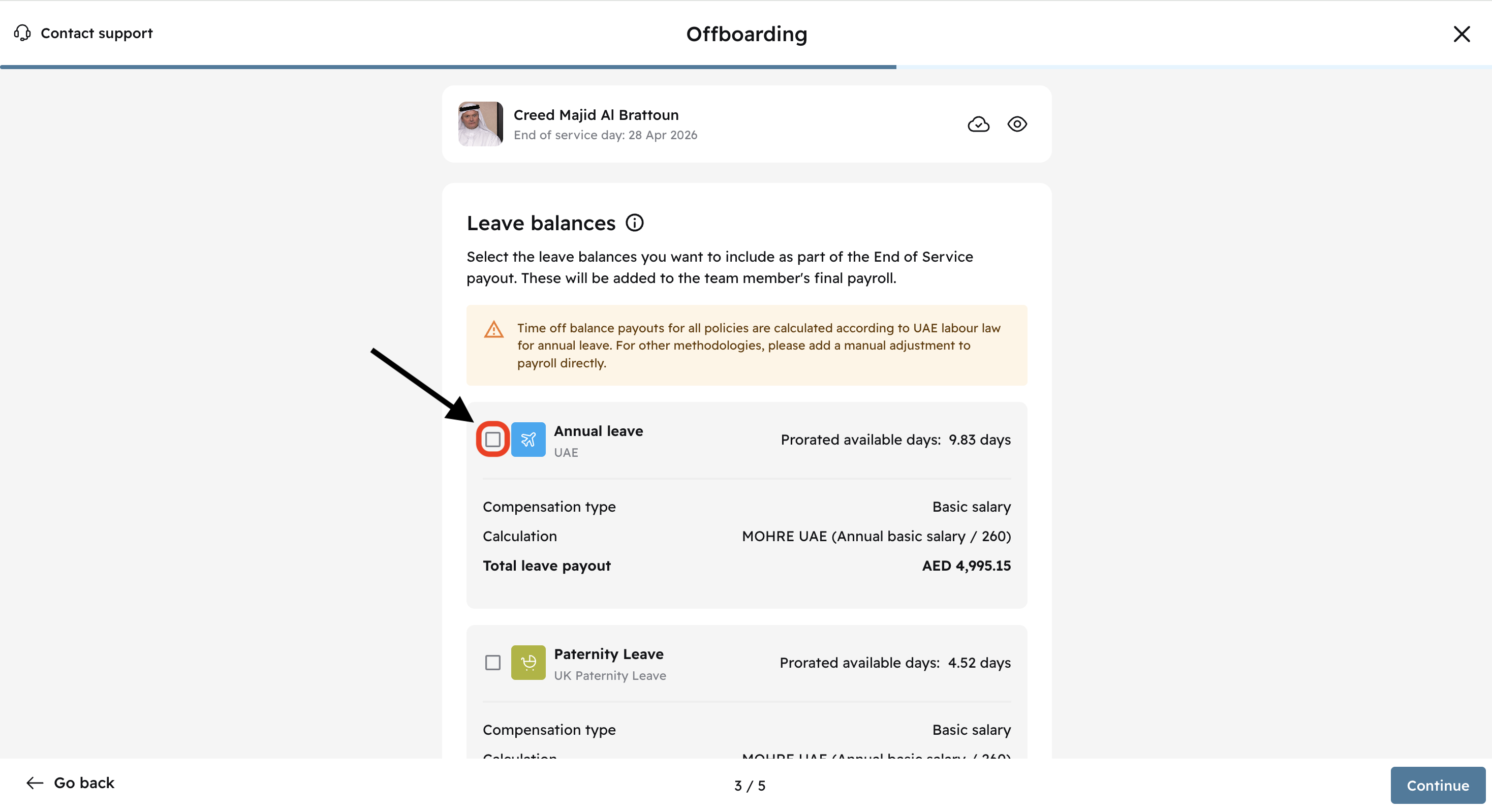
Cercli allows you to include time off balances for the final team member payout.
Click on the checkbox to include the Annual leave category. Click Continue
Annual Leave Calculations
In the UAE, only Annual leave is eligible for payout and the way it is calculated depends on 2 things:
employment type 'employee'
jurisdiction of the hiring entity
For employees under UAE mainland (MOHRE) calculations are based on calendar days and basic salary.
If their tenure is less than 1 year:
Accrued days = 2 × full months of service
Daily rate = Basic monthly salary ÷ 30
Payout = Daily rate × unused accrued days
If their tenure is 1 year or more: formulas
Accrued days = (30 ÷ 12) × full months of service
Daily rate = Basic monthly salary ÷ 30
Payout = Daily rate × unused accrued days
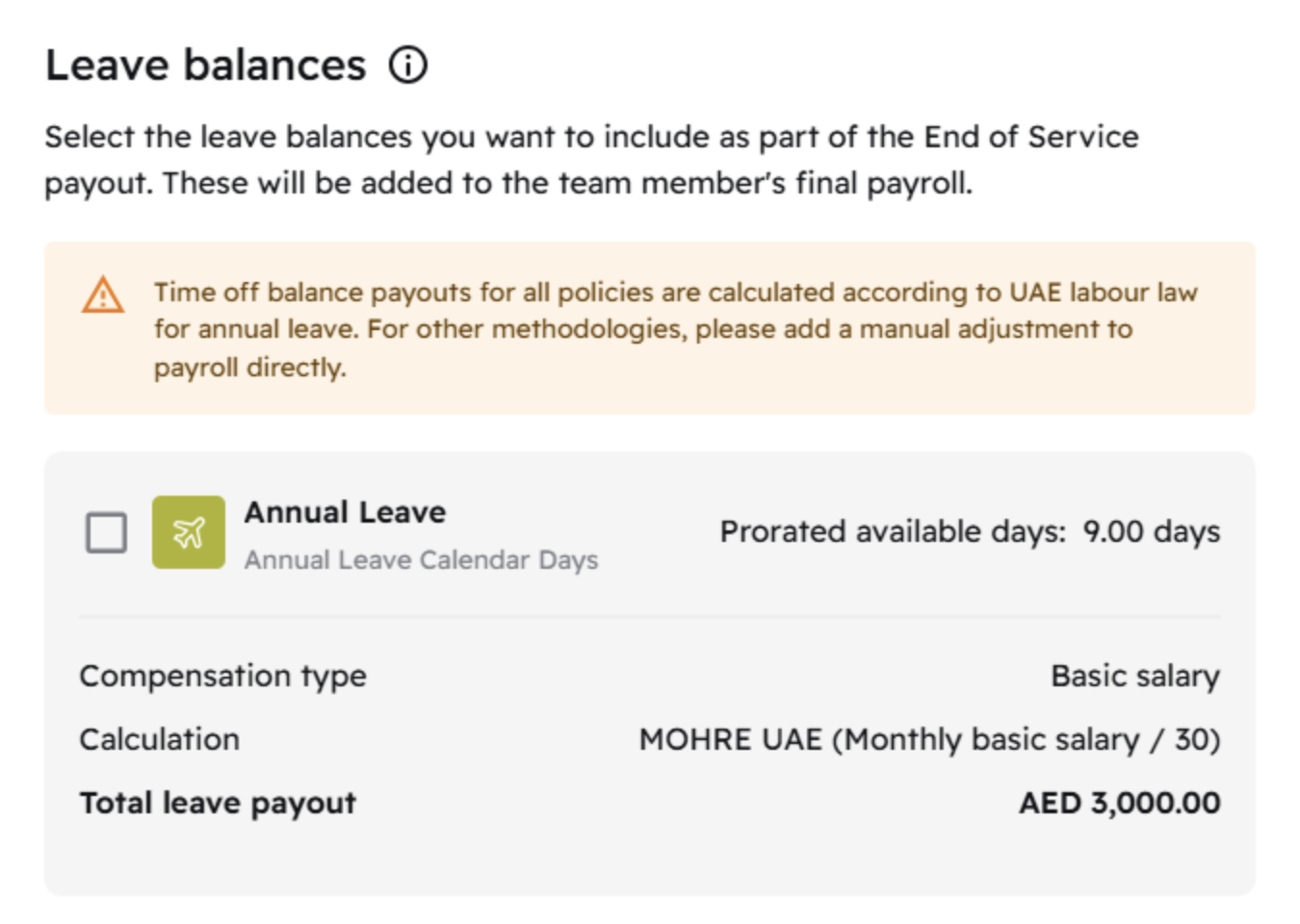
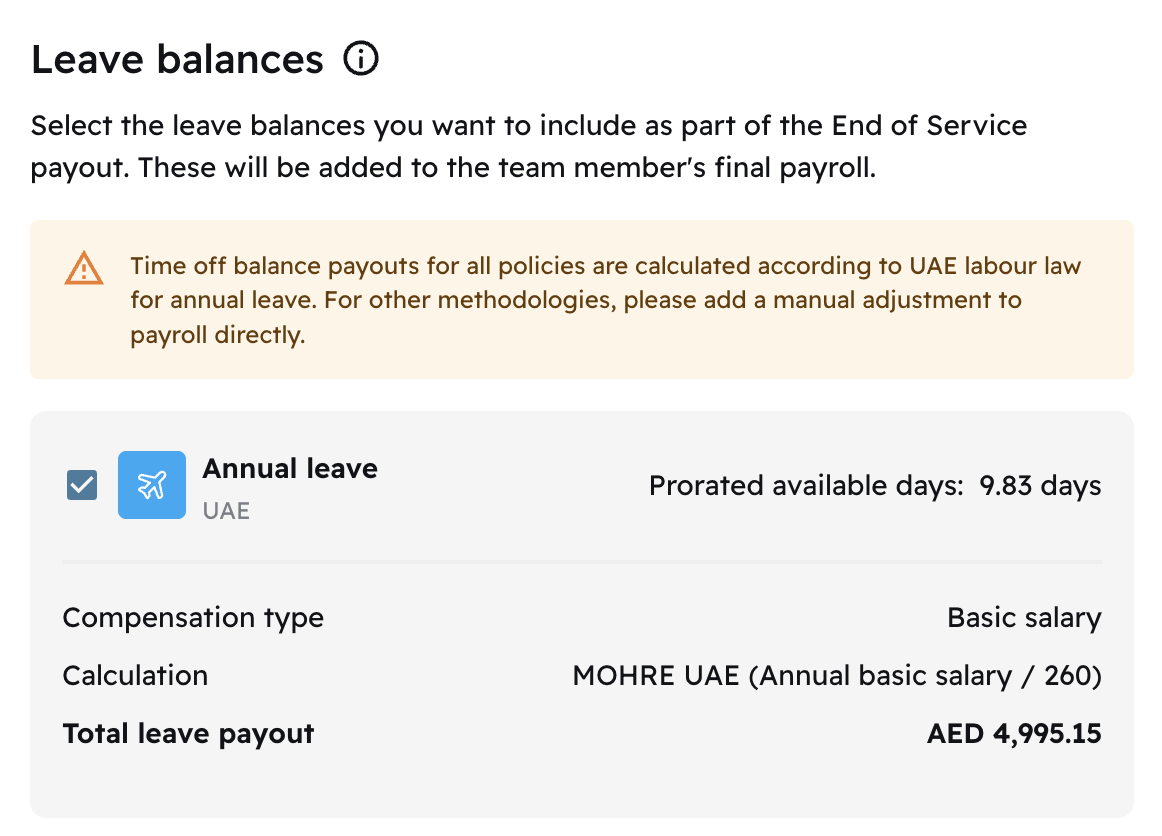
What if I don't want to follow UAE labour law?
You can uncheck the box, and add a payroll adjustment first.
What if I'm not using Cercli's time off module?
You can do the calculations separately and add it.
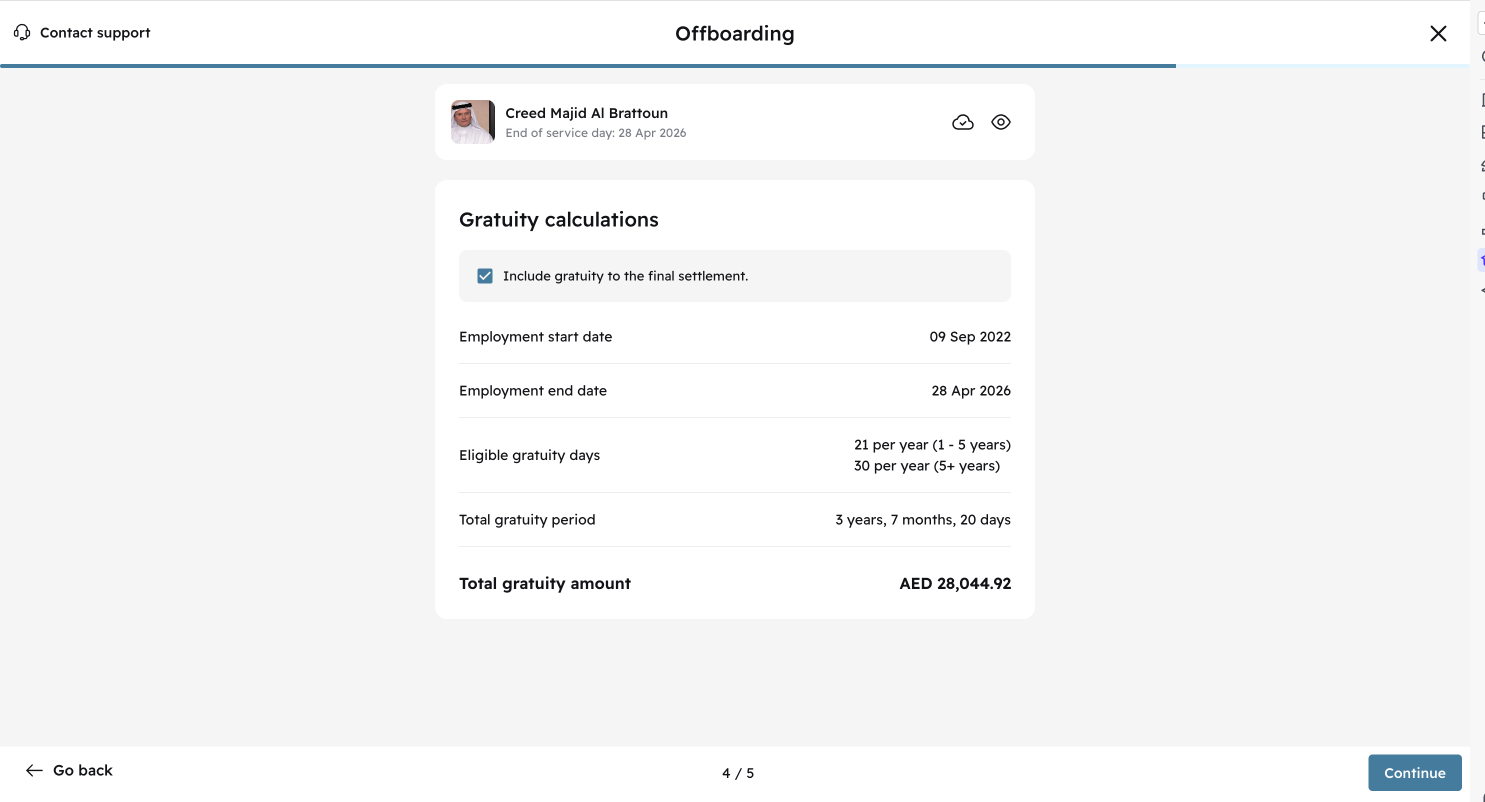
Gratuity Calculations
You can view calculation details here.
GCC nationals do not accrue for gratuity. This step will be skipped for them in the offboarding workflow.
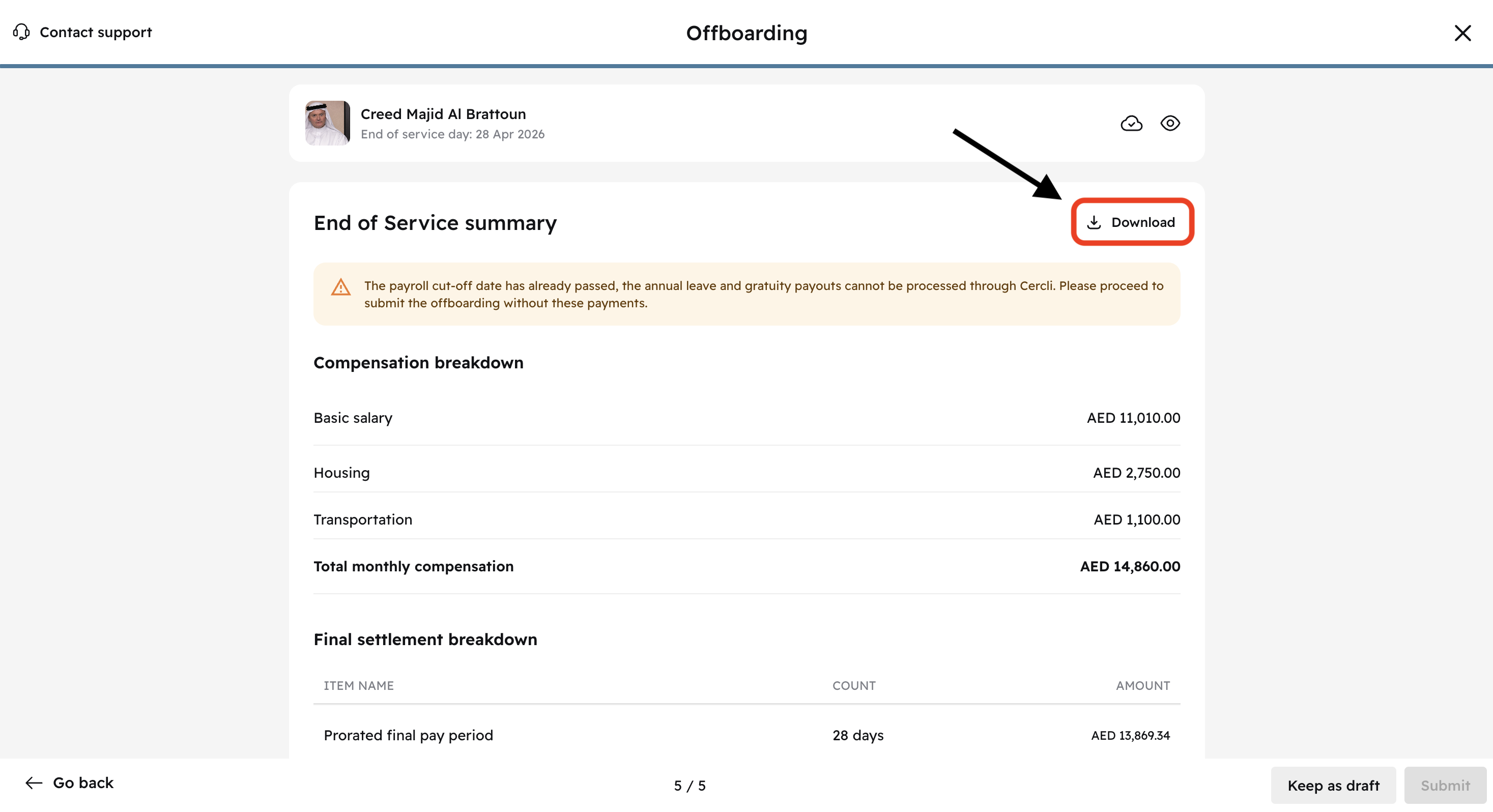
End of Service Summary
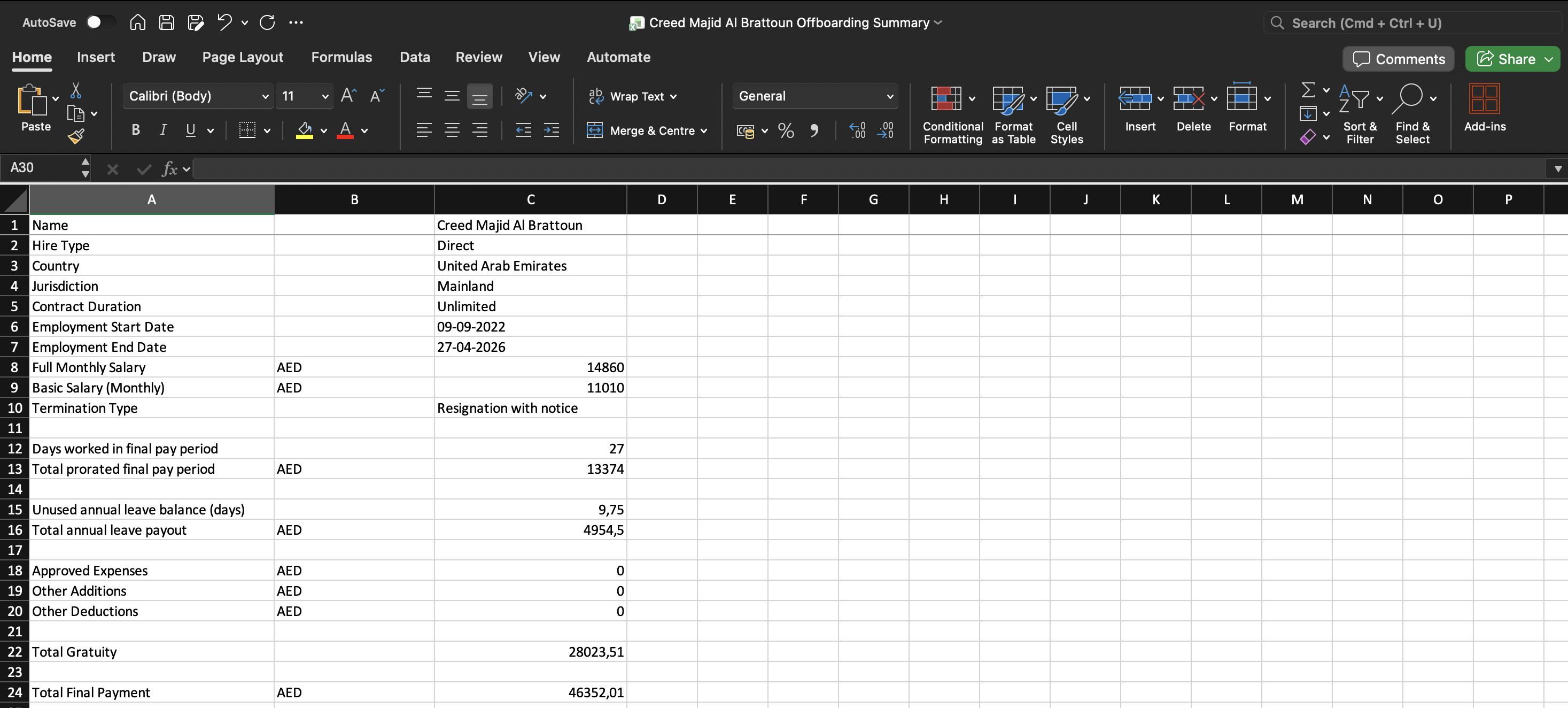
You can view all the calculation details here. You can Download it as well by clicking on the Download button on the top right of your screen.
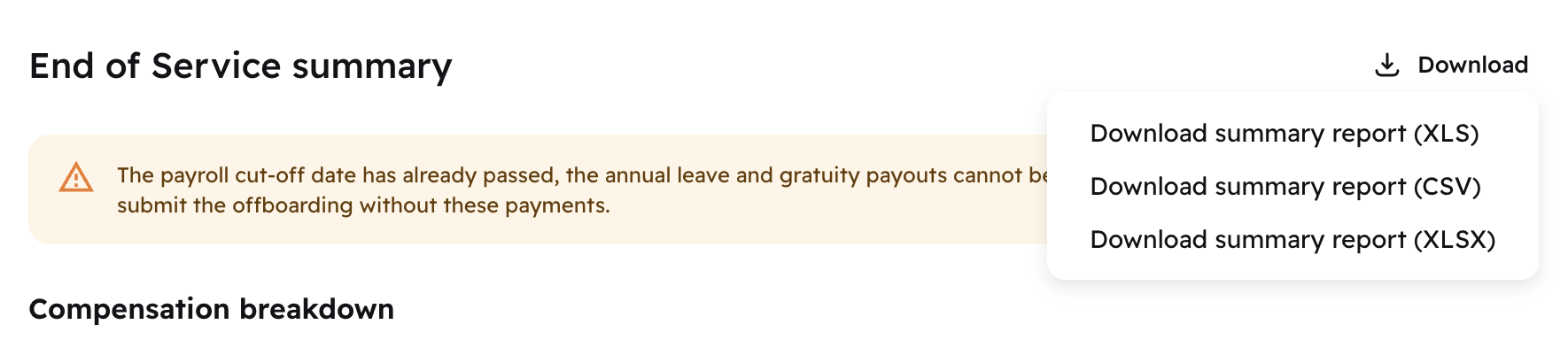
Download as an XLS, CSV, or XLSX
Below you can see an example of an XLSX breakdown.
Scroll all the way down to find the Acknowledge text. Click on the checkbox before the word "confirm".
You won't be able to submit the offboarding until you tick the checkbox.

Click Submit