Admin - How to Create a New Hire
Last updated: July 1, 2026
TLDR 🍿 Where to find the + Add new hire button
Creating a New Hire Step by Step
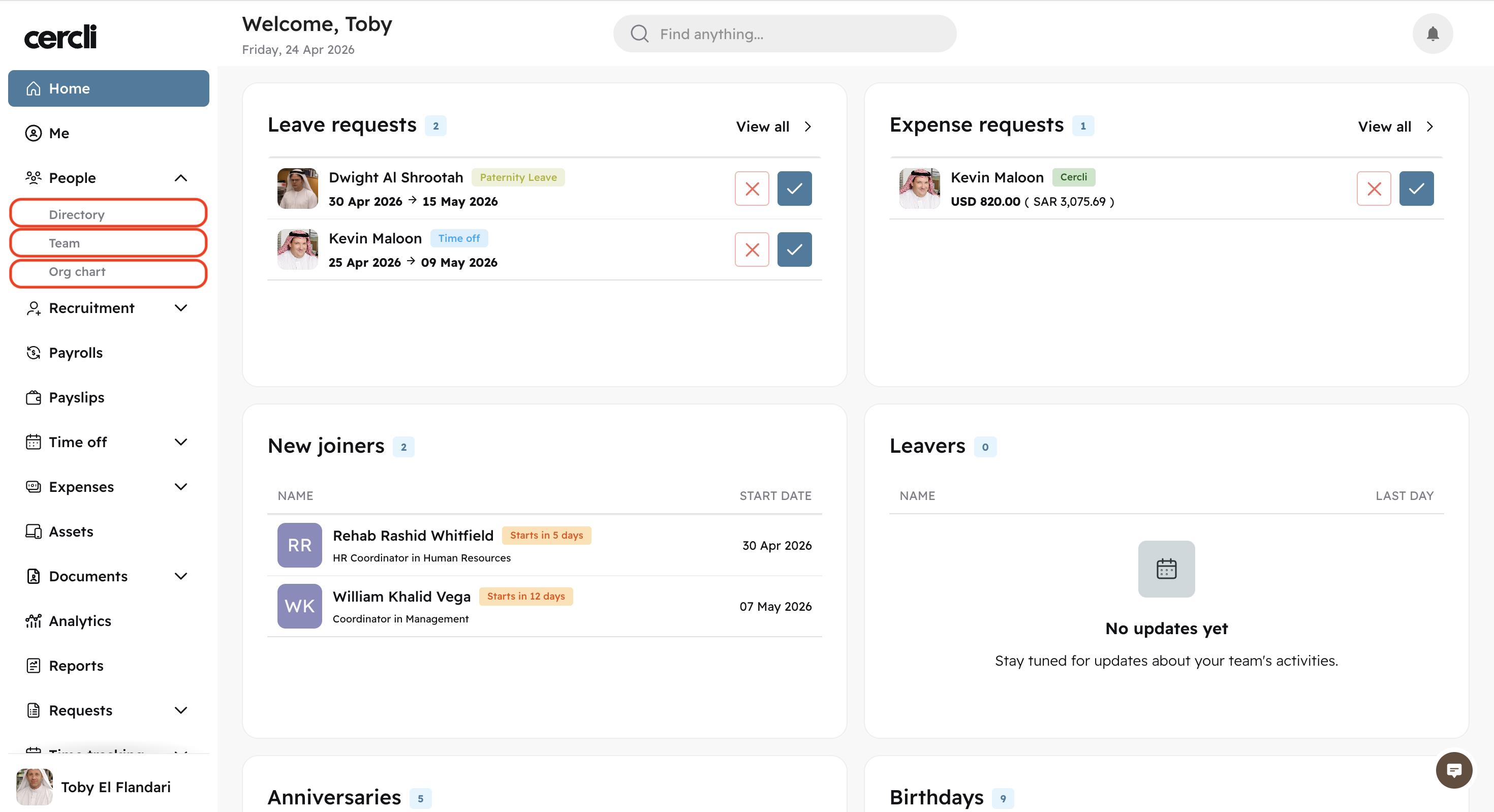
On the left navigation bar, go to People
Then select either of the three tabs: Directory, Team, Org chart
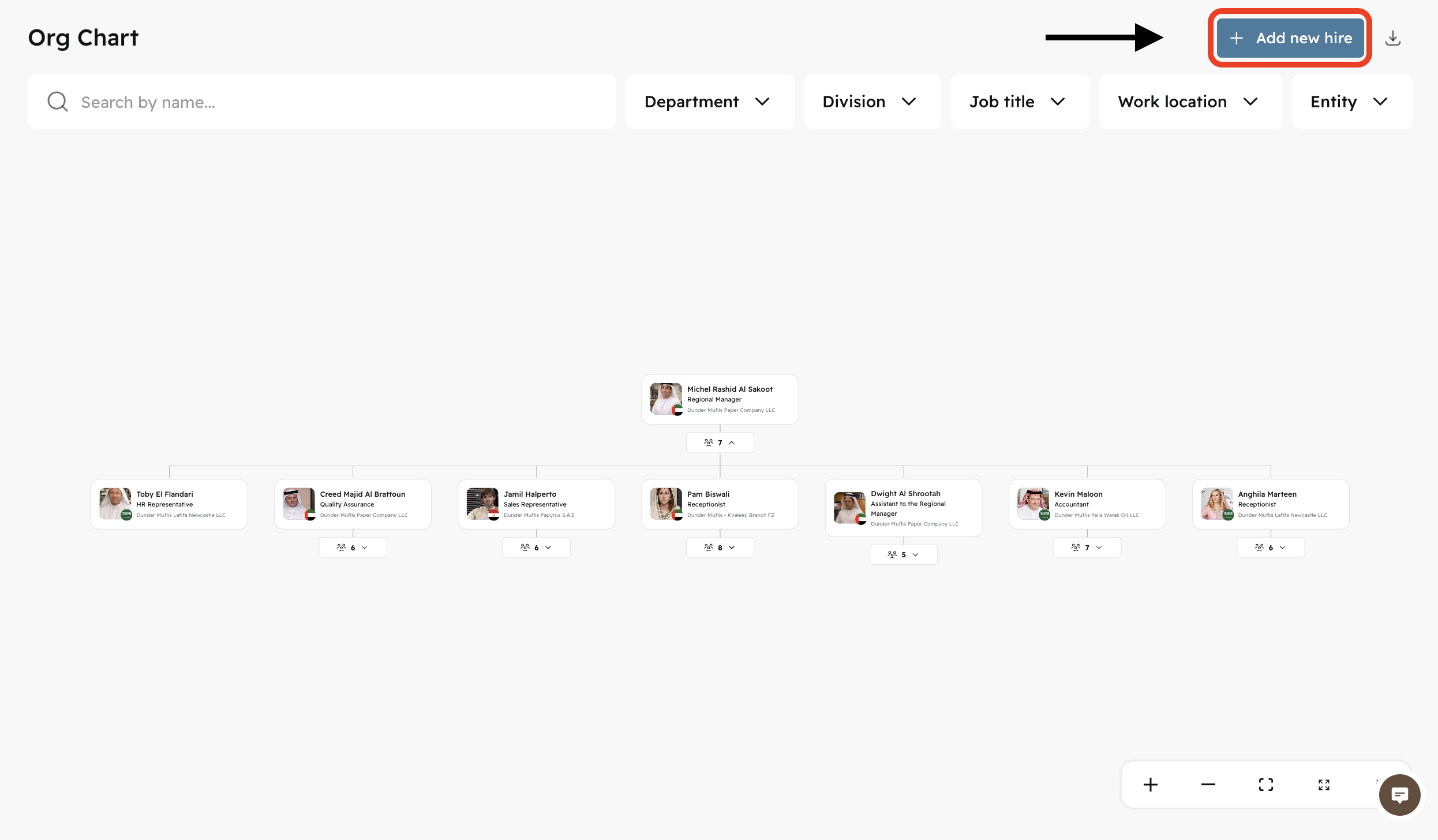
On the top right corner of either of the three tabs, click on + Add new hire
There are 8 steps, all covered in this article.
Select a hire type - 1/8
Direct employee - Local payroll where you have your own legal entity
Contractor - Remote payments where you don't have your own legal entity
EOR (Employer of Record) - Local payroll where you don't have your own legal entity
Press Continue
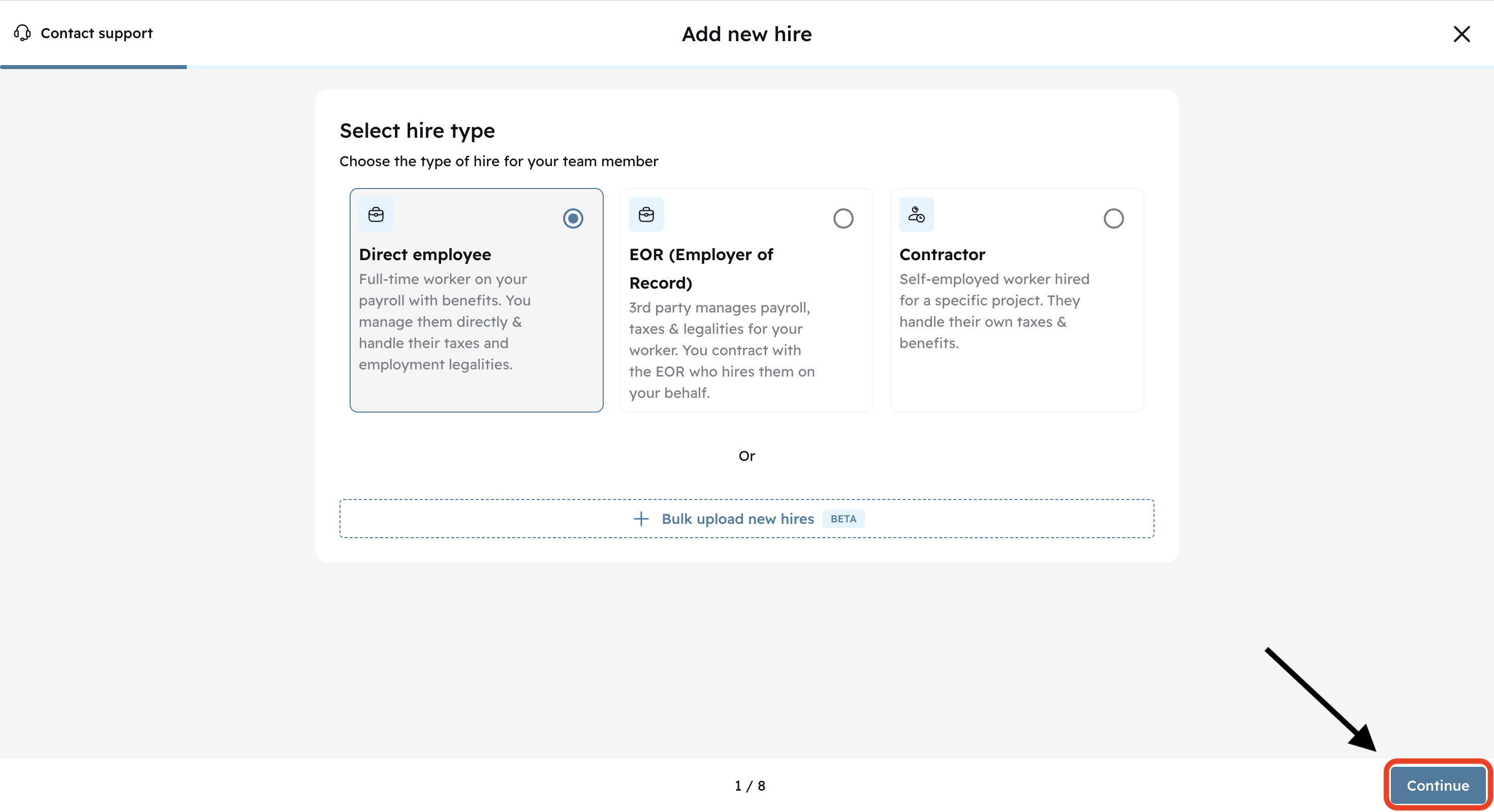
Click Continue for the next steps.
Specify Work Location - 2/8
Add the team member's work country, city, and timezone
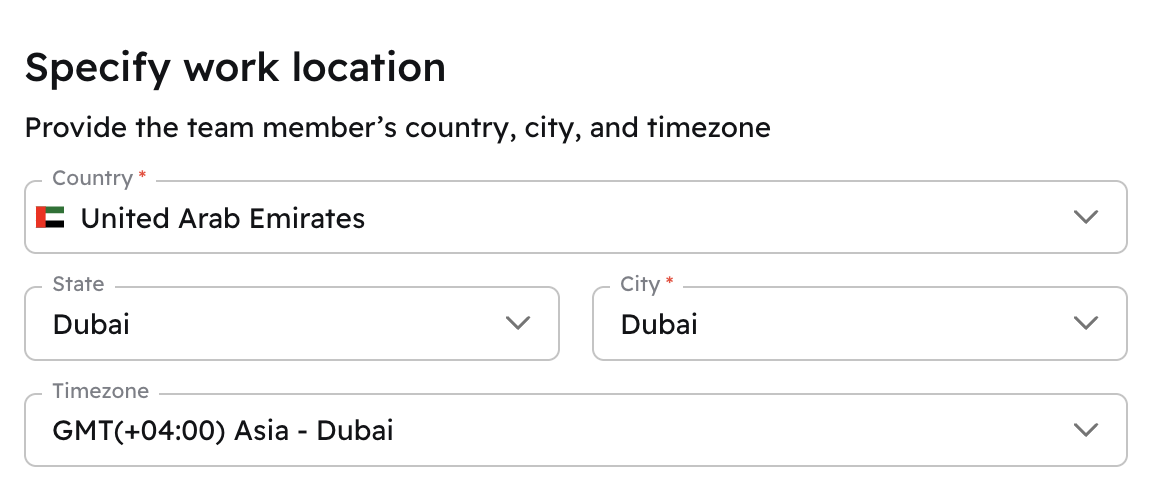
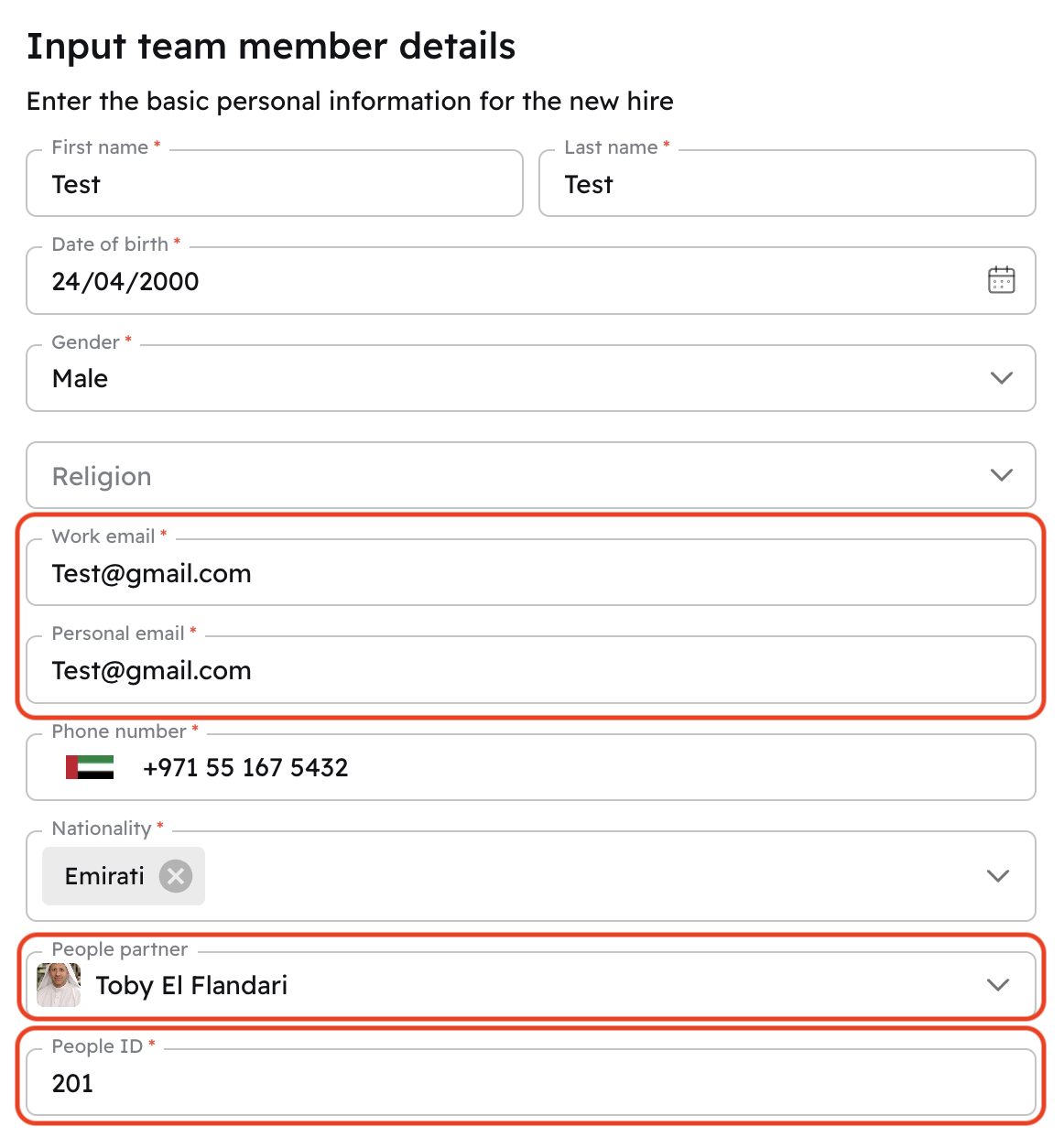
Input Team Member Details - 3/8
If the new hires don't have a work email yet, add their personal email in both the
Work emailandPersonal emailfields.People IDis the employee number. It is generated automatically based on the next available number in the sequence.
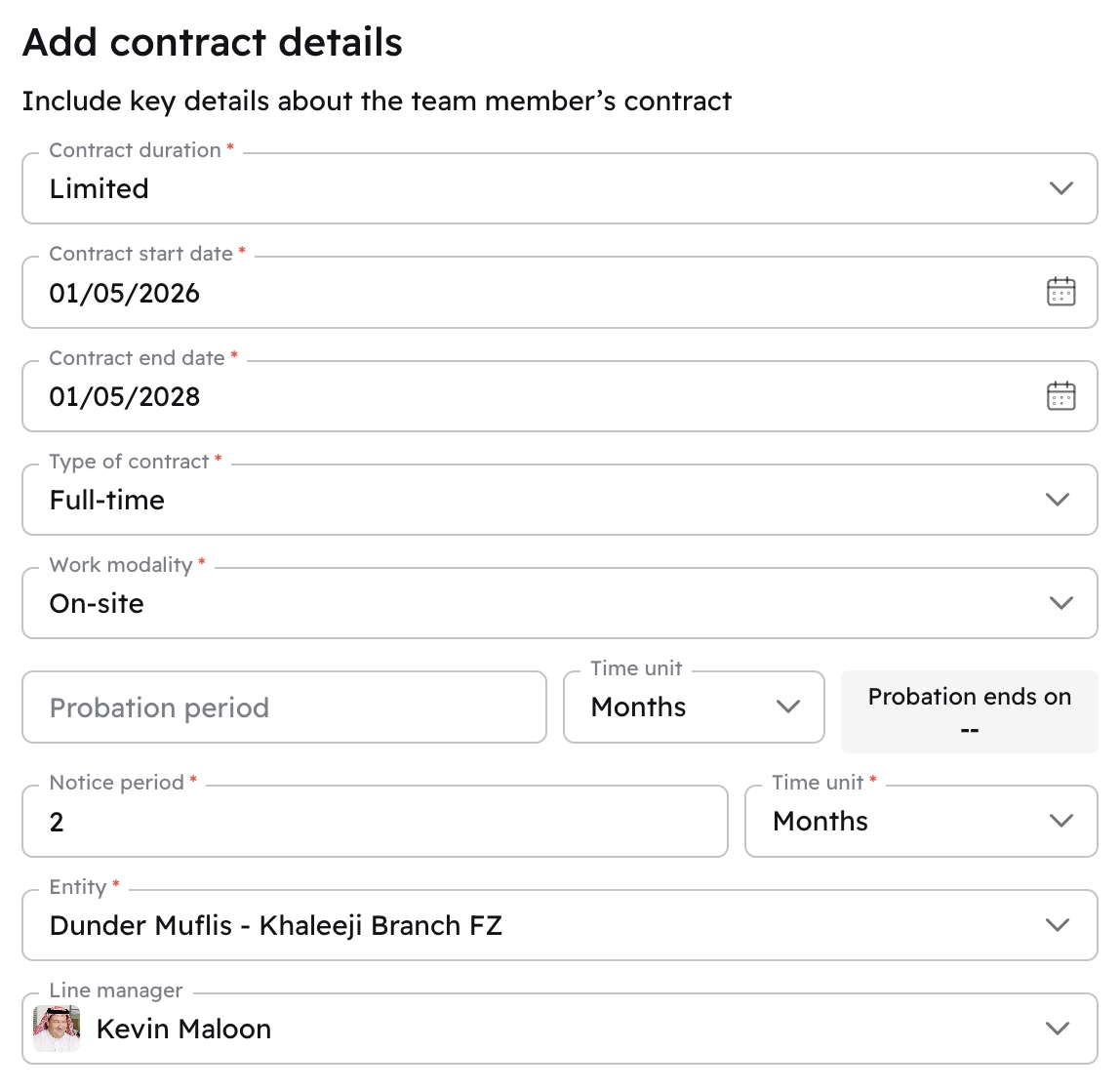
Add Contract Details - 4/8
Select
Contract durationasUnlimitedorLimited. Limited contacts will include theContract end date.Select a
Type of contract:Full time,Intern,Part-time,TemporarySelect a
Work modality:Hybrid,On-site,RemoteChoose a
Notice periodAssign the new hire to an
entityAnd assign a
Line manager
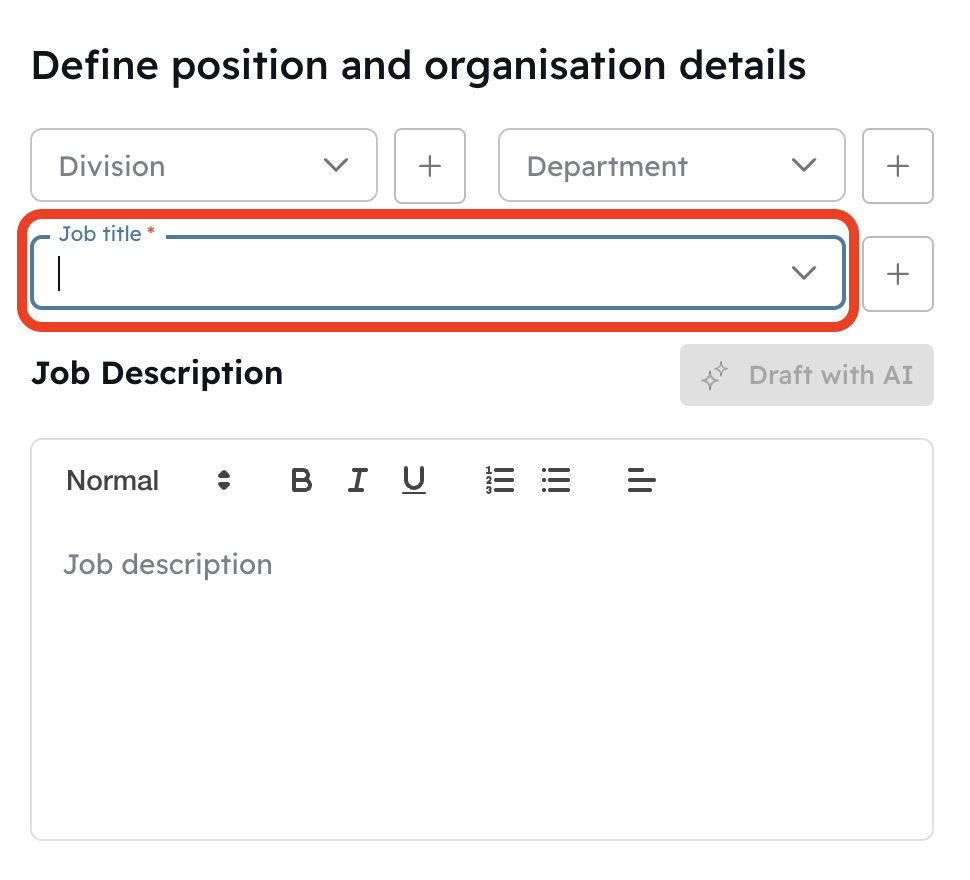
Define Position and Organisation Details - 5/8
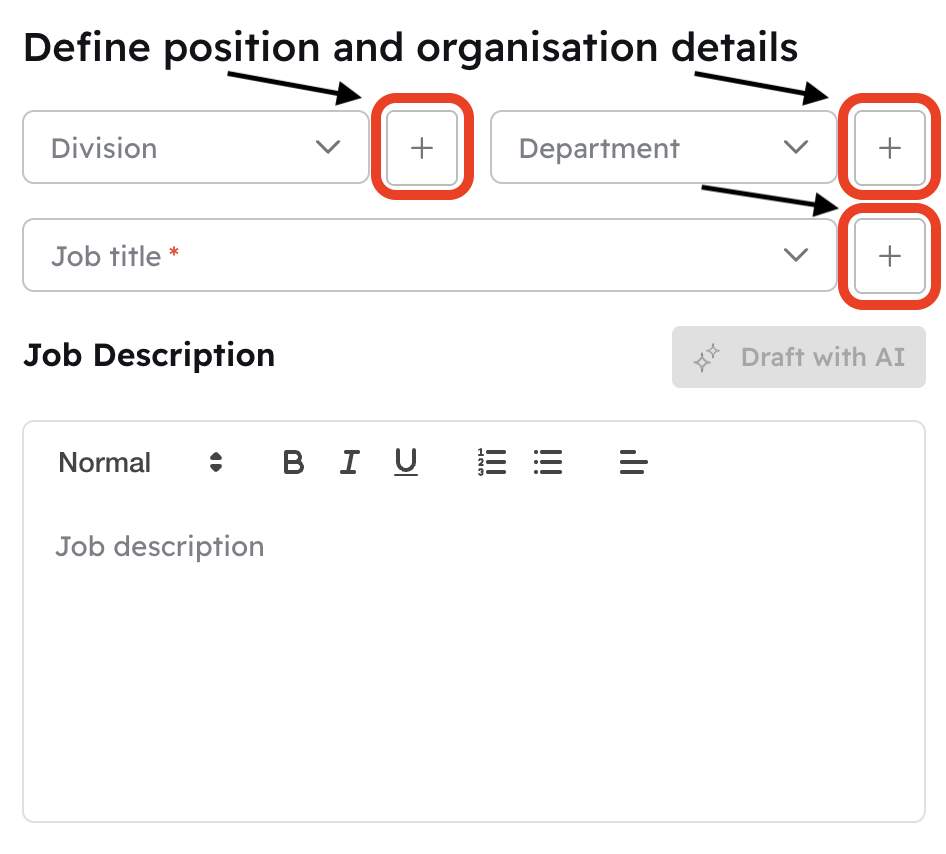
Here you can add a new hire to a Division and Department . Or create new ones. You can select a Job title or also create a new one. Select the + icon to create a new one
Configure Compensation - 6/8
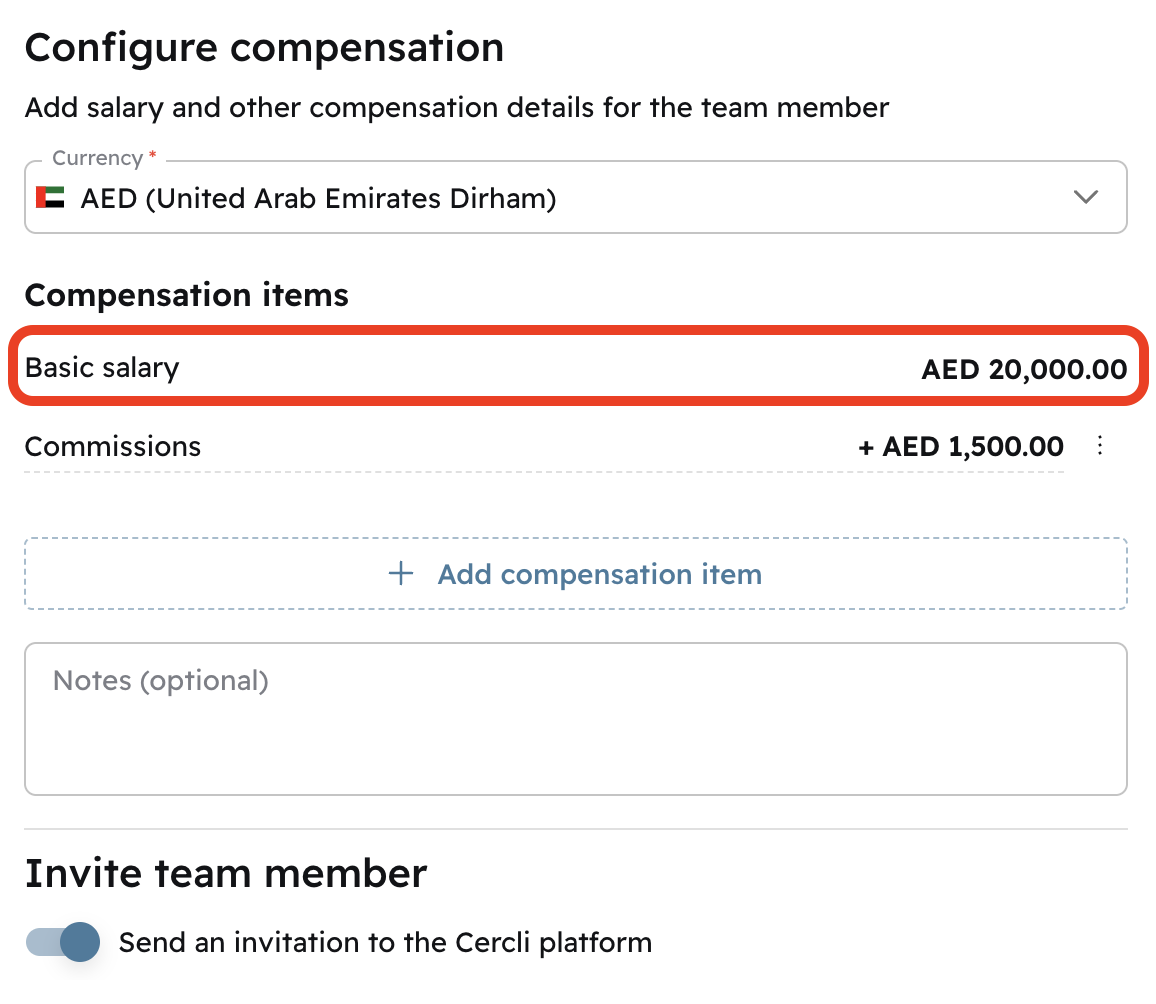
Select the Currency .
Type in the compensation for Basic, Housing and Transportation (you need at least the Basic one).
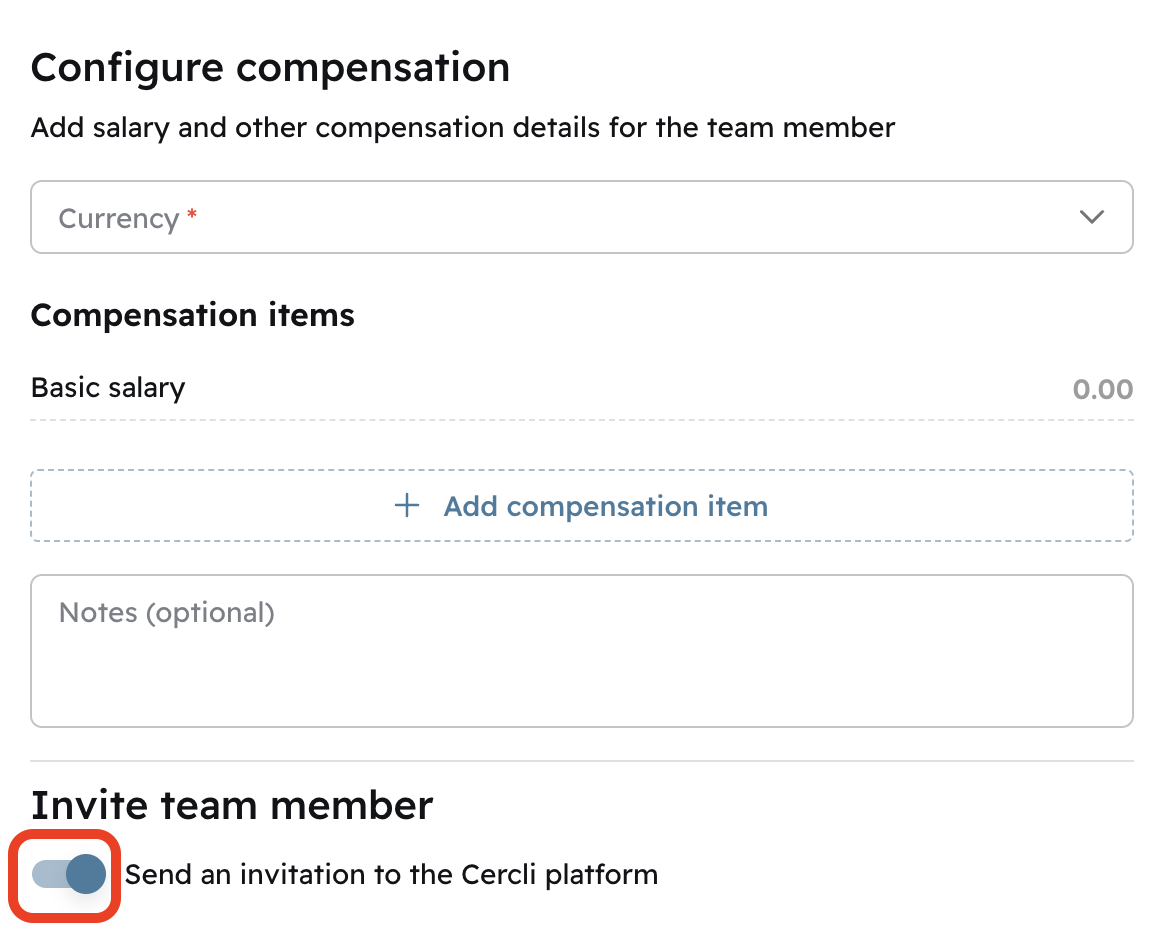
Note the invite team member toggle is on by default.
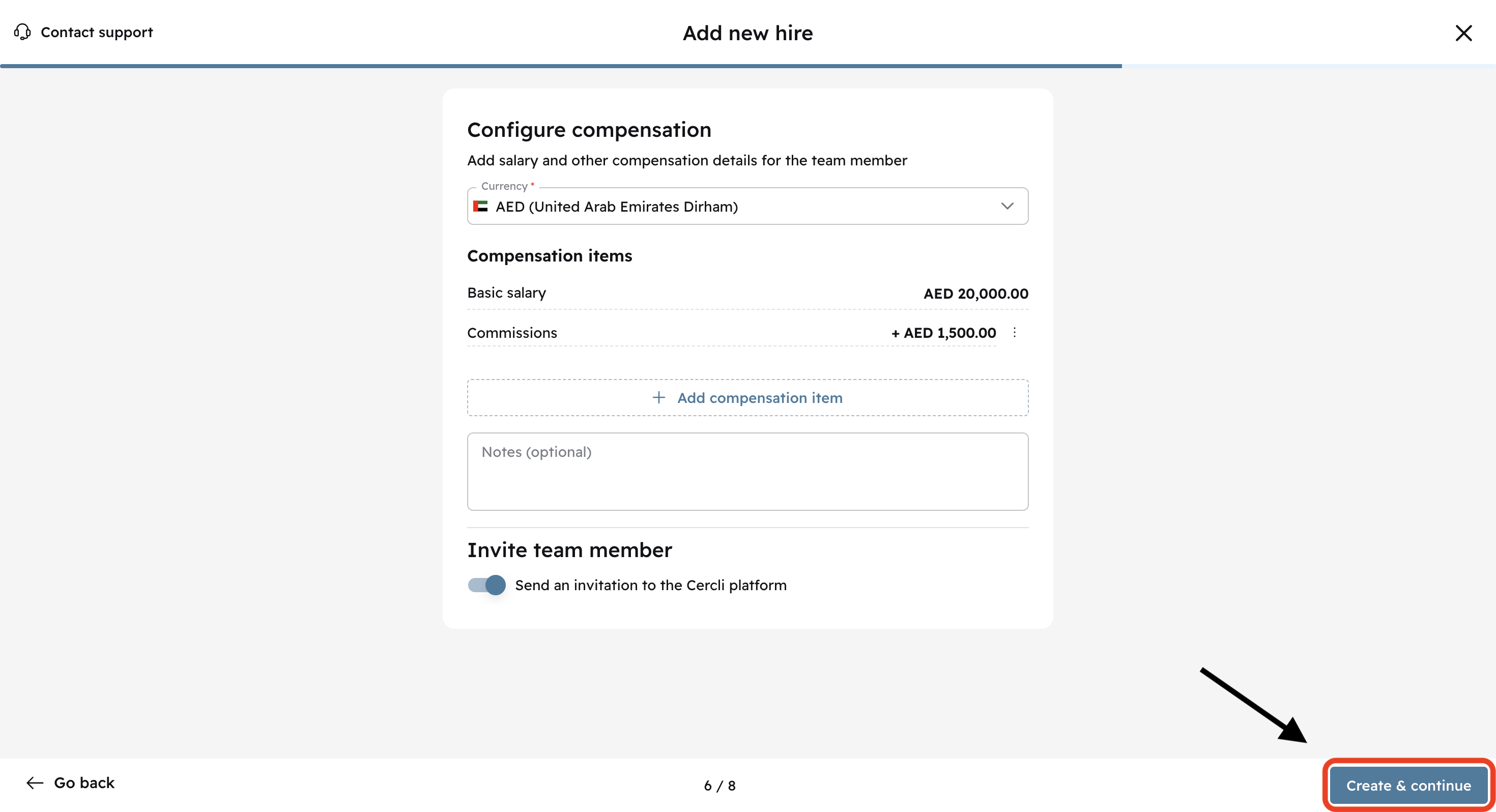
Click Create & continue to proceed
Important: Once you click Create & continue, you won't be able to go back
Assign Leave Policies - 7/8
You can Skip this step or Toggle the button next the the policy name. And click Save at the bottom right of the screen.
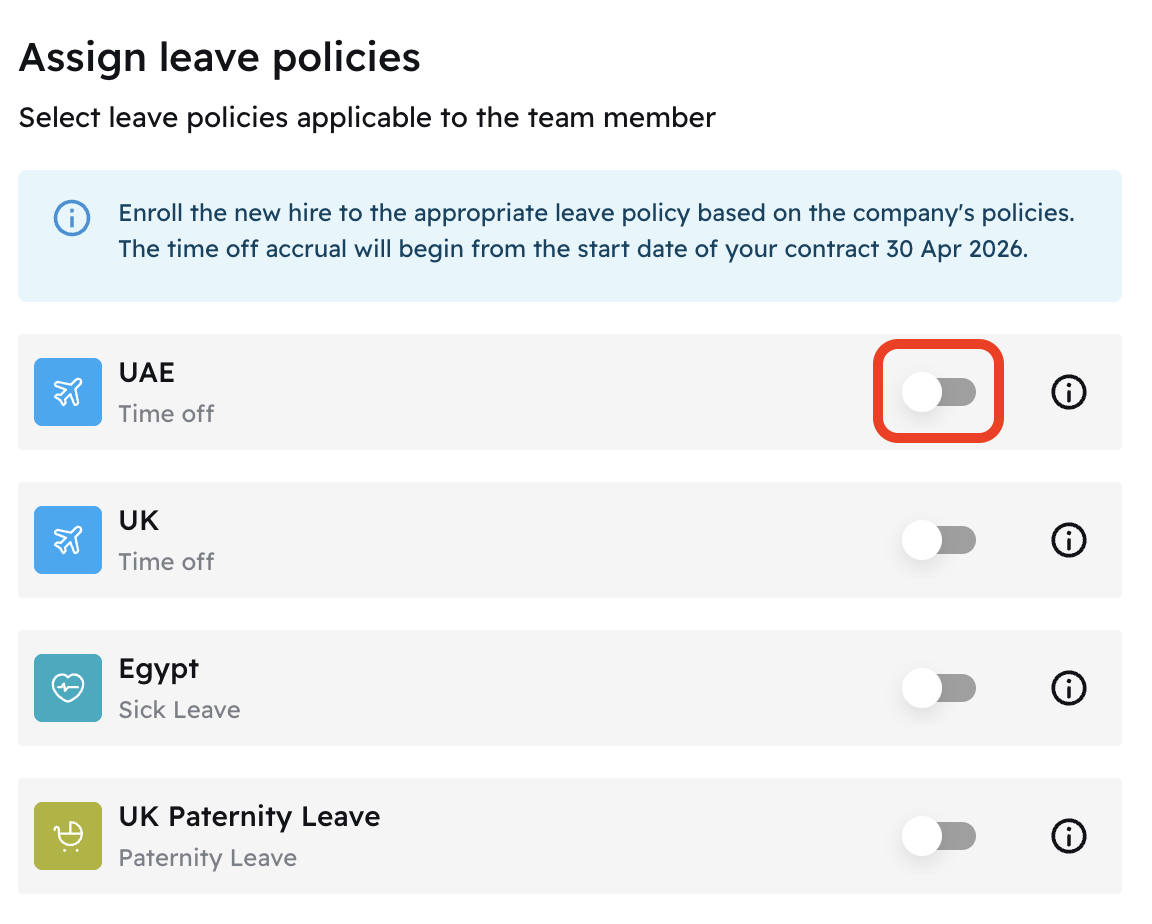

Refer to this article to delve more on policies.
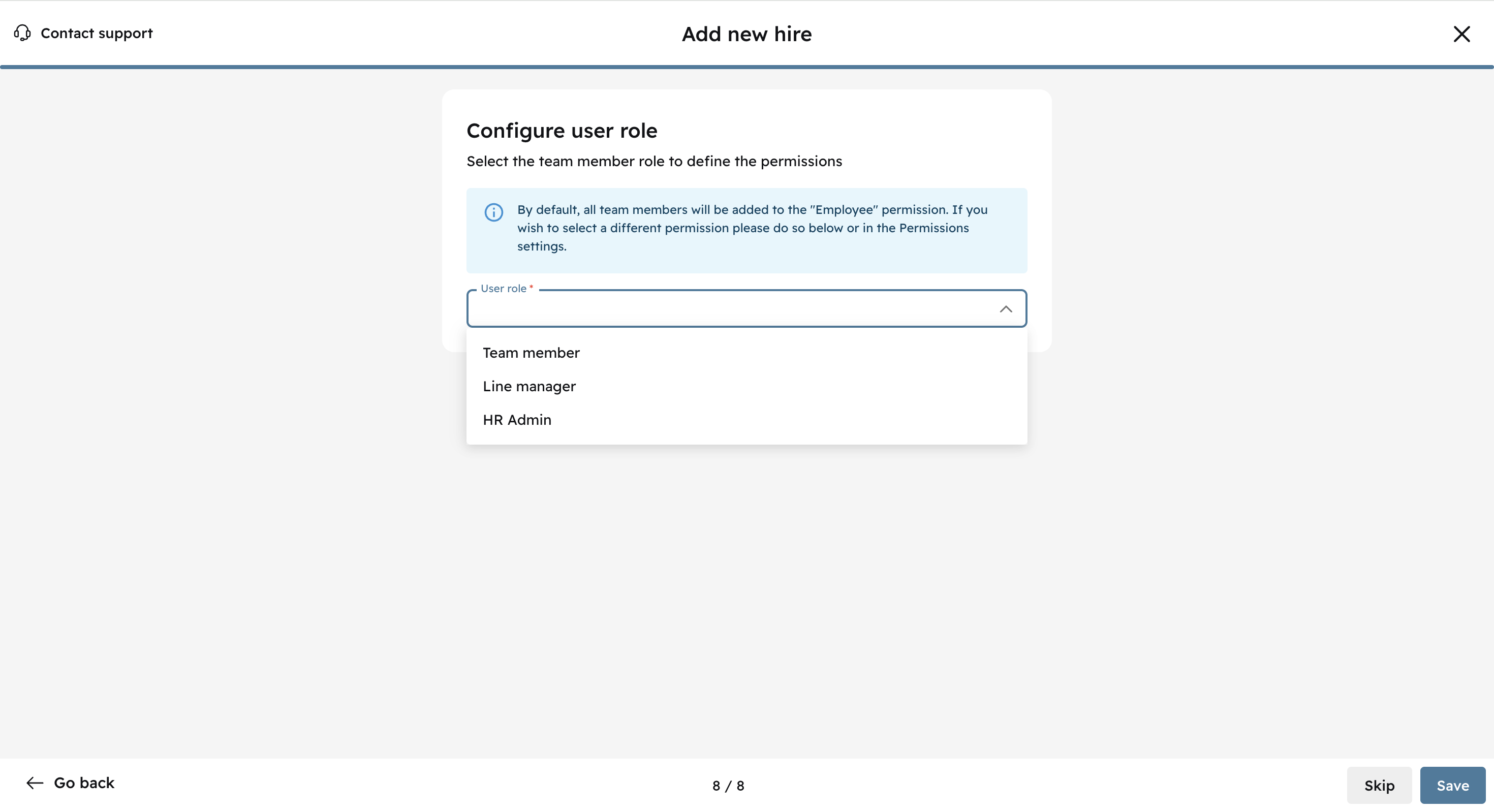
Configure user role - 8/8
You can Skip or assign a user role. Team member, Line manager, HR Admin
Click Save
Remember that role permissions will still need to be configured.
Refer to this article:
Your new hire's profile will appear on your screen upon clicking Save .
How to Create a New Hire Using Bulk Actions
Instead of selecting a hire type from Step 1/8, click on + Bulk upload new hires
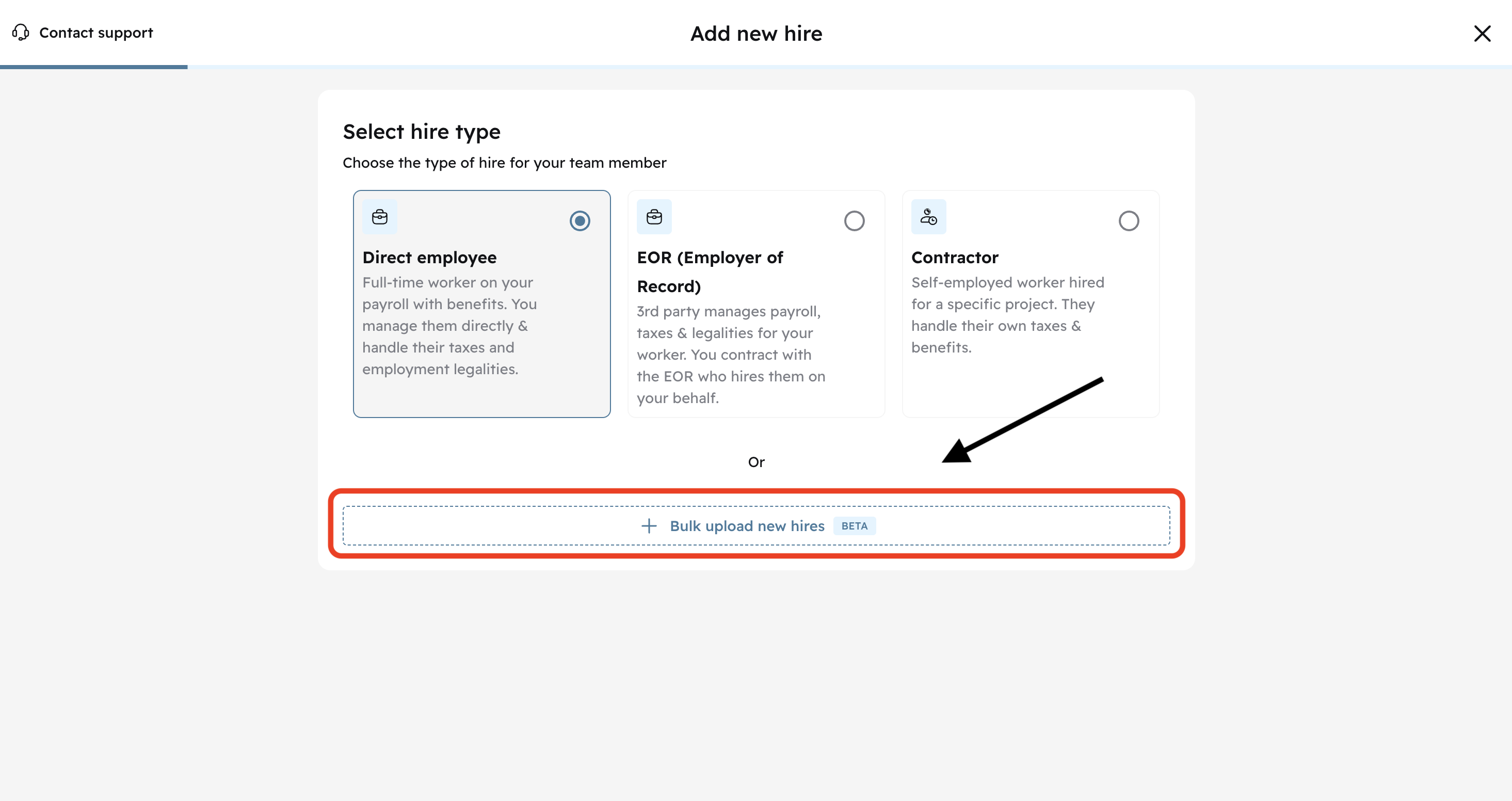
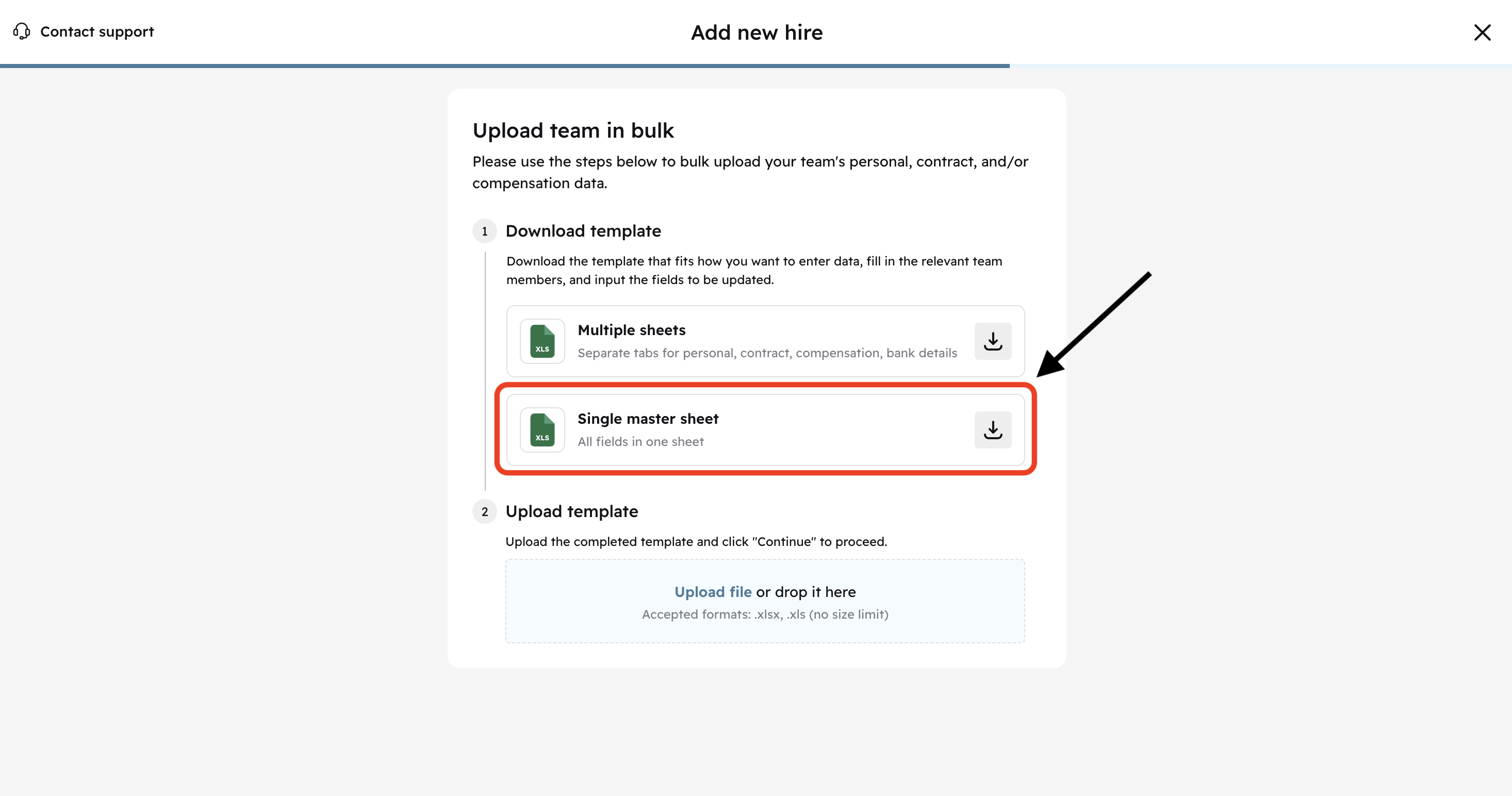
You'll see two spreadsheets, the first one contains different tabs for each different type of data (Personal, Contract Employment, Compensation, Bank Details).
The second one (the one you may find easier to navigate) shows all of the columns in a single tab.