Admin - Understanding User Permissions: Platform, People, and Self
Last updated: April 17, 2026
Permissions are divided into: Platform, People, and Self.
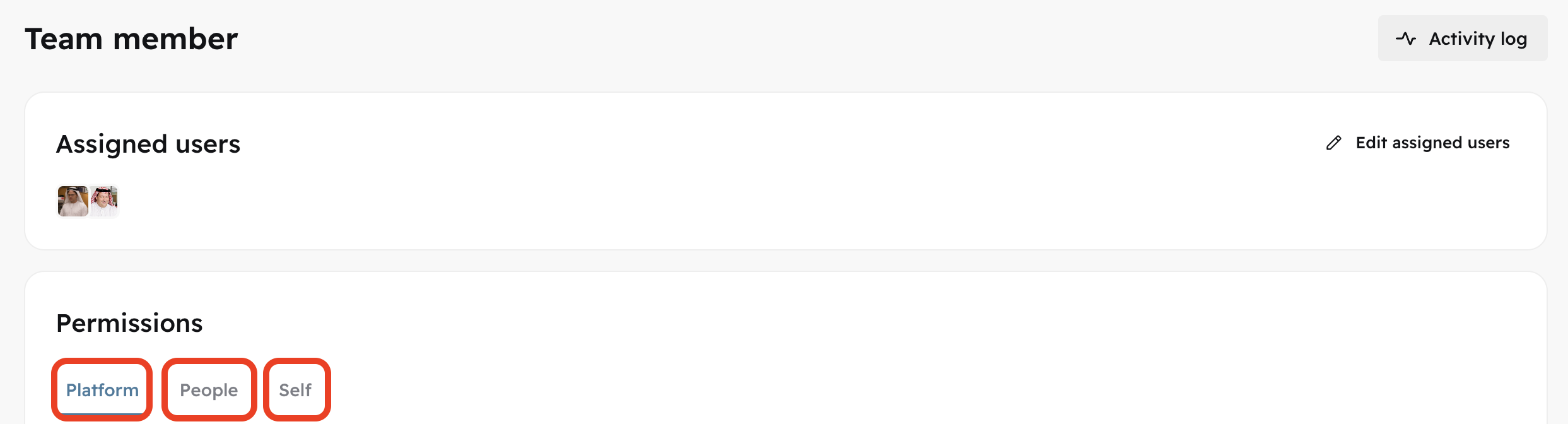
Platform
Use the "
platform" permission tab to edit modules' visibility for a specific role.
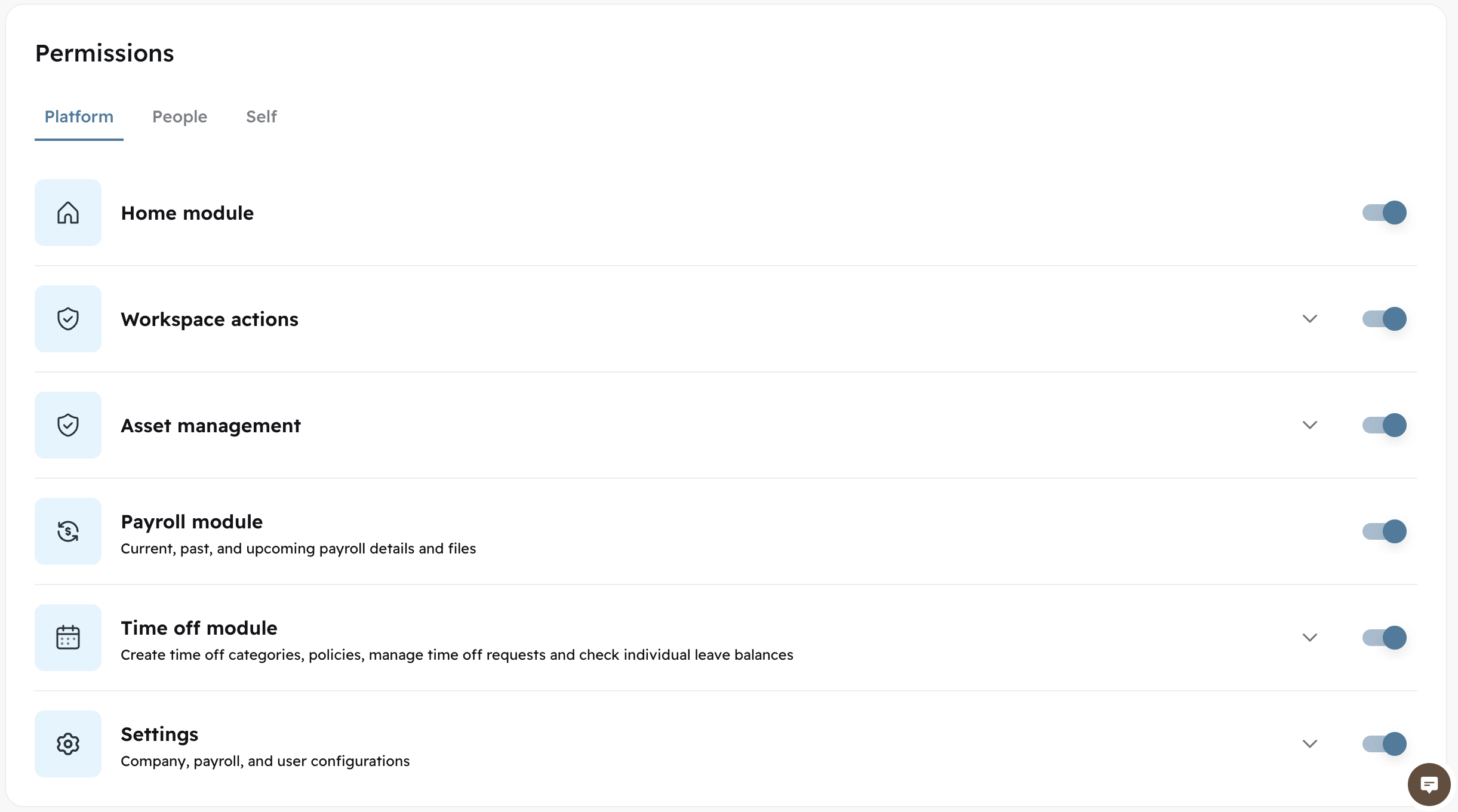
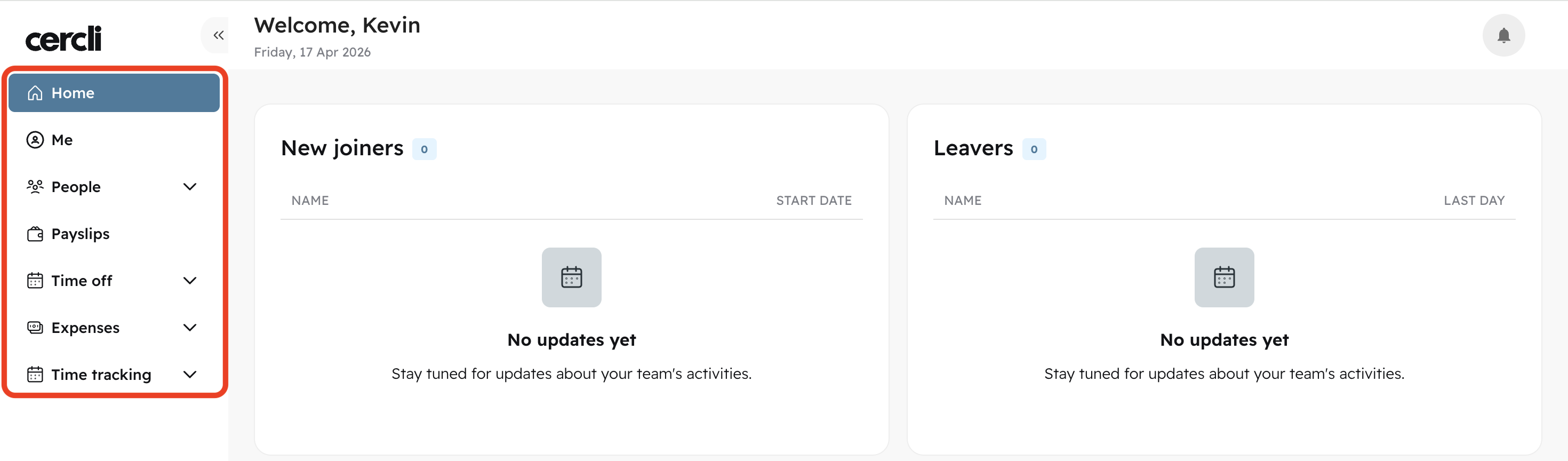
Modules are the navigation bar sections
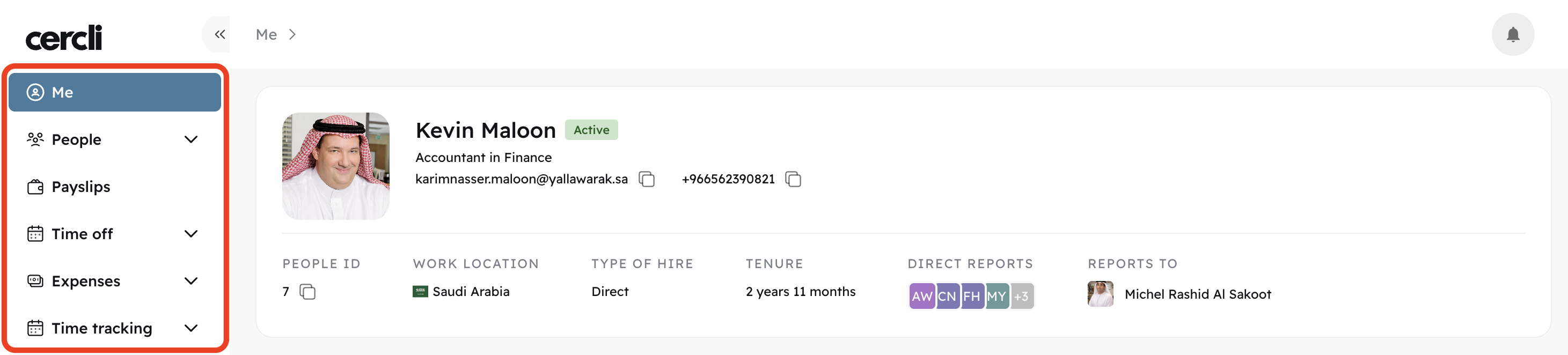
(A team member without the "Home module" on, will not be able to view "Home" on the side bar).
Home Module Off
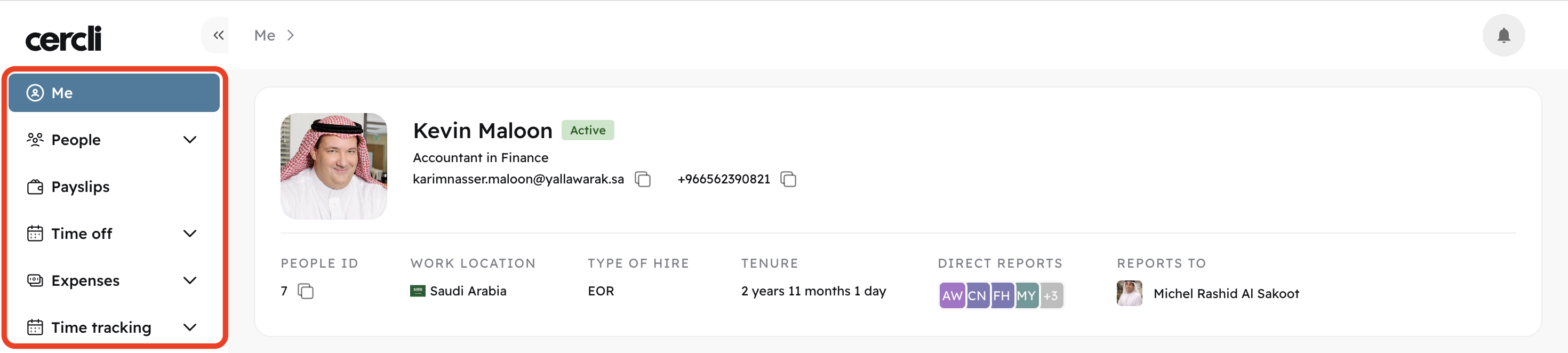
Home Module On
People
Use the "
people" permission tab to give a certain role access to edit or view other team members' details.
Access to edit team member details under the people tab should only be given to admins. Keep fields such as Employment details to "view only"
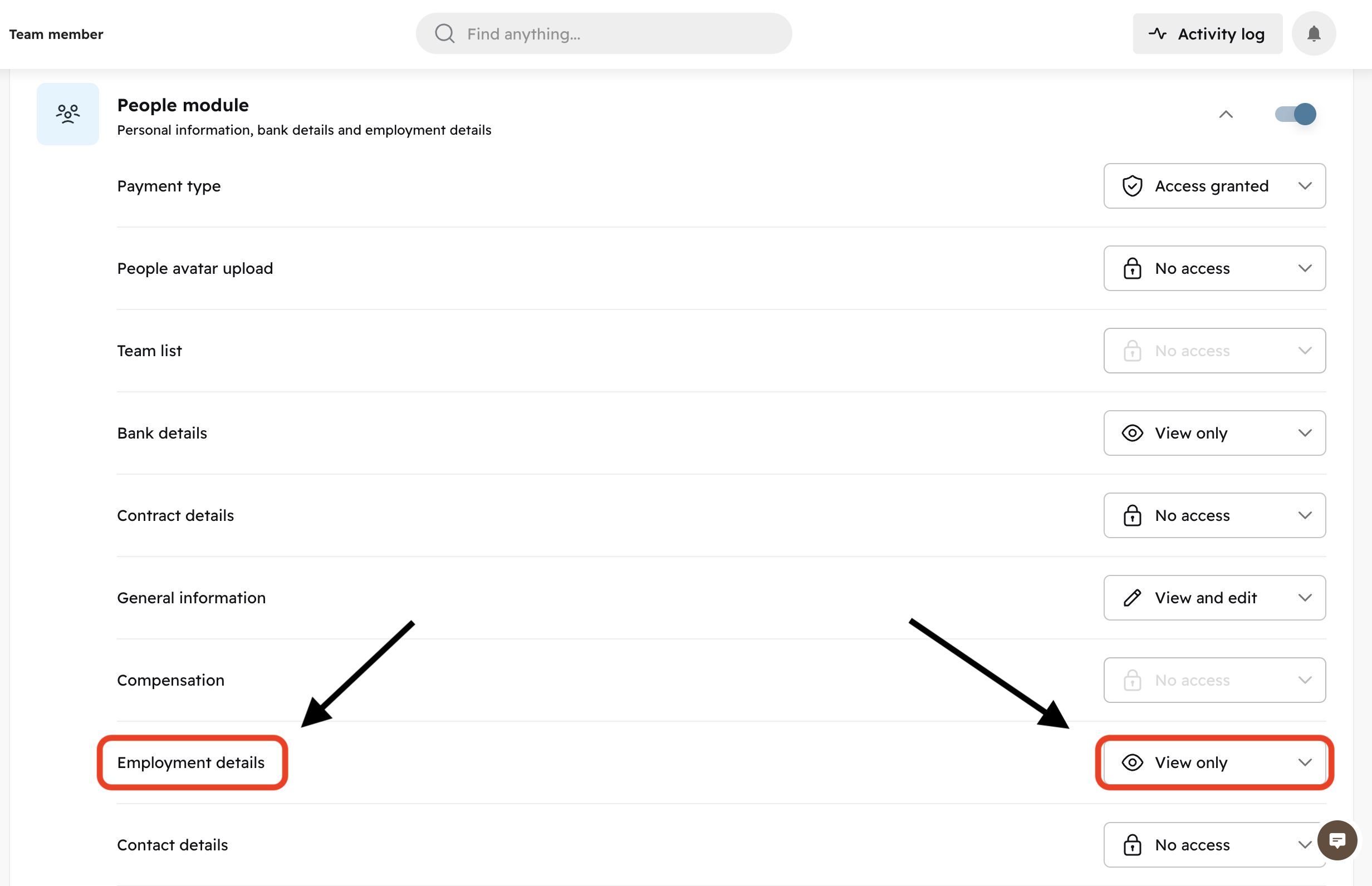
In this case, a team member with the role permissions we're editing will only be able to view other team member employment details (we don't want non-admins to edit other people's details).
Self
Use the "
self" permission tab to give a certain role access to edit or view its own details.
Most team members ask why they can't edit their contact details. To give them access, go to Self, scroll down to "Contact details" and choose "view and edit" from the dropdown on the right.
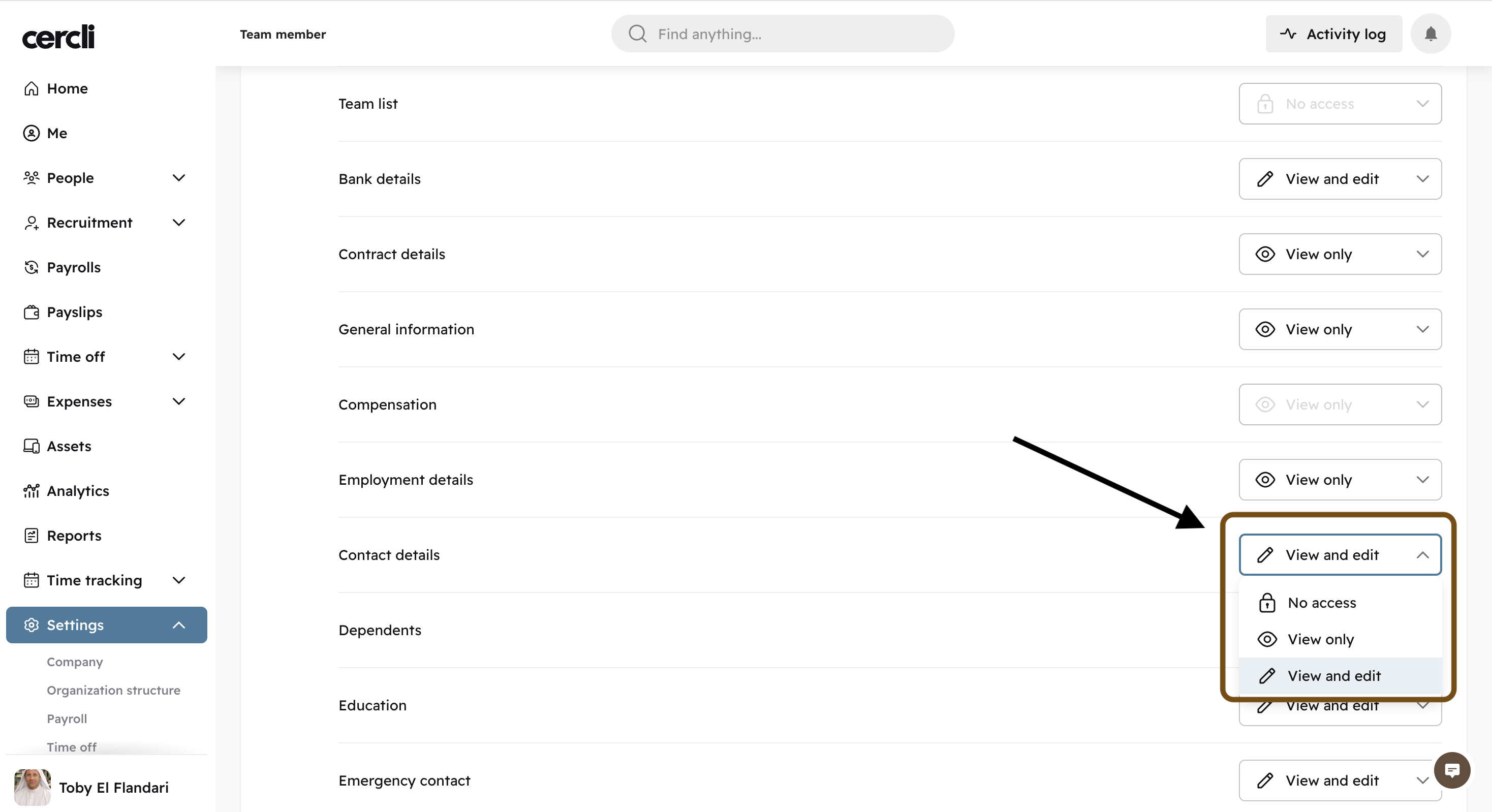
See this article for a step by step walkthrough:
Key Mentions Regarding Module Visibility
Ask our support team to enable the Analytics, Time tracking, and Recruitment modules for specific roles.
Access to the
reportsandTime offmodules can be granted by going to the "Self" permission tab. Scrolling all the way down.
