TM - How to Sync Your Calendar with Cercli
Last updated: May 15, 2026
TLDR 🍿
Overview
The calendar sync feature lets you connect Cercli's time off calendar to your Google or Outlook calendar. Once connected, approved leave events are automatically reflected in your personal calendar, keeping your schedule up to date without any manual effort.
Steps
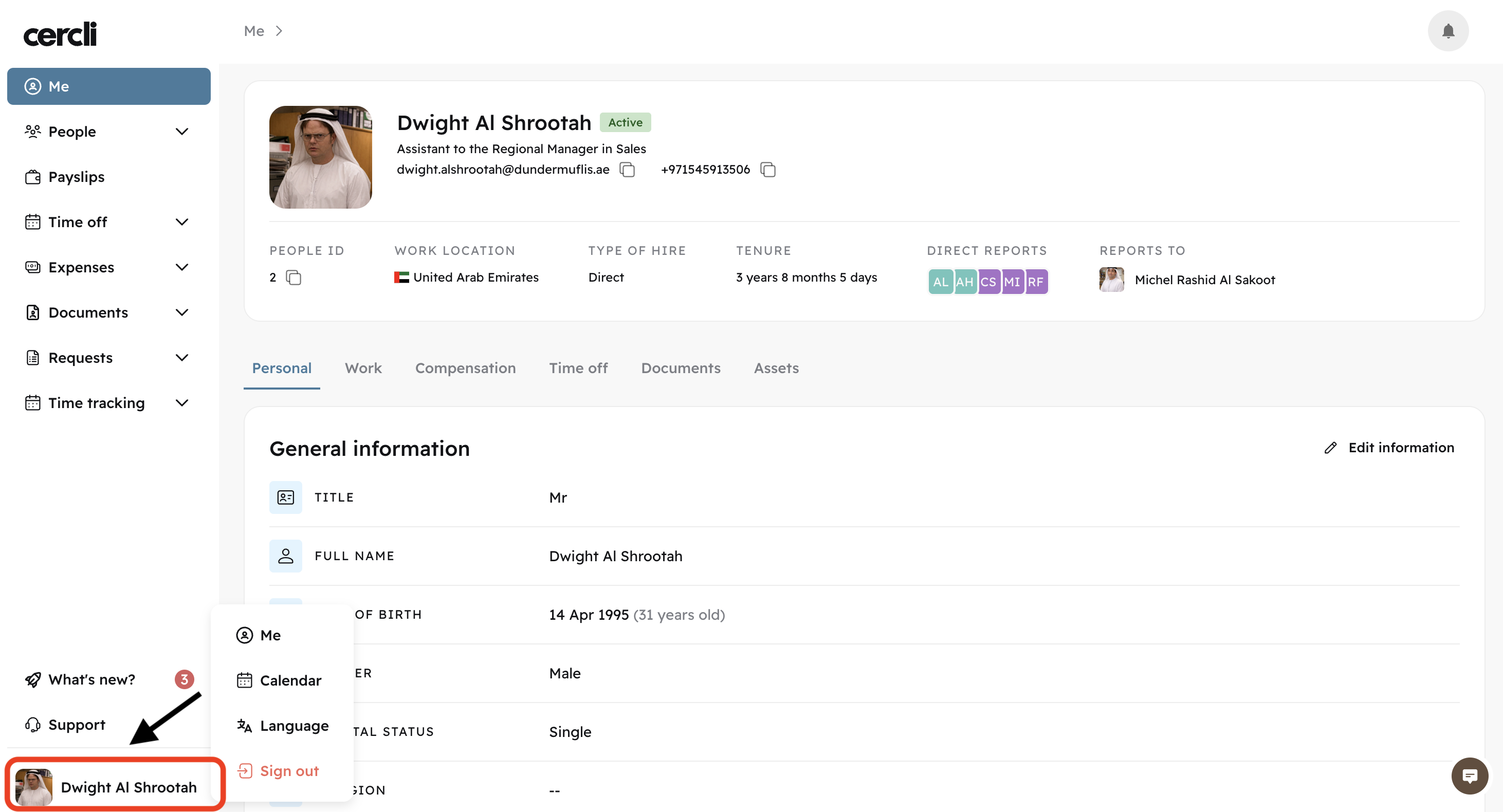
Click on your profile icon in the bottom-left corner.
In the menu, select
Calendar.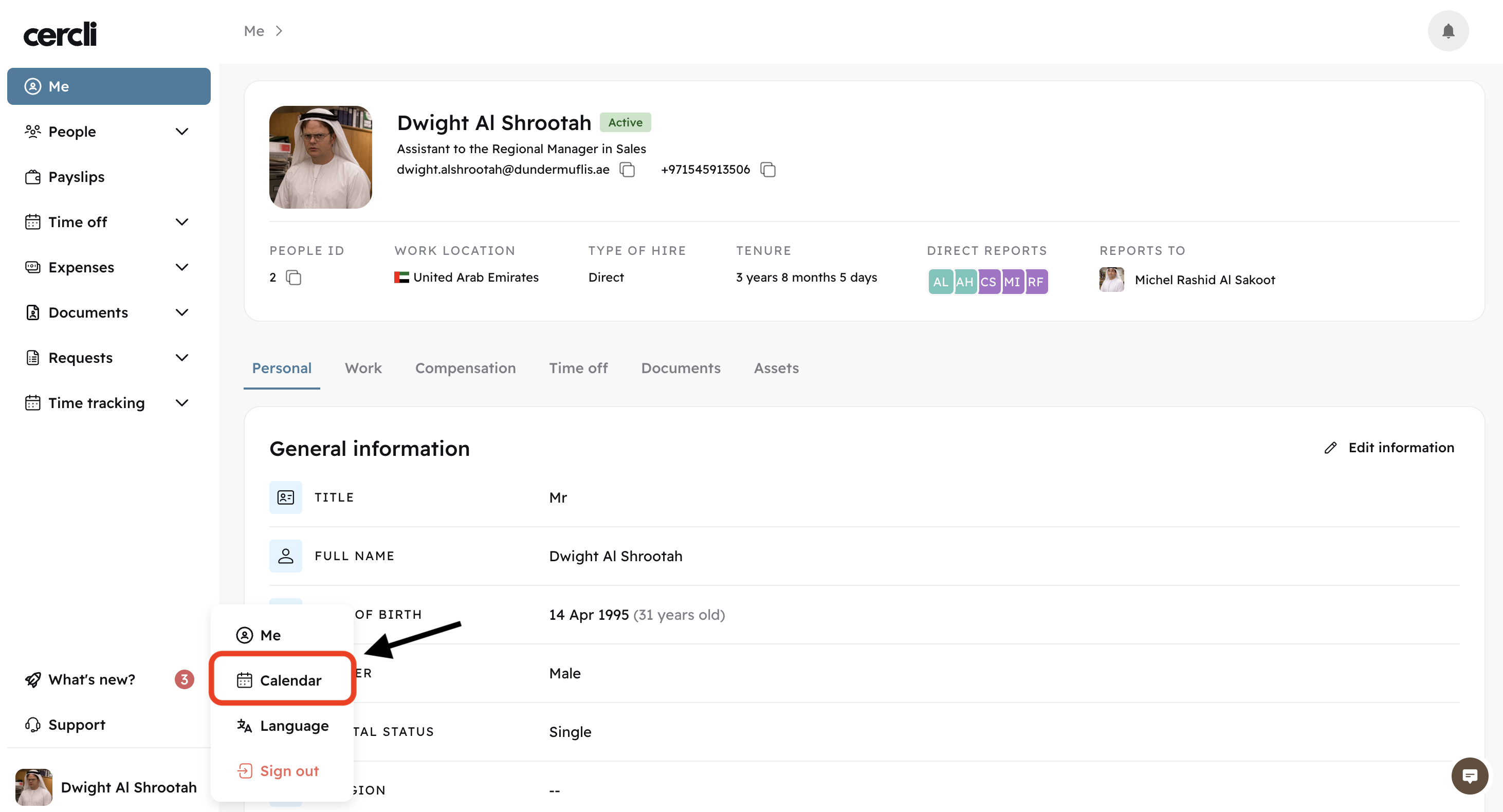
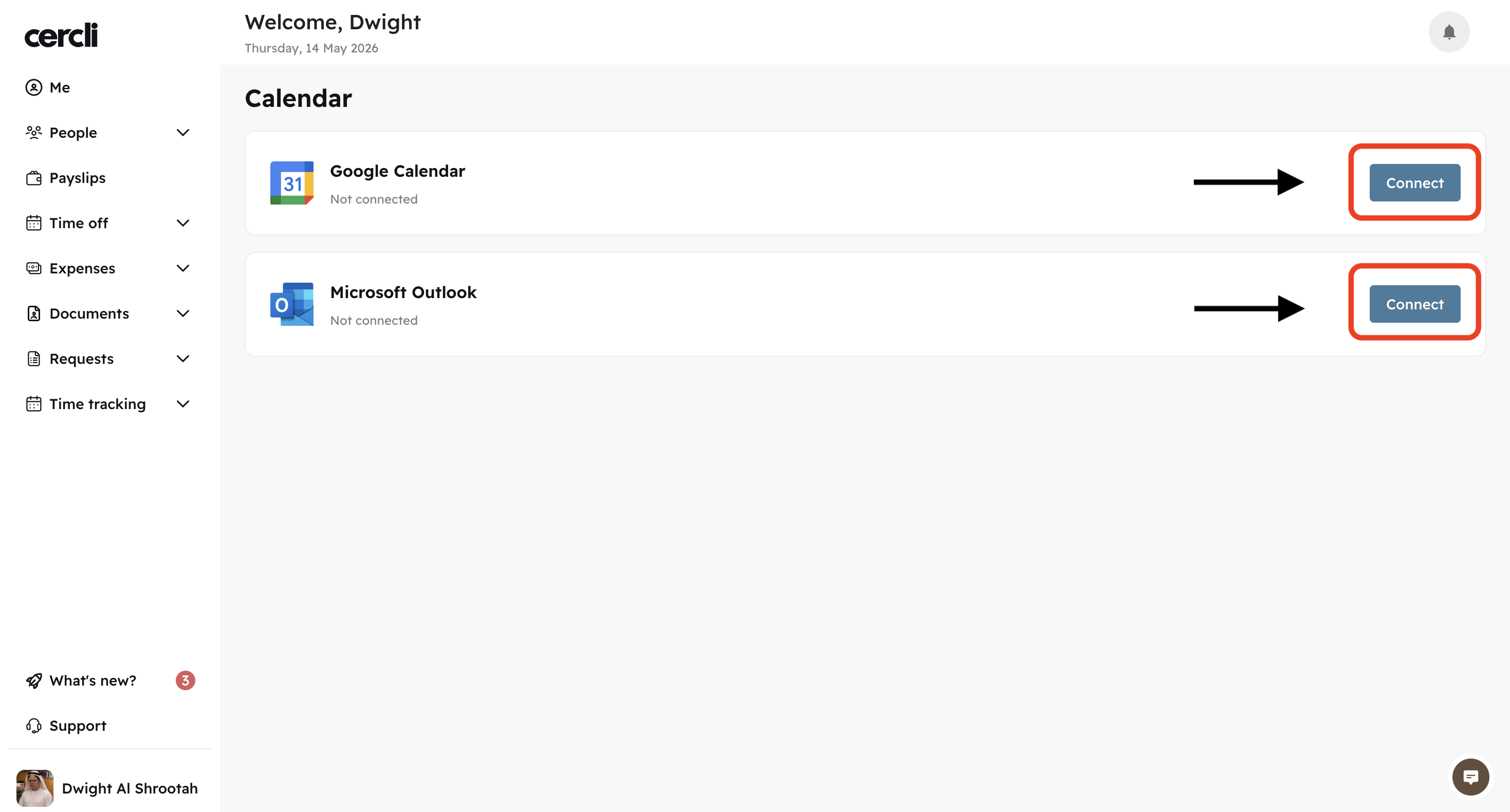
Choose your calendar provider - Google or Microsoft are currently supported.
And select your preferred provider and click
Connect.
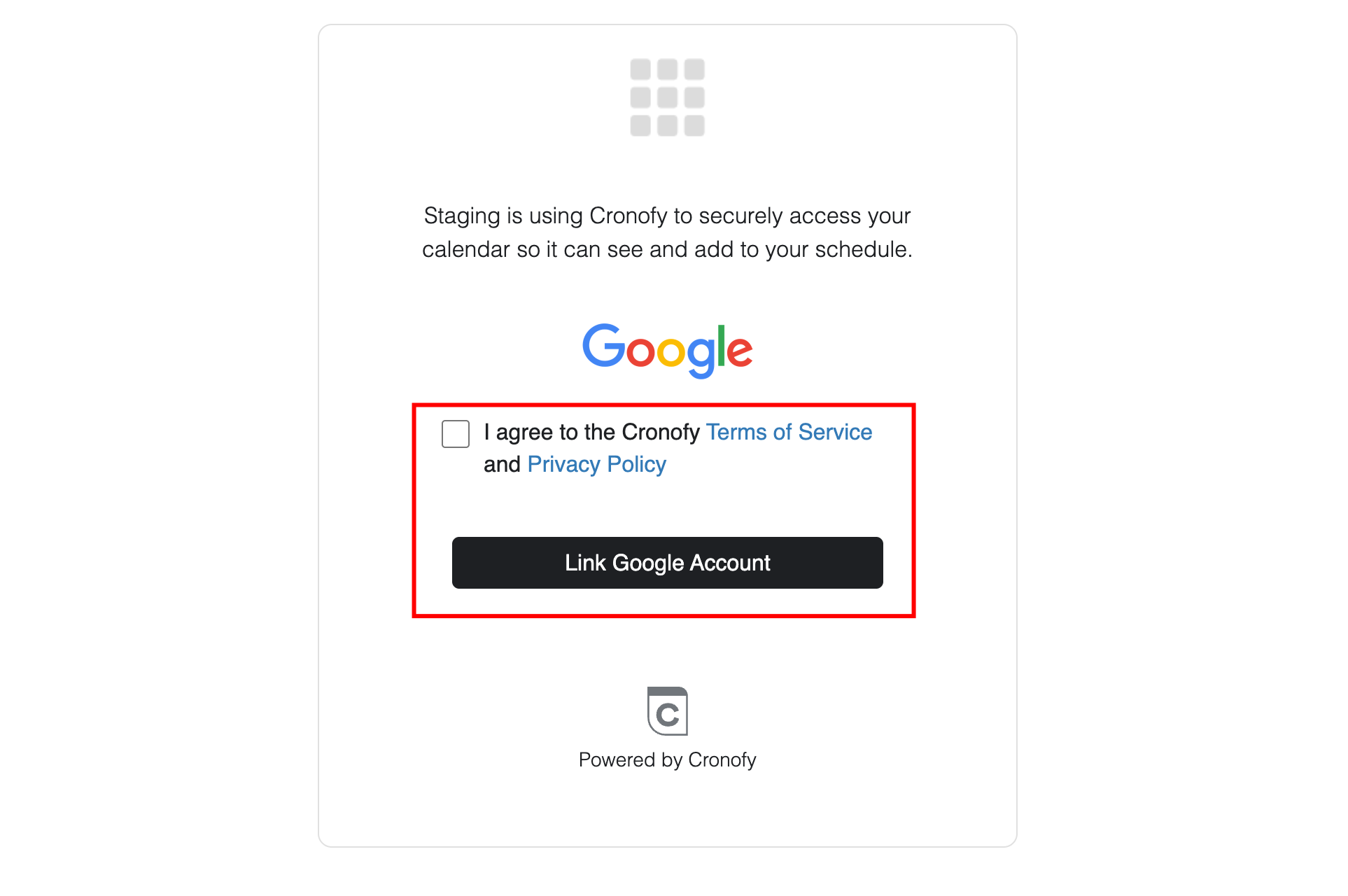
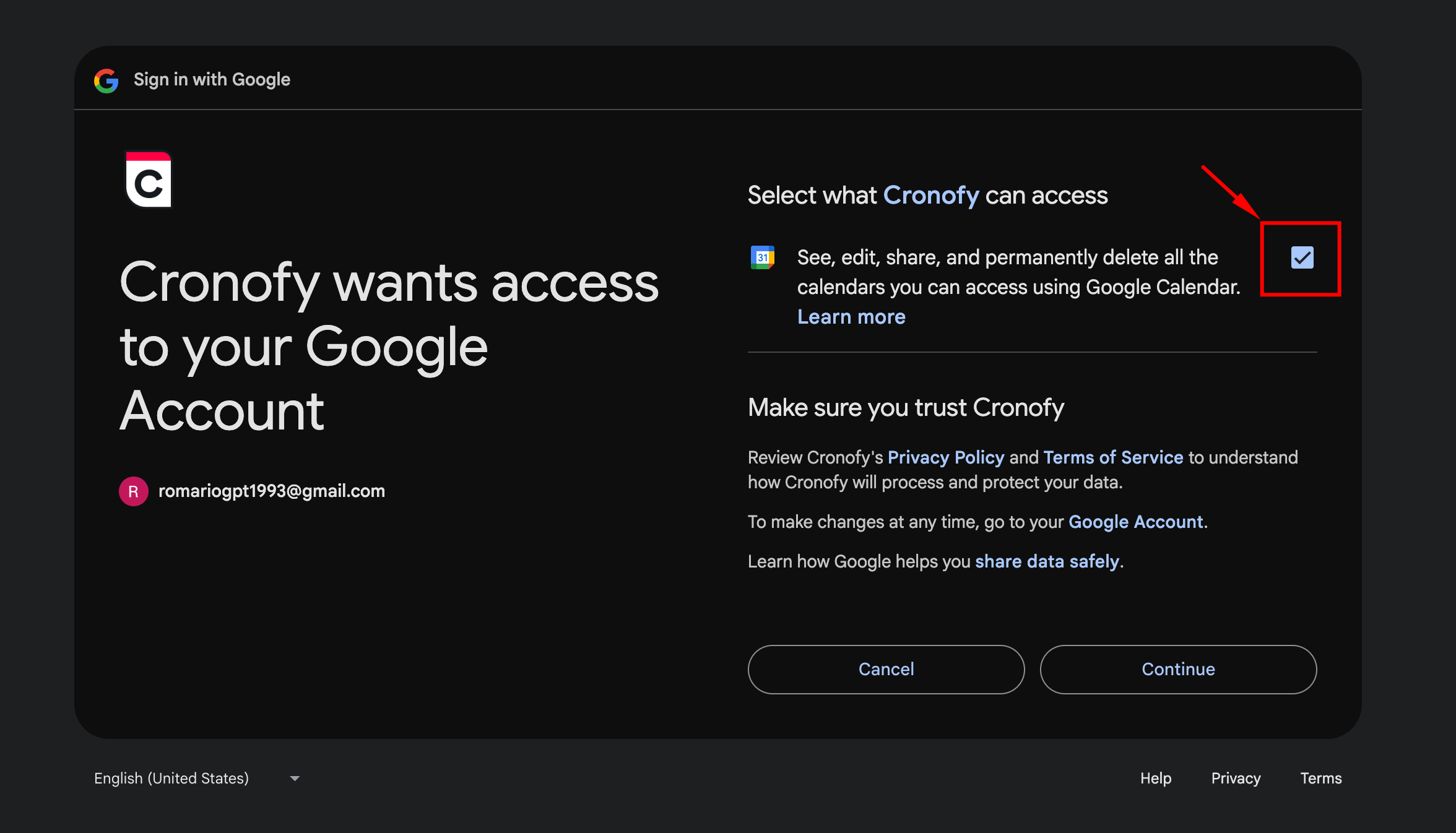
Review the Privacy Policy & Terms of Service, then click Link your account.