How to Create, and Send an Offer
Last updated: July 21, 2026
Once you've created an offer template, you can create offer letters and send them to candidates.
How to Create a Draft Offer
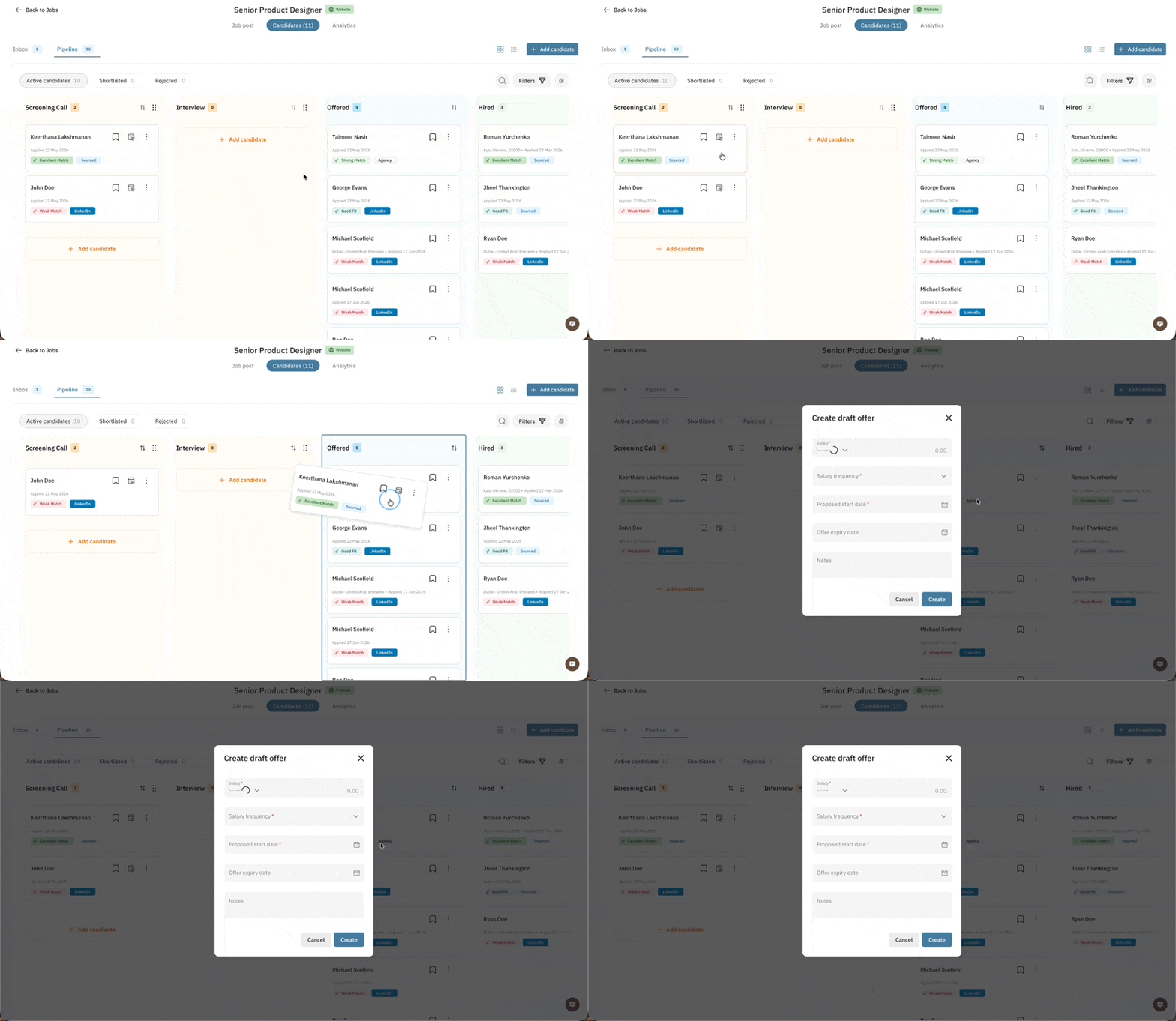
To draft an offer, move the candidate to the Offered stage in the pipeline. This triggers the offer drafting flow.
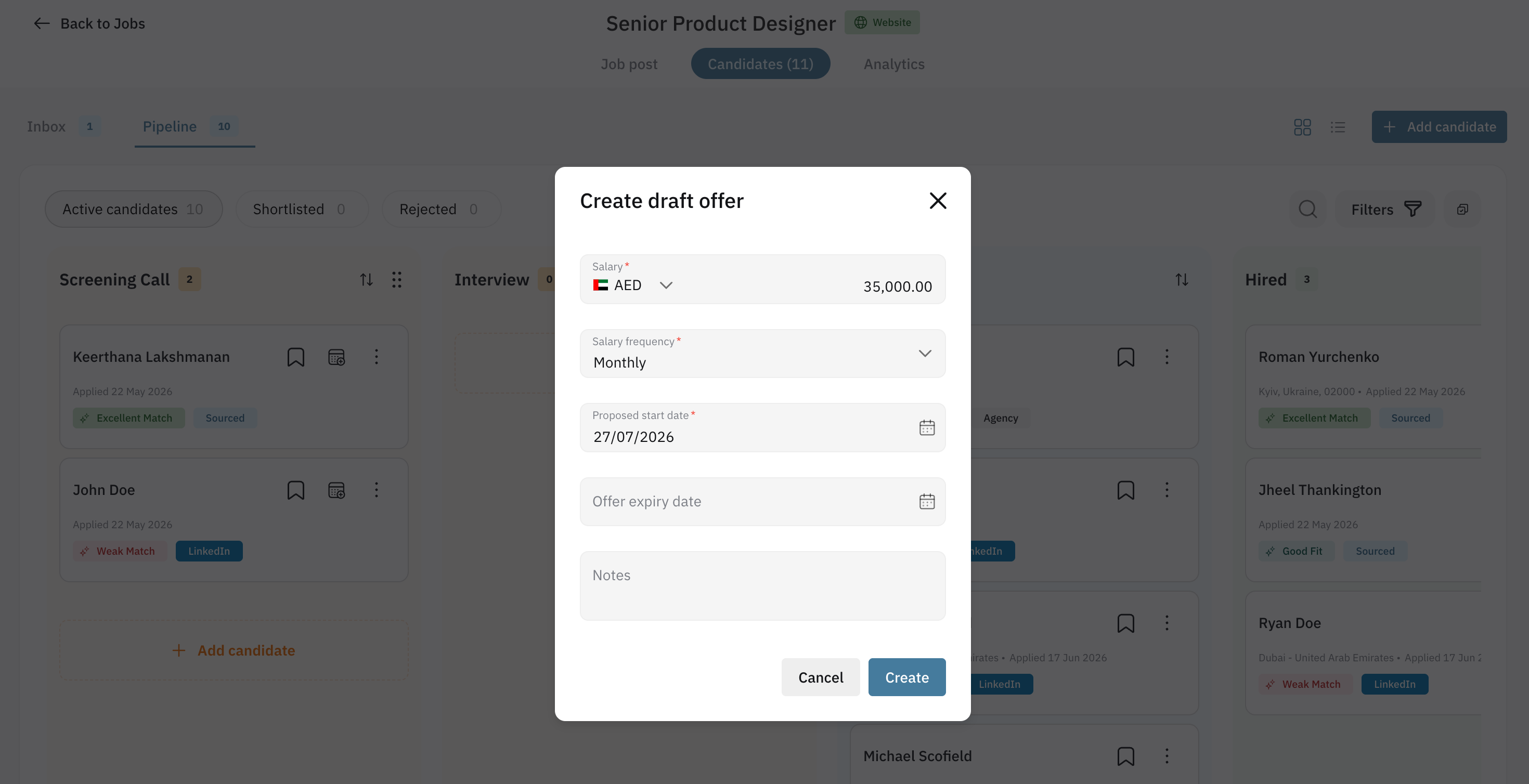
Fill out the required details — Salary, Salary Frequency, and Proposed Start Date — then click Create. The draft offer will now appear in the system.
How to Find Created Offers
There are two ways to review created offers:
Click the candidate's card/row to open their profile in the sidebar, then click Review. This takes you to the Offers page.
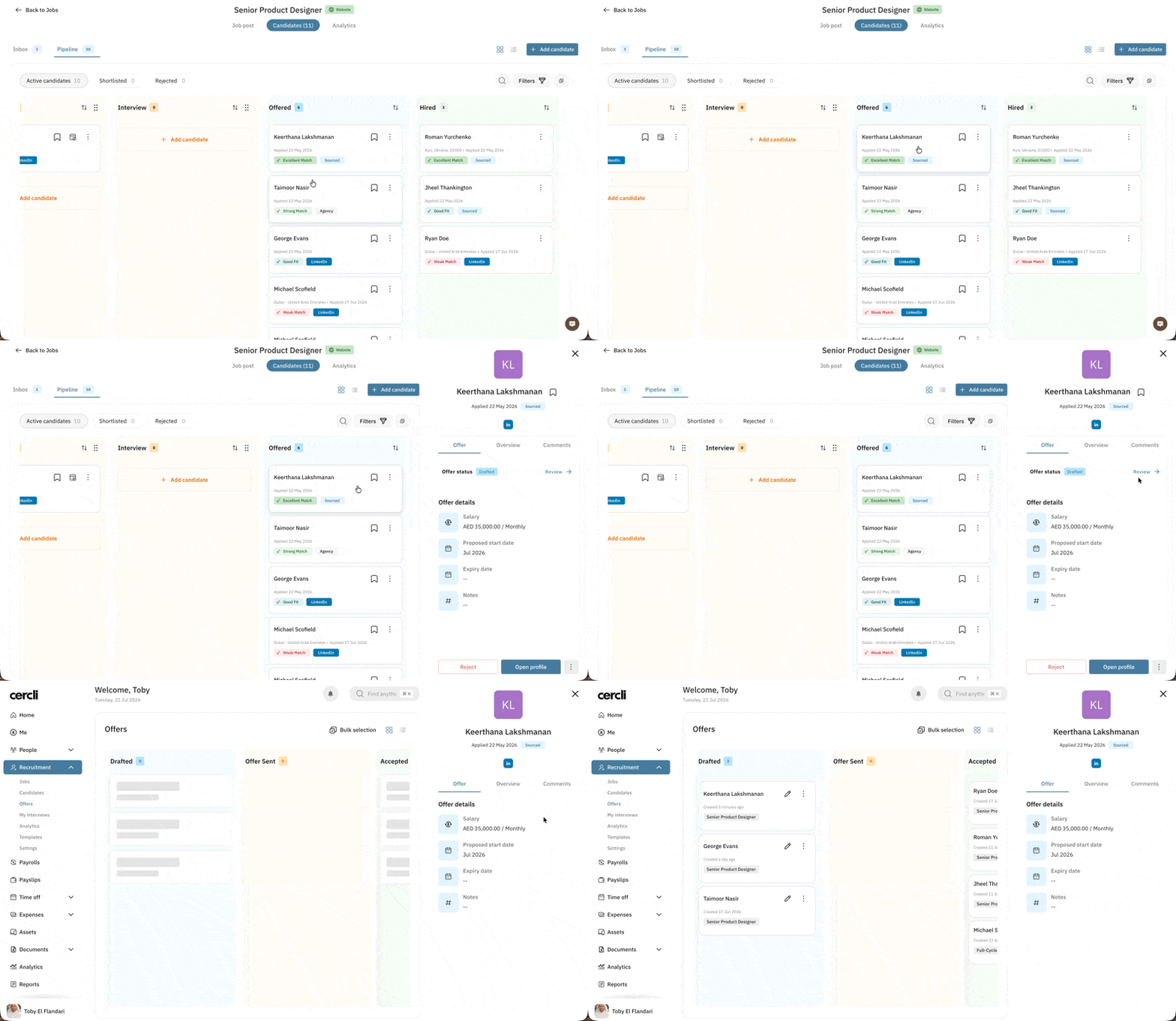
Go to the Offers page under the Recruitment module — the primary space for managing all offers in the system.
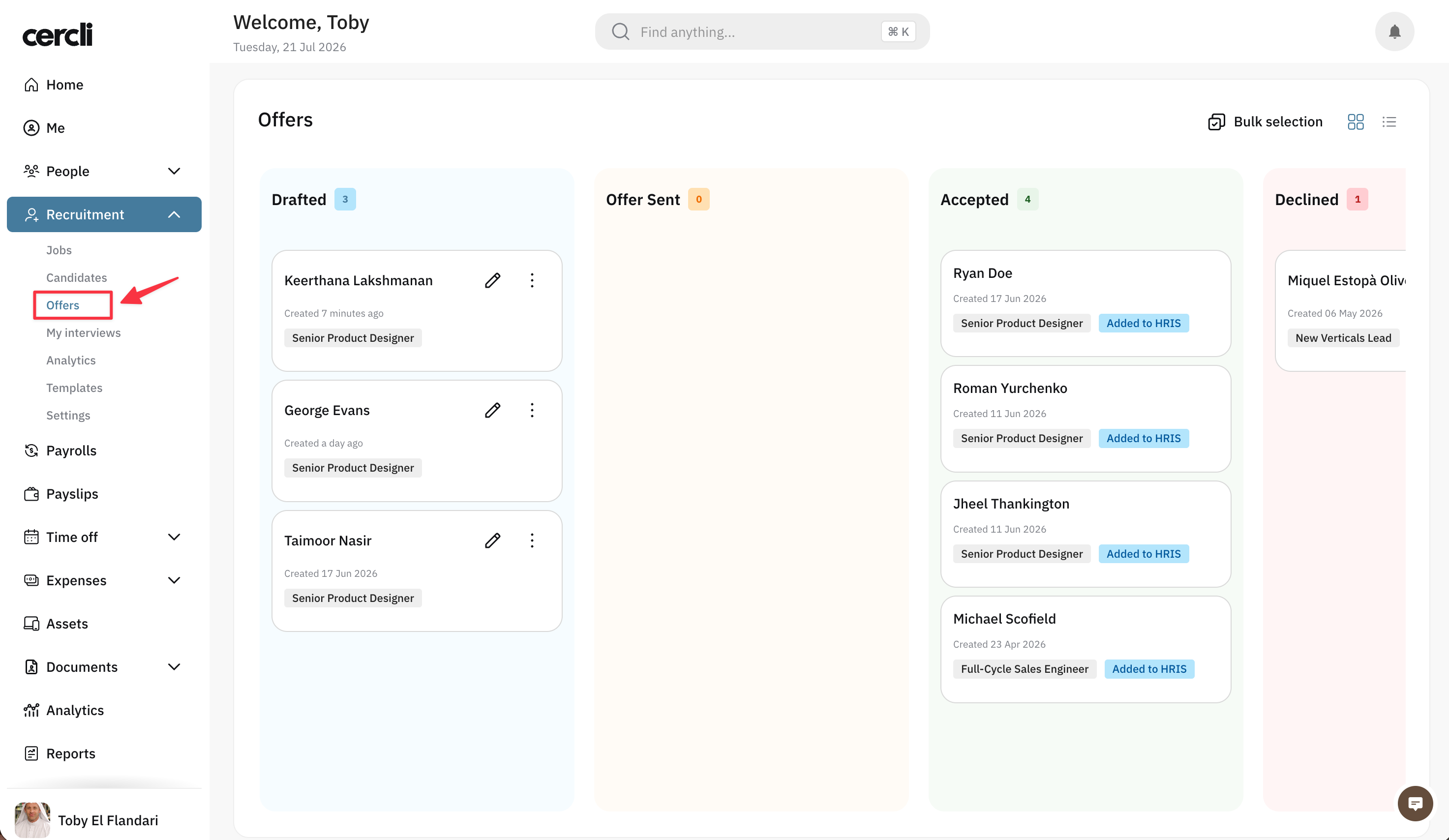
How to Edit Created Offer
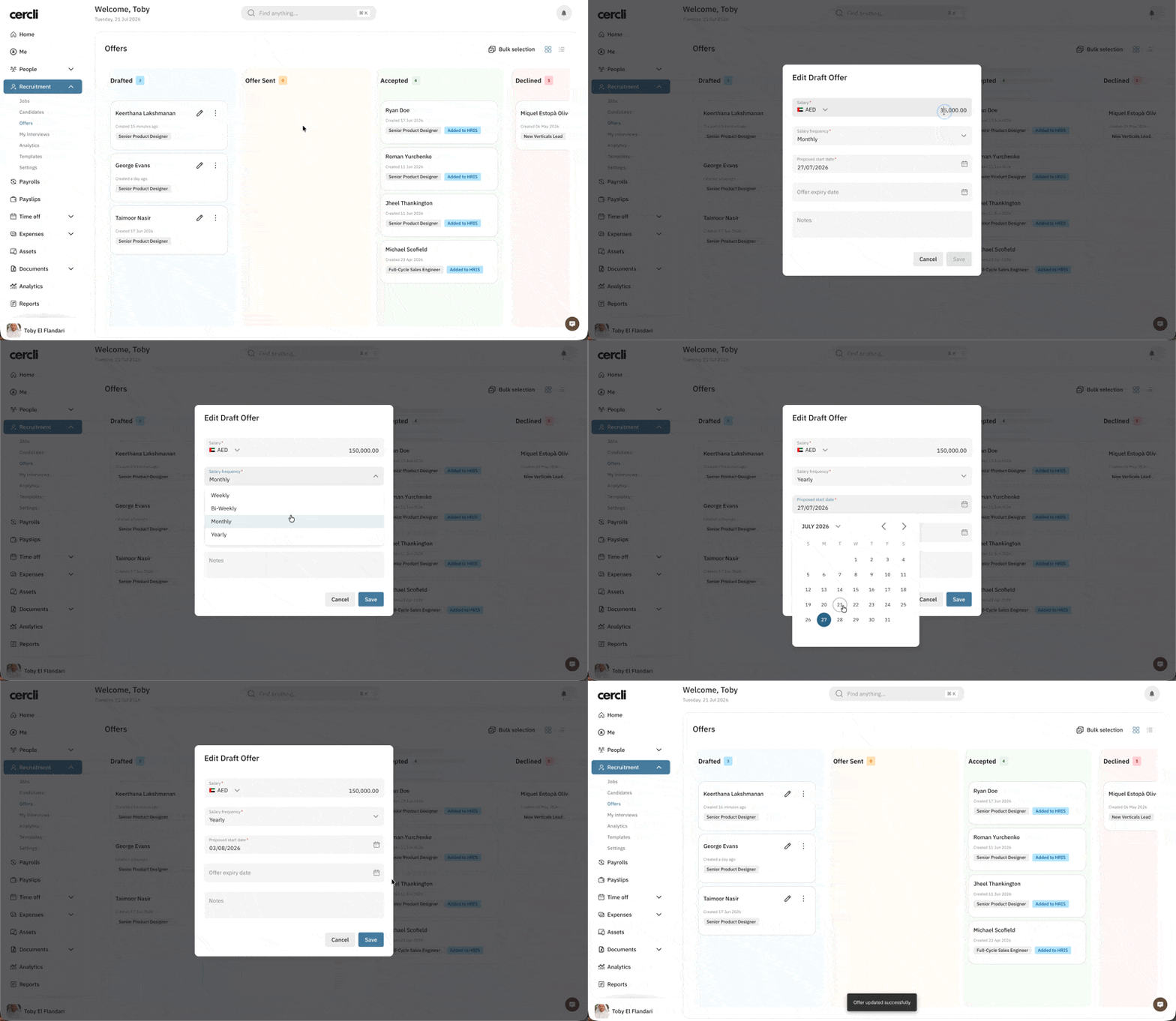
If you need to update the required details — Salary, Salary Frequency, or Proposed Start Date — click the Edit icon on the offer record card and make your changes.
How to Send an Offer
Cercli integrates with PandaDoc to manage the e-signature flow. Once an offer is sent, its status updates automatically: when the candidate signs, the offer moves to Accepted; when the candidate declines, it moves to Declined.
You can also move an offer directly to Accepted, Declined, or Withdrawn yourself — for example, if a signature happened outside the system. Since these are final (or near-final) stages, Cercli will ask you to confirm those actions.
To send an offer, move the offer card to the Offer Sent column. This triggers the offer sending flow.
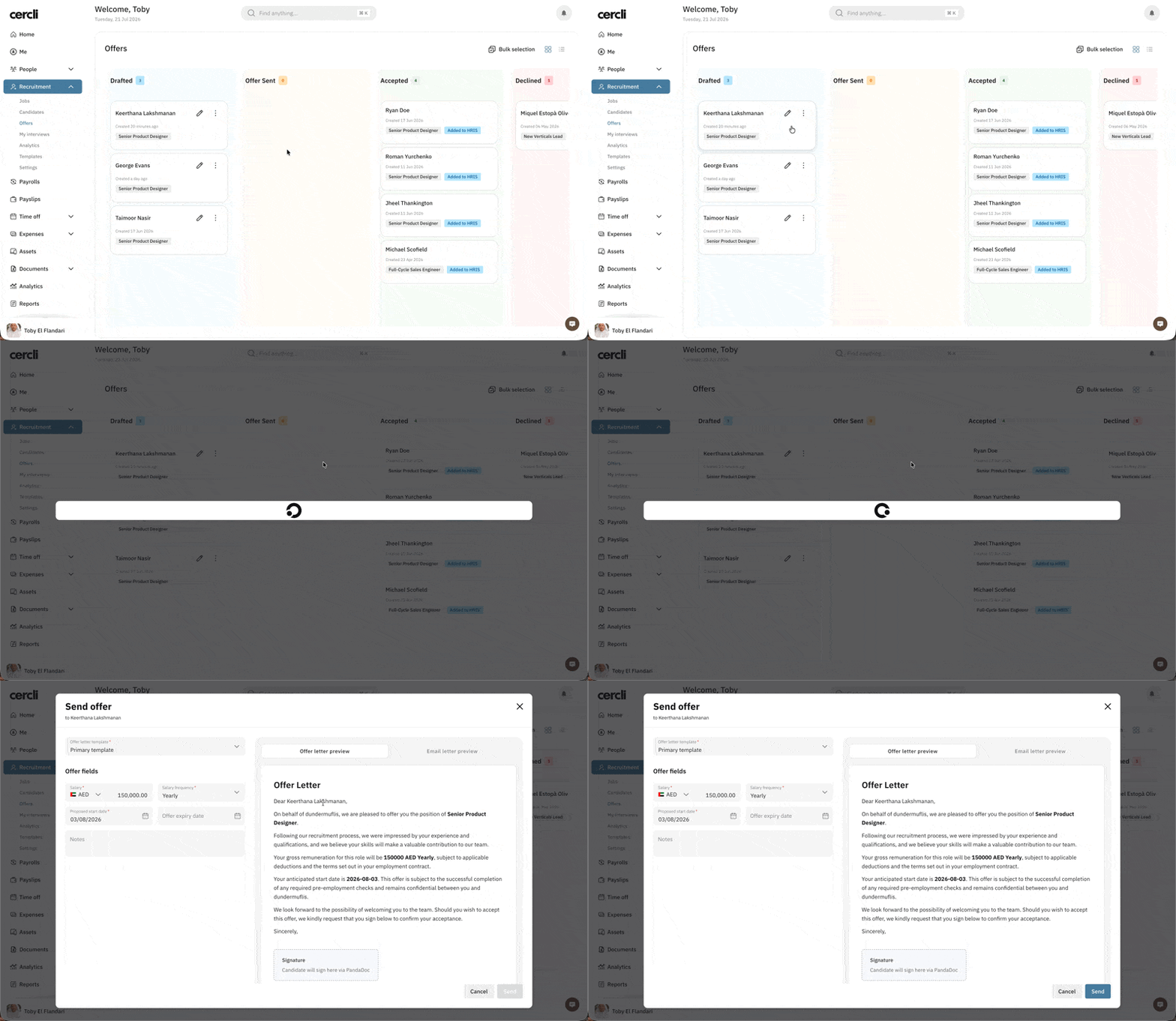
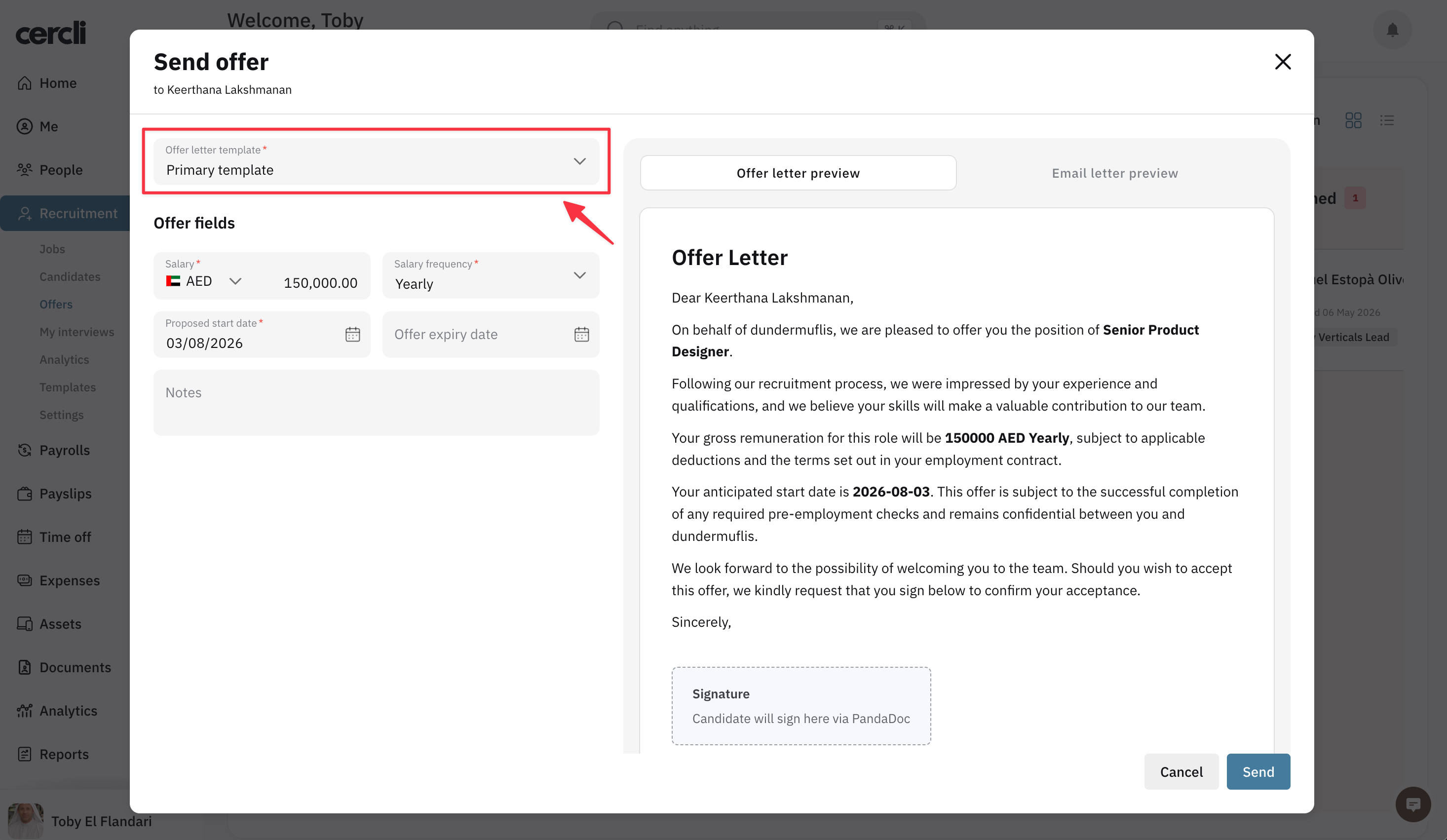
The template you created previously will be selected by default, and a preview of the offer letter will be available. If you have more than one template, you can select a different one by clicking the appropriate field.
You can also edit the email details and the message candidates will see once the offer is sent. Click the email letter preview and edit the subject or body text as needed.
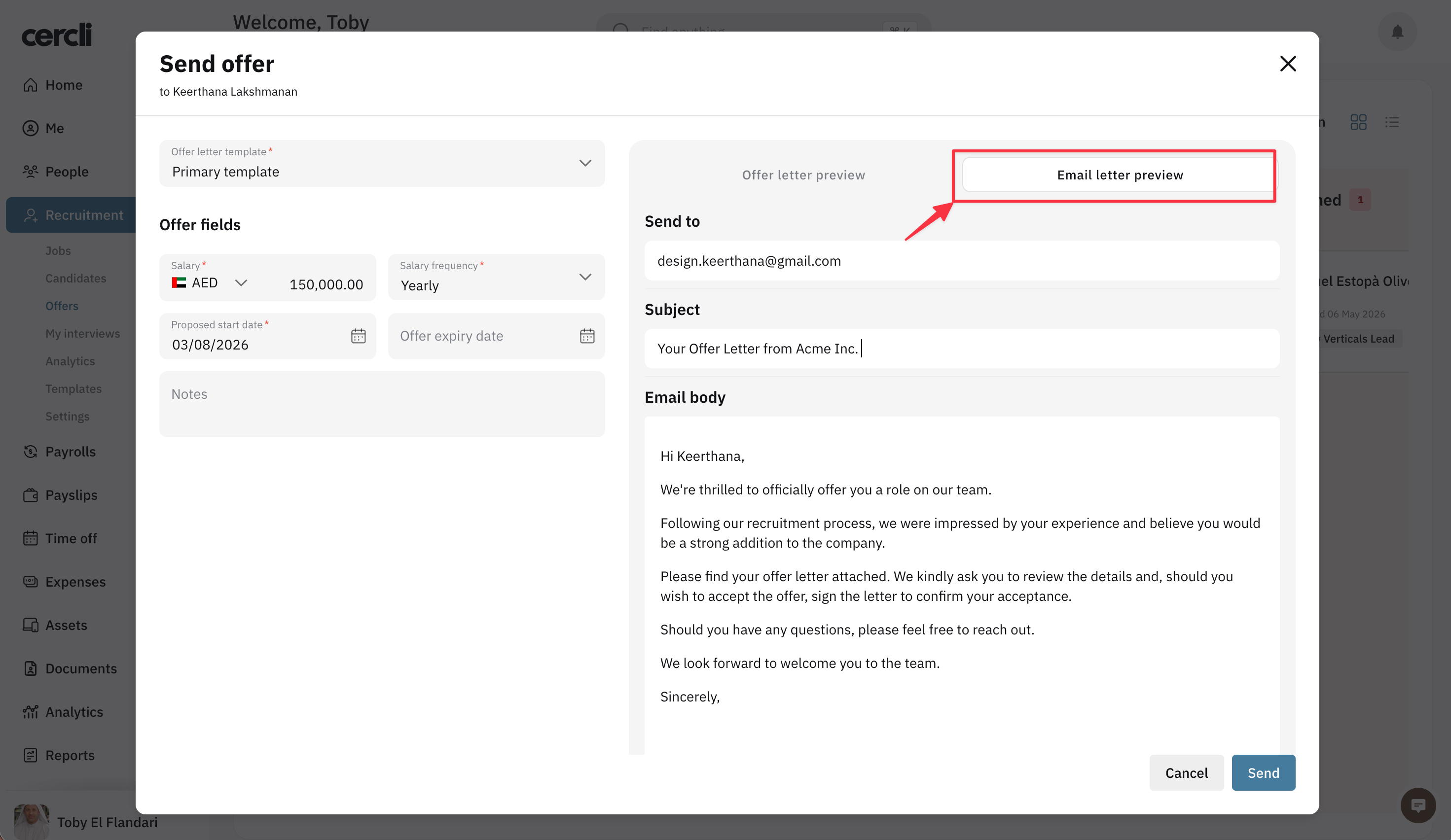
Once everything is set, click Send. The candidate will receive an email immediately and will be able to sign the offer.
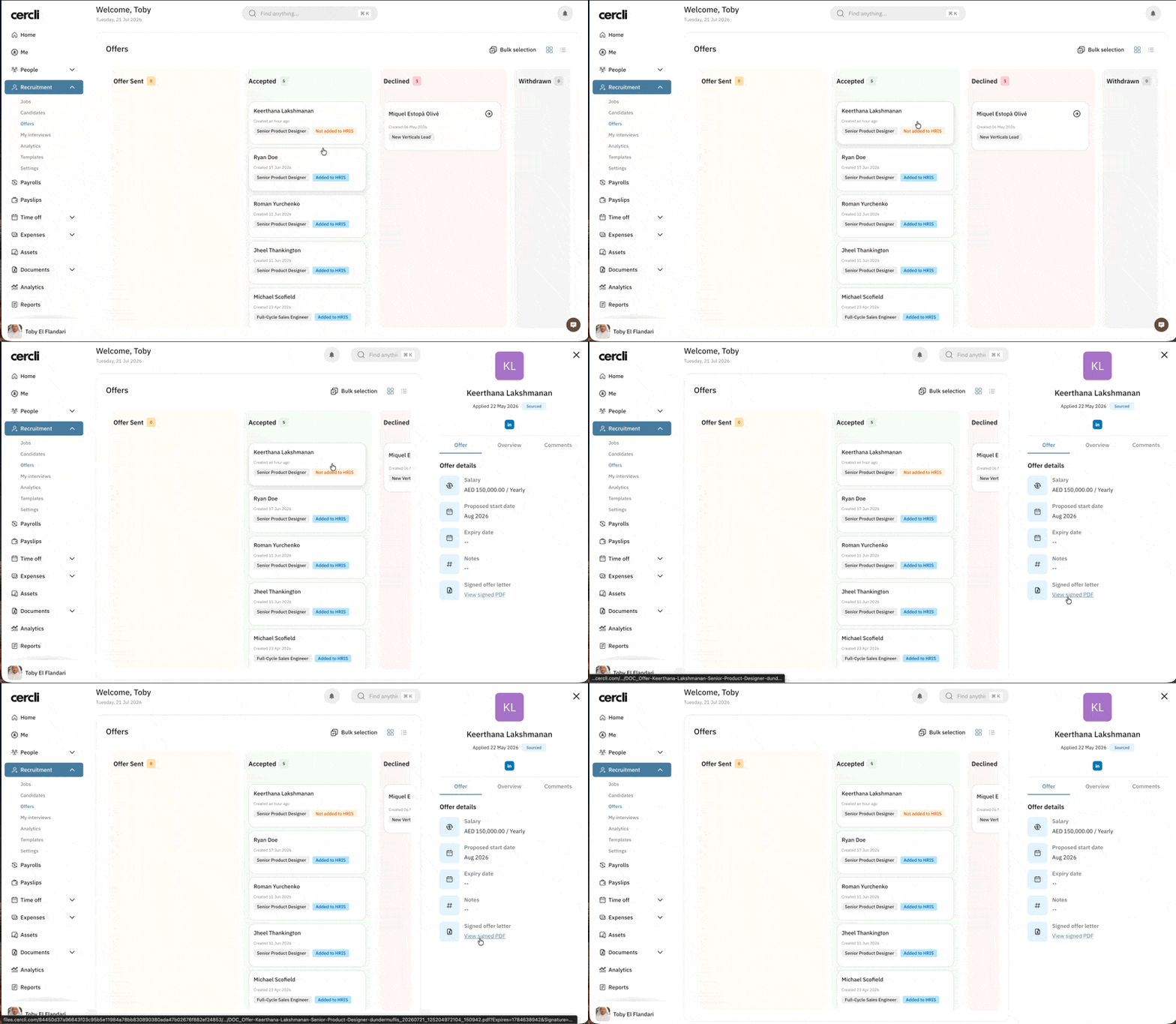
After the offer is signed, you'll be able to review the signed offer letter. To do that, click the candidate's offer card and find the signed offer in the sidebar.