Getting Started with Cercli as a Team Member
Last updated: April 29, 2026
This is a quick overview guide for new team members using Cercli.
Welcome!
TLDR 🍿
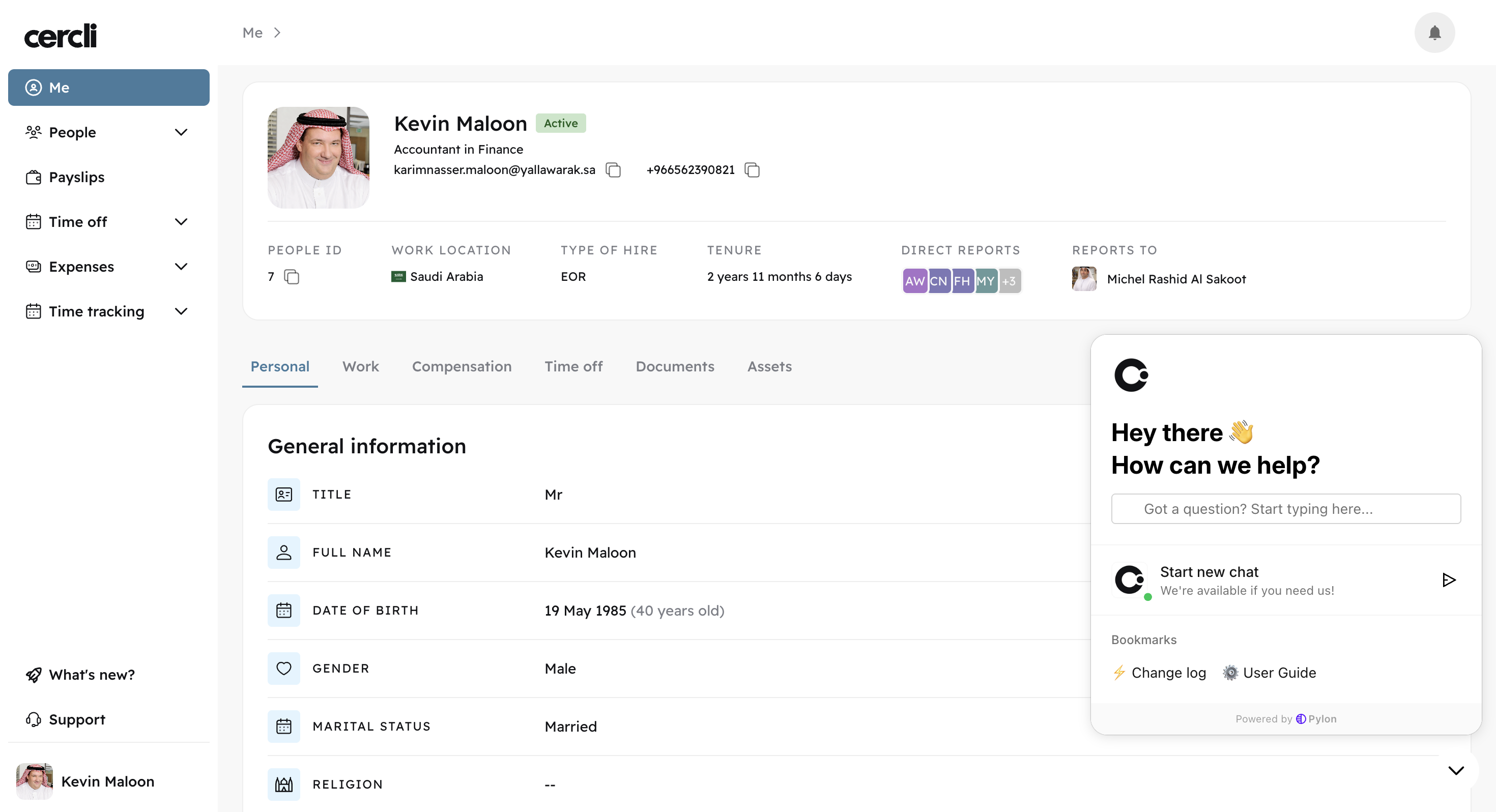
Me Section
We will start with the Me section on the left navigation bar. Divided into the following tabs: Personal, Work, Compensation, Time off, Documents, Assets .
Each tab is scrollable, so make sure you scroll all the way down to not miss any field.
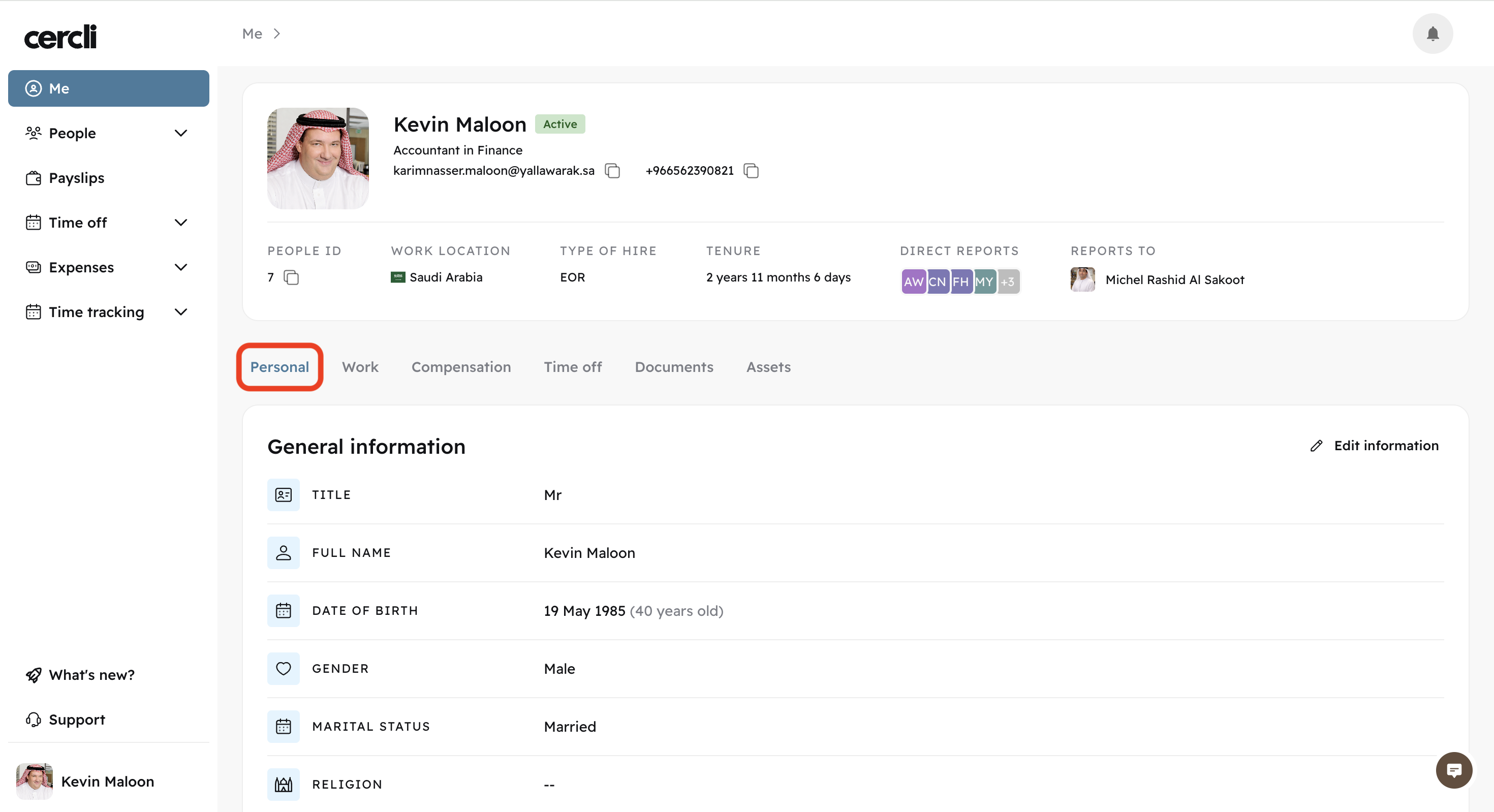
Personal tab
Edit and view your General information, Payment options, Residence address, and Contact details.
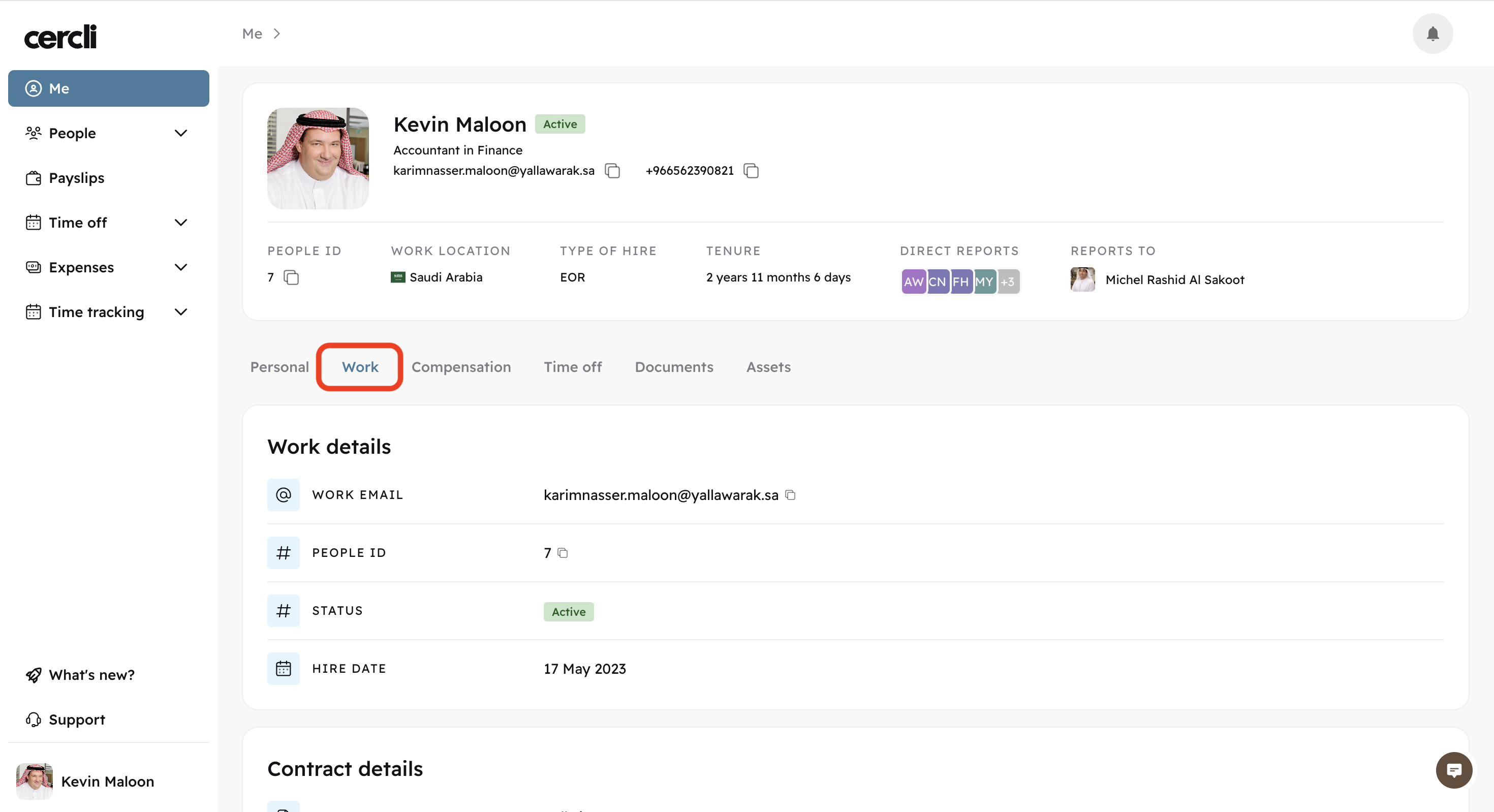
Work tab
View your Work details, Contract details, Department, and Org structure.
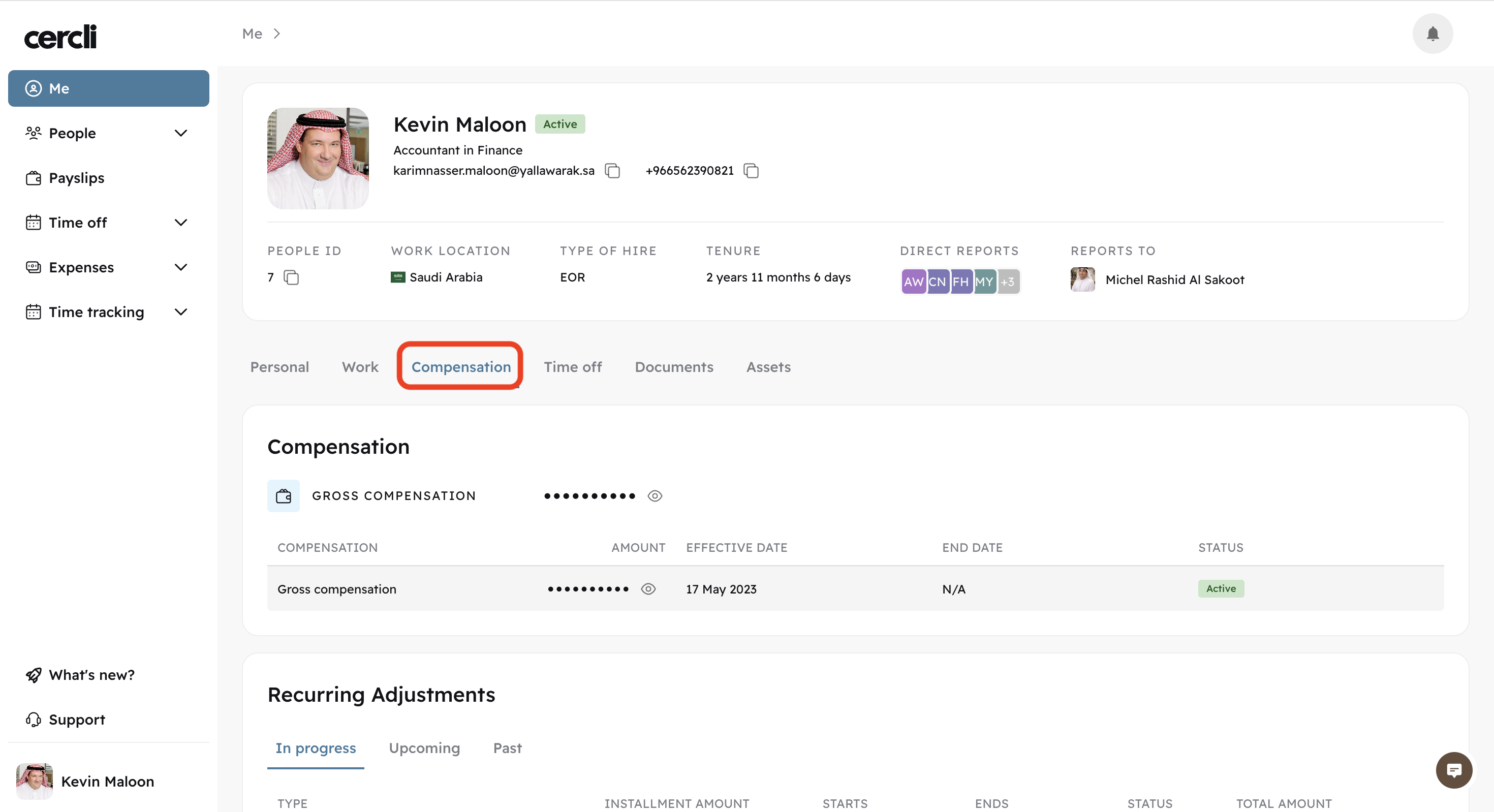
Compensation tab
View your salary and adjustments.
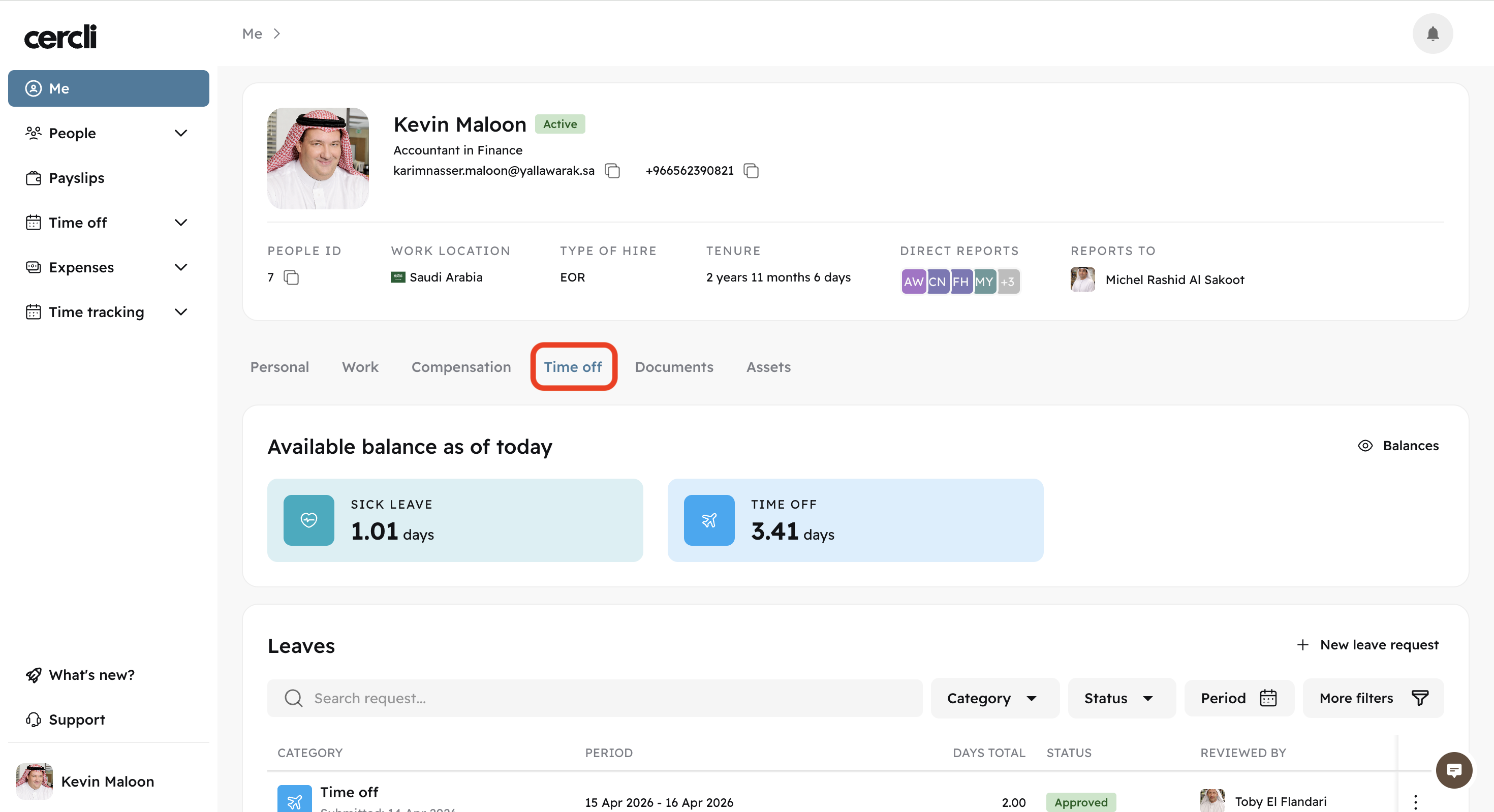
Time off tab
You can view your leave categories with their balances, your leave requests, and their status. You can also view your work schedule and public holidays.
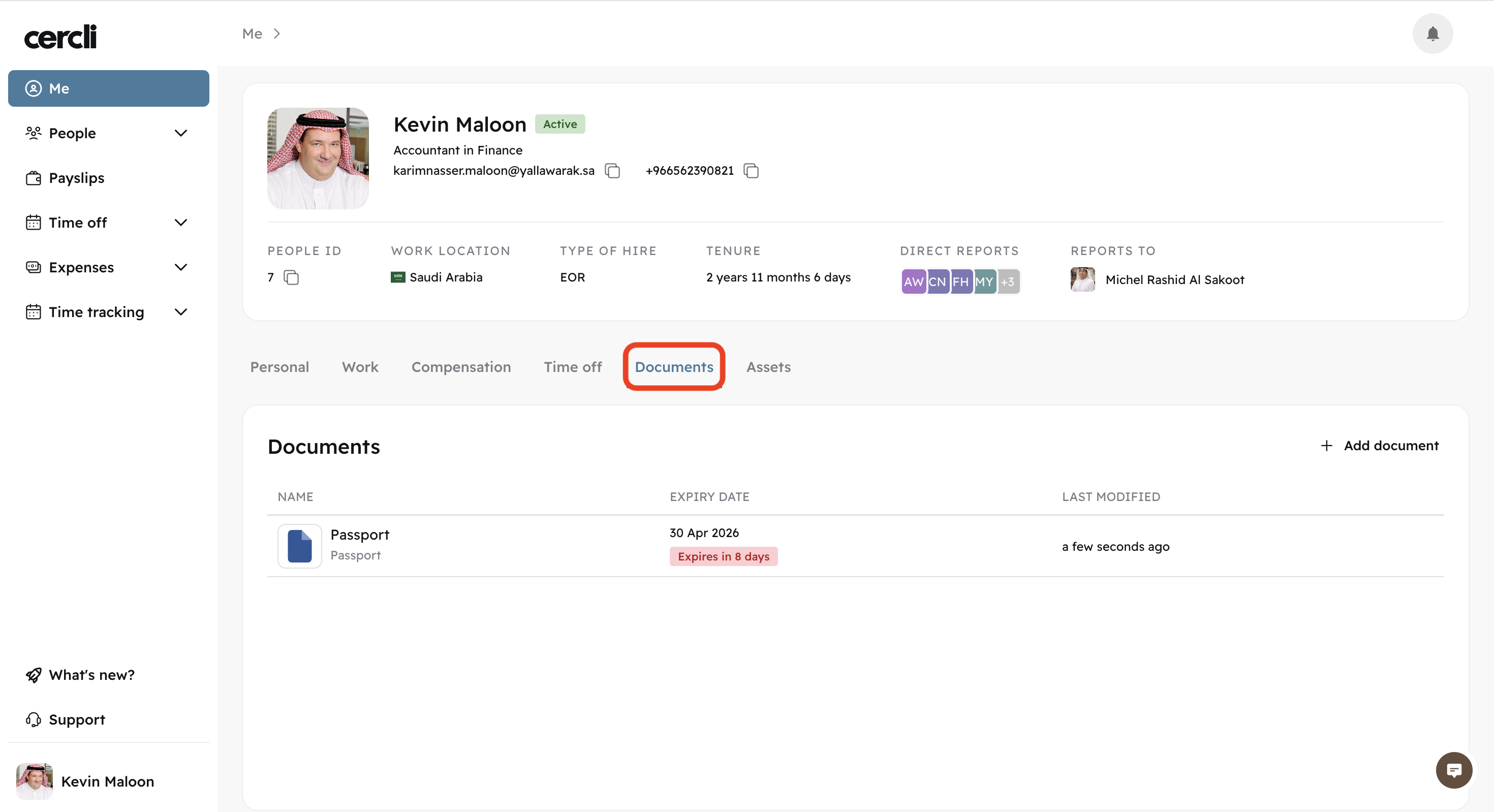
Documents tab
You can upload all required documents here, selecting the Add document button.
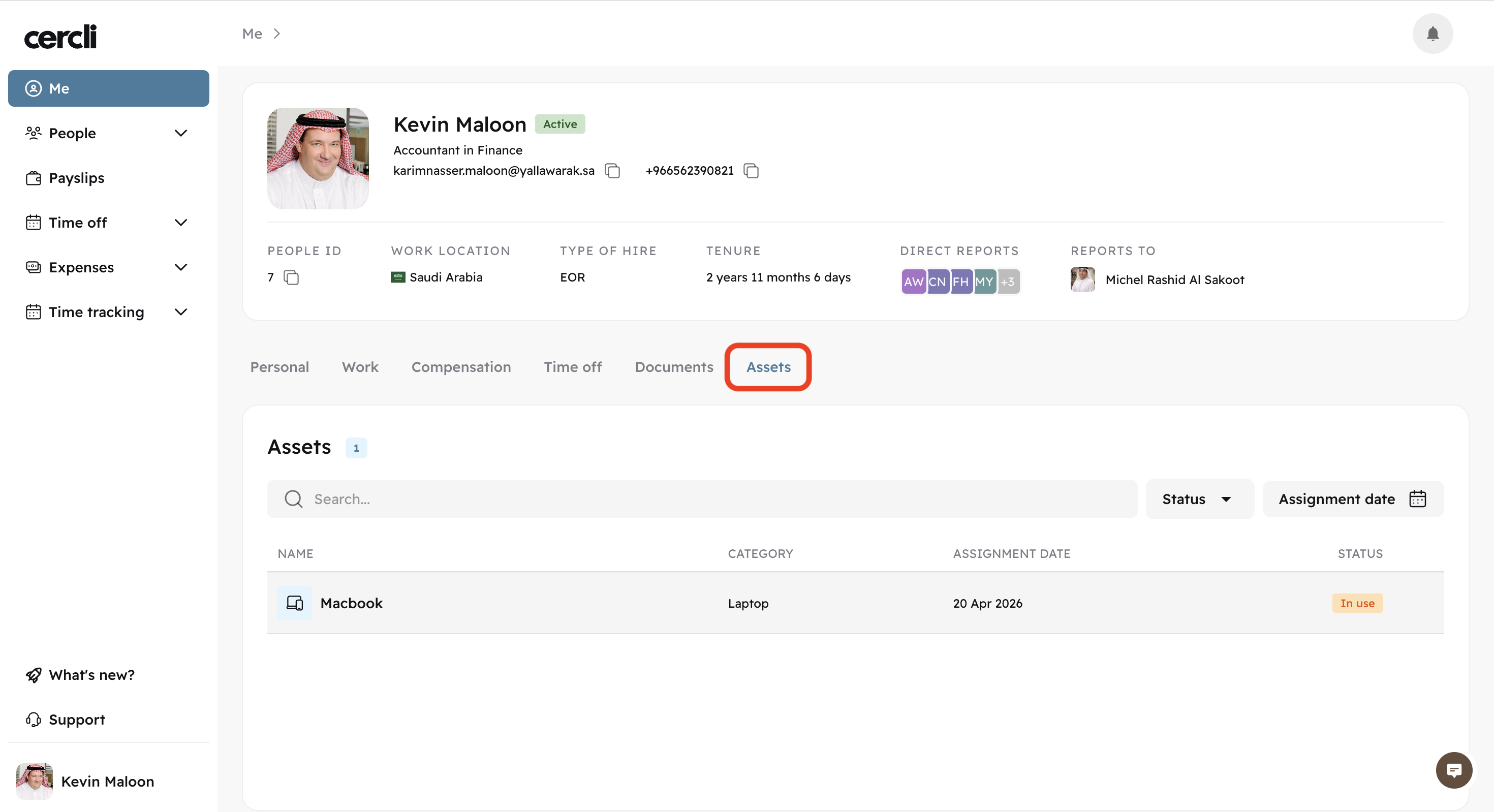
Assets tab
View the assets you've been assigned to. Laptops, phone...
People Section
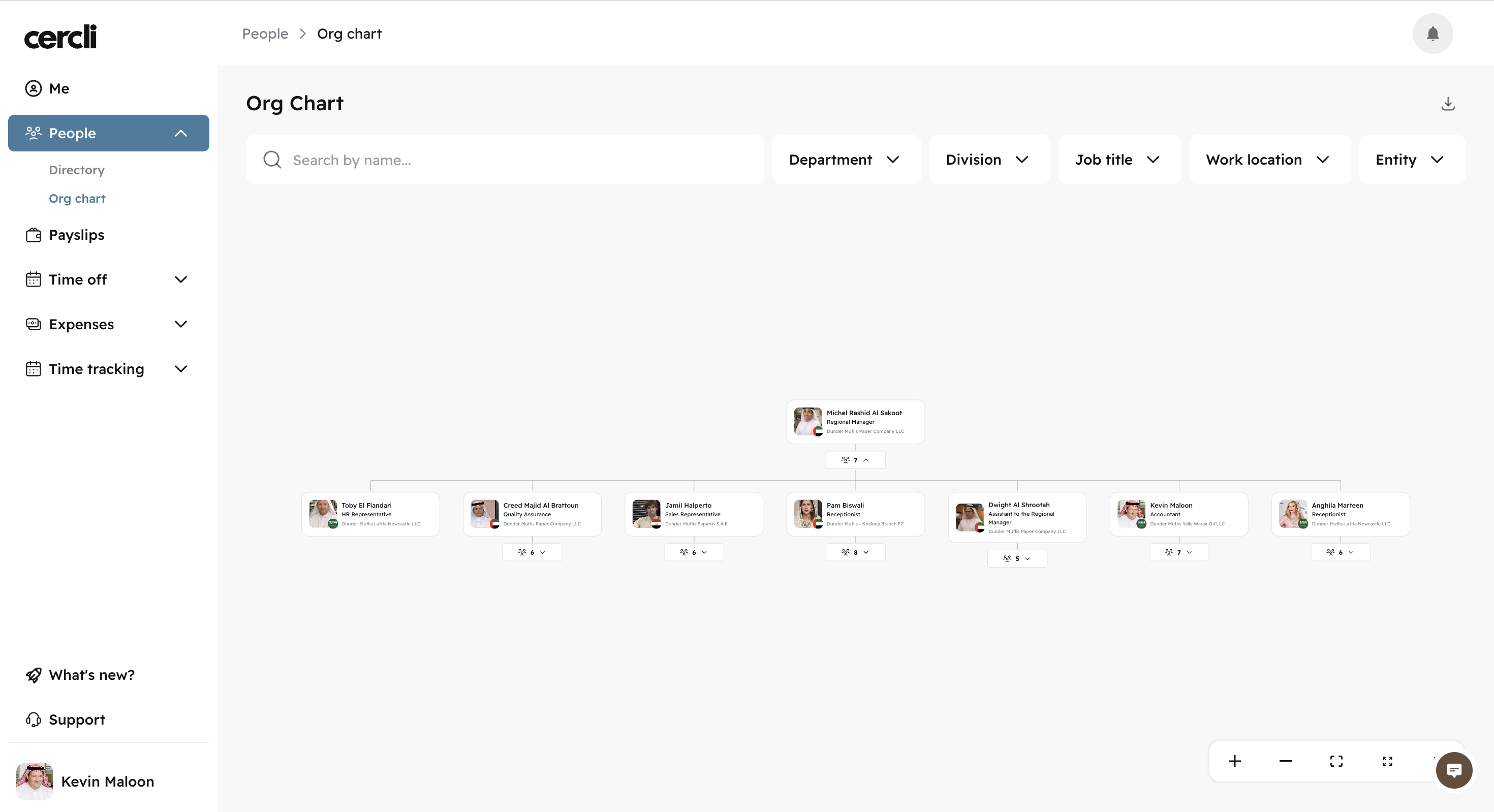
The People's section is divided into the Directory and Org chart .
The Org chart allows you to view your company's structure graphically, while the Directory shows a list of all your team members.
Payslips Section
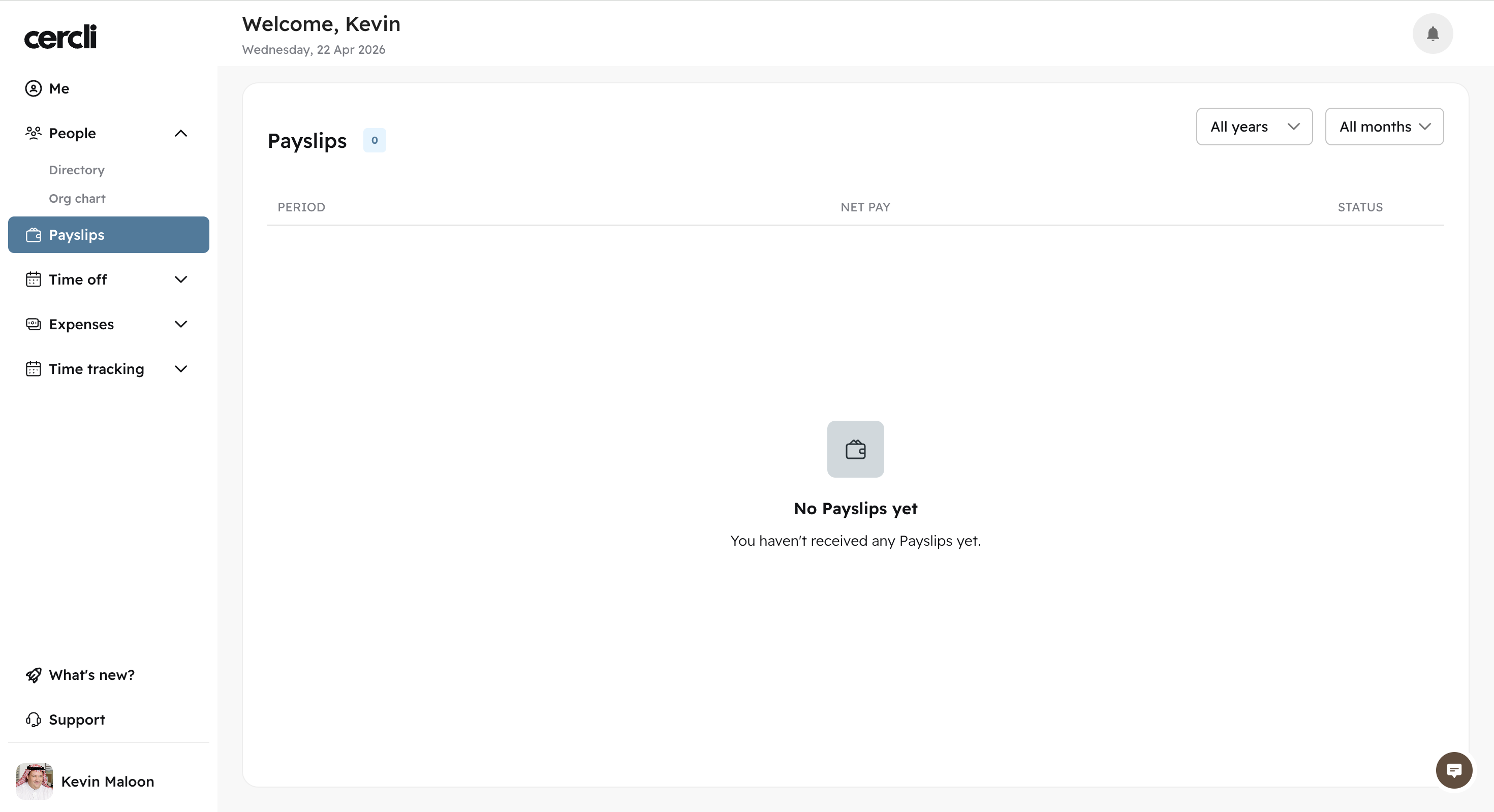
After receiving your salary, you'll be able to view the payslip for the month here.
Time Off Section
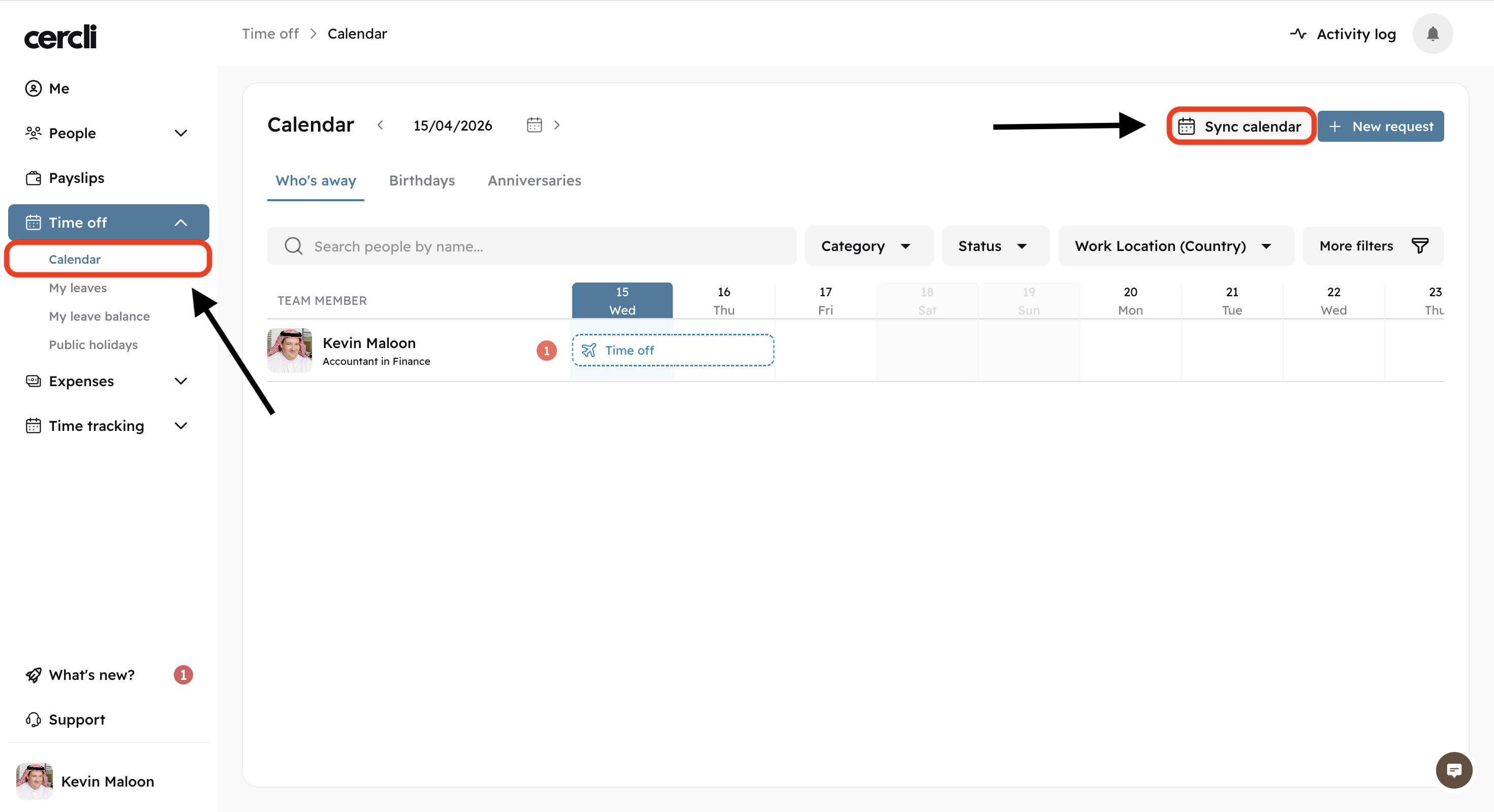
Similar to the Me section, here you can view your leaves, leave balance,
Public holidays. Under calendar, you can sync your leaves with your Google or Microsoft calendars.
Expenses Section
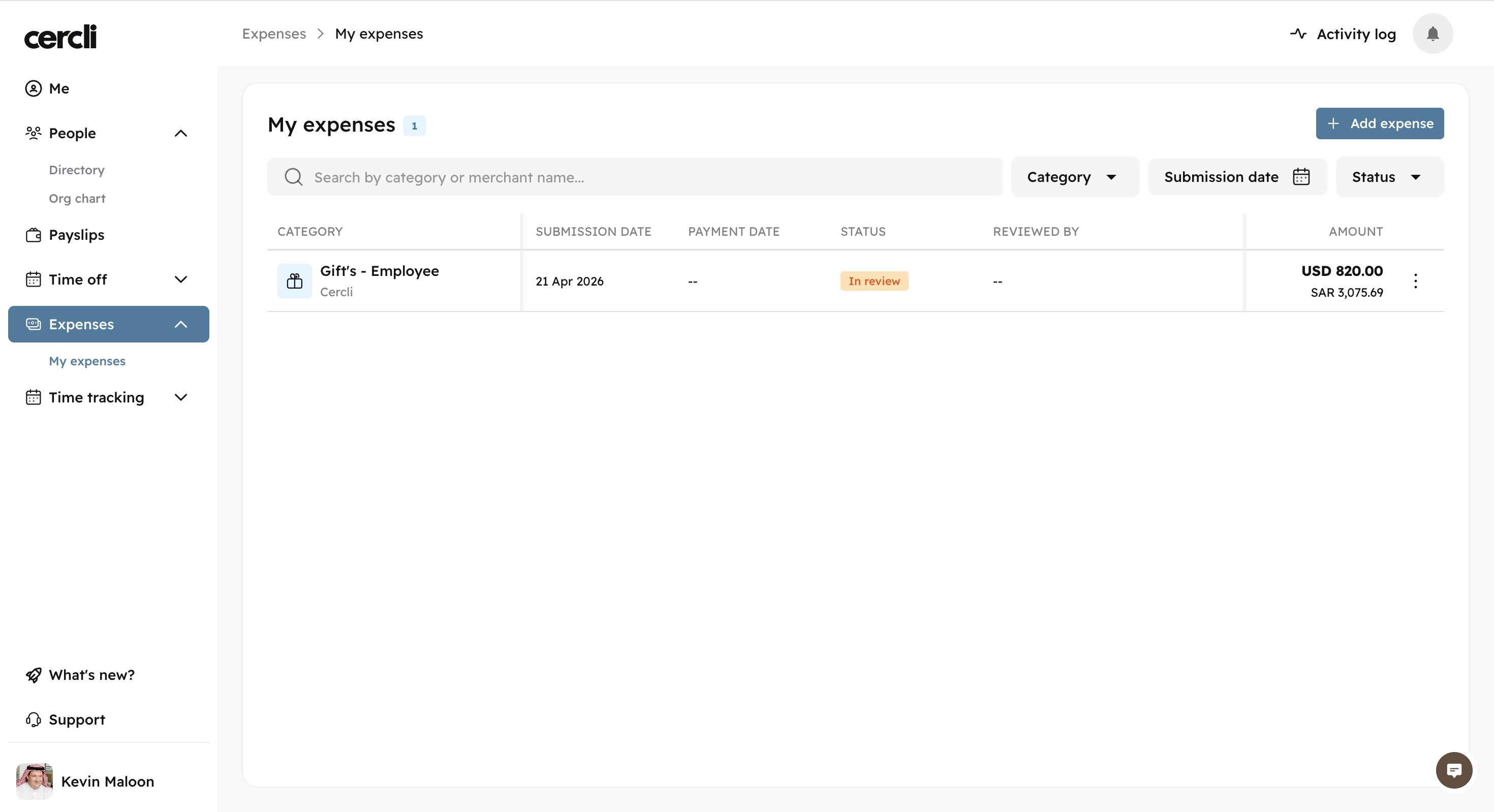
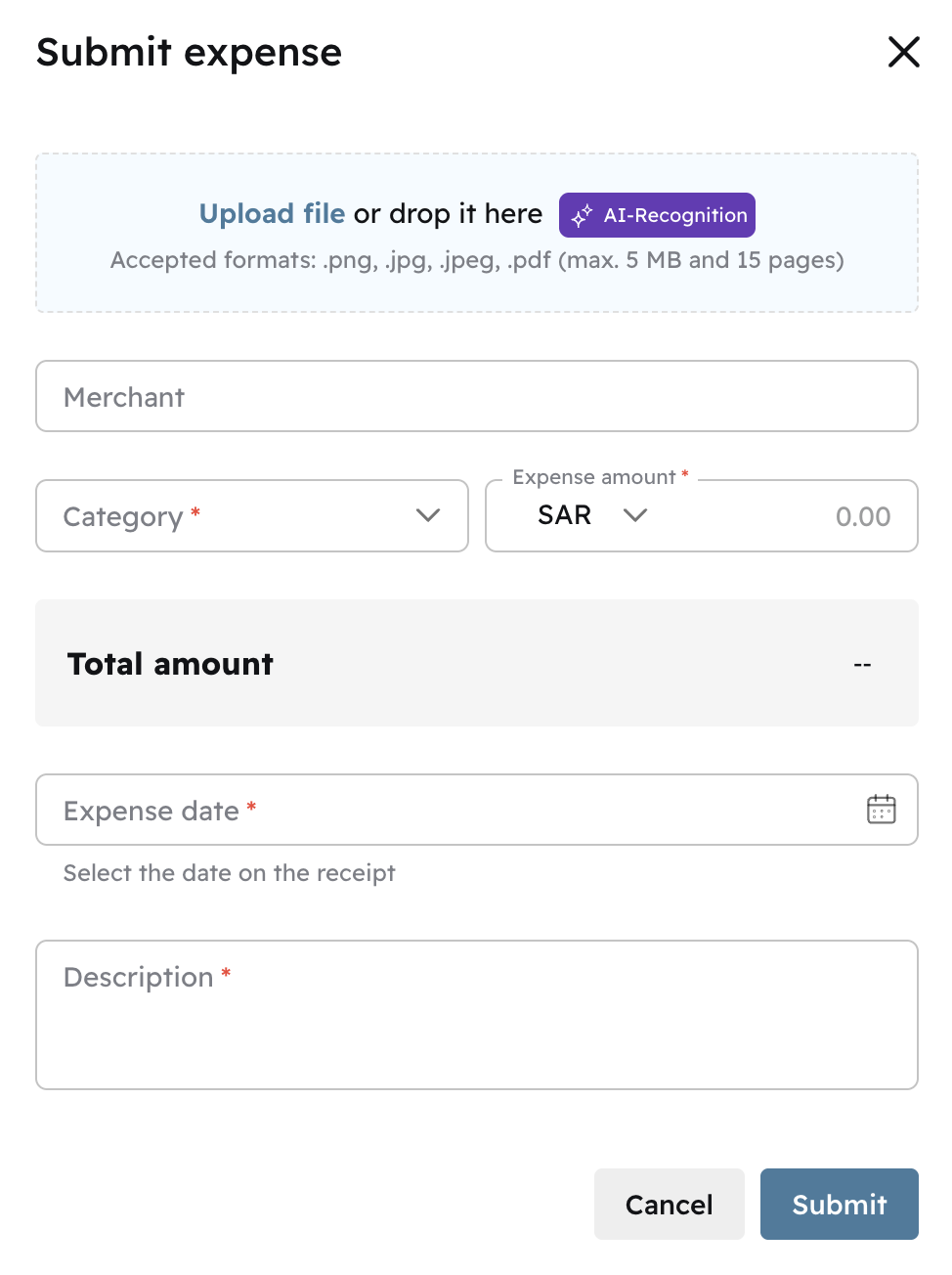
To apply for cost reimbursement, you can do it from this section. You can click
Add expense , simply submit an image or pdf file and the AI will auto fill the fields.
Requests
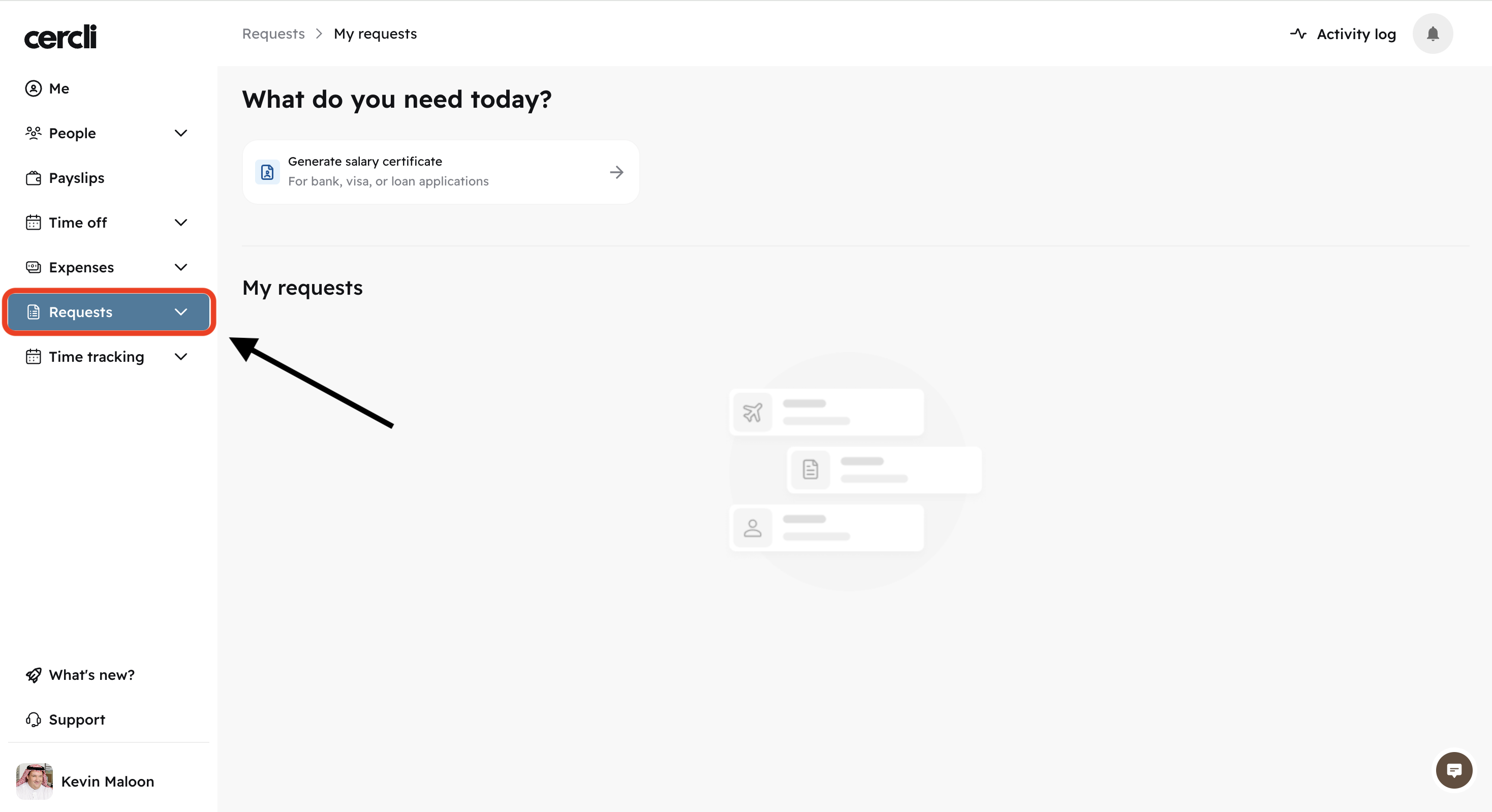
If your team has Requests enabled, you can request a salary certificate directly from the Requests tab on the left side bar.
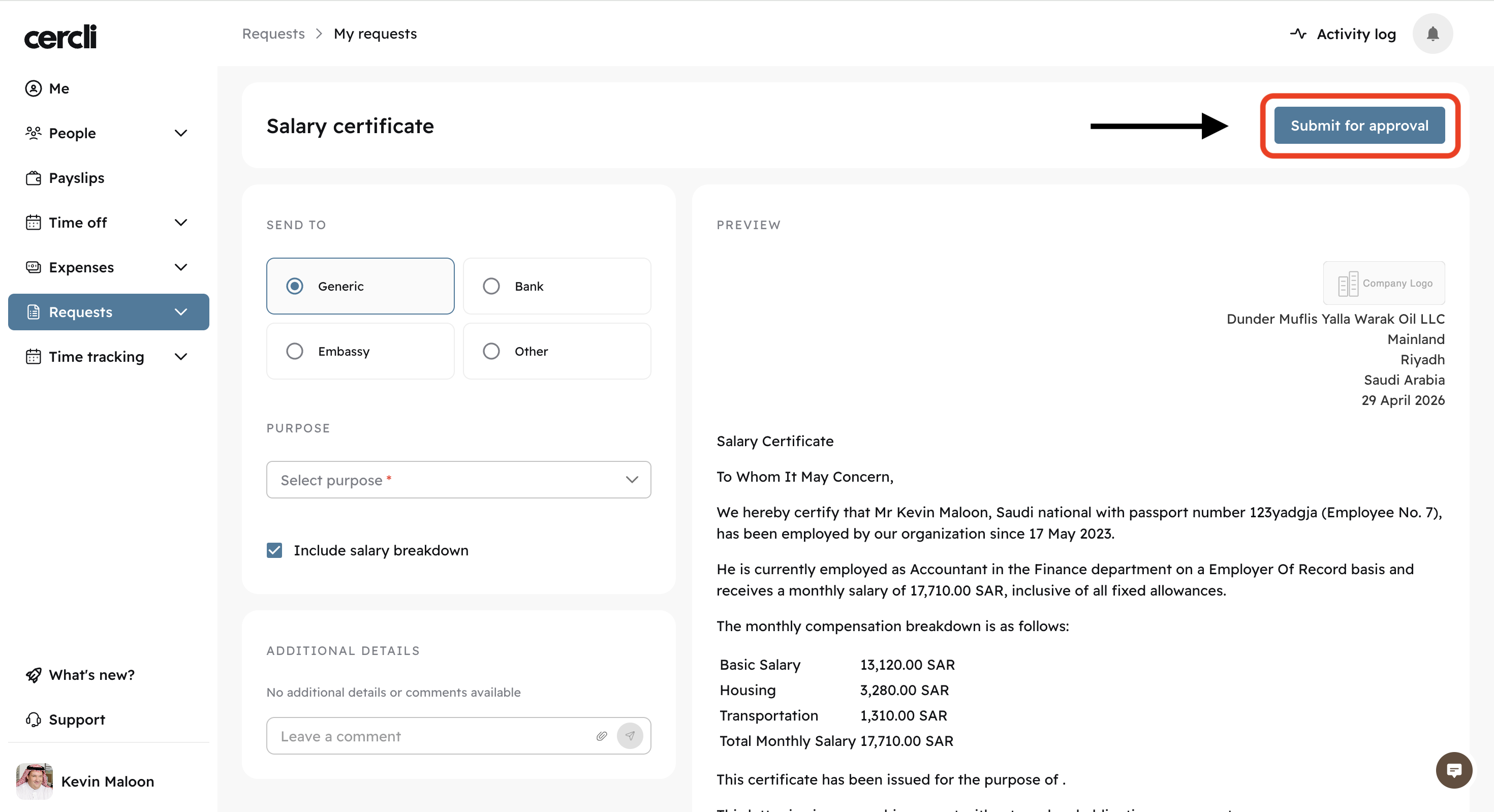
Draft the document, and click Submit for approval
Time Tracking Section
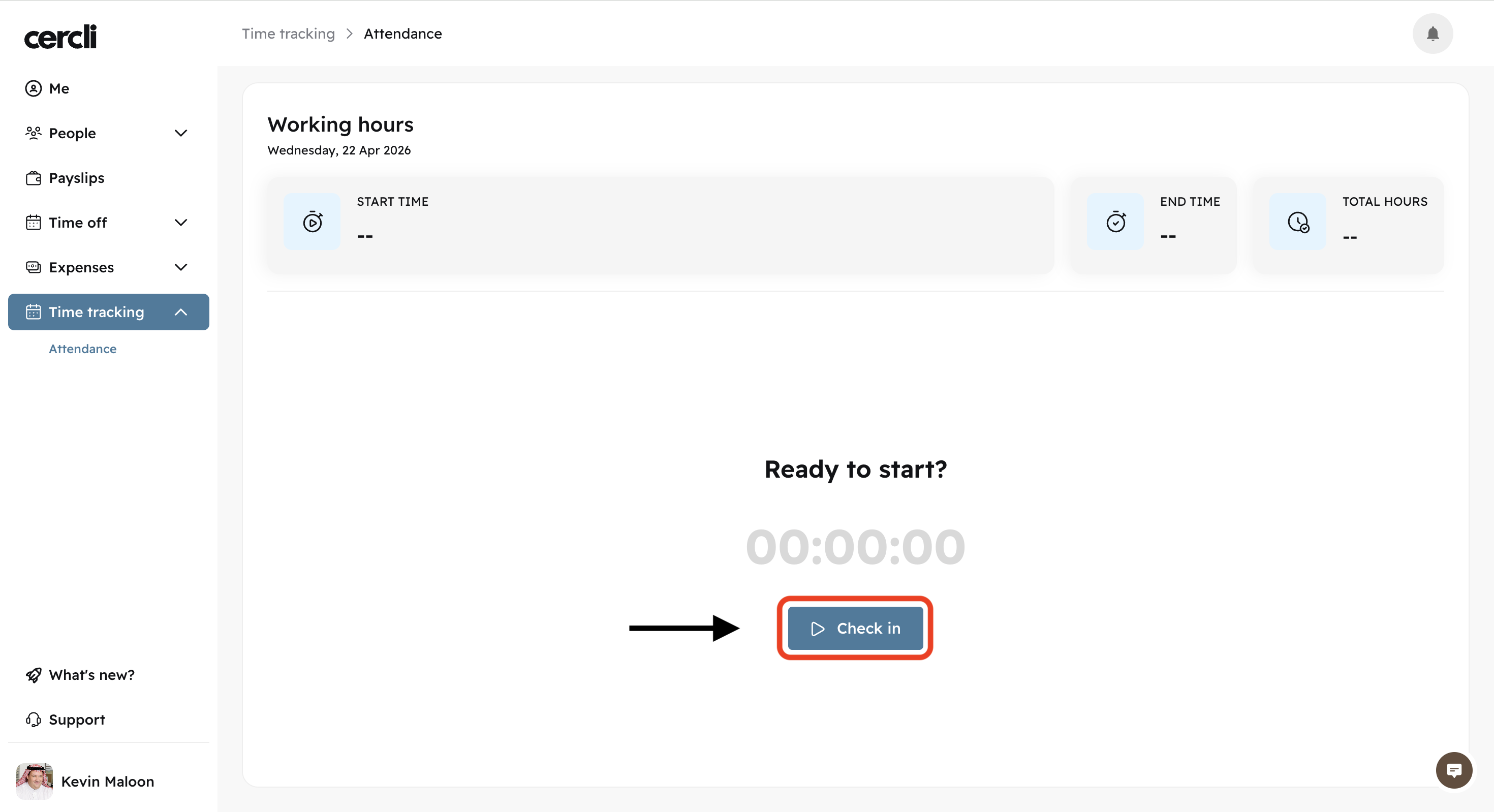
If your team has time tracking enabled, you can go on the Attendance tab and click Check in to start your day.
Support widget
At the bottom left of your screen, you'll see a widget icon. Click on it to open it.
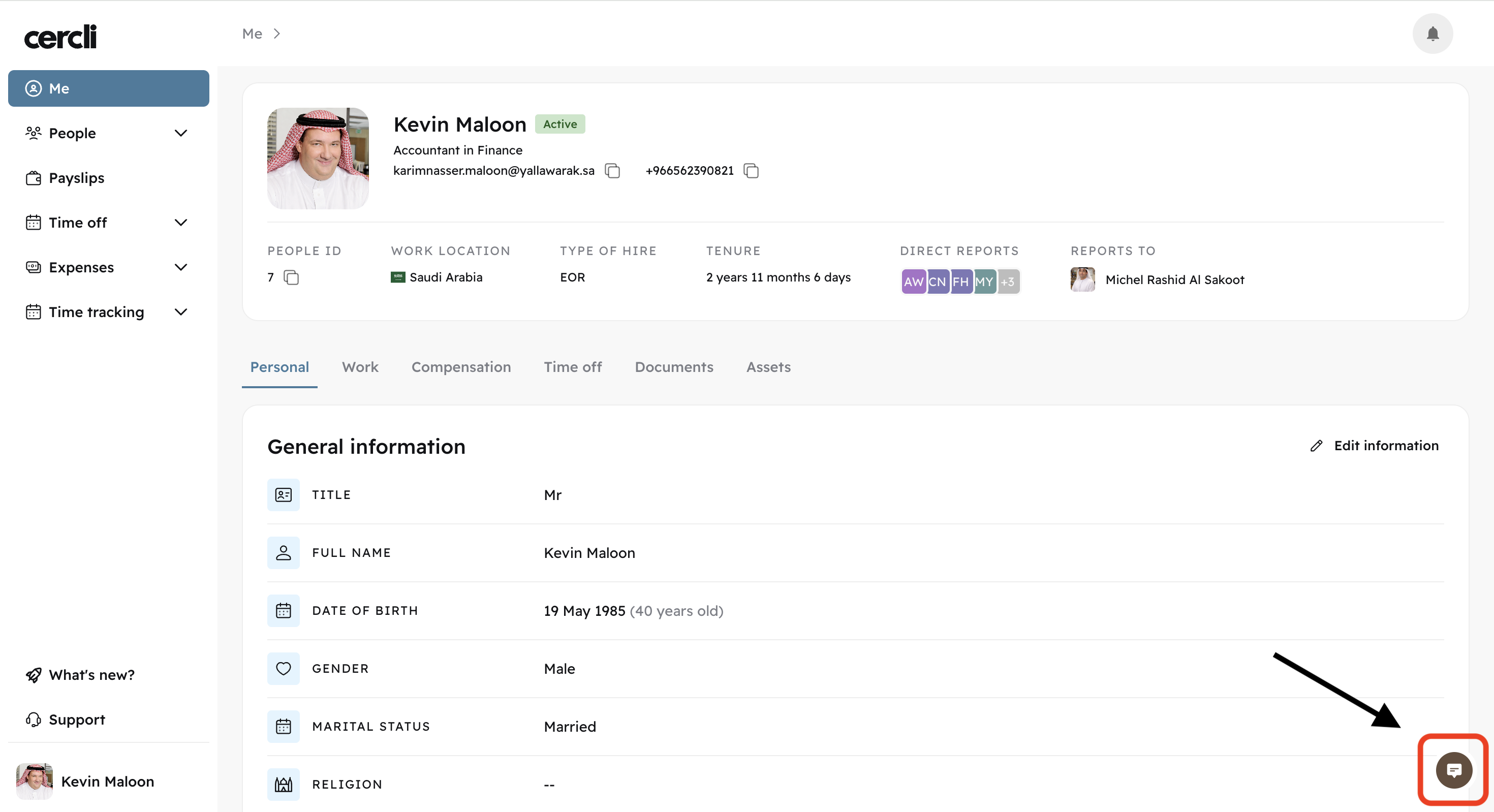
You can type your question directly, or open a chat with our Customer Care team.
By typing a question, you will see a list of articles that may help you get an instant response to what you are looking for.