Admin - How to Create a New Entity
Last updated: August 4, 2026
TLDR 🍿
Creating a New Entity Step by Step
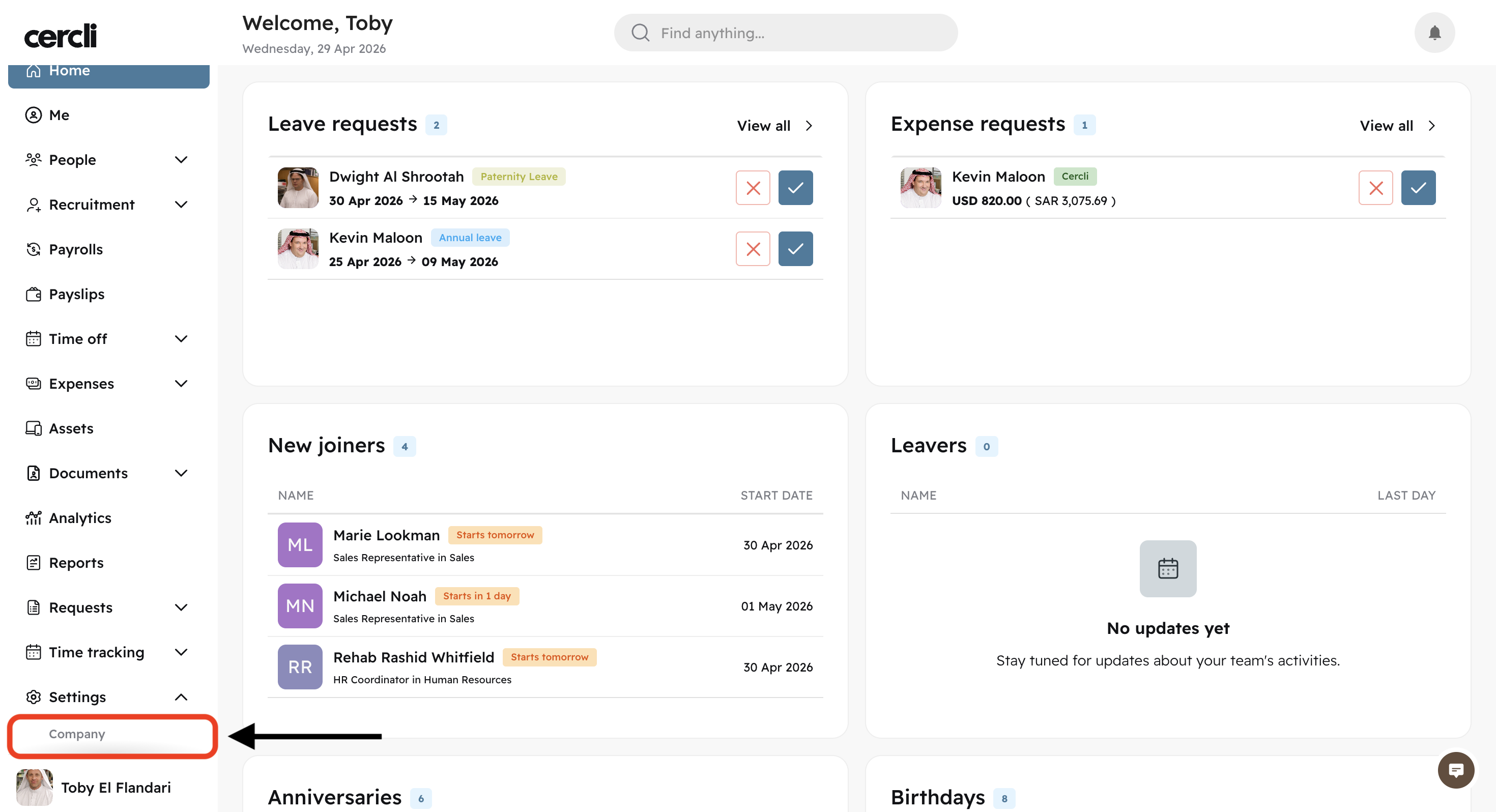
On the left navigation bar, go to Settings and click on Company
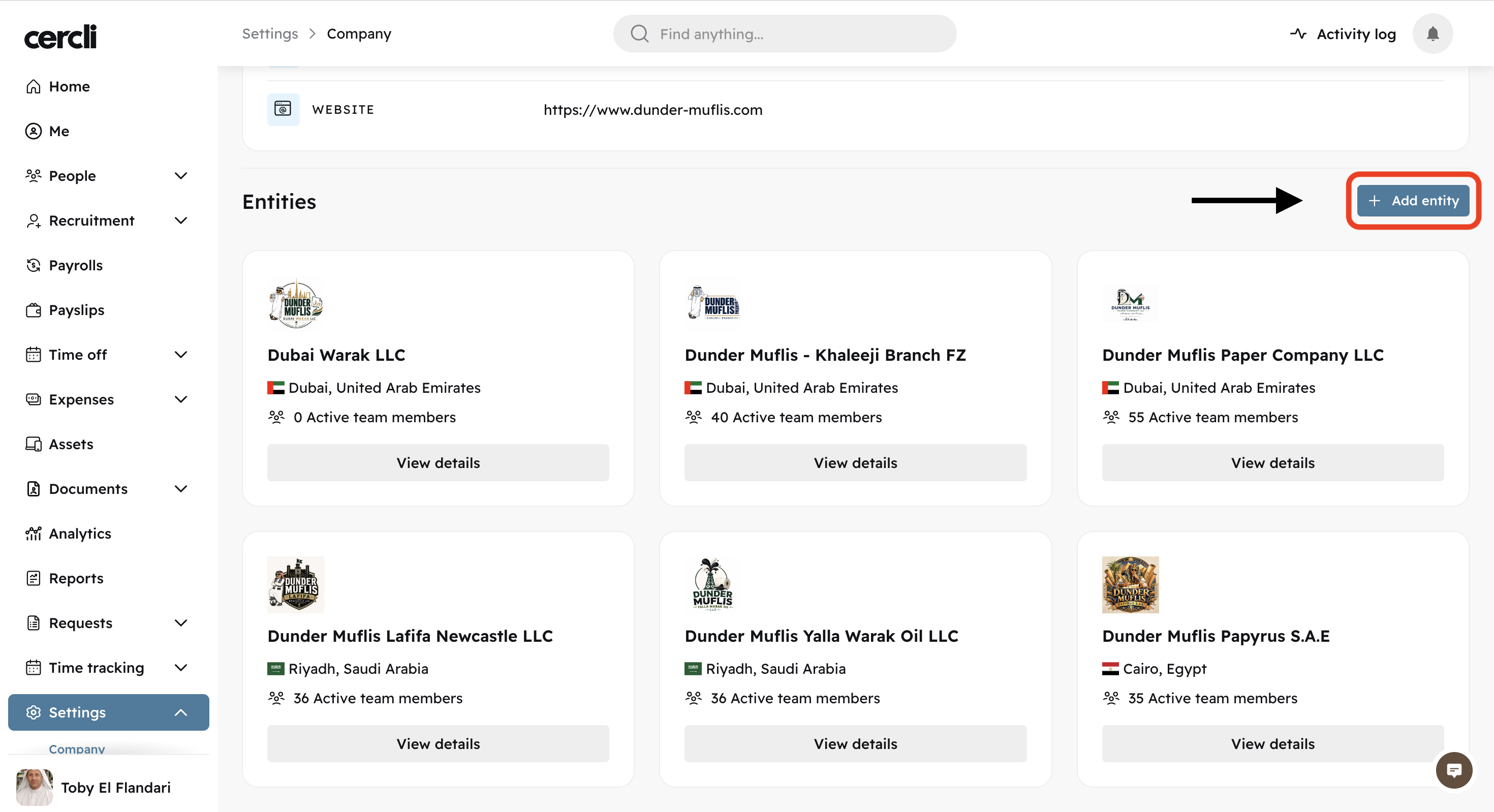
Click on + Add entity on the right of the screen
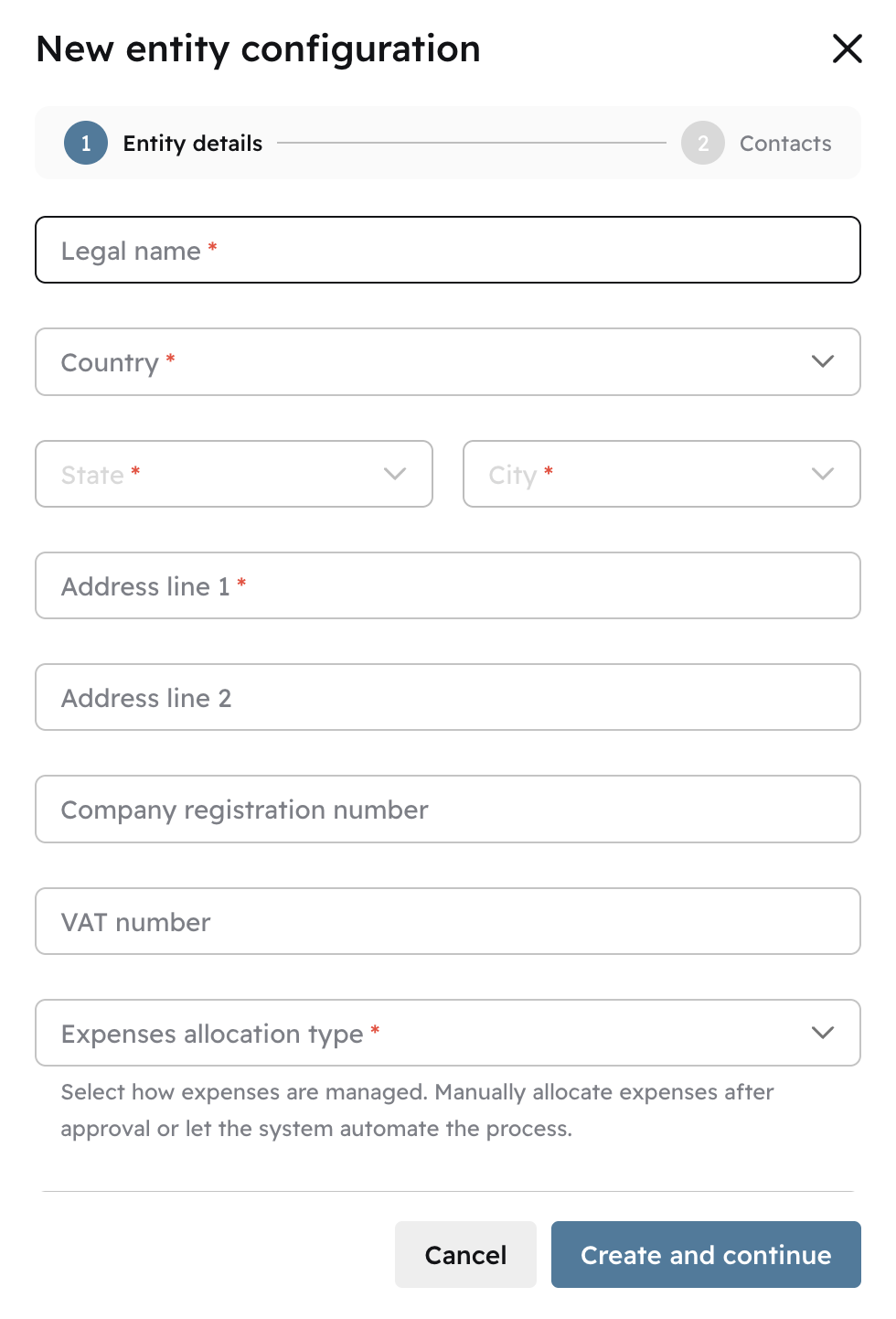
Fill in the fields. It's okay if you don't have all the details ready yet. You can focus on the mandatory fields first.
Click Create and continue
Once you've created the entity you will be able to edit company contacts.
Type a Contact number and a contact email and click Save .
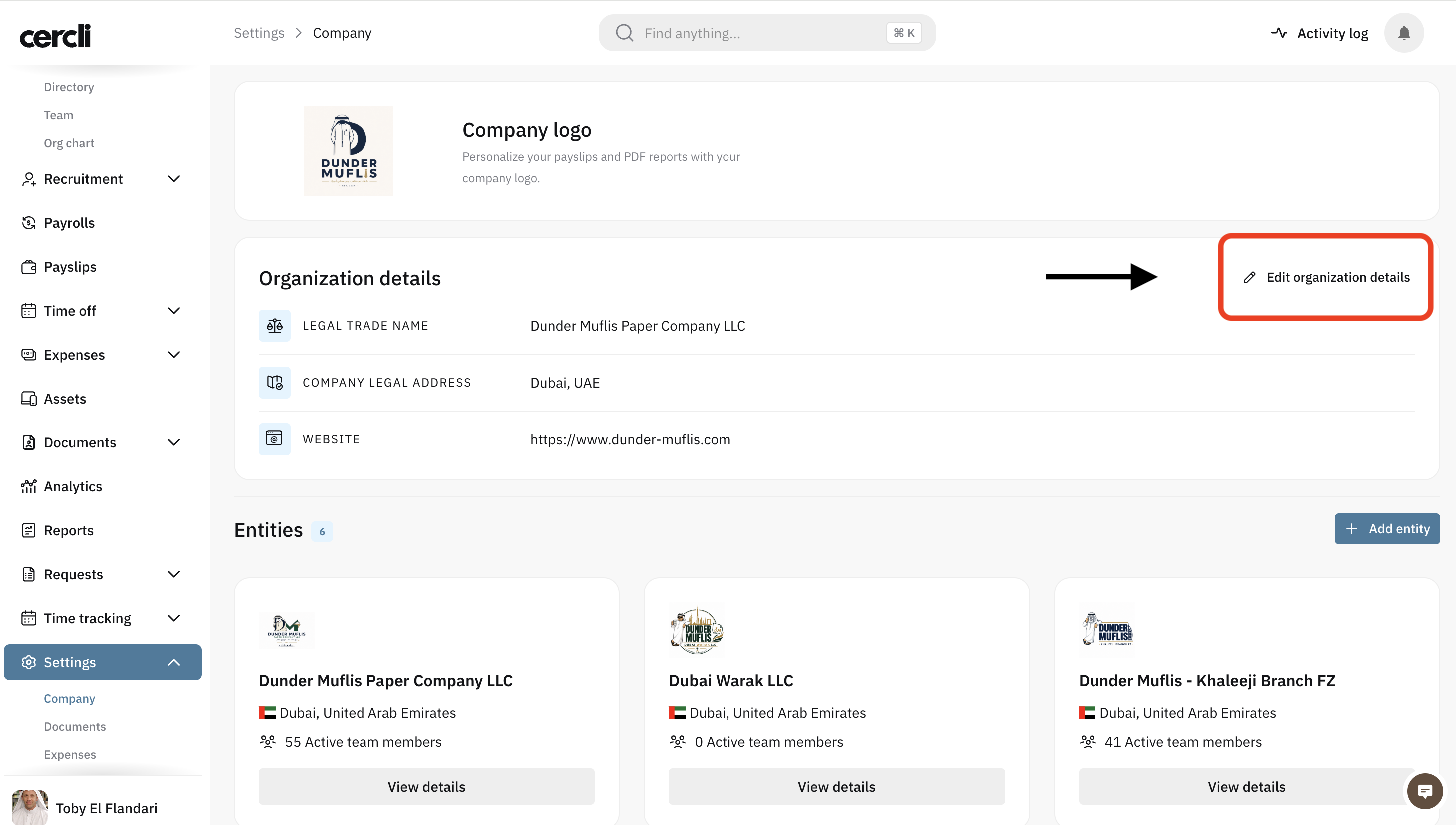
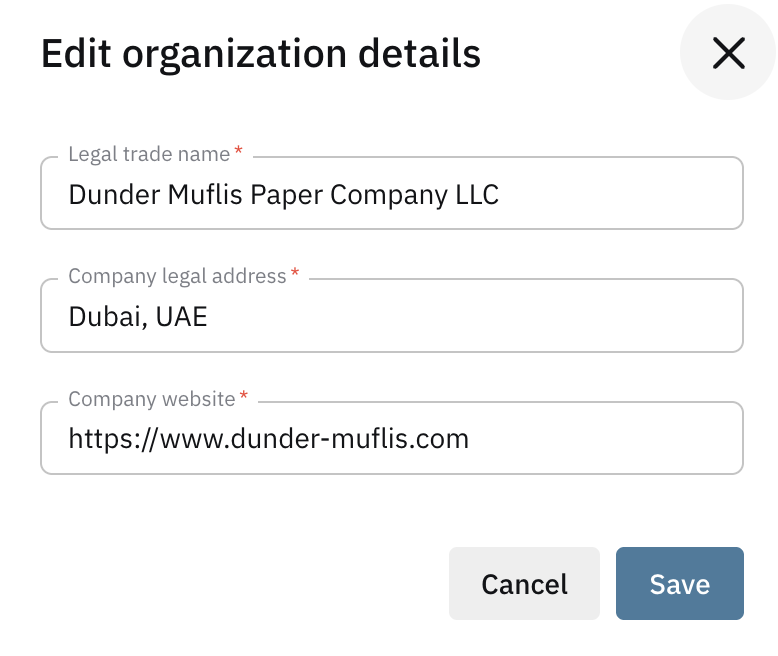
Setup Organization Details
This is important in order to be able to create new hires
Company Personalization
Now that the entity is created, you can start personalizing it.
Details
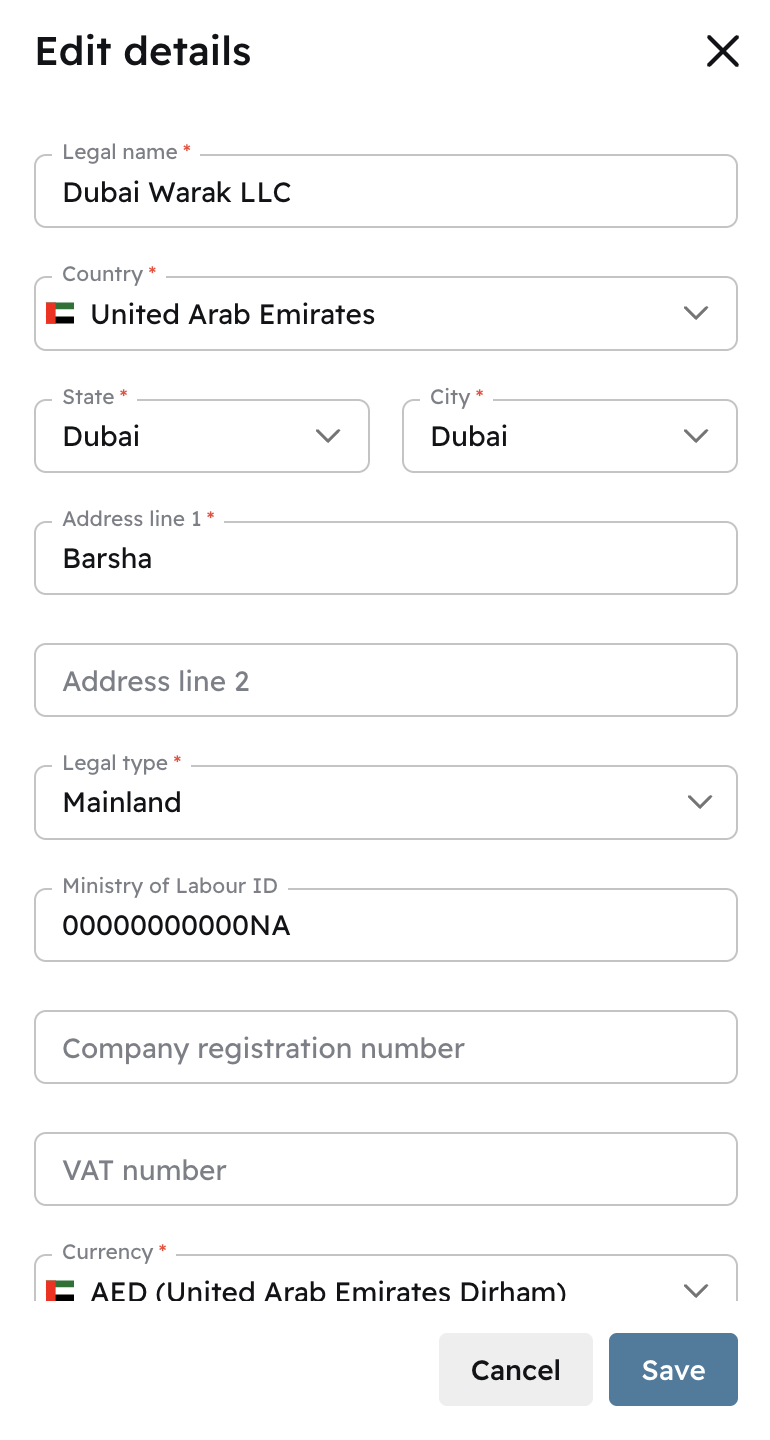
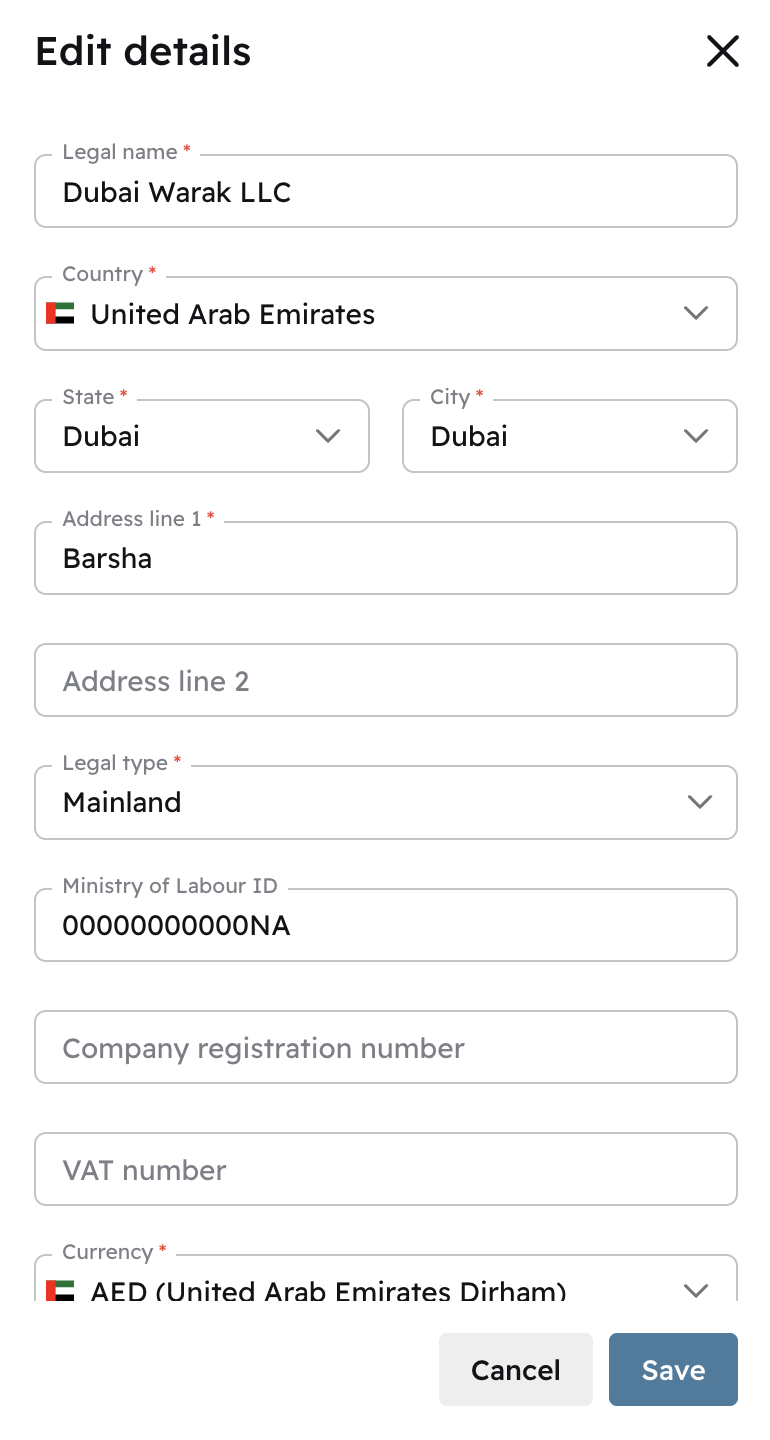
Click on your newly created entity, and find Edit details on the Details section.
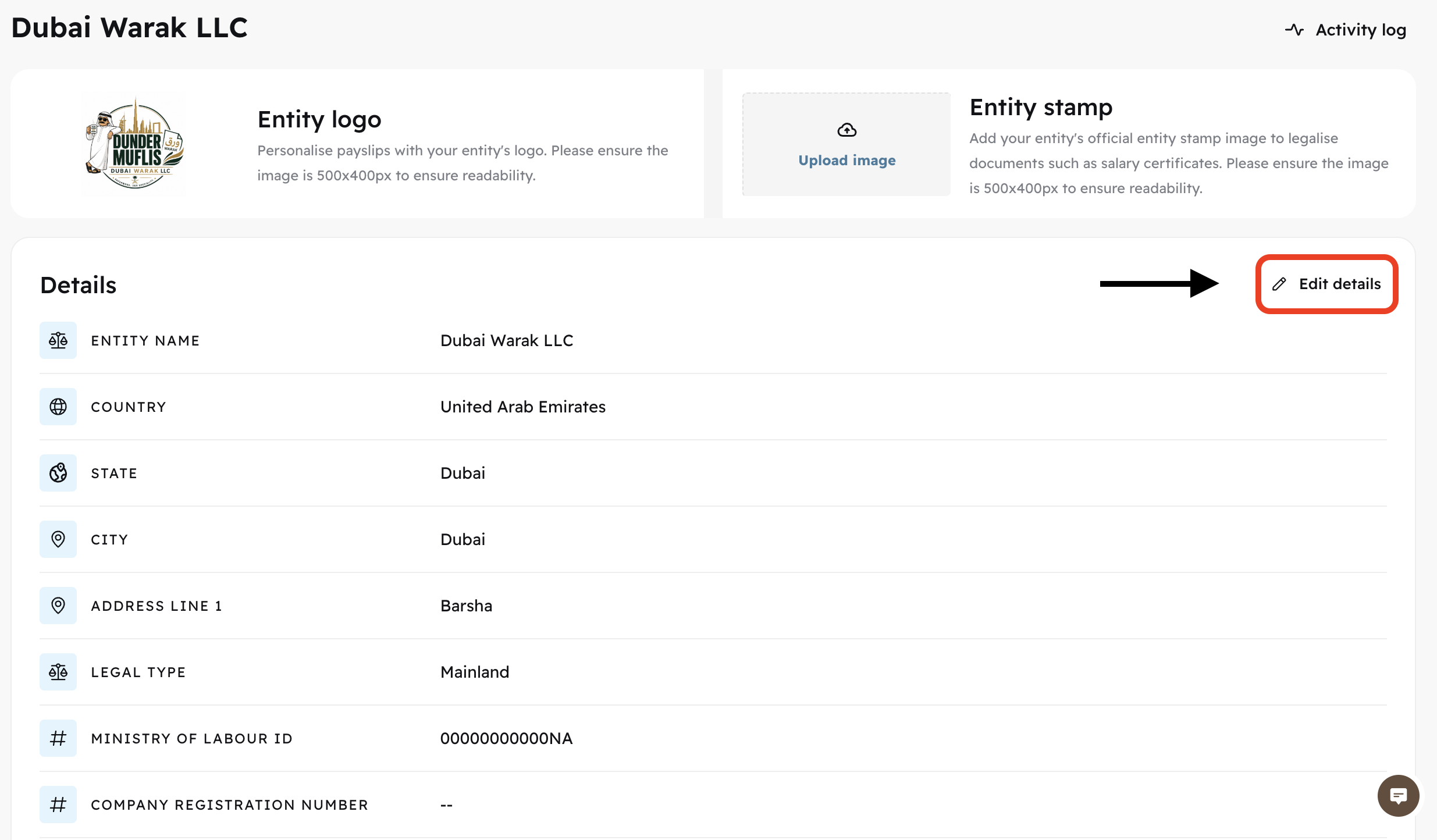
Here you can edit the information you filled out when creating the entity. It's a good time to update the fields that were left empty.
Prorata Calculations
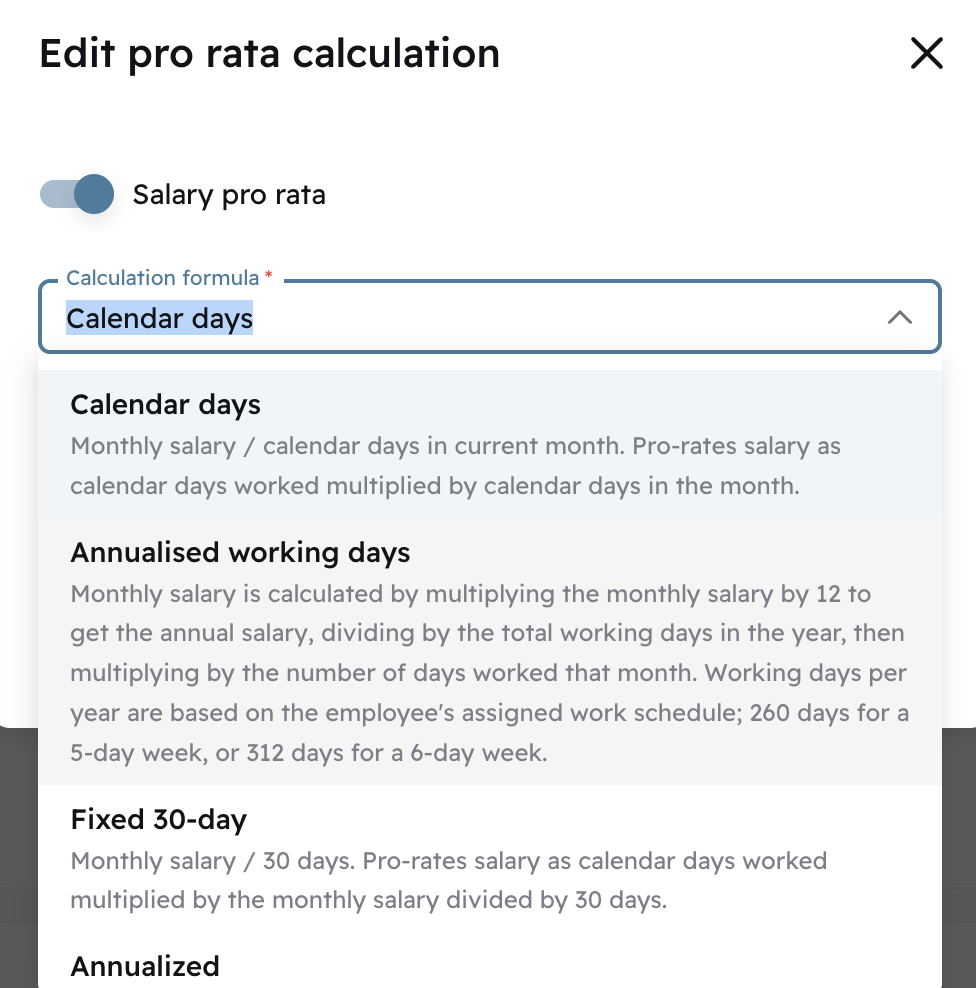
In this section, you can edit prorata calculations by clicking on
Edit pro rata calculation

You have 4 different formulas to choose from:
Calendar days: Monthly salary divided by calendar days in current month. Pro-rates salary as calendar days worked times the calendar days in the current month.
Annualised working days: Monthly salary x 12 (months) divided by yearly working days x number of days worked this month. Working days depend on the work schedule assigned - Refer to 📄 Admin - How to Add New Work Schedules
Fixed 30-day: Monthly salary divided by 30 days. Pro-rates salary as calendar days worked x monthly salary divided by 30 days.
Annualized: Total monthly compensation x 12 divided by 365 days. This average daily compensation rate is multiplied by the calendar days worked.
Payment Options
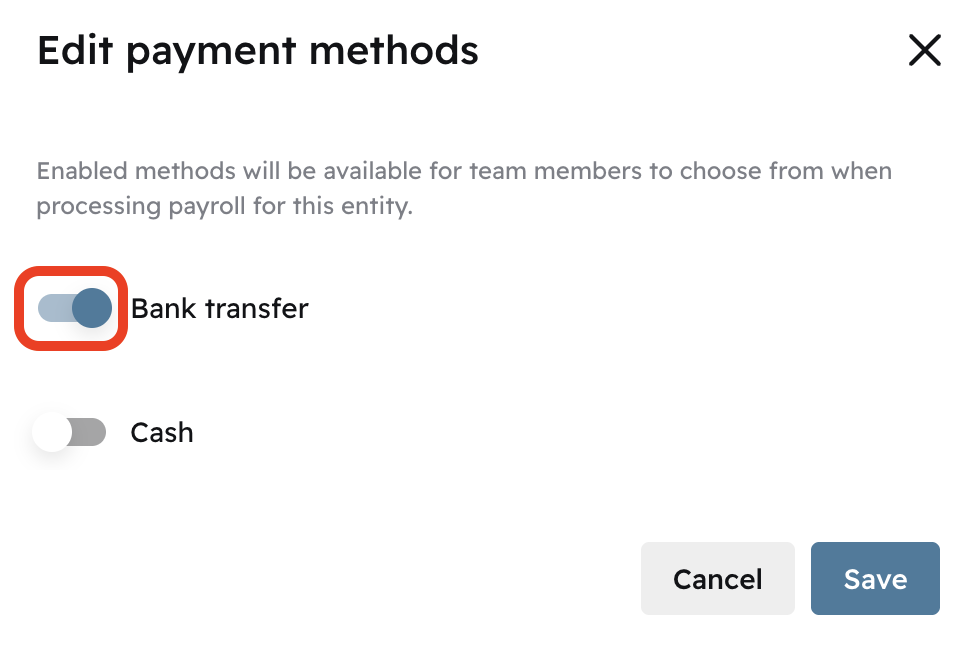
You can click on Edit payment methods to enable team members to choose from Cash and/or Bank transfers as a payroll method.

You can click on the toggle switches to enable/disable Bank transfers and/or Cash.
Expenses Settings
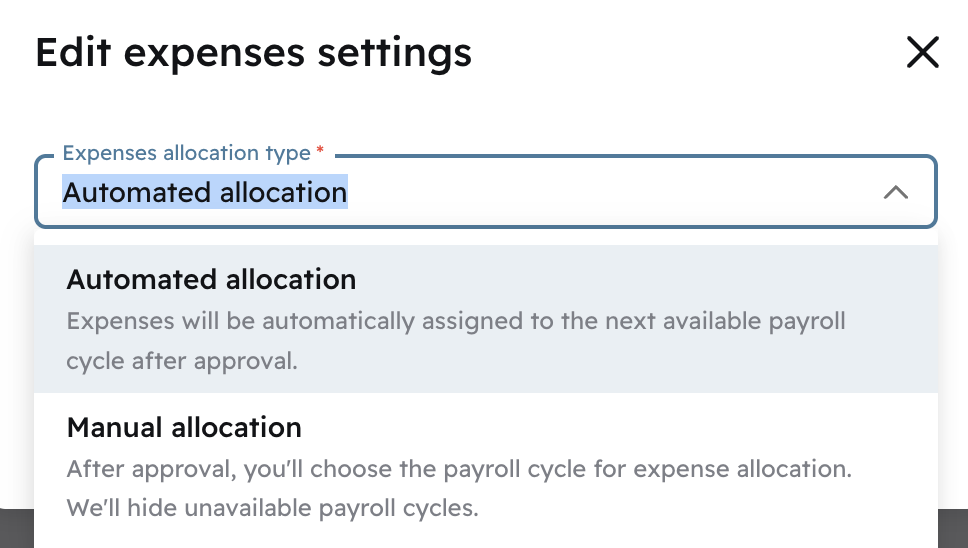
As an admin, you can decide whether you want team member approved expenses to automatically reflect on the next payroll cycle. This is the Automated allocation type

You can select Automated allocation or Manual allocation
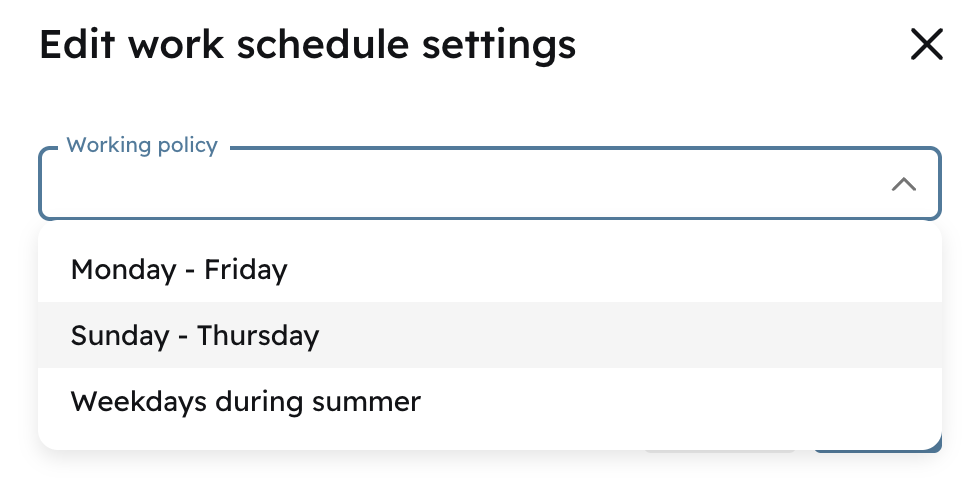
Work Schedule Settings
You can establish an entity work schedule.
Take a look at this article for a refresher on work schedules:
📄 Admin - How to Add New Work Schedules

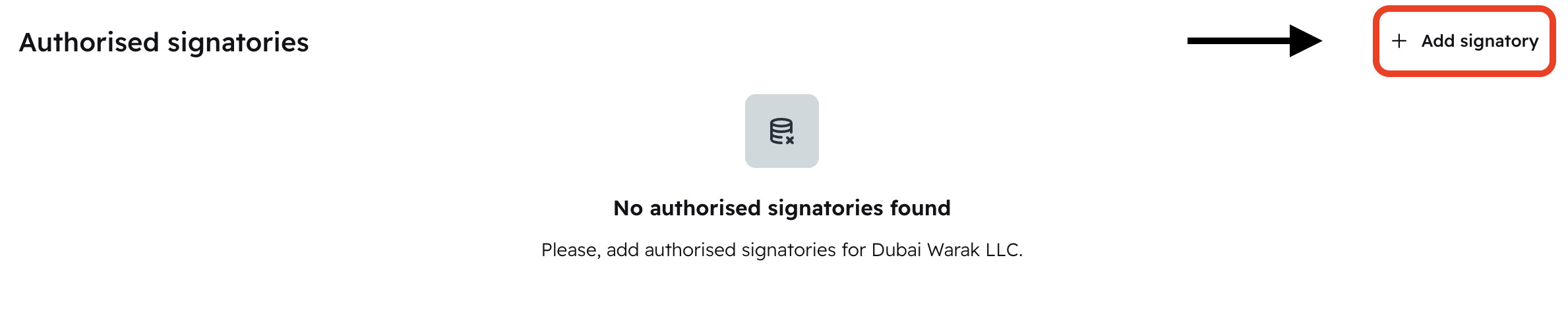
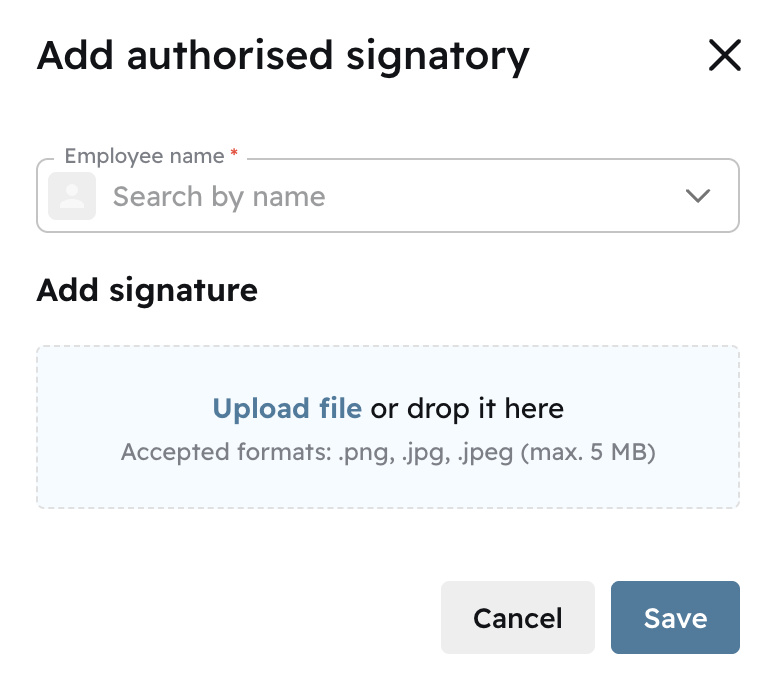
Authorised Signatories
Contacts