Admin - How to Update Team Member Start Dates on Excel?
Last updated: April 17, 2026
Dates must be in DD-MM-YYYY format for bulk updates to work
TLDR 🍿
How Do I Bulk Update Start Dates?
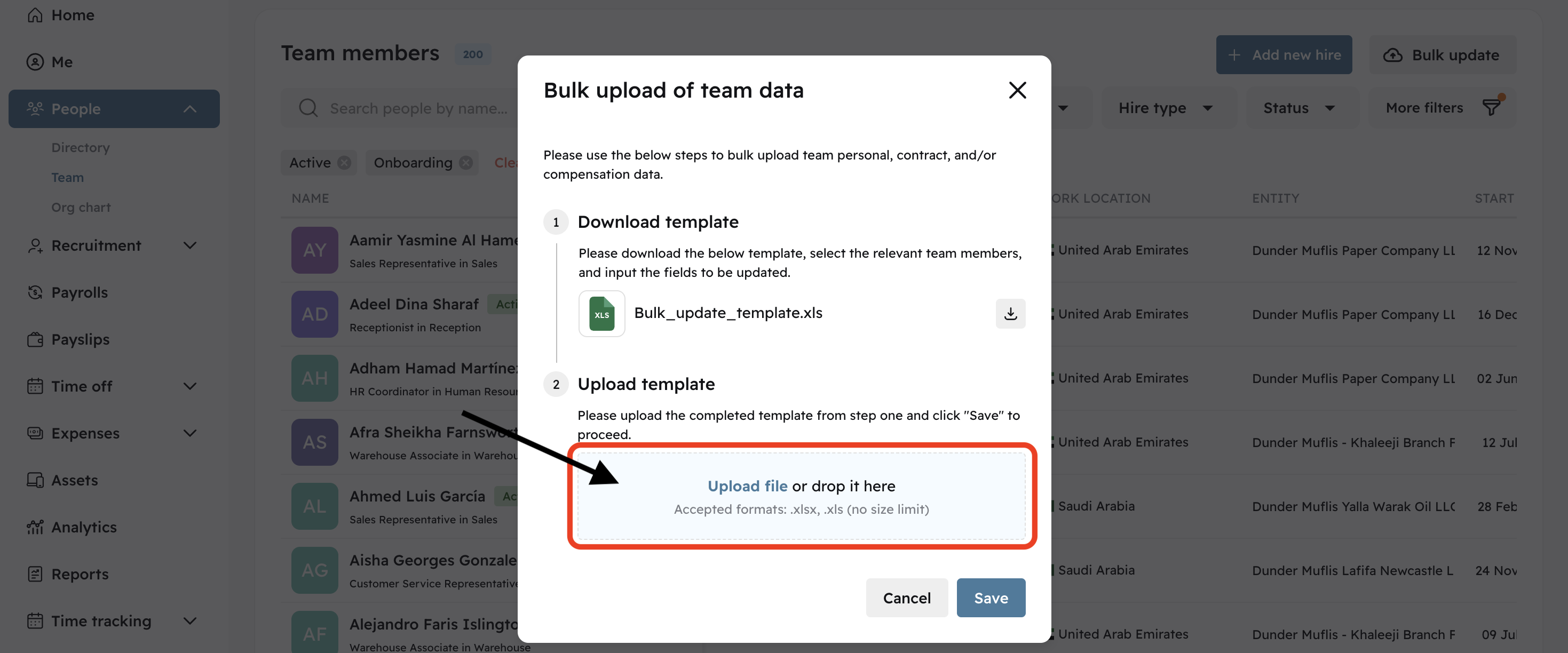
Refer to this article to understand how bulk updates work
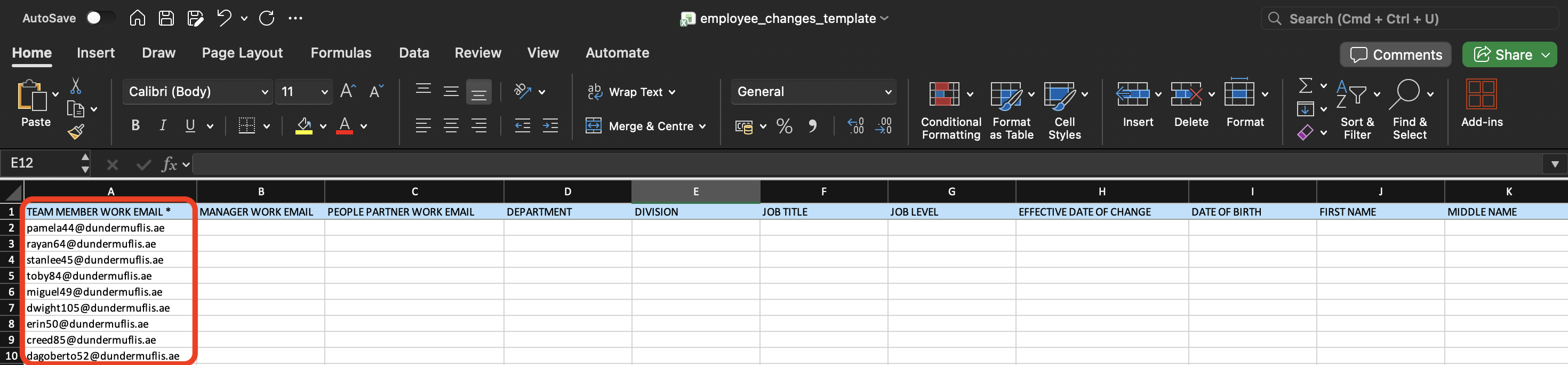
Once we have team member work emails on the spreadsheet, we can now focus on updating their contract start dates.
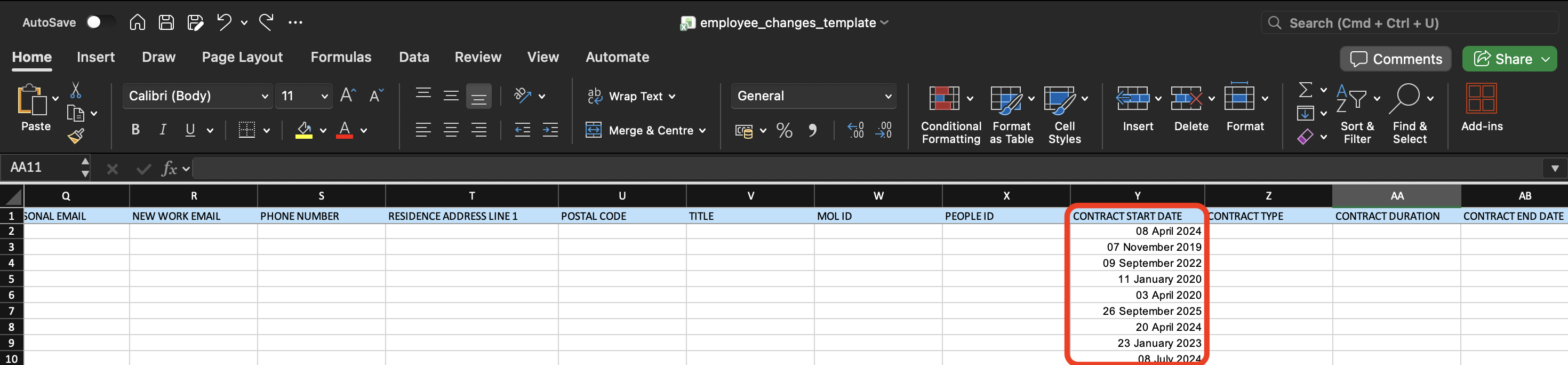
Find the "CONTRACT START DATE" column on the bulk update template and paste the new contract start dates you would like to update the team members
with.
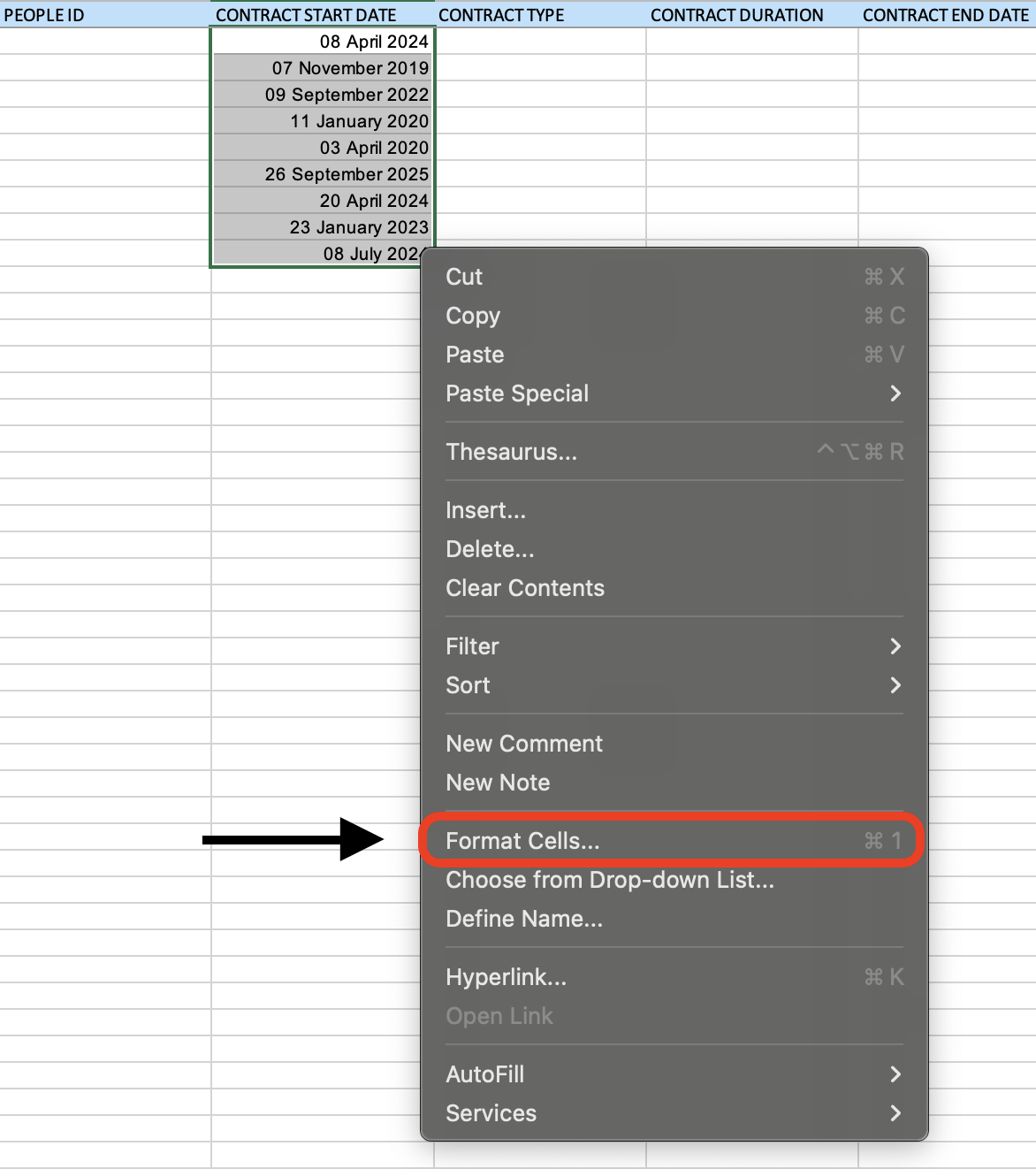
Once that is complete, we have to format the date to DD-MM-YYYY
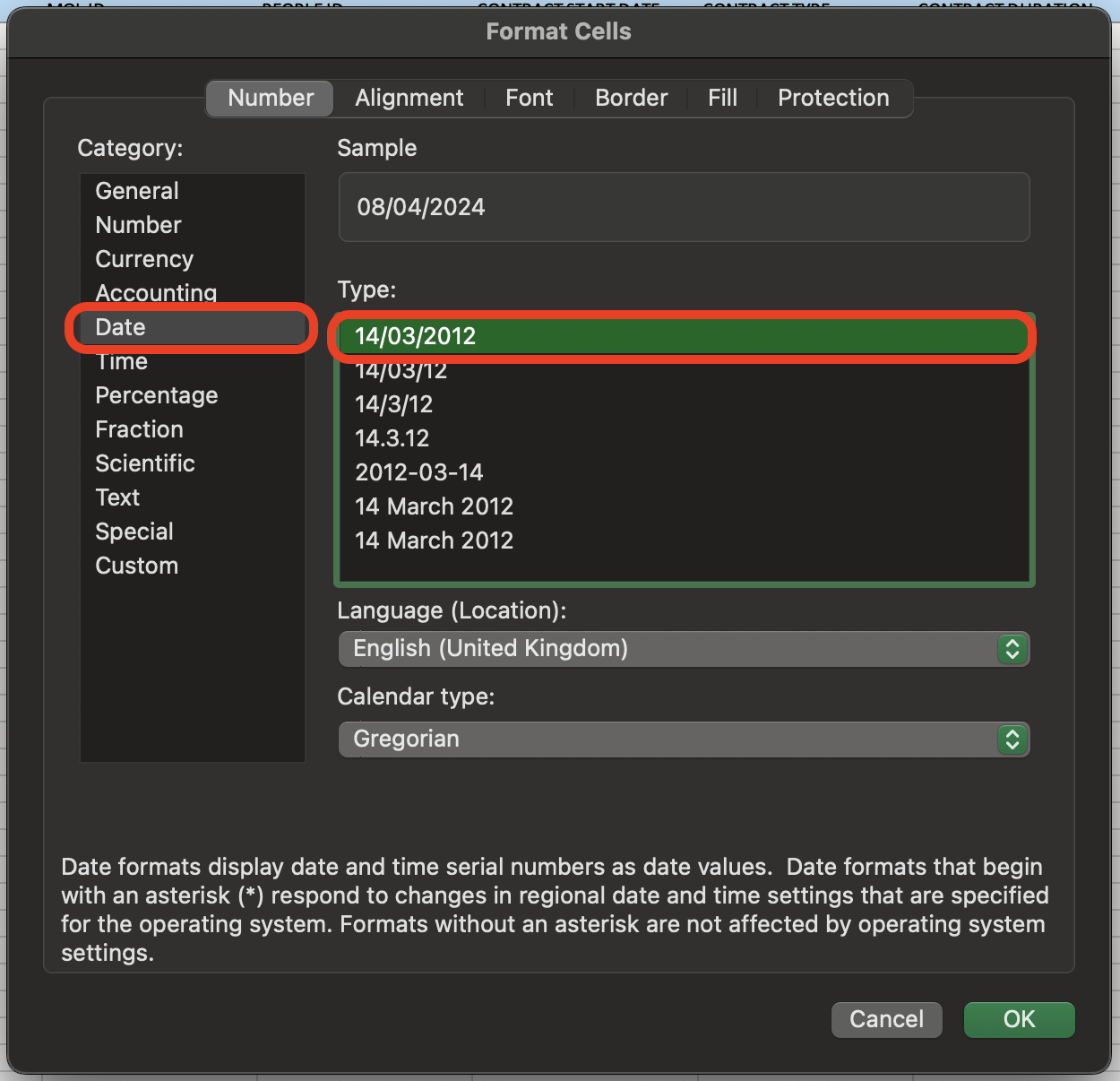
Select the date cells, right click (or click with two fingers on a Mac) and select
"Format Cells".
On the left navigation bar find "Date" and change the "Type" to the date that follows the DD-MM-YYYY format.
We have now correctly formatted the dates.
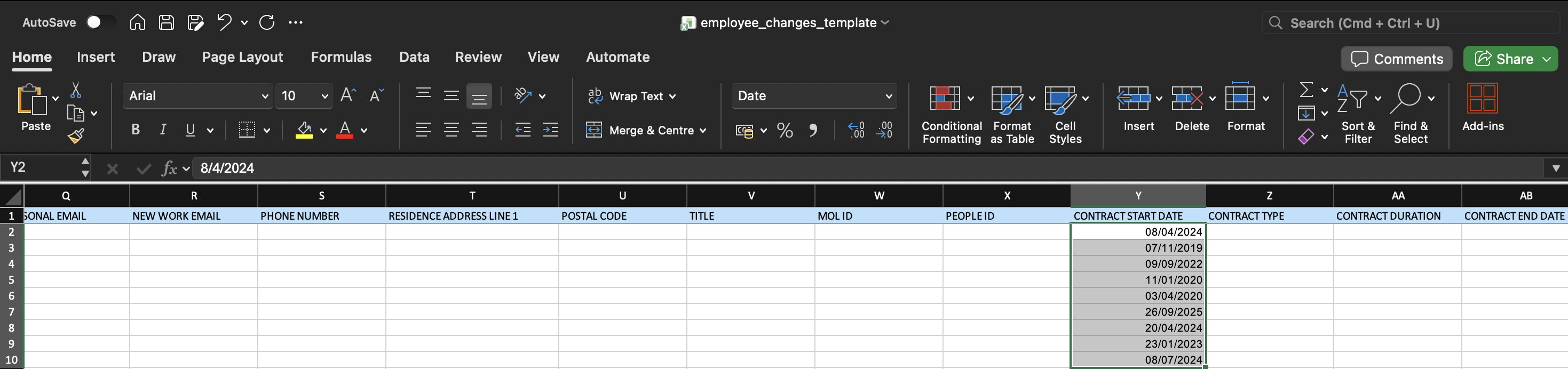
We can proceed with the bulk update in Cercli.