How to Search for Candidates with the AI Agent
Last updated: September 14, 2026
What you'll do:
Describe the role you're hiring for in your own words, let the agent build a search from it, then read, filter and shortlist the profiles it finds.
When you'd do this
You need candidates who haven't applied. Instead of writing a boolean string, you tell the agent what you're hiring for — "senior payments engineer in Dubai, ideally from a fintech" — and it turns that into a search, runs it, and gives you a ranked list of profiles you can work through.
Use it at the start of a search, or when a job has been open a while and the inbound pipeline has run dry.
Before you start
Know the role well enough to describe it in a sentence or two: the title, the location, and the two or three qualities that actually matter. The agent deliberately ranks on a small number of qualities rather than a long list — more of them dilute each other, and you'll get a worse list.
Steps
Open Sourcing Agent → AI Search from the sidebar.
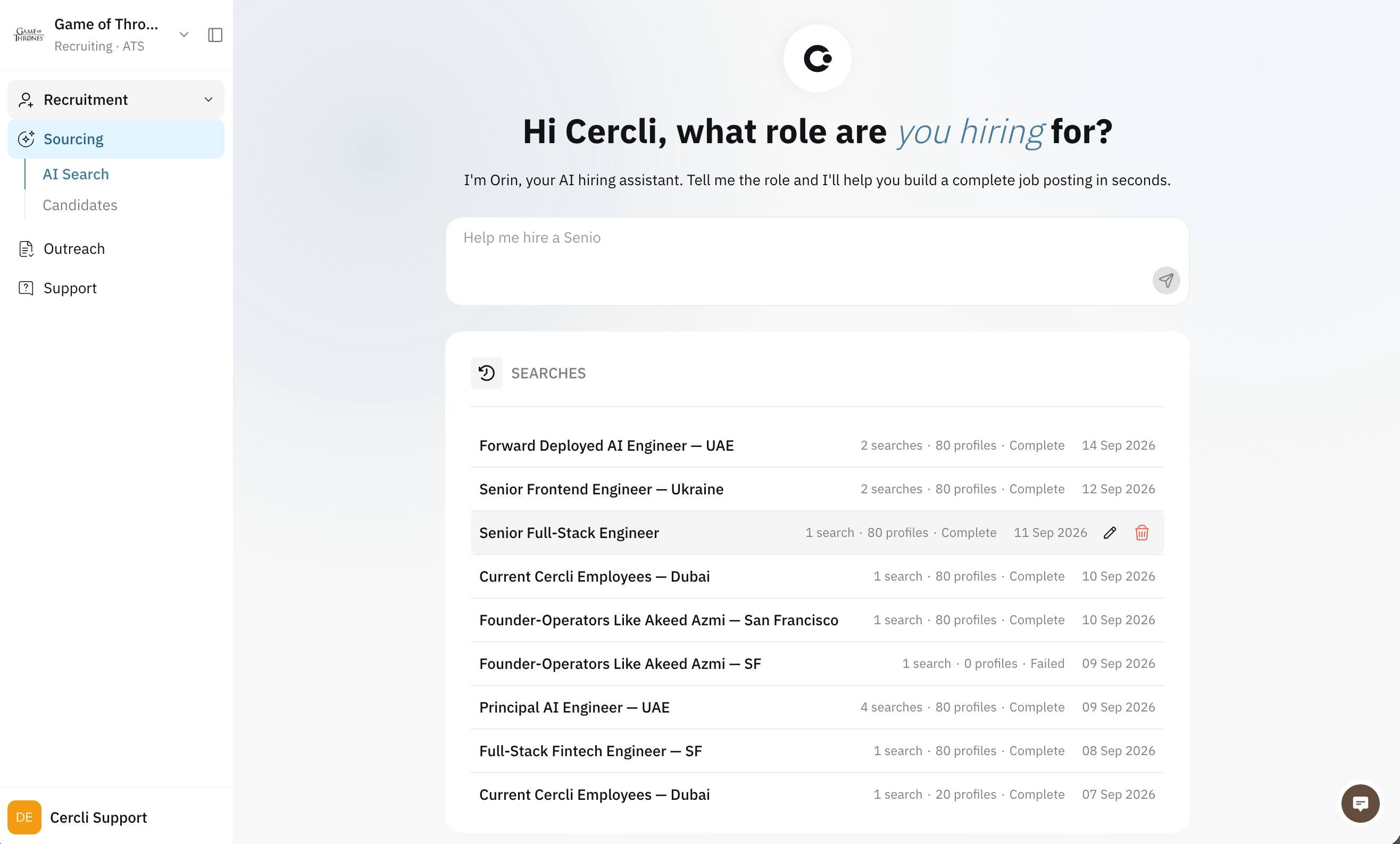
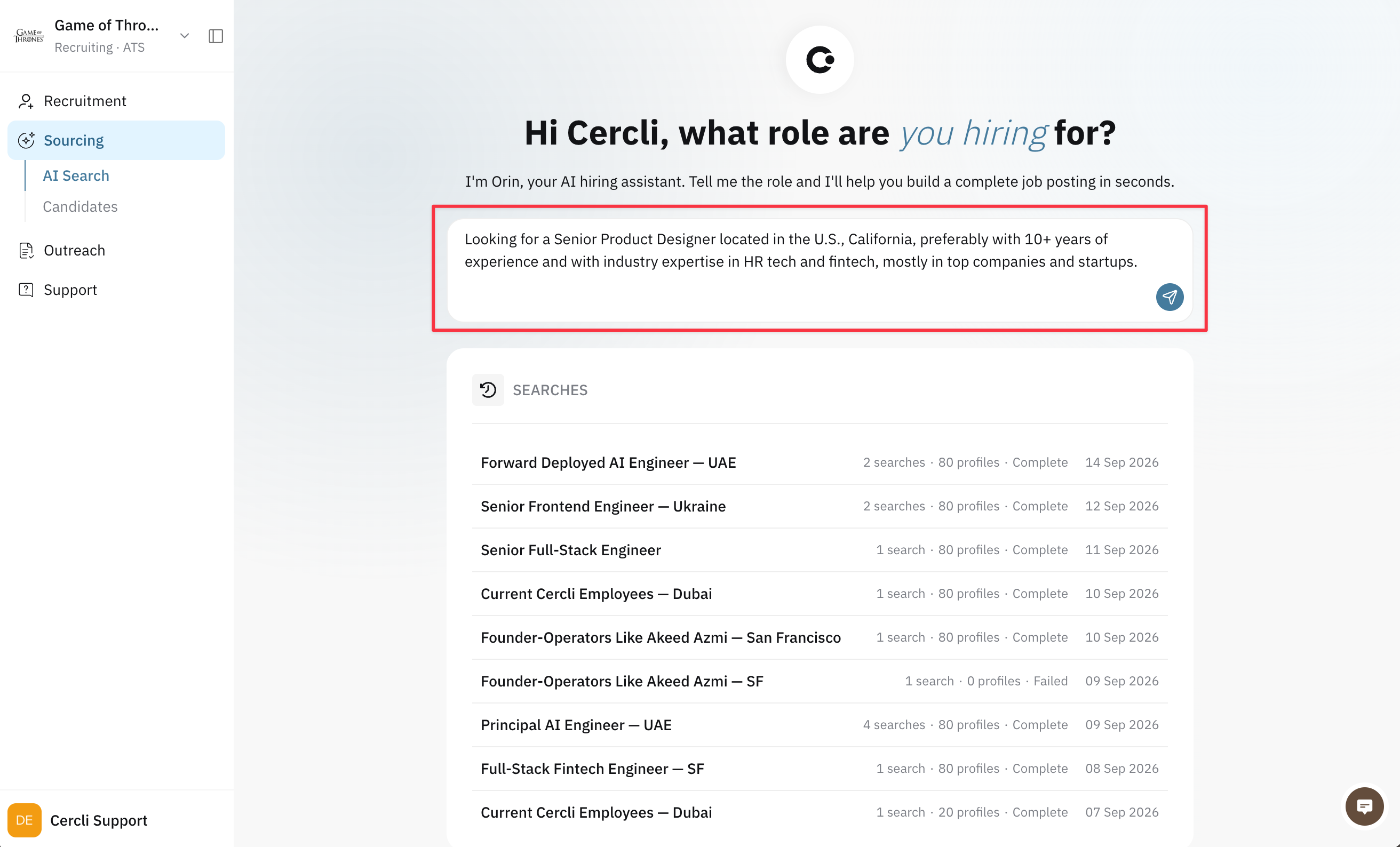
Type what you're hiring for and send it. You don't need to phrase it as a search — write it the way you'd describe the role to a colleague.
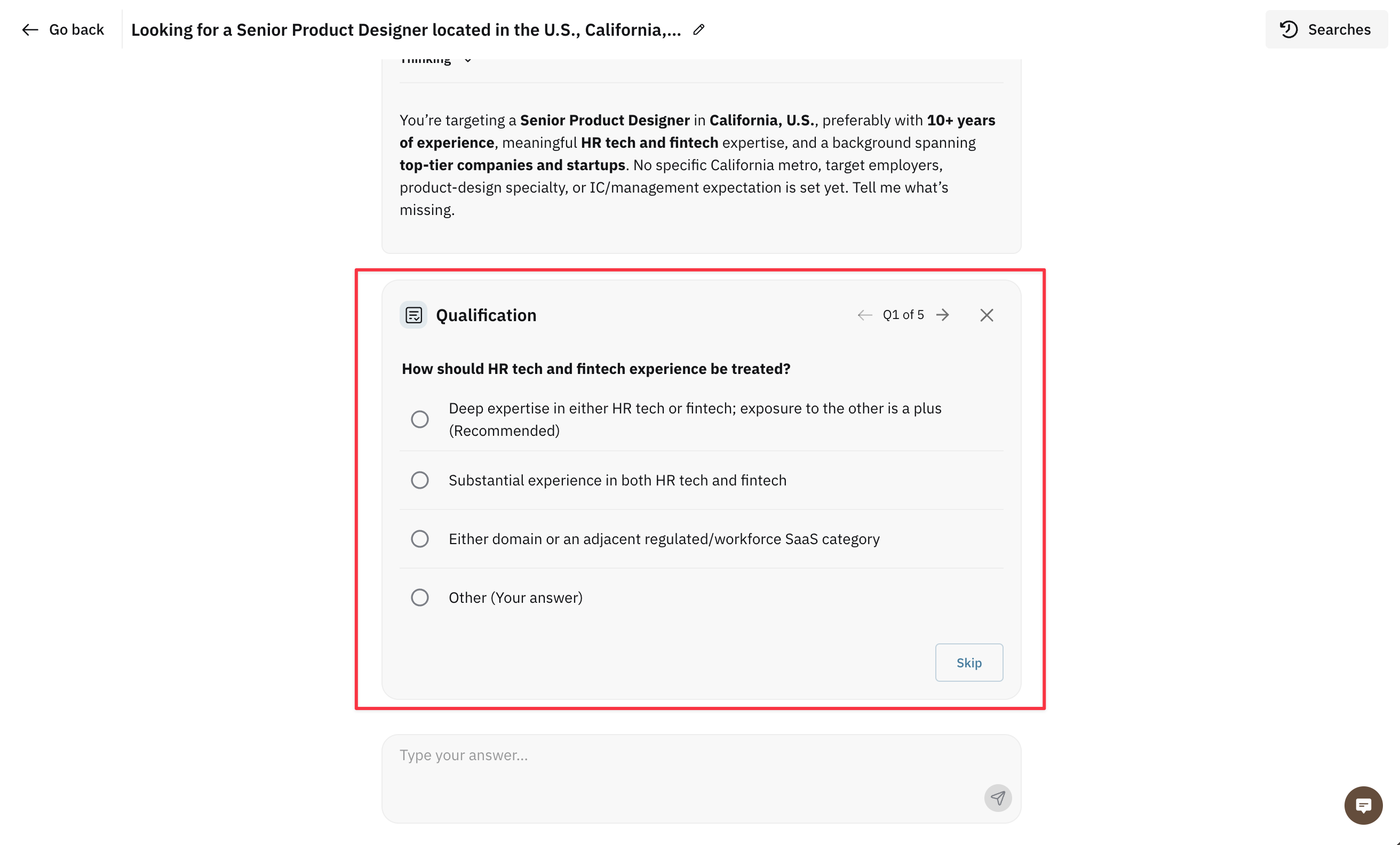
The agent may ask you a few clarifying questions. Selecting an answer moves straight to the next question — you don't need to confirm each one. In case you need to specify something different you can write down your answer.
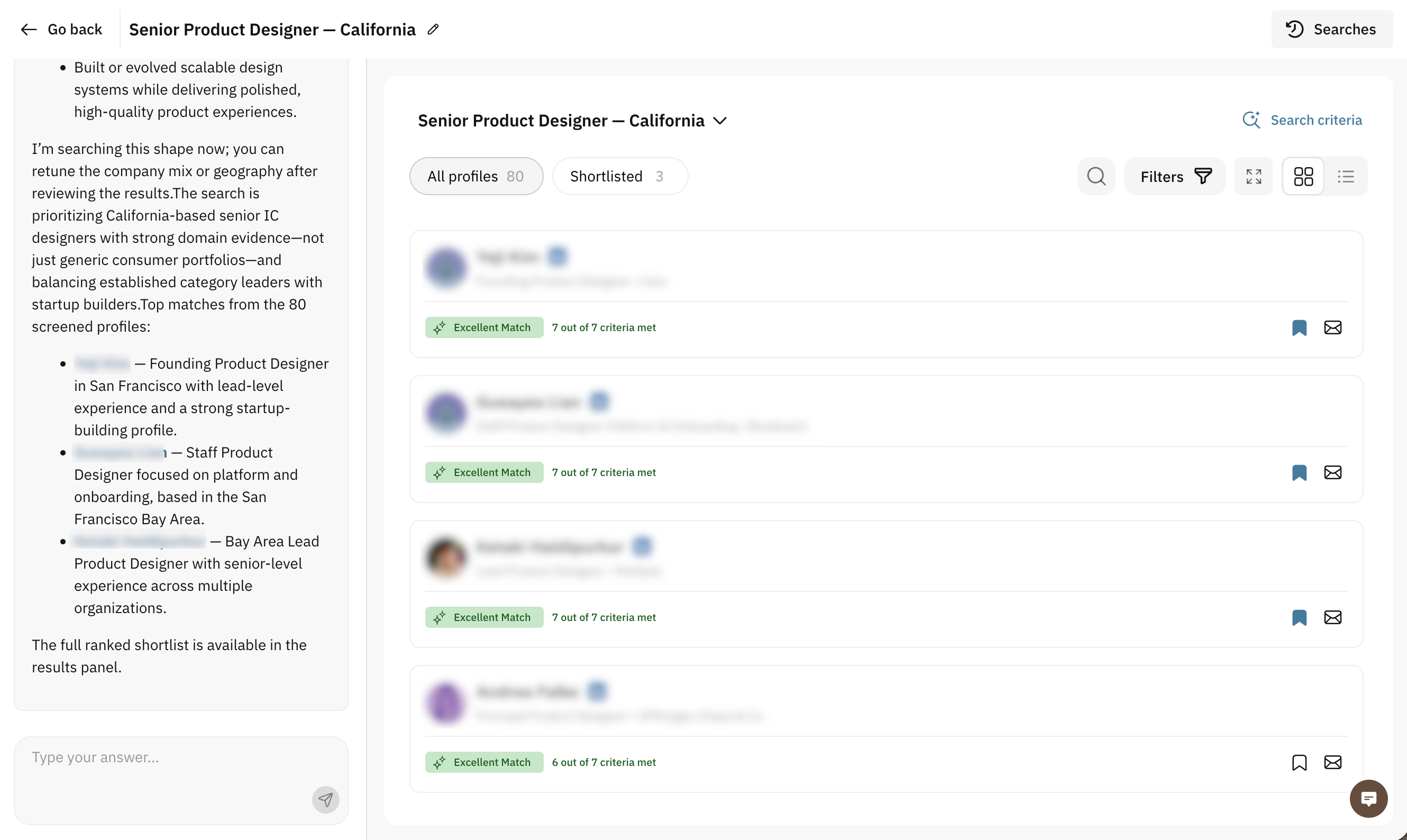
When the results arrive you get a list of profiles with a match badge on each — "{n} out of {n} criteria met" — and, on the right, Search criteria showing what the agent decided to rank on: Titles, Skills, Experience, Location and the named Criteria.
Narrow the list with the filter menu: Current title, Current company, Skills, Experience, AI score. Only values that actually appear in your results are offered, so you can't pick a filter that returns nothing.
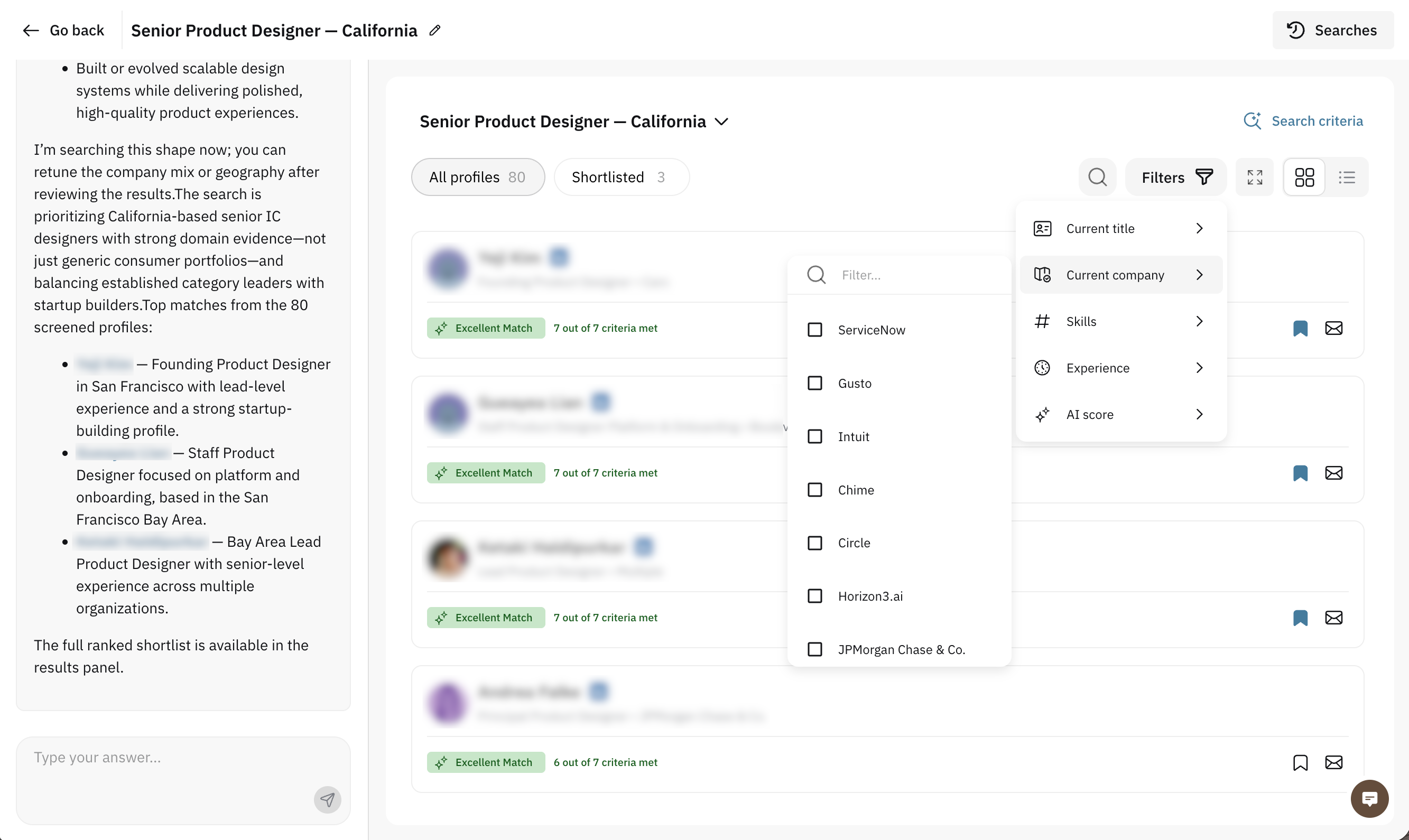
Use Search profiles… to look within the results, and the tabs All profiles / Shortlisted to switch between everything found and the ones you've kept.
Click a profile to open it. The sidebar has an Overview tab, and an Outreach tab that shows "No outreach activity yet" until outreach is switched on for your workspace.
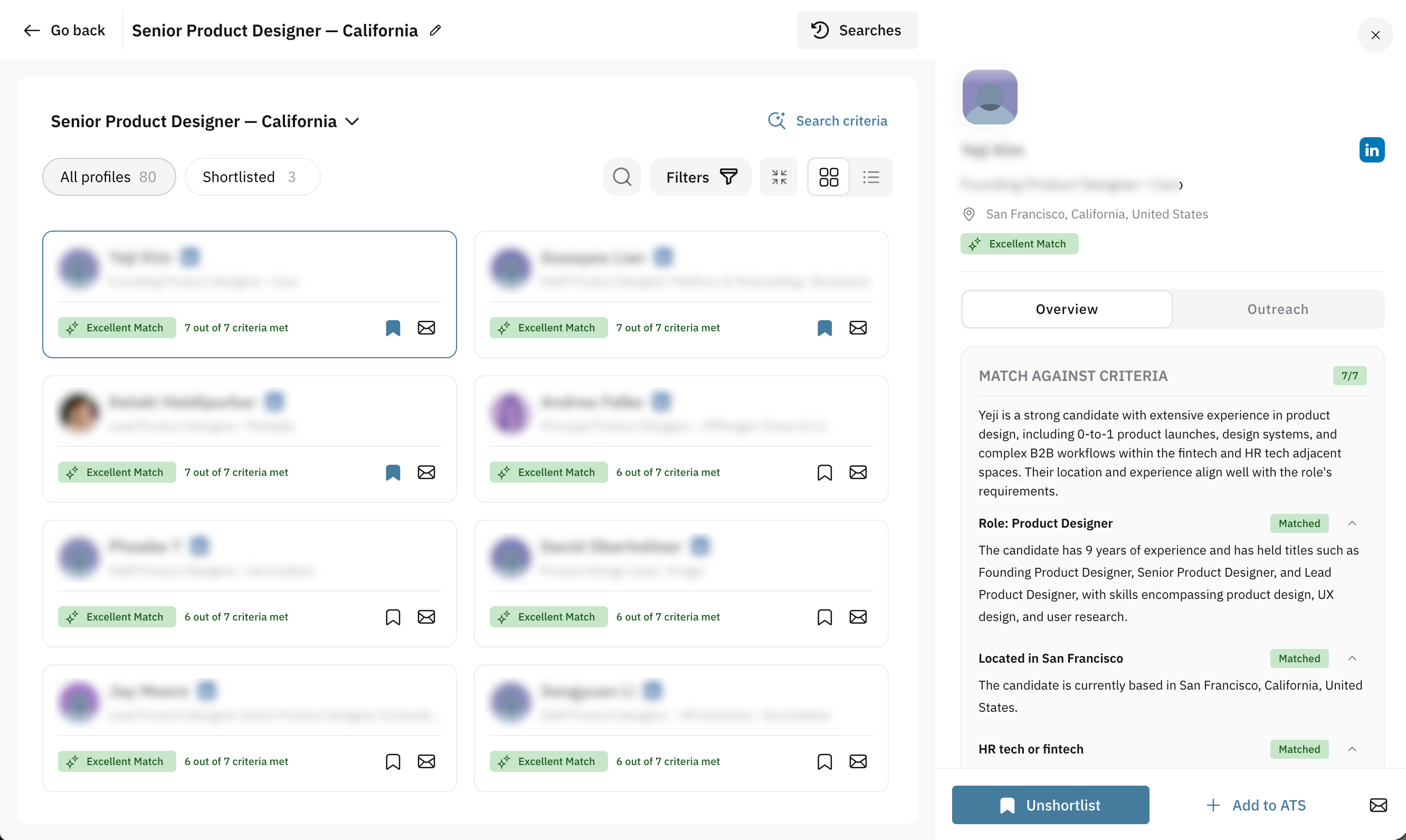
Keep the good ones with Shortlist profile (or Shortlist on the card). Unshortlist removes it again.
What happens next
The search is saved under Searches in the left panel, named automatically from what you asked for. You can reopen it any time with Open search, and rename it with Edit search name (up to 200 characters).
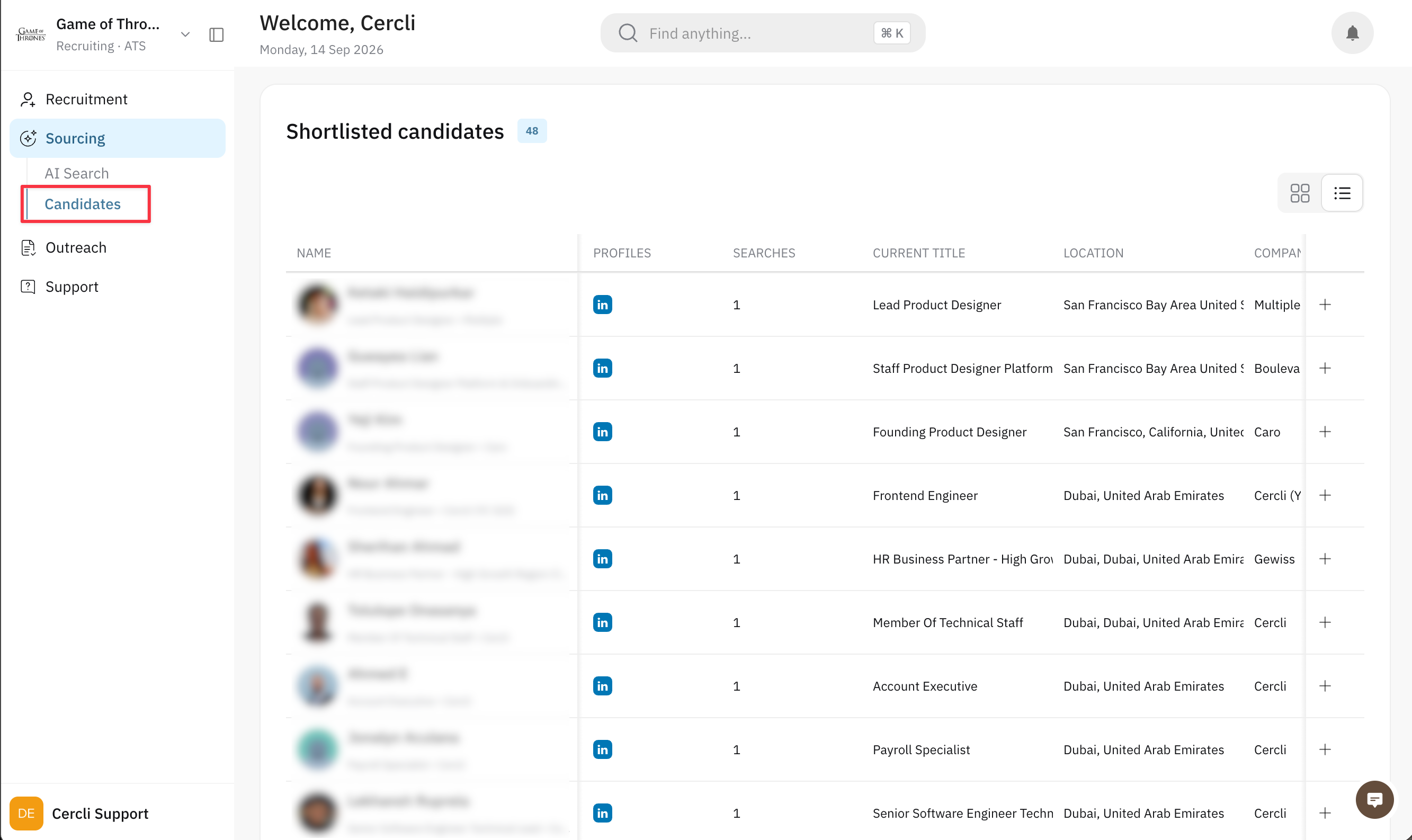
Shortlisted profiles are also represented go to your talent pool and appear on the Shortlisted candidates page.
Nothing you do here contacts anybody. Shortlisting is private to your team.
Tips & gotchas
Results appear while the search is still settling. A profile count that changes for a few moments after the list first appears is normal — it isn't losing candidates.
Ask for two or three qualities, not ten. The agent ranks on a small set on purpose. A long list of "must haves" makes every one of them count for less, and the search takes longer.
The match badge counts criteria, not a percentage. "3 out of 4 criteria met" means the profile matched three of the qualities the agent ranked on — check Search criteria to see which ones those were before treating a lower number as a rejection.
Filters only offer what's there. If Current company says "No current companies to filter by yet.", the results don't carry that information — it isn't a bug.
The agent's answers about a candidate are not a substitute for reading the profile. Open the profile before you act on anything it says.
Deleting a search keeps your shortlist. The confirmation says it plainly: the conversation and its searches go, and "Candidates already added to the talent pool will be kept."
Troubleshooting
I don't have a Sourcing Agent section in the sidebar. It's switched on per workspace — ask your admin to enable it for you.
"No profiles found" with "Try adjusting your search or filters." — clear the filters first (the applied ones are listed above the results), and if the list is still empty, describe the role more broadly or drop a criterion.
"We couldn't load your searches. Please try again." — a temporary problem loading the left panel. Reload the page; your searches aren't lost.
"We could not load the search criteria. Please try again." — the results are fine, only the criteria panel failed. Reload, or click Retry in the panel.
"We could not load this profile. Please try again." — click Retry in the profile sidebar.
The Outreach tab is empty for everyone. Outreach isn't switched on for your workspace yet. The tab is there ready for it — see Related actions.
A profile is stuck on "Screening in progress". Reopen the search from Searches; screening results are saved as they complete, so reopening picks up where it got to.