How to Reach Out to Sourced Candidates
Last updated: September 14, 2026
What you'll do:
Add candidates you've sourced to an outreach queue, send them a first message on LinkedIn, and track who replies, who's interested or not.
When you'd do this
You've run a search and shortlisted people who haven't applied to anything. Rather than opening LinkedIn in another tab and copying names across, you add them to Outreach, write the first message inside Cercli, and let their replies come back to the same place.
Before you start
Your LinkedIn account connected to Cercli — see How to Connect Your LinkedIn for Outreach. Without it there's nothing to send from.
A search with candidates you've already reviewed, so you're messaging people you actually want.
Steps
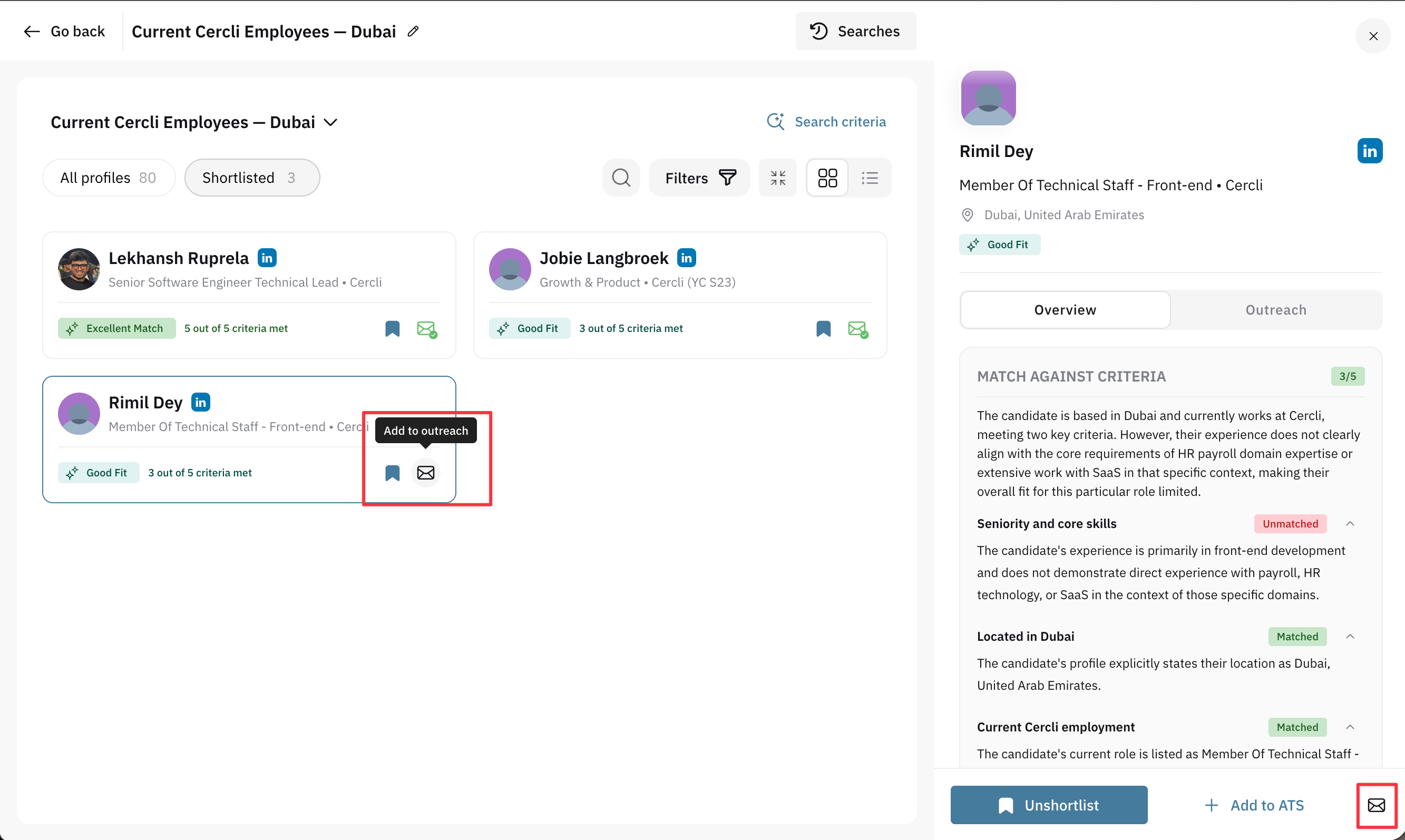
Open a search result or a shortlisted profile and click Add to outreach. This will trigger a modal window with the first message prepared.
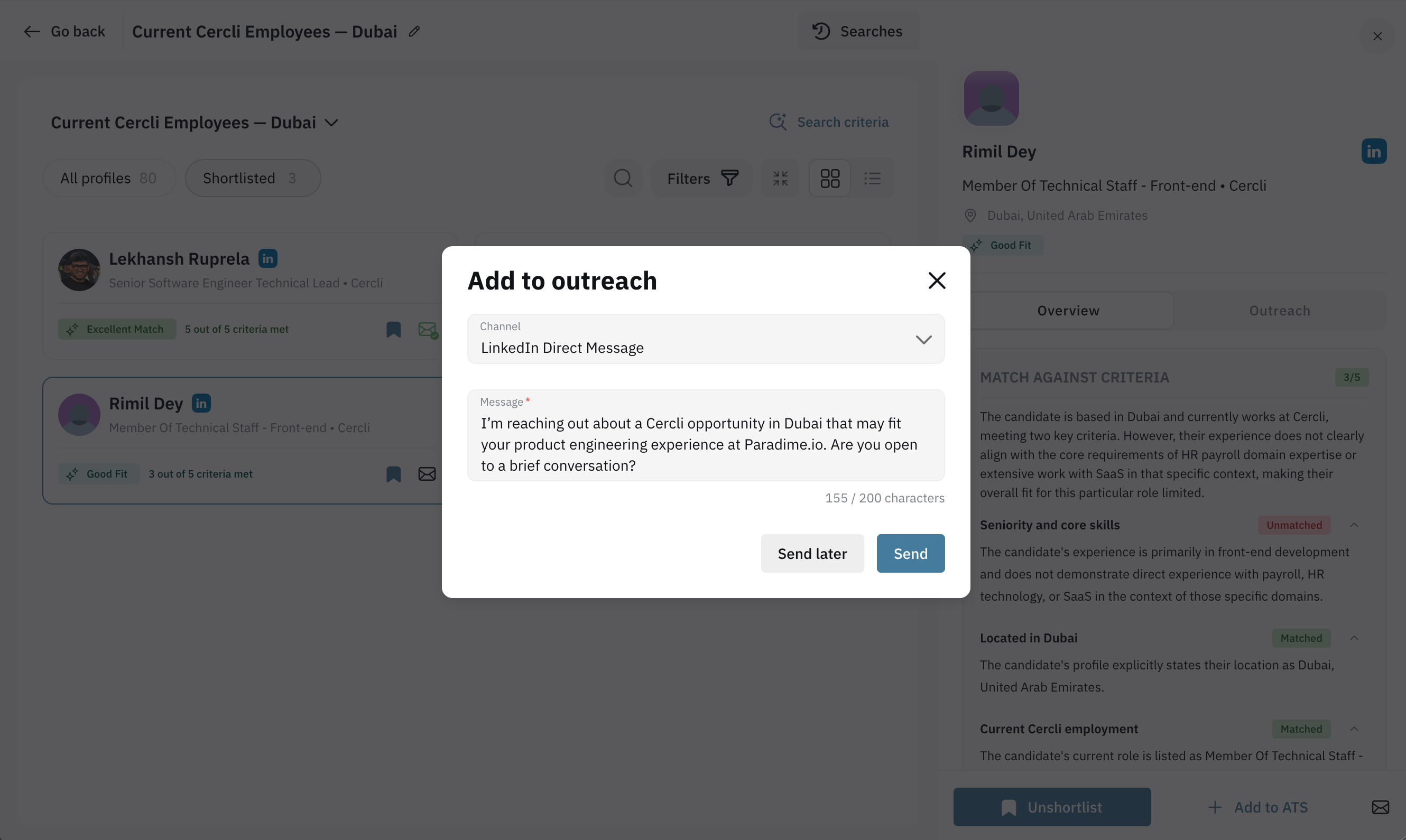
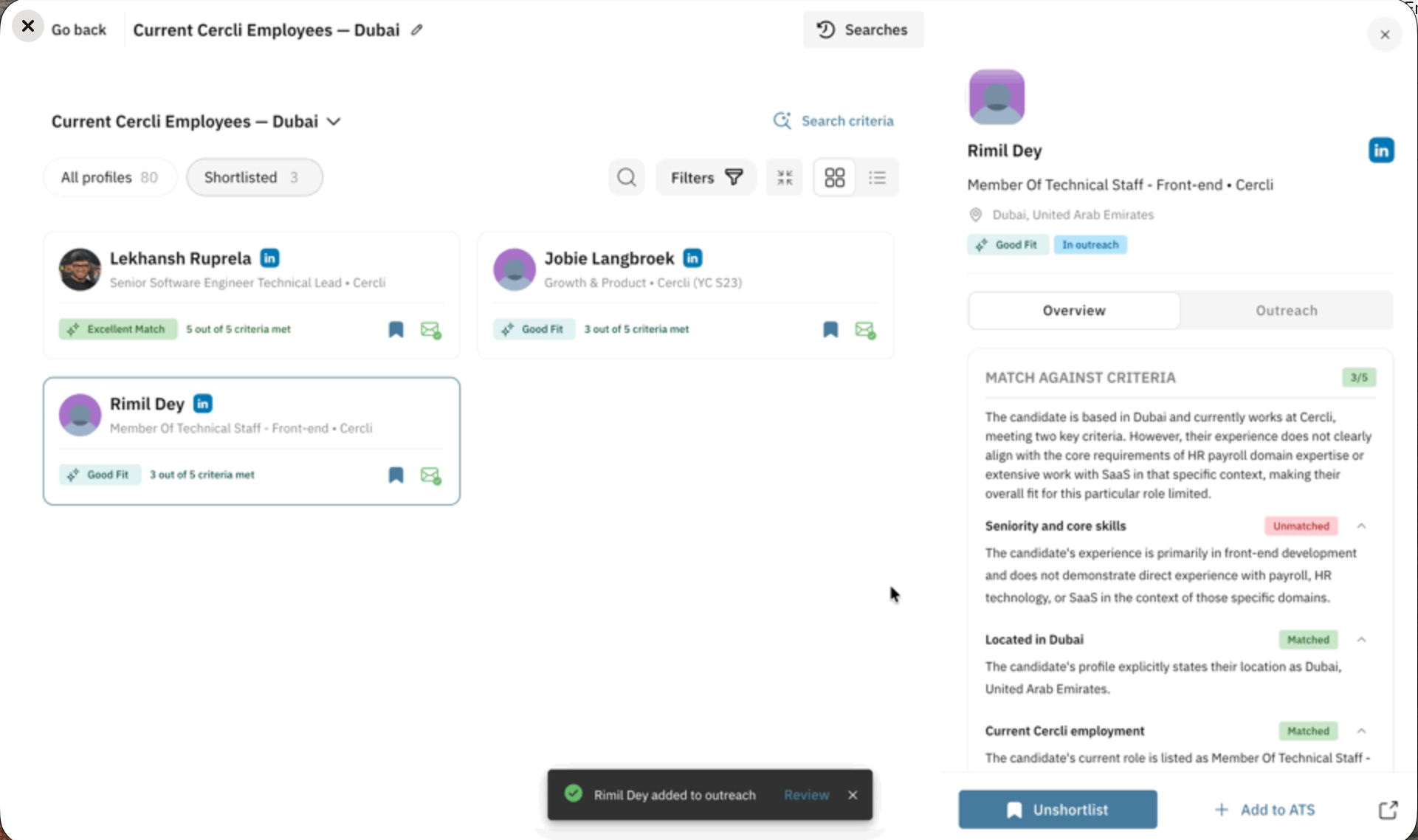
After sending you'll see "Candidate added to outreach", with a Review outreach queue shortcut on the confirmation.
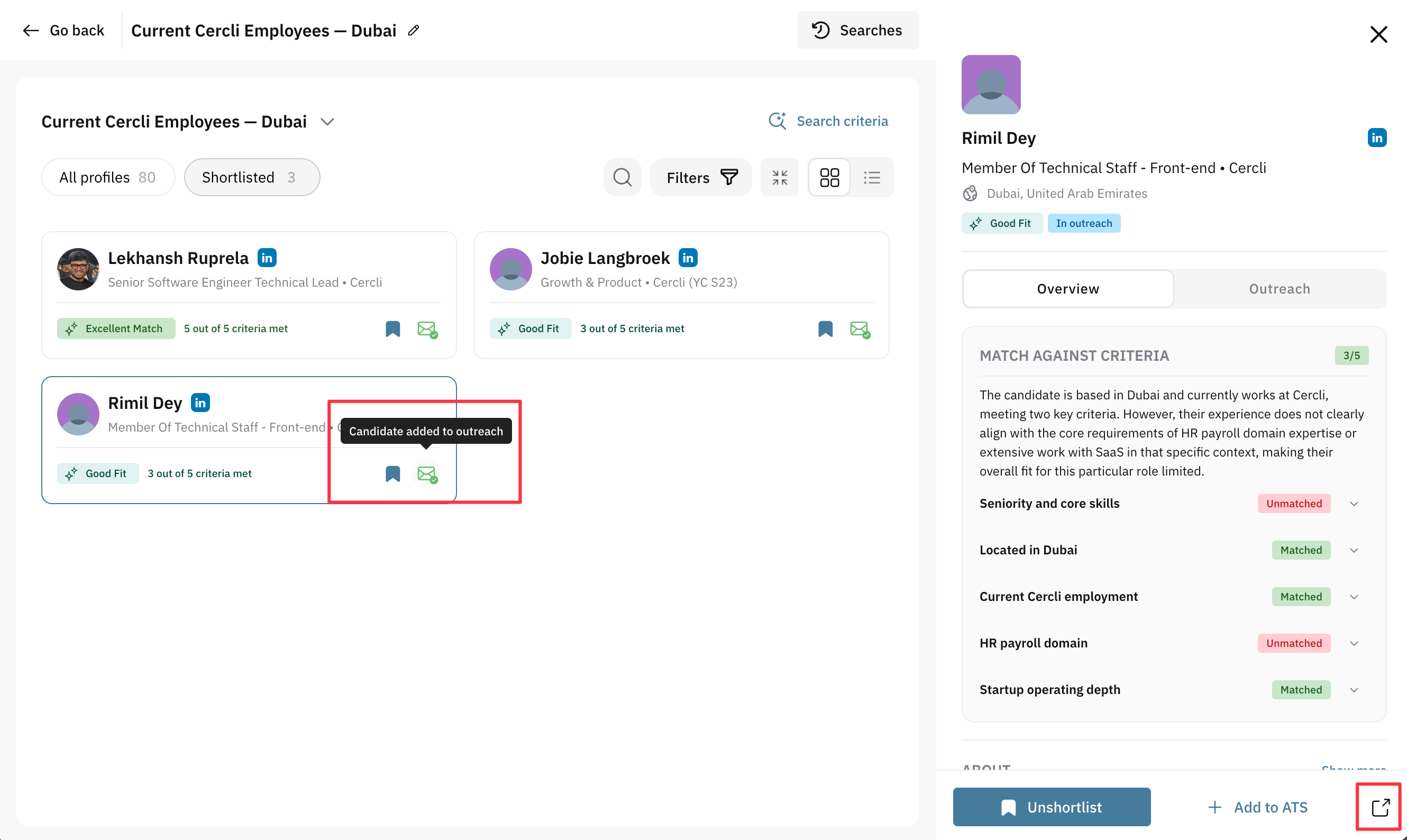
In case candidates added to Outreach they will have an appropriate sign in the card and in their profiles. By clicking on it you will be moved to the Outreach Queue page.
Go to Outreach in the sidebar. The Queue lists everyone you've added, with columns for Candidate, Profiles, Status, Last activity and Candidate interest.
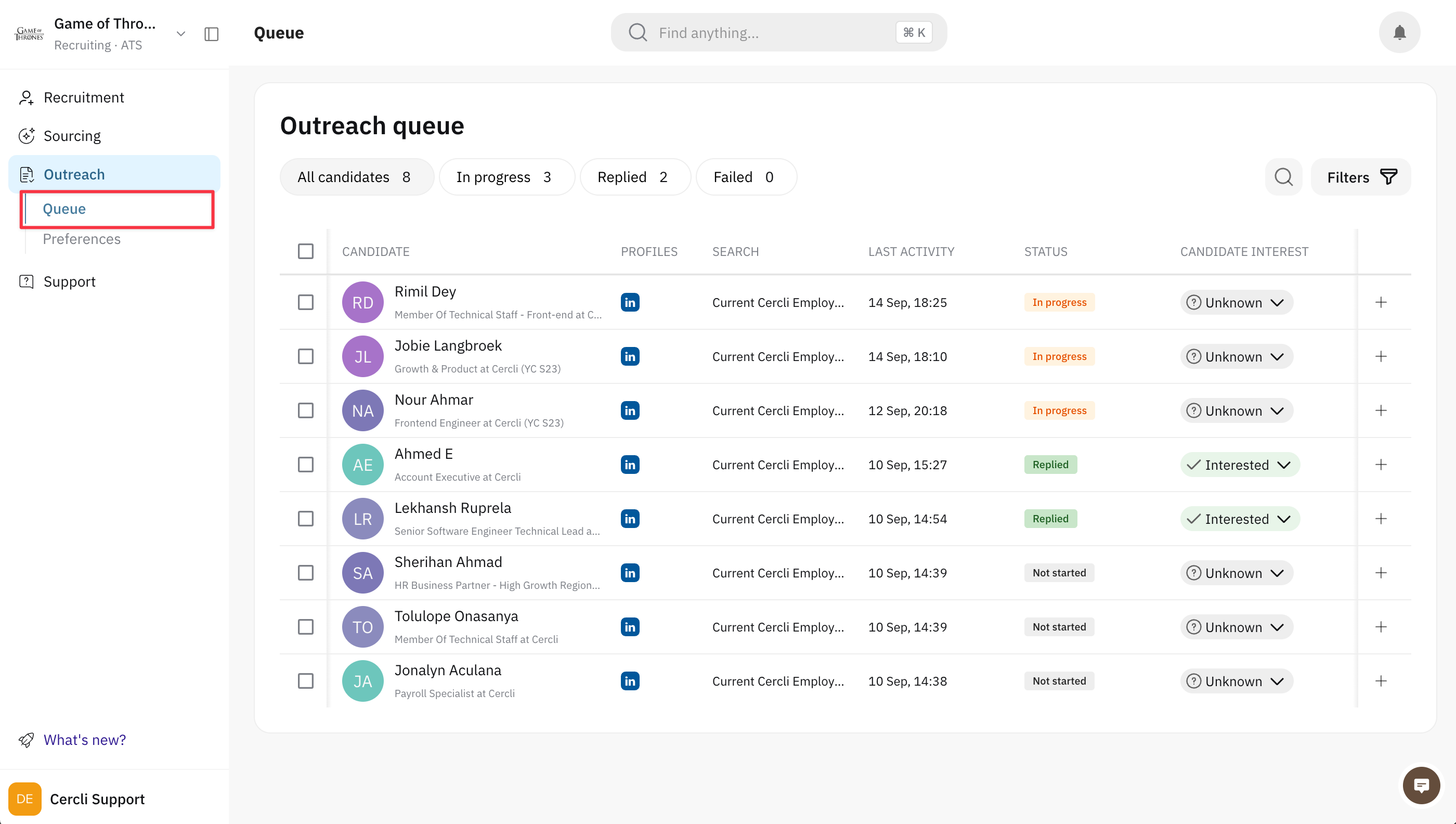
Use Search and the filters to narrow the list — by status, for example, when you want only the people nobody has written to yet.
Click a candidate to open their conversation. The sidebar has an Overview tab and an Outreach tab holding the message history.
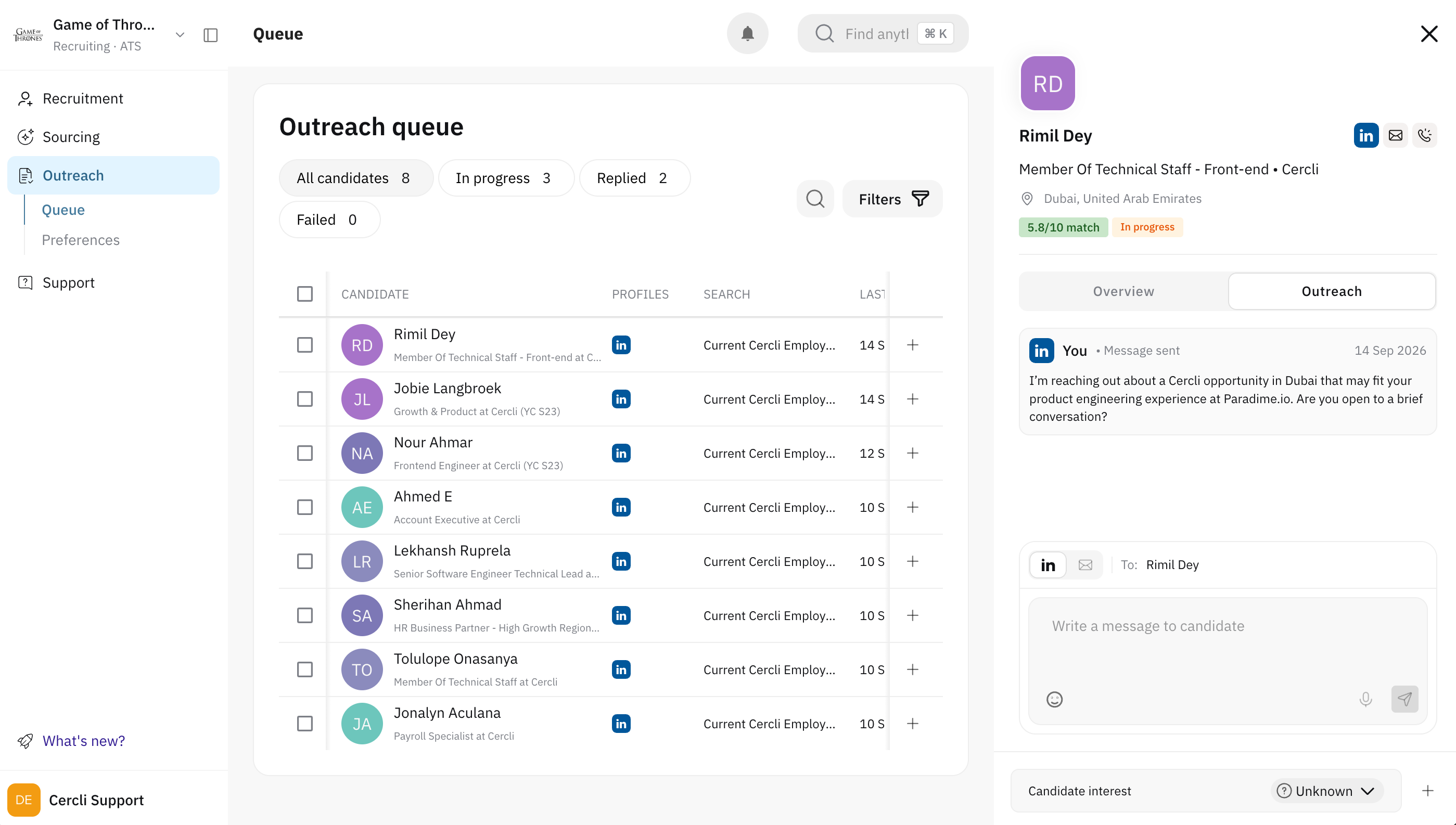
Write your message in the composer. To: shows who it's going to. You can Add an emoji or Dictate a message instead of typing.
Click Send on LinkedIn. If your workspace also has email switched on, you'll see Send by email as a second option (Coming soon).
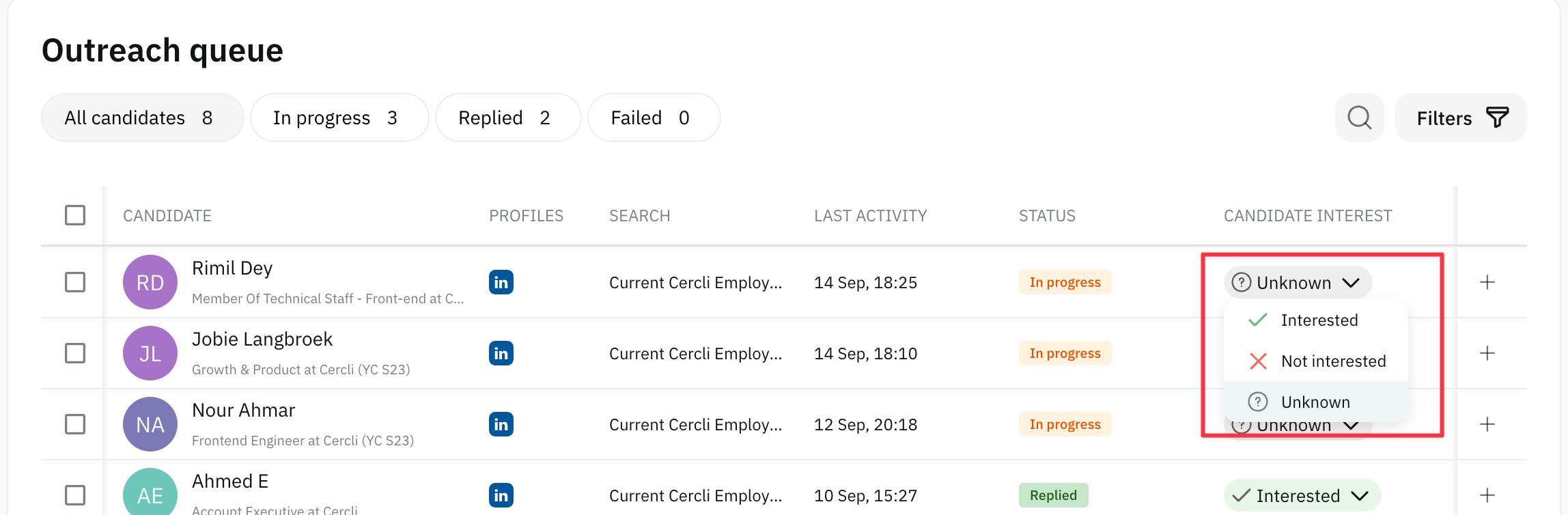
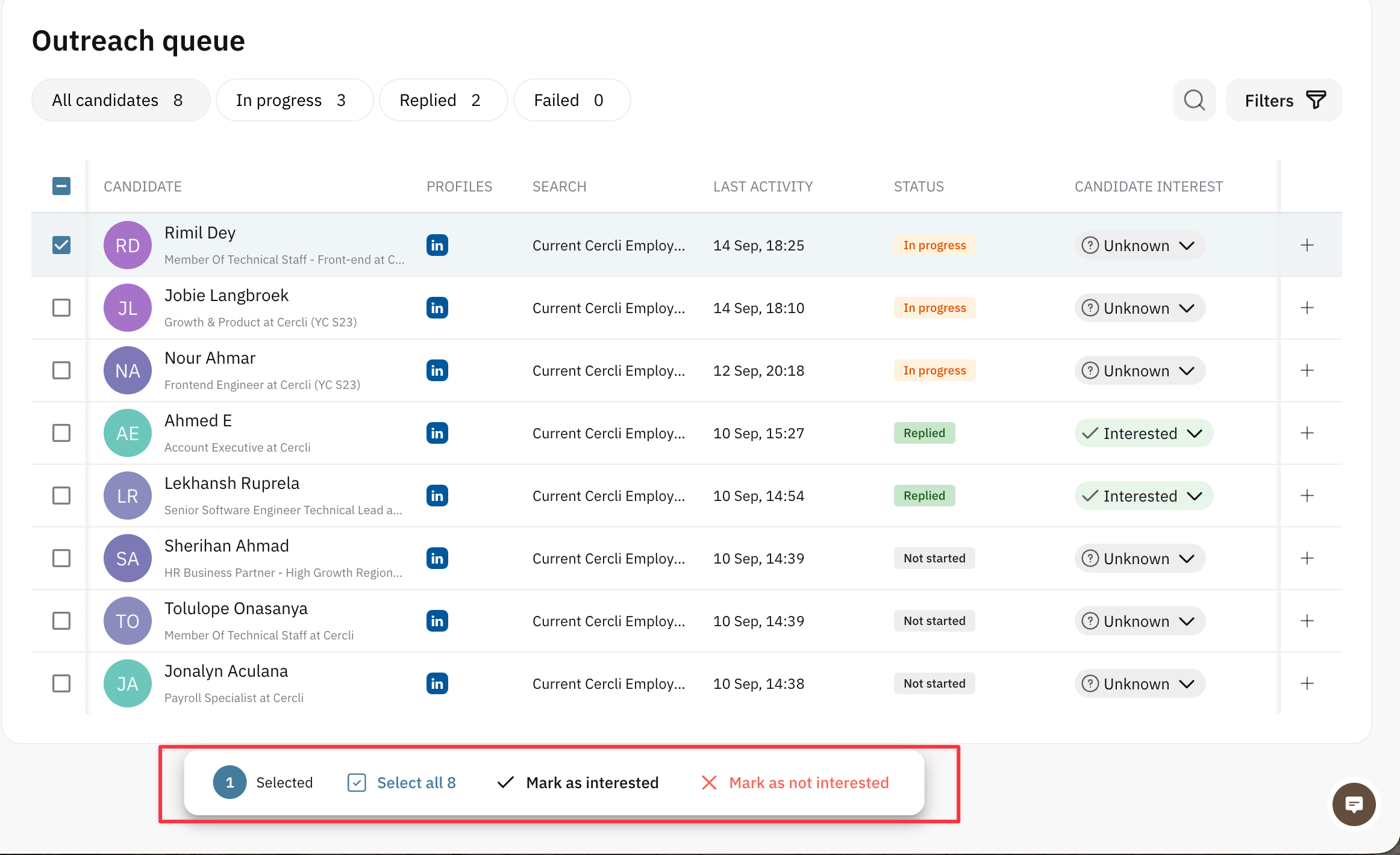
Back in the queue, mark how a conversation went using Mark as interested or Mark as not interested. Tick several candidates first to do it in bulk — Select all covers the whole filtered list.
What happens next
The candidate's Status moves as the message travels: Draft while you're writing, then Sent for a direct message or InMail, or Invited when it went as a connection request.
When they write back, the status becomes Replied and their answer appears in the Outreach tab. You don't need to watch LinkedIn — replies come to Cercli.
Failed means the message couldn't be delivered at all. Open the conversation to see why.
Tips & gotchas
Your first message is capped at 300 characters. That's the limit LinkedIn puts on a connection request note. Cercli holds every first message to it, whichever way the message ends up being sent, so a message written for a roomier format can never become unsendable if it has to fall back to a connection request.
Cercli picks the delivery method for you, best first. A direct message if you're already connected; an InMail if their profile is open to them; otherwise a connection request with your message as the note. You don't choose — you just write once.
A connection request has no conversation until it's accepted. Candidates at Invited can't reply yet, so don't read silence there as disinterest.
Replies land against the candidate, not your inbox. Check the queue's Last activity column to see where something's moved.
Marking interest is for your own triage. It doesn't message the candidate or change their stage.
Troubleshooting
There's no Outreach item in the sidebar. Outreach is still rolling out. Ask your admin to switch it on for your workspace.
"No one in Outreach yet." Nobody's been added. Add candidates from a search result or a shortlisted profile with Add to outreach.
"No matches found." Your search or filters are too narrow — *"Try fewer filters or different search terms."*
"We could not load the queue." A loading problem rather than an empty queue. Refresh to try again.
The send button does nothing, or sending fails immediately. Your LinkedIn account probably needs reconnecting — see Connect Your LinkedIn for Outreach.
Your message won't save because it's too long. Trim it to 300 characters.
You can't see Send by email. Email is a separate option your admin switches on. LinkedIn sending works exactly the same without it.