Admin - How to Run Payroll
Last updated: August 4, 2026
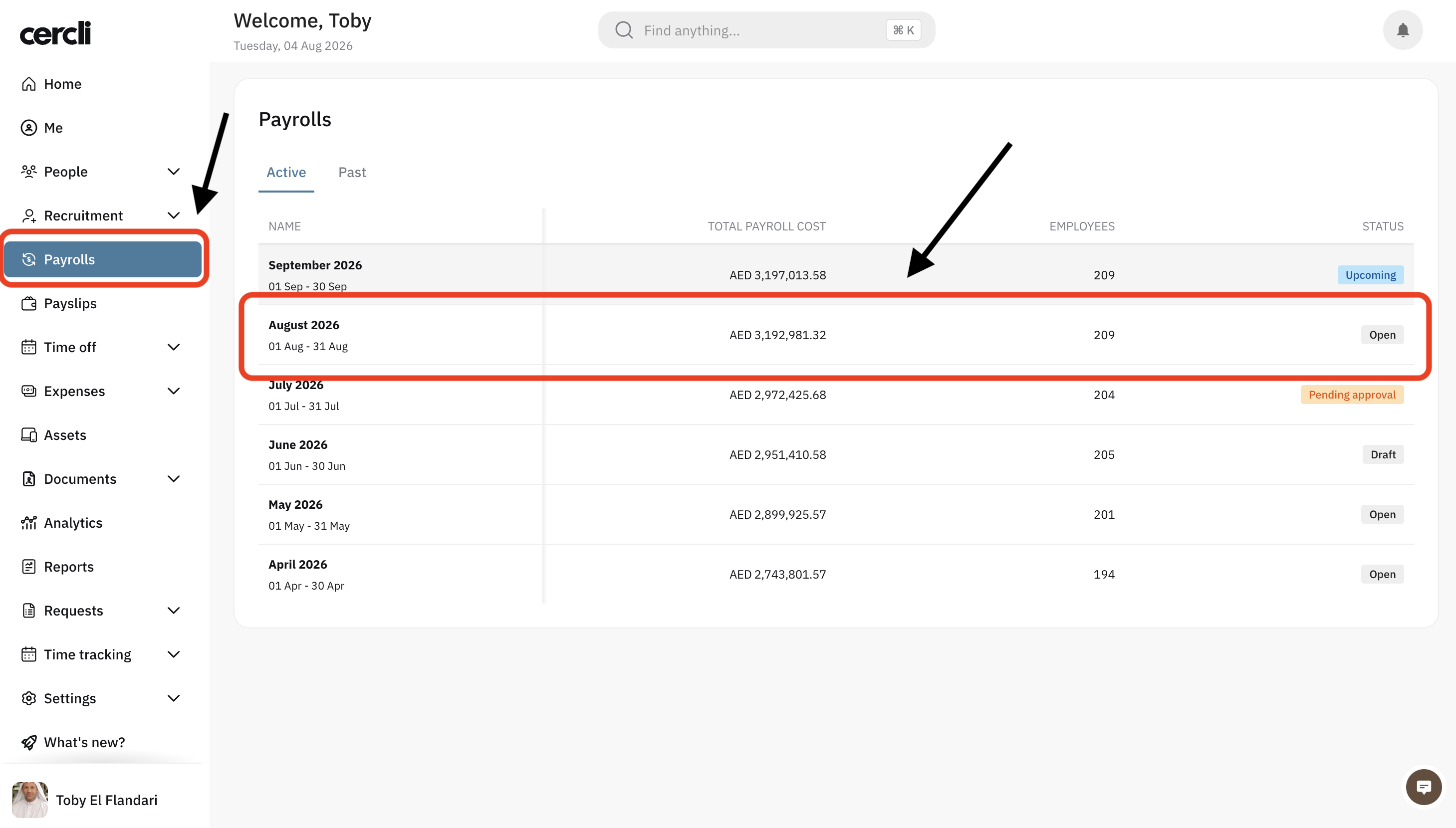
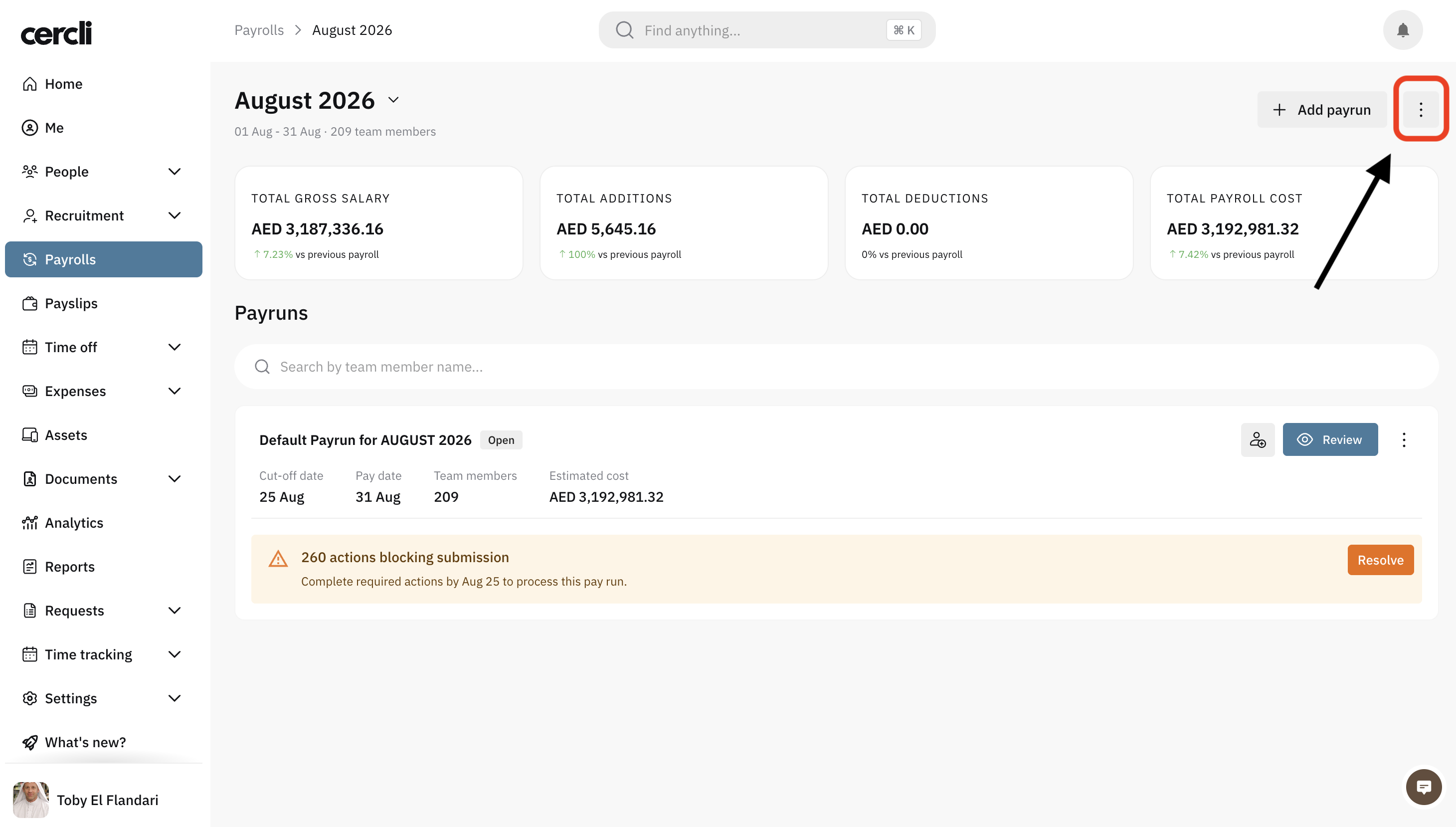
After clicking on the upcoming payroll you will find 3 vertical dots on the top right corner. You will see the Activity log, Bulk upload adjustments, and Reports .
Select Bulk upload adjustments to adjust any addition or deduction for a group of users.
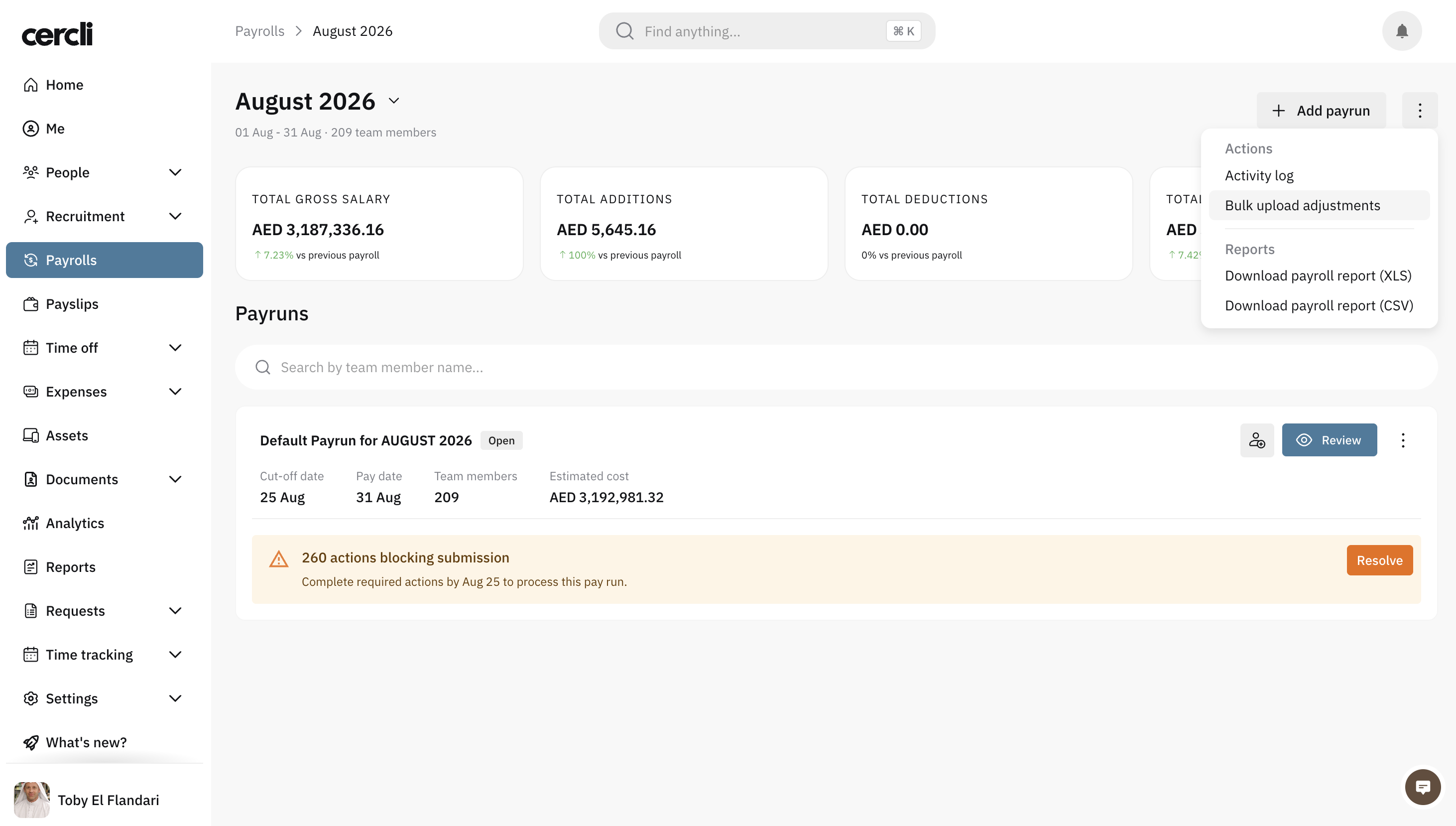
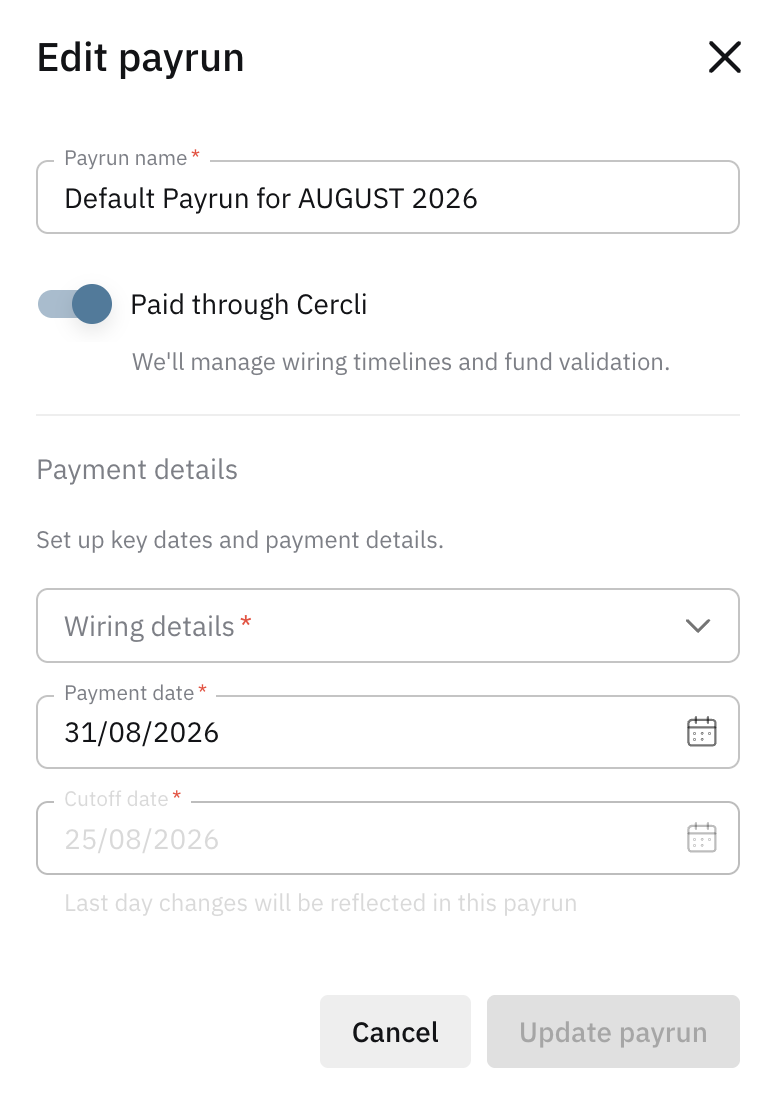
Next to Review, you will find 3 vertical dots. Click them to Edit payrun.
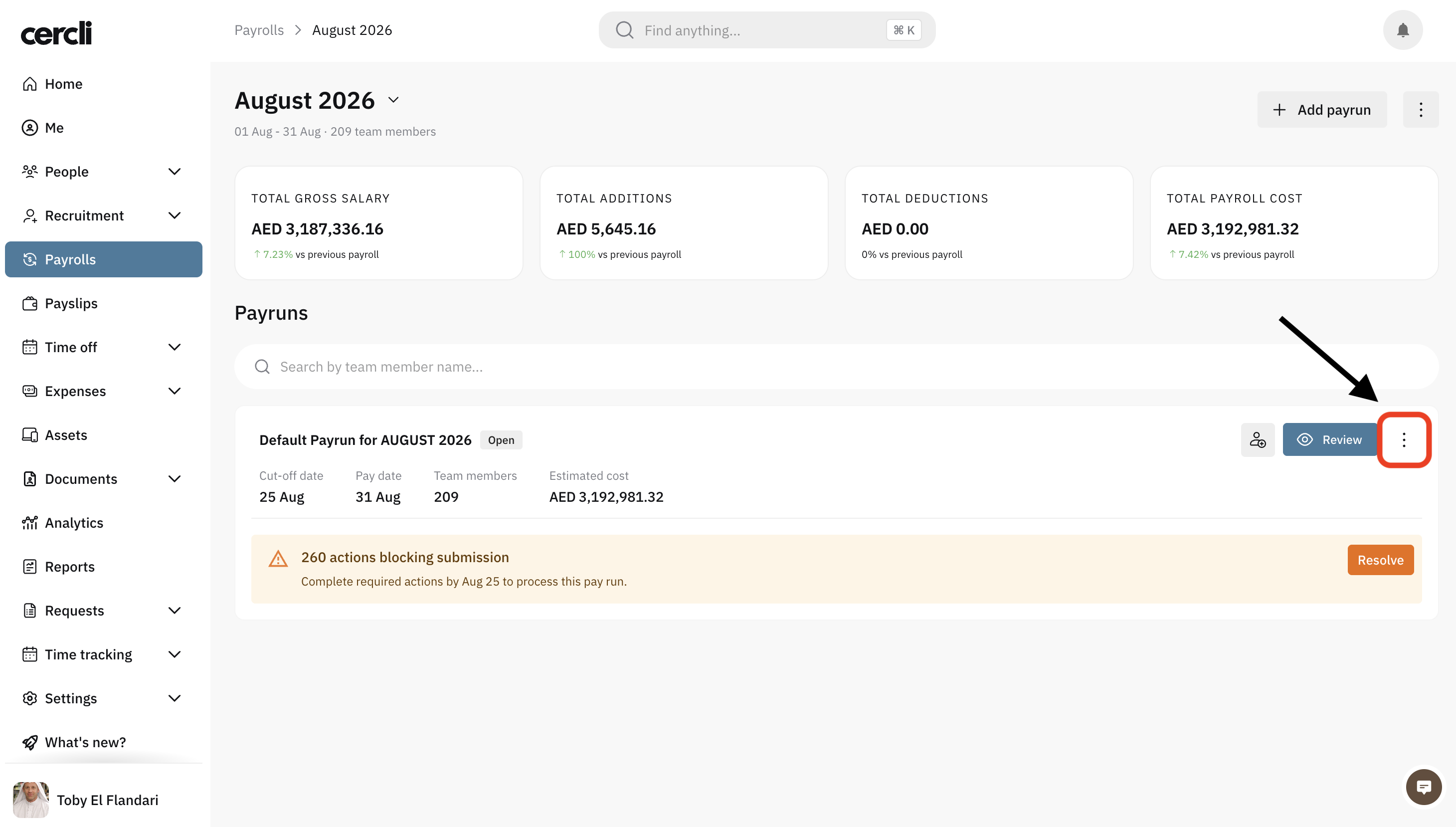
Edit the payrun name, select whether you want to pay through Cercli. Select wiring details, payment date.
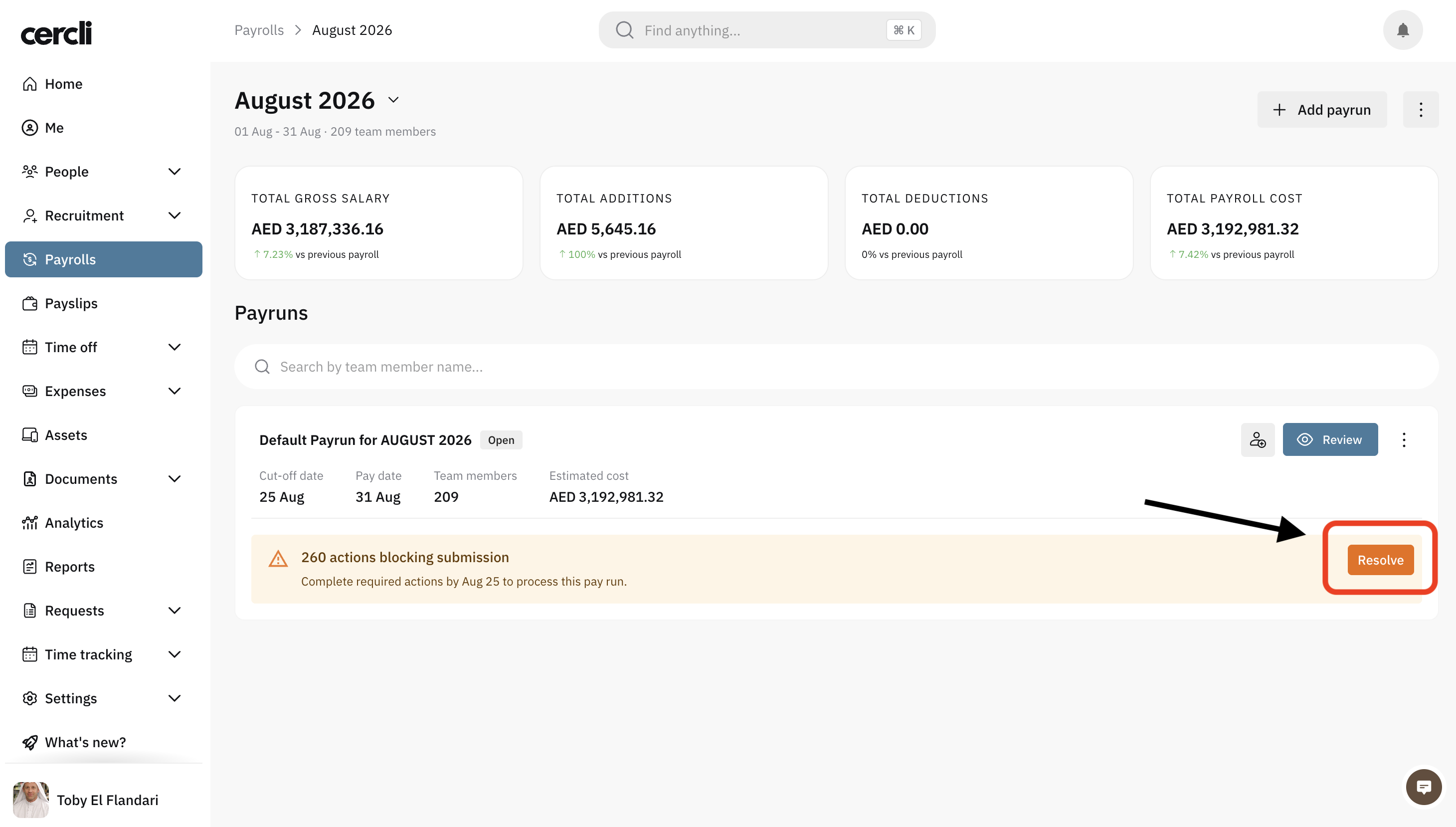
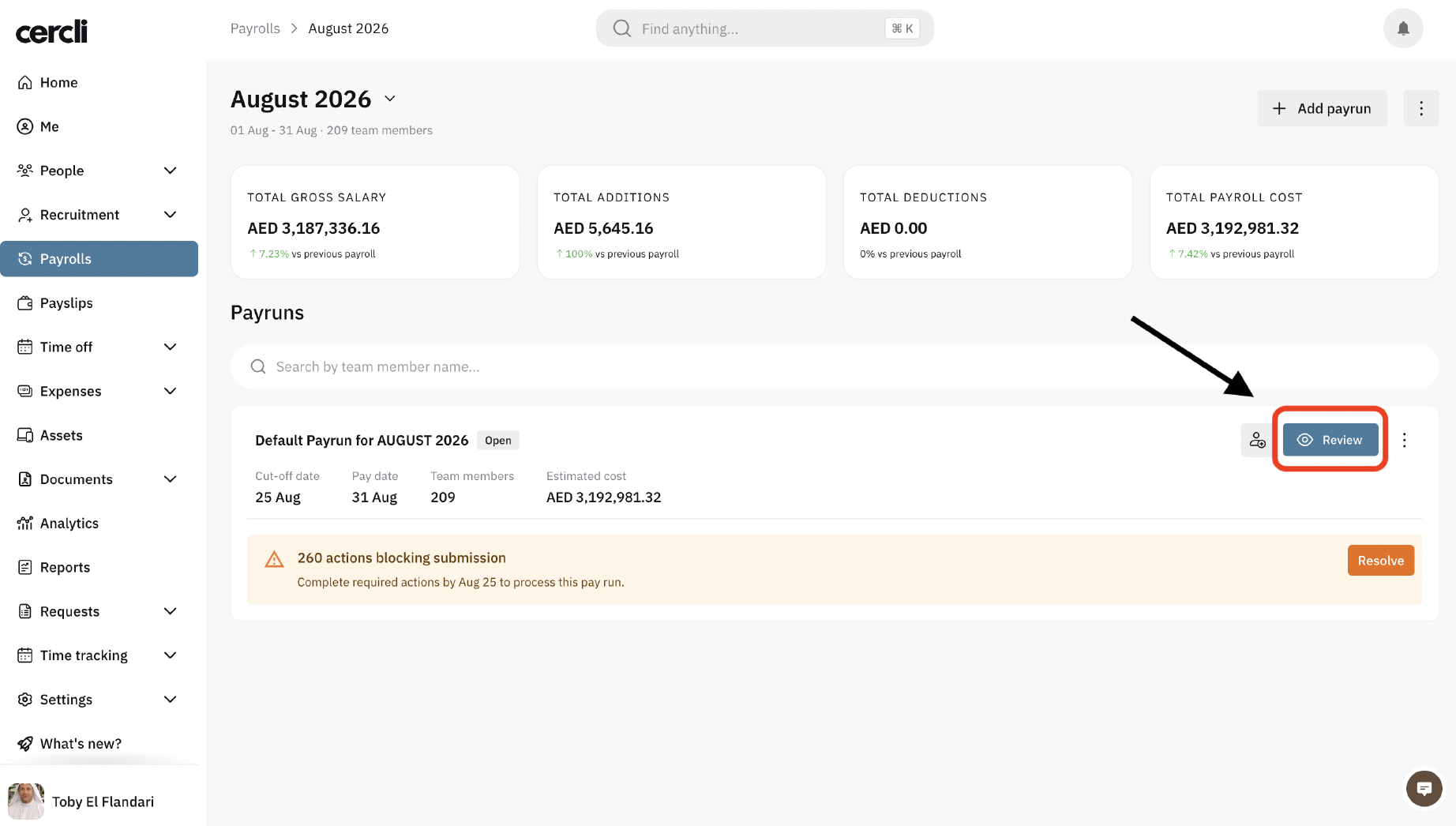
If your payroll has any issue, you will see a yellow banner with a warning message. Click Resolve to view the issues and fix them instantly.
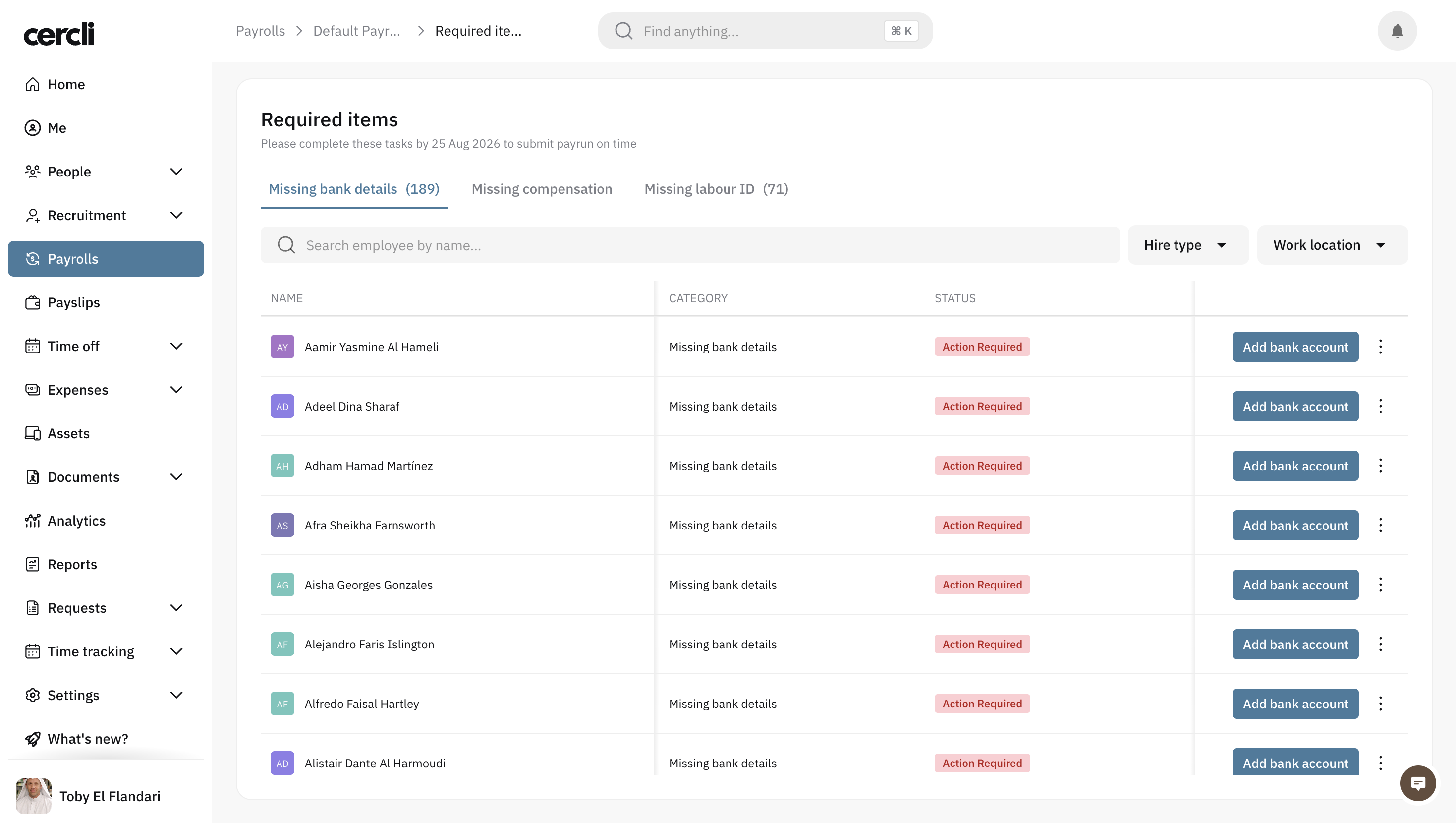
These are the required items.
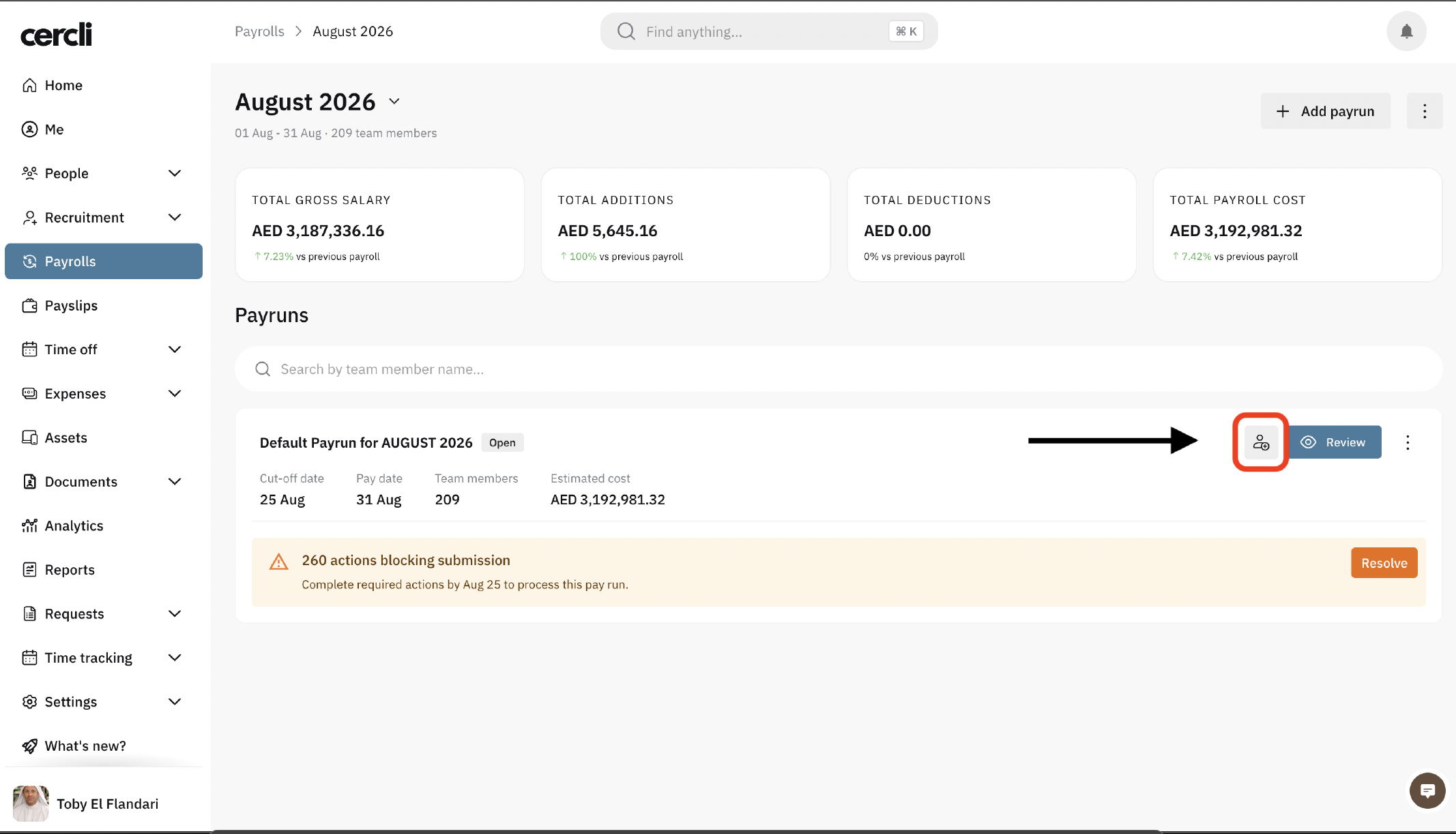
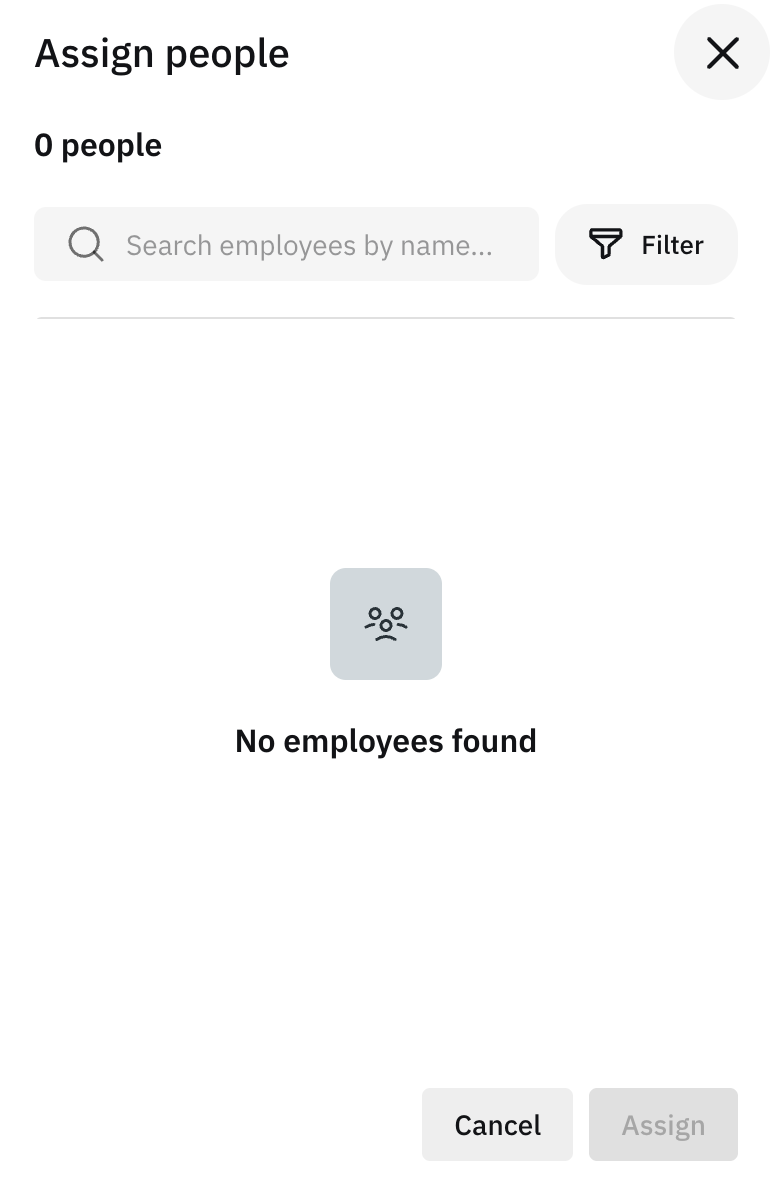
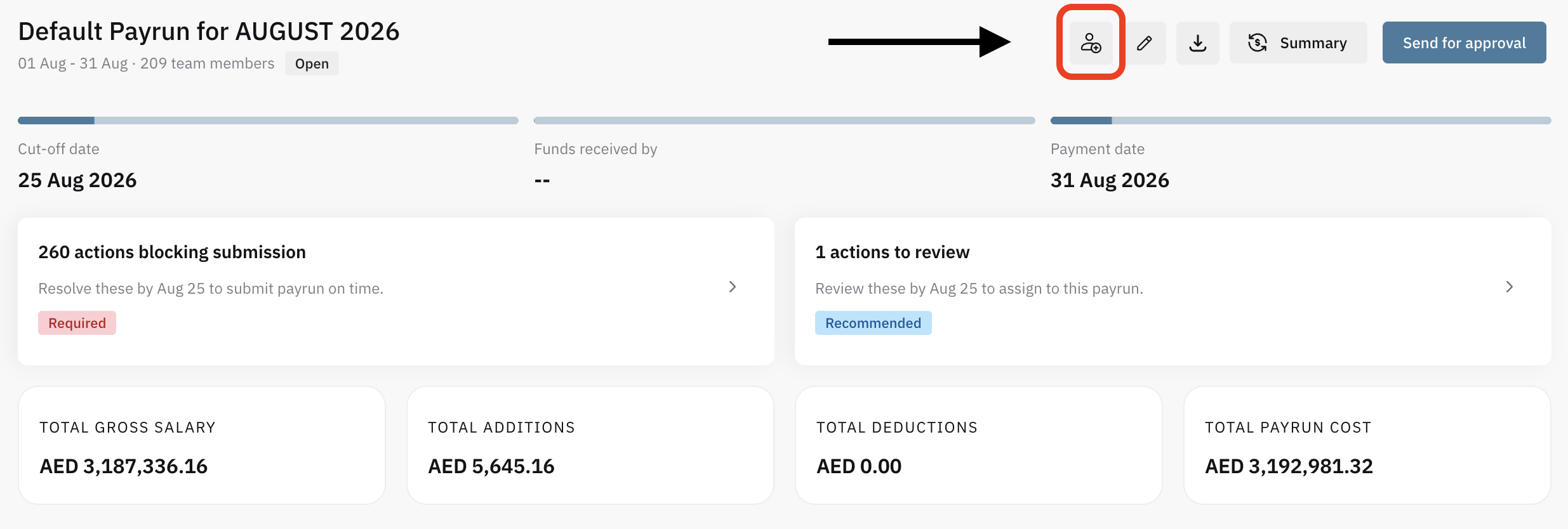
Click on the icon next to Review to manually add users to the payrun.
You can then click Review . And go to the payrun's page.
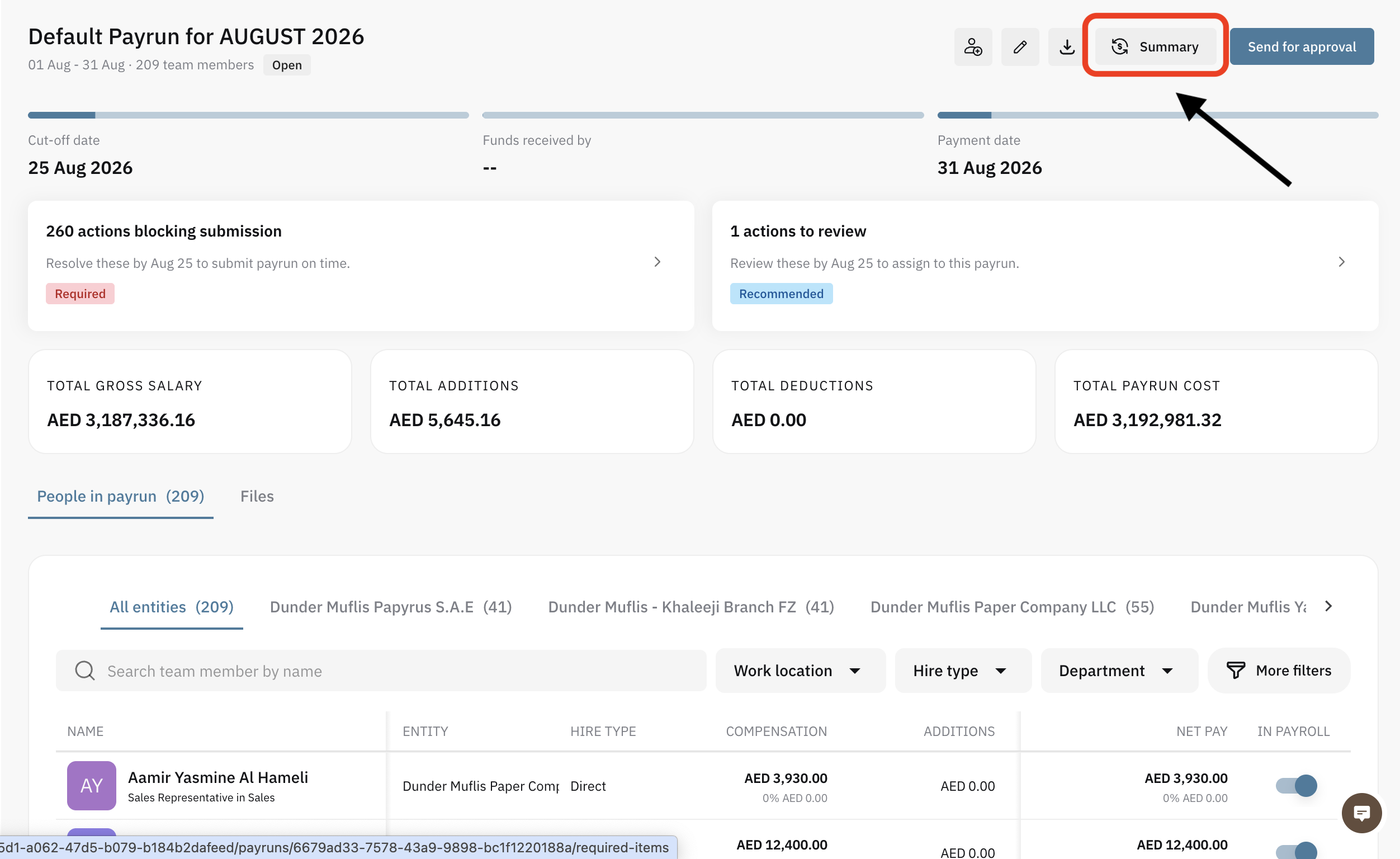
In your payrun page, you can view the summary of the current payrun by clicking on Summary on the top right of the screen.
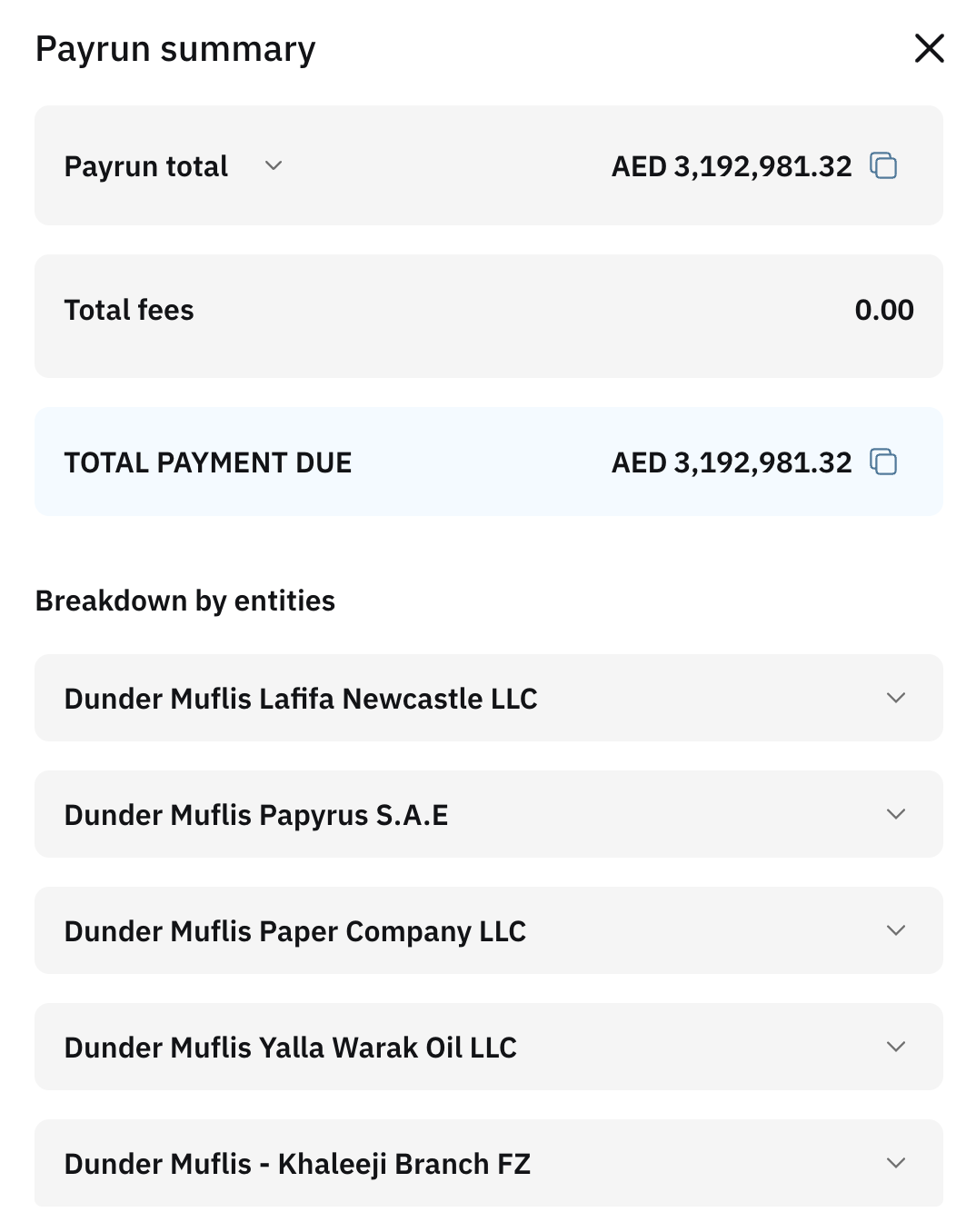
This is the summary: Showing payrun total, total fees, payment due - for the wiring transfer to Cercli. And a breakdown by entity.
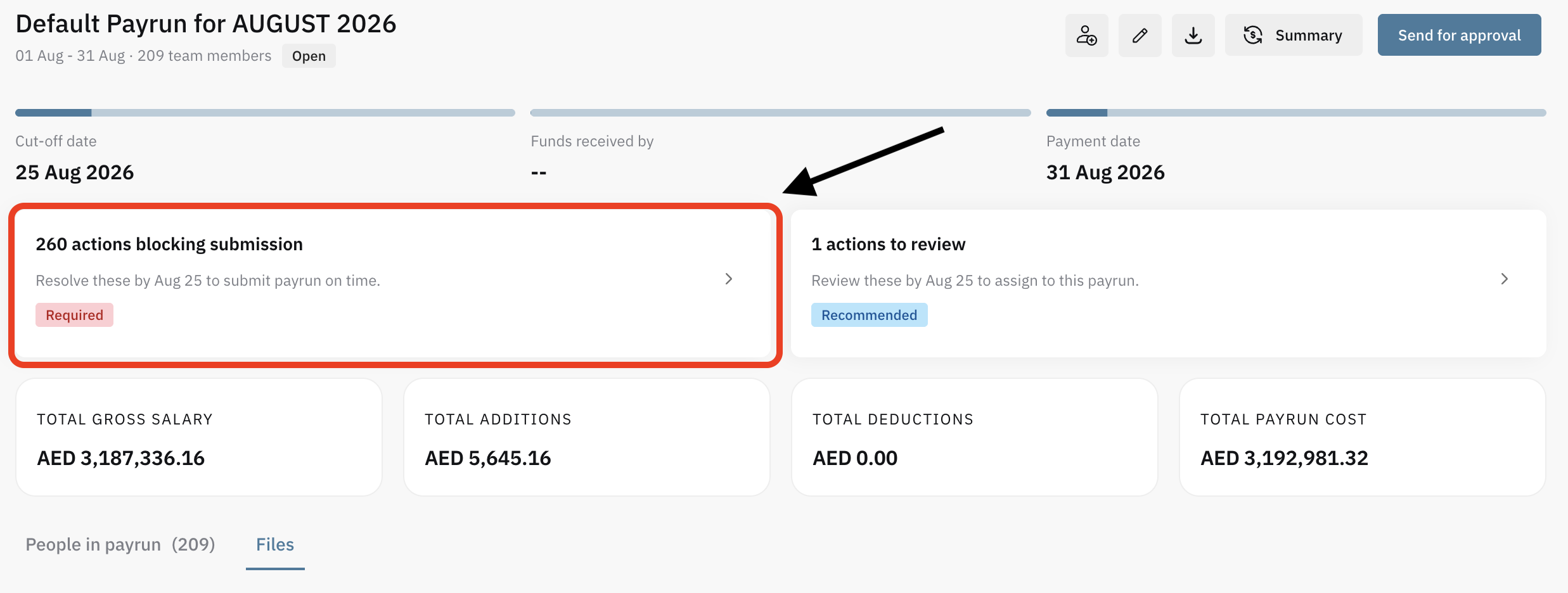
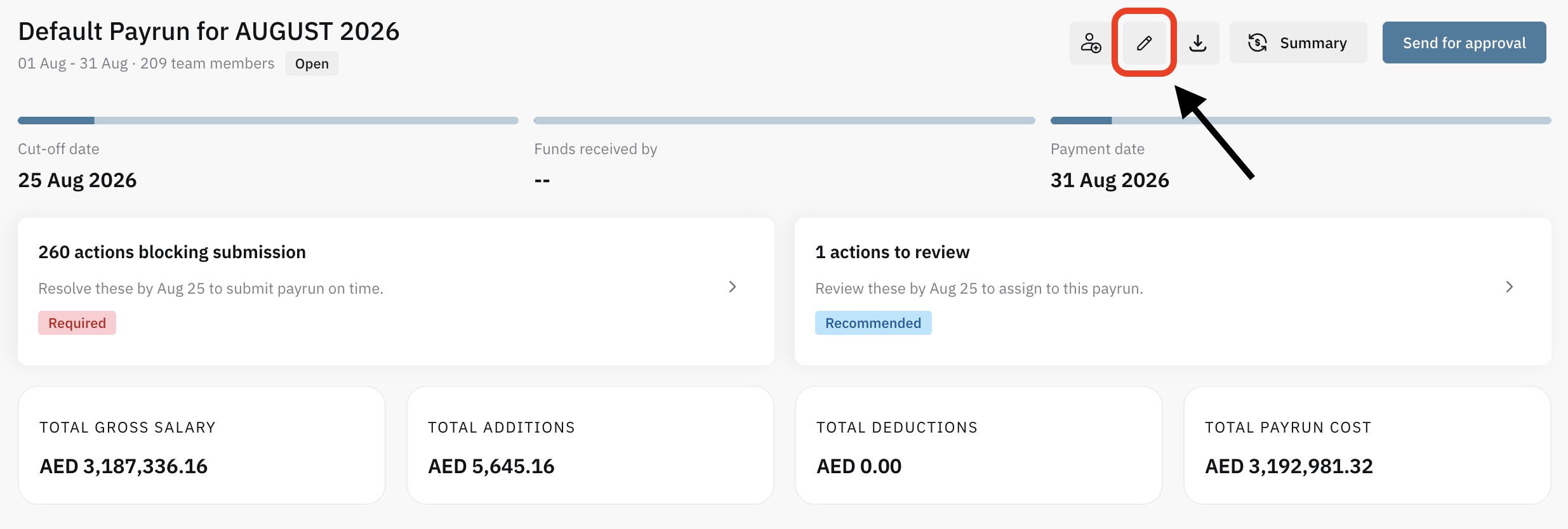
In the payrun page you will see blocking actions - like the ones we previously saw. And it will take you to the same page to fix it.
You will also see actions to review . These are recommendations given a particular situation.
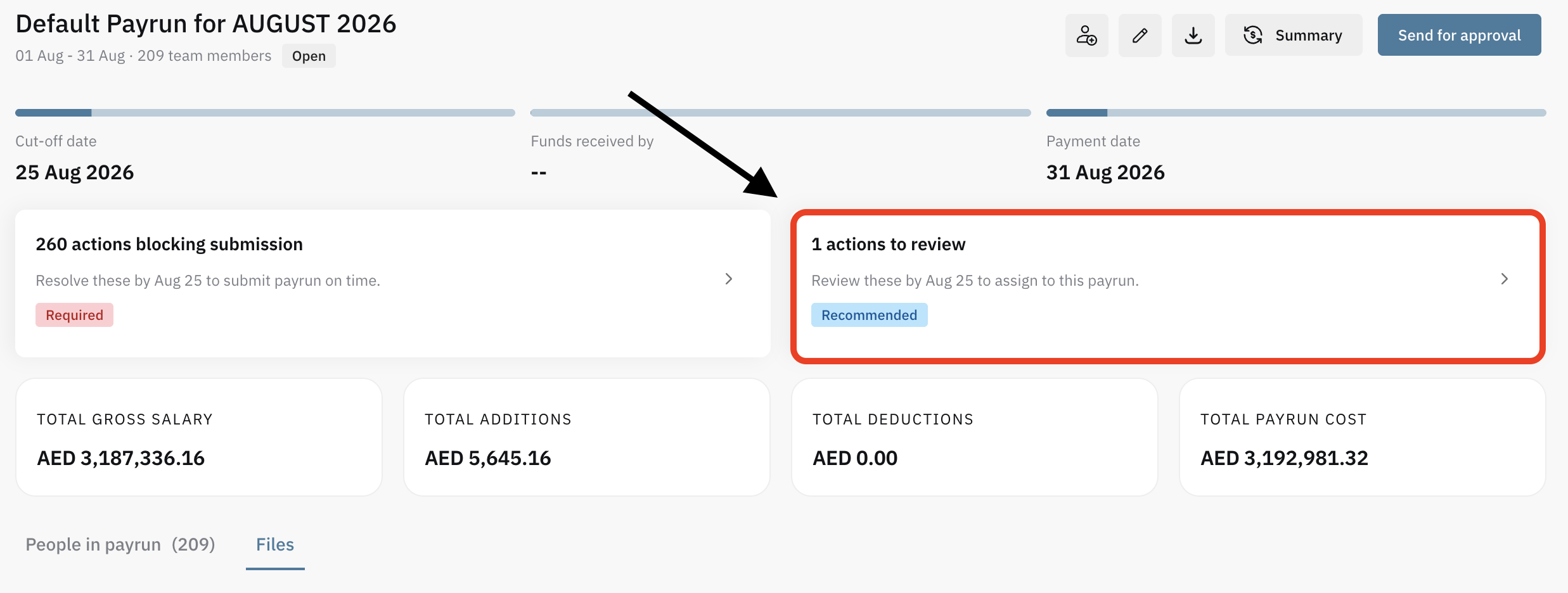
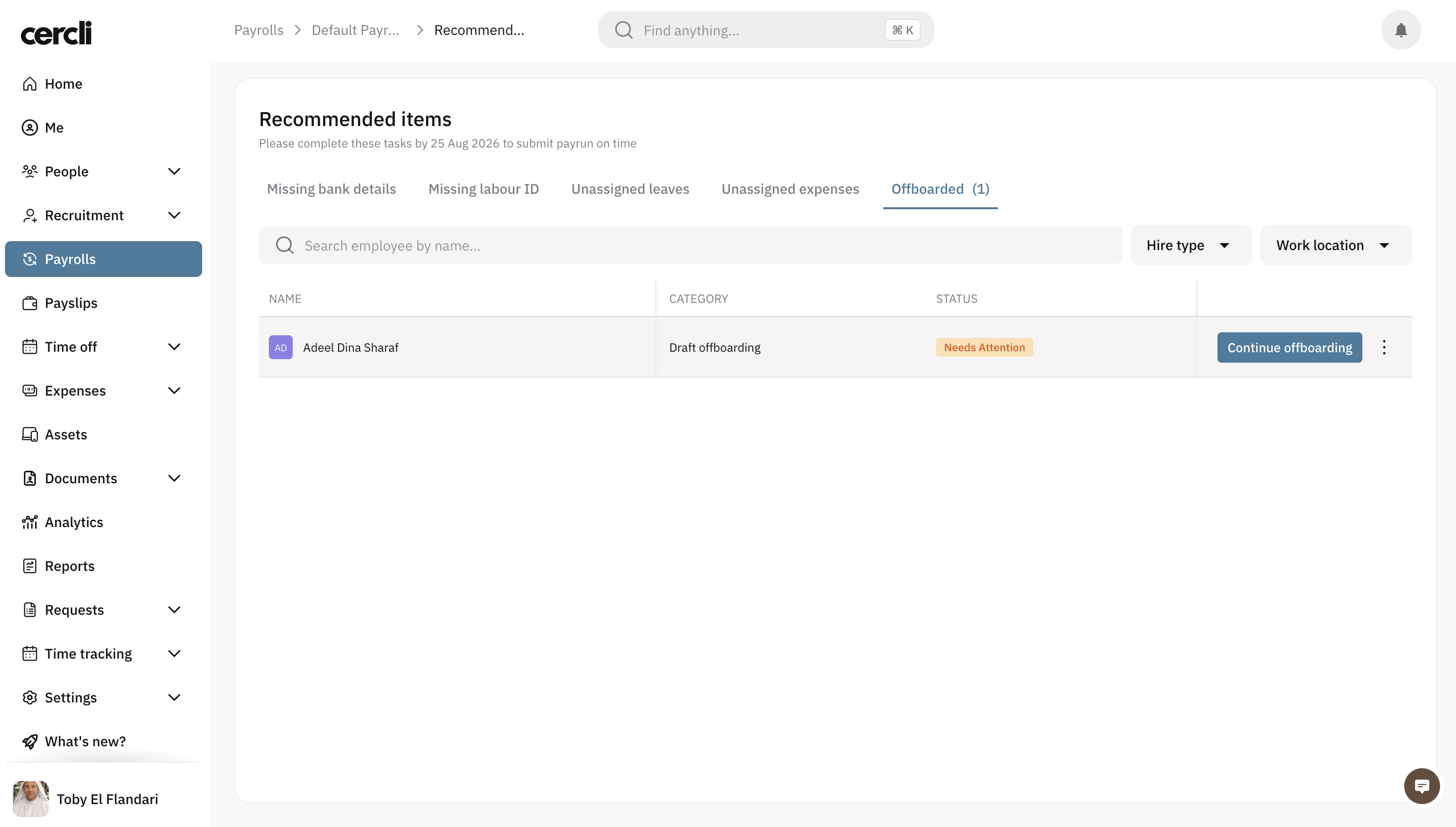
For instance, when having an offboarding pending.
You can also add users manually by selecting the user icon.
Ont he payrun page, you're also able to edit the payrun from the pencil icon.
Once everything is done, and there are no pending actions. You can press
Send for approval