How to submit, edit or delete an Expense
Last updated: September 24, 2026
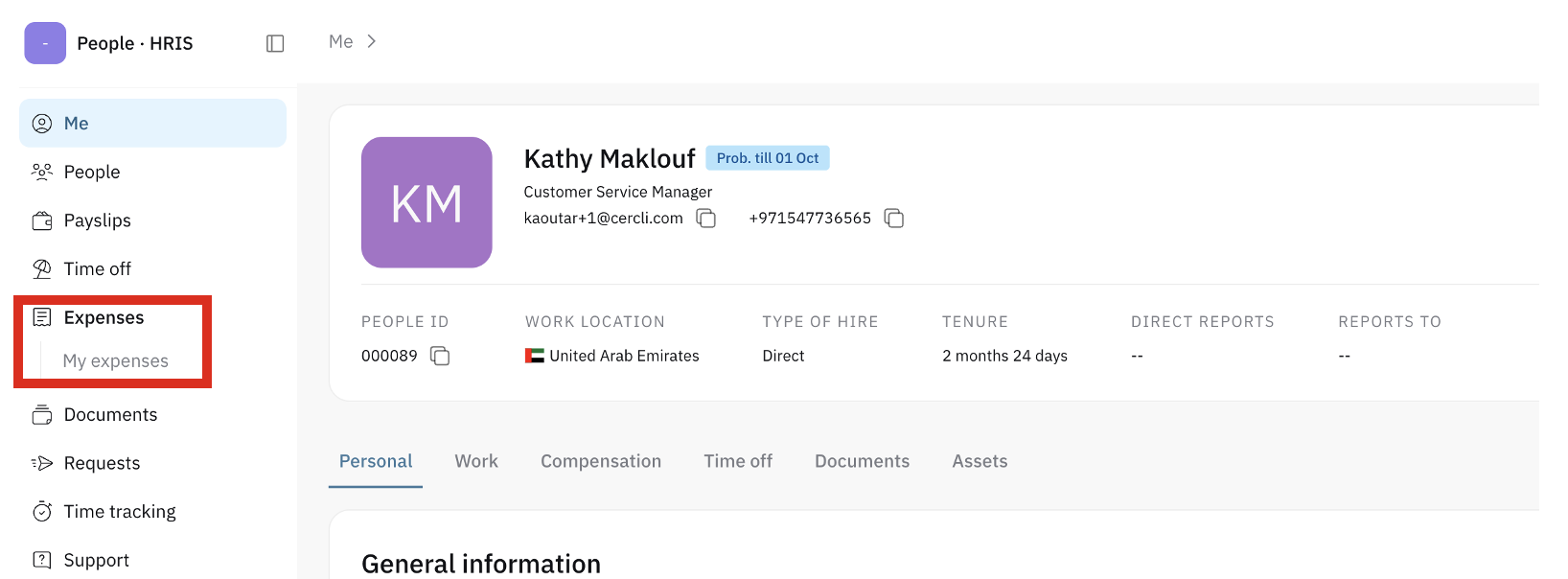
Navigate to Expenses
From the left sidebar, go to Expenses → My expenses.
Submit an expense
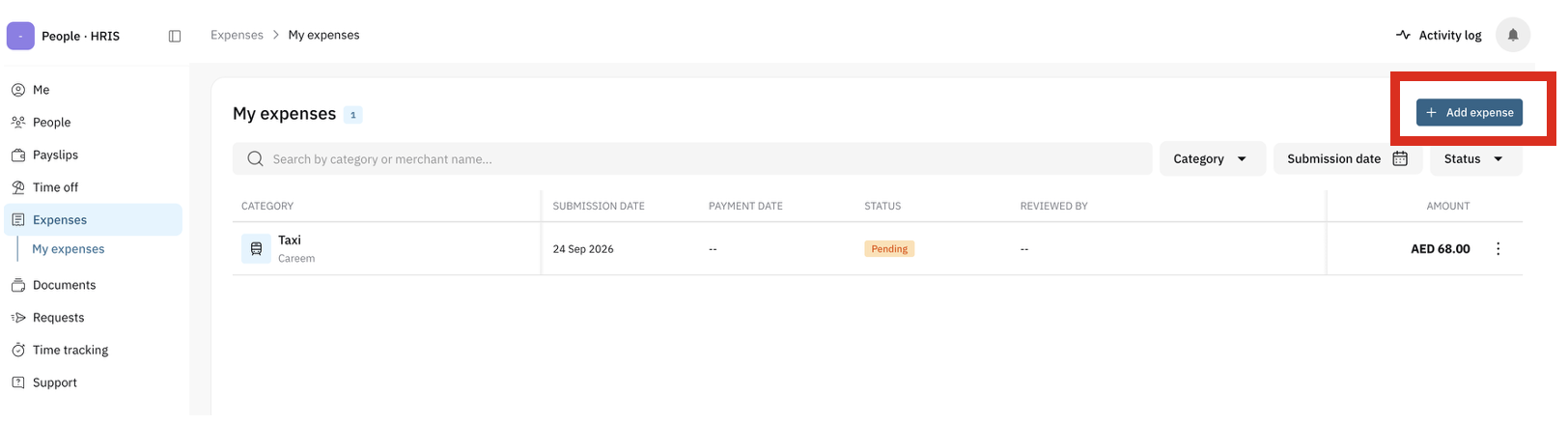
Click + Add expense (top right)
Upload your receipt. Our AI-Recognition feature will auto-fill the Merchant, Category and Amount fields for you
Review the auto-filled details, add the Expense date and a short Description if needed.
Click Submit
Edit a submitted expense
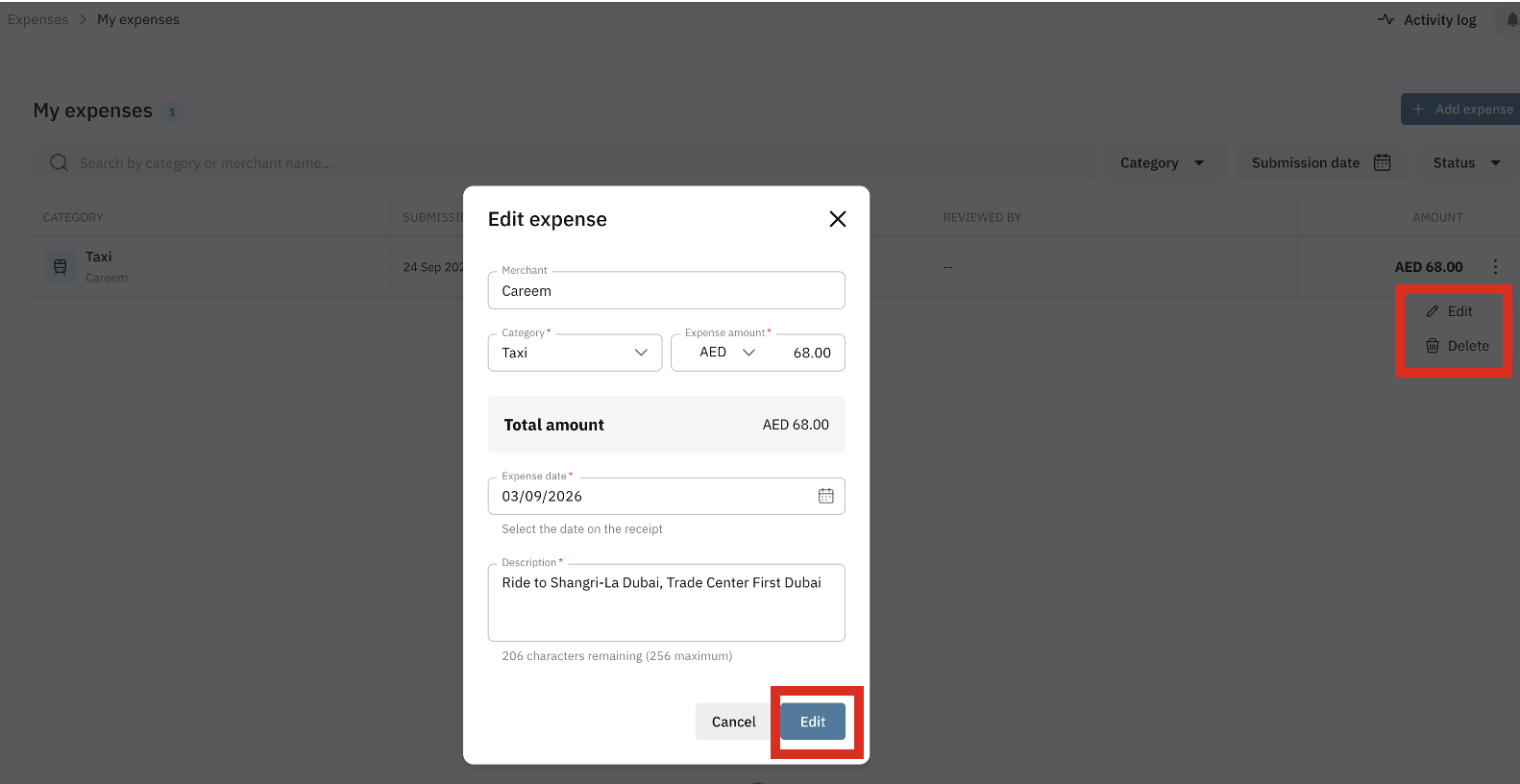
From My expenses, click the 3 dots on the right of the expense row
Select Edit
Update the details as needed and click Edit to save
Delete a submitted expense
From My expenses, click the 3 dots on the right of the expense row
Select Delete
Confirm by clicking Delete in the pop-up
Track changes (Activity log)
Click Activity log (top right) to see a history of who added or updated an expense, and when.