Admin - How to Add New Work Schedules
Last updated: April 20, 2026
TLDR 🍿
Creating a New Work Schedule Step by Step
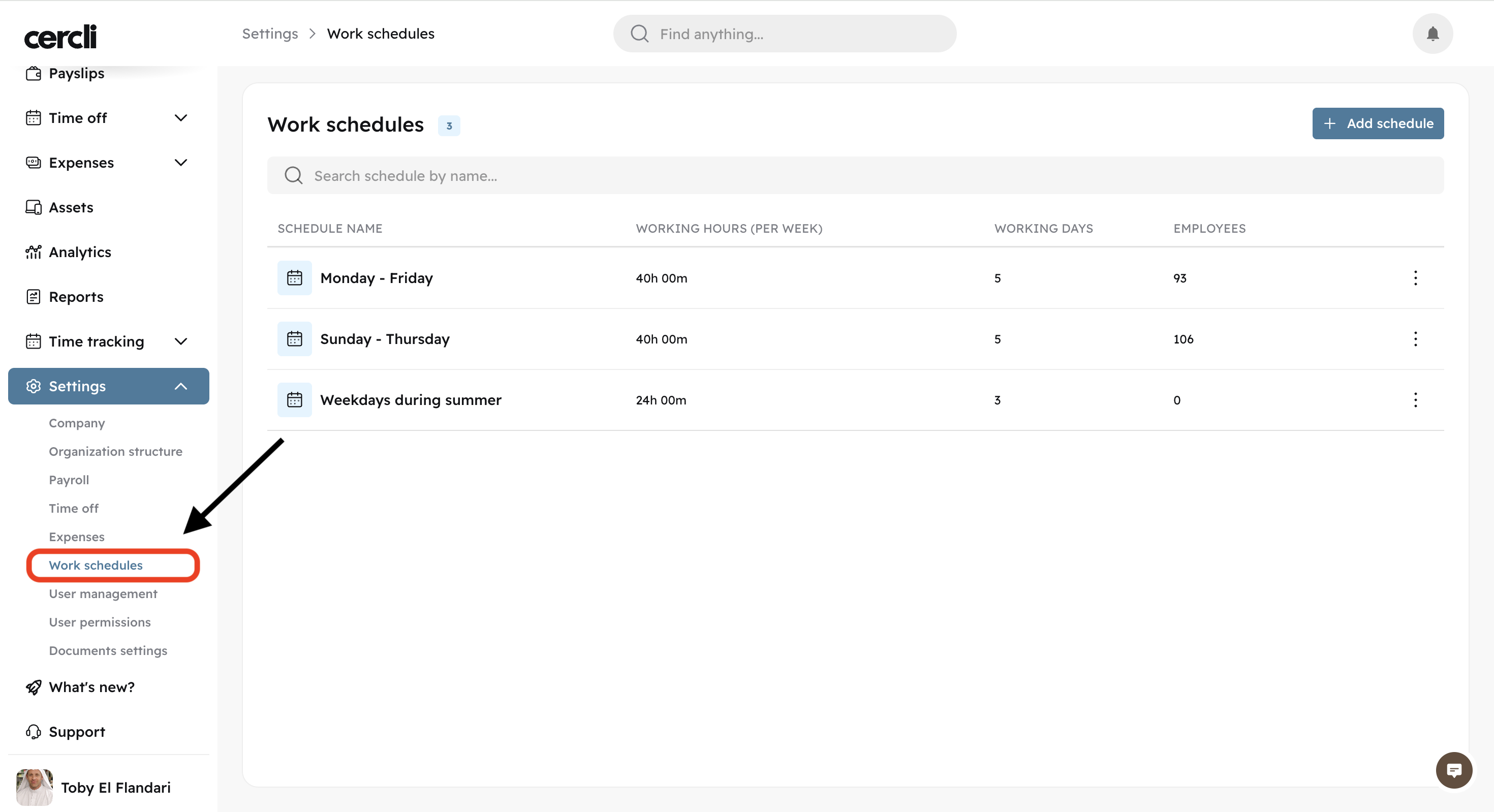
Locate Settings on the left sidebar, and click on Work schedules.
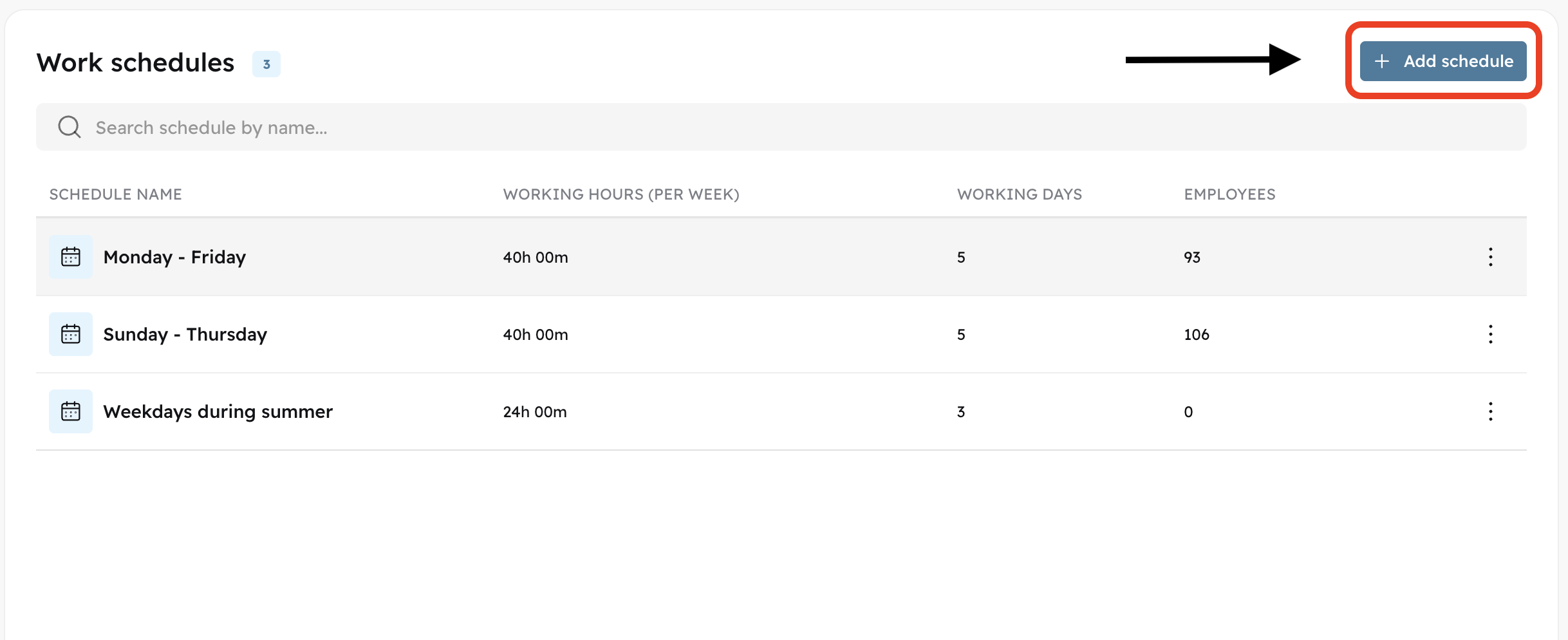
On the top right of the screen, click on Add schedule
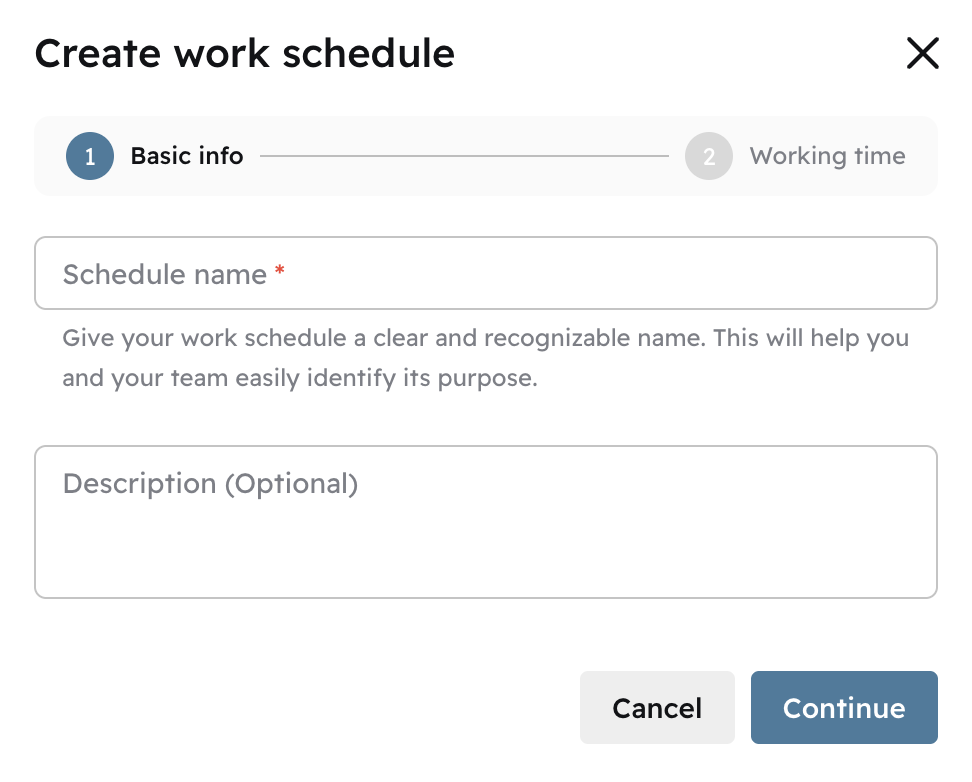
Give the new schedule a name and description (optional). And press Continue
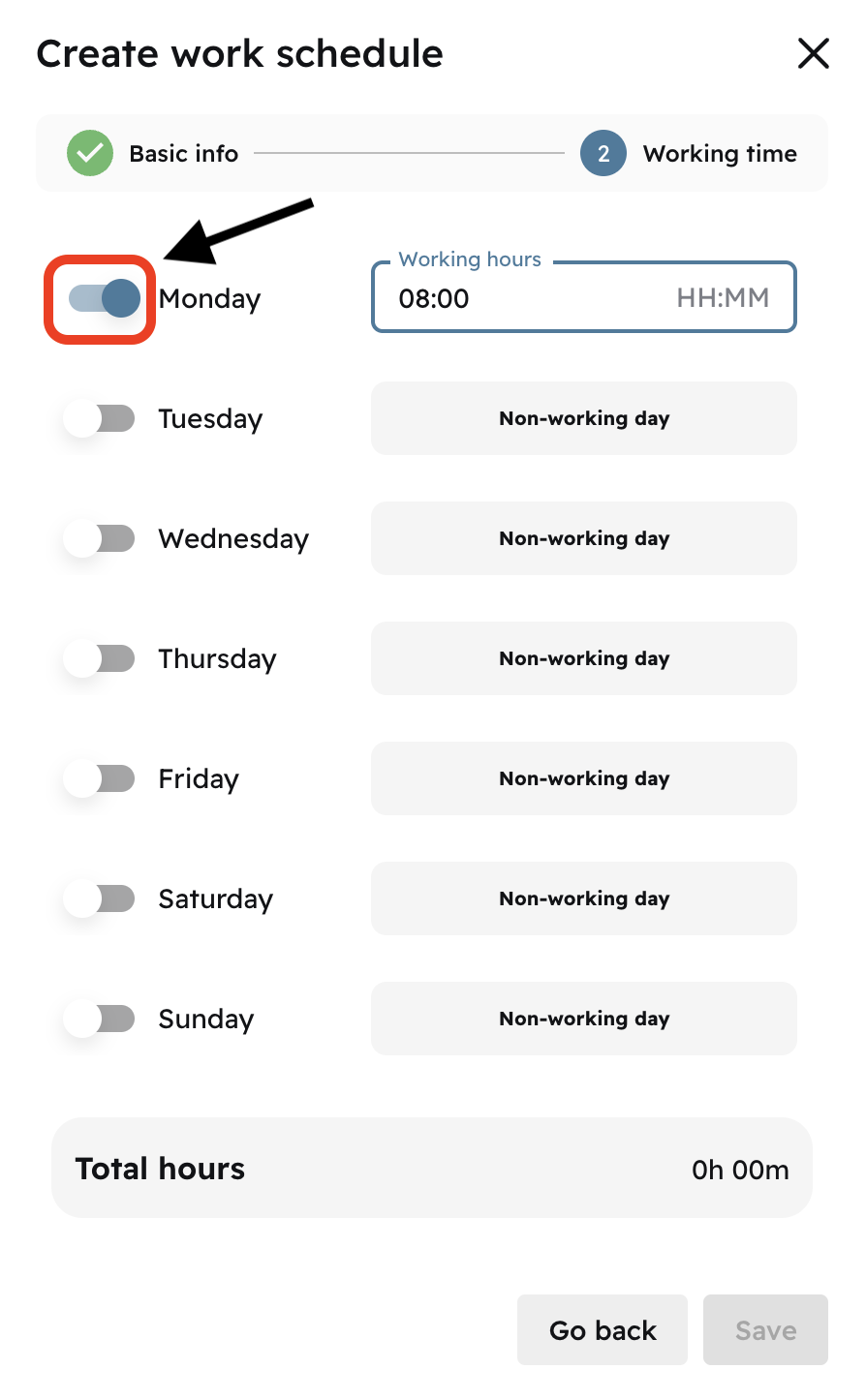
Next, you will find a screen allowing you to toggle the days you'd like to be working days.
Once you've clicked on the toggle on/off button, you may choose the working hours following the HH:MM format. Ex. 8 working hours on Monday look like: 08:00. Click Save
Editing Work Schedules
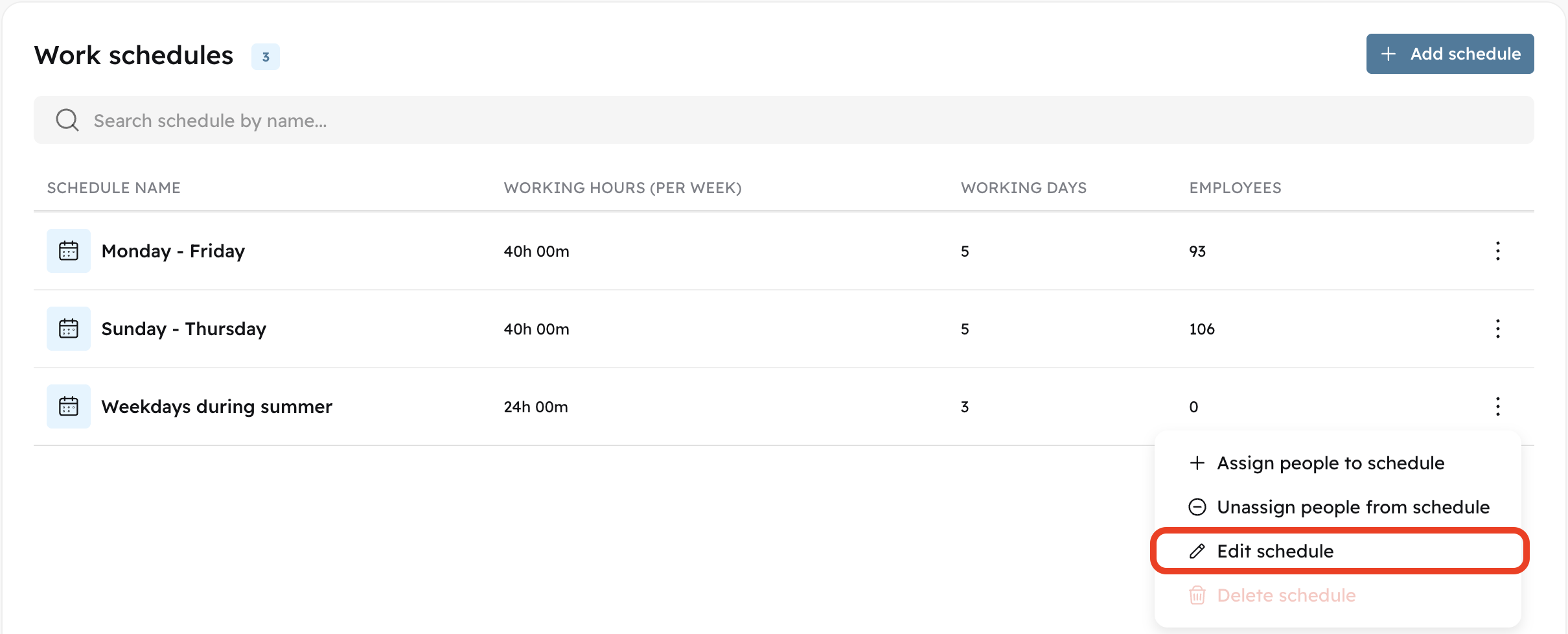
On the work schedules page (found on Settings, Work schedules),
click on Edit schedule
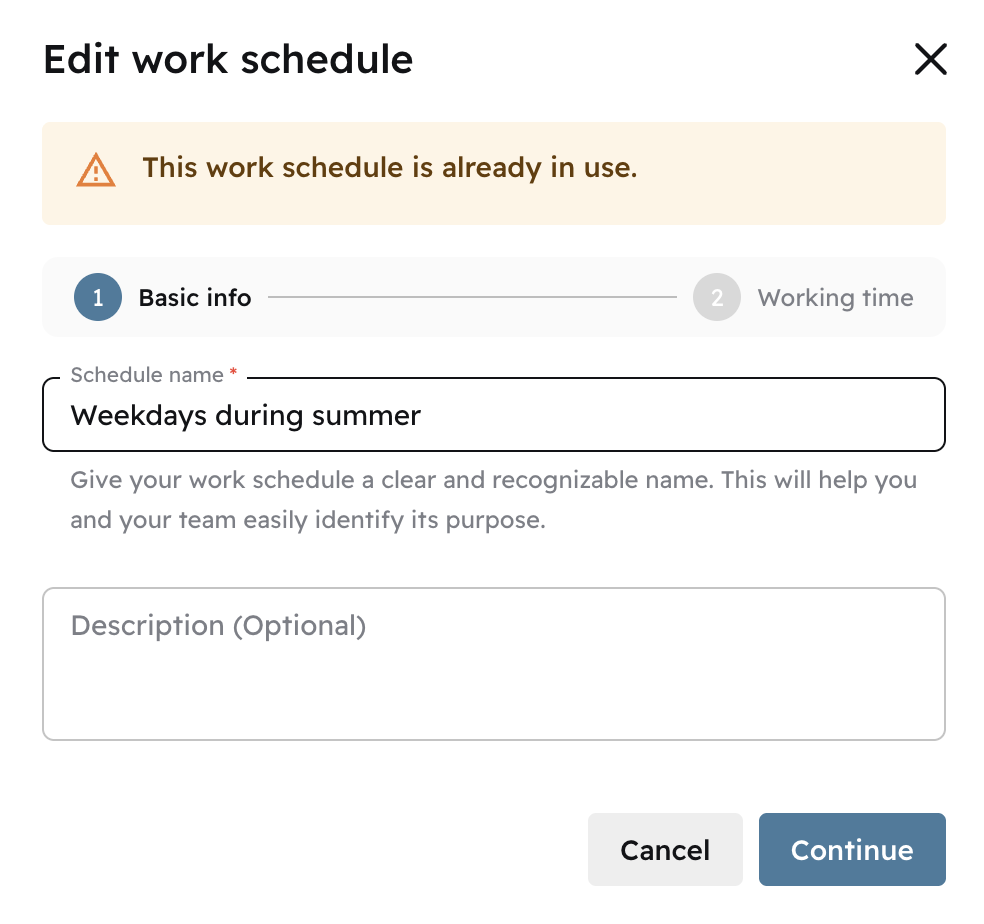
You can rename the schedule, click Continue
And edit the working hours. Click Save
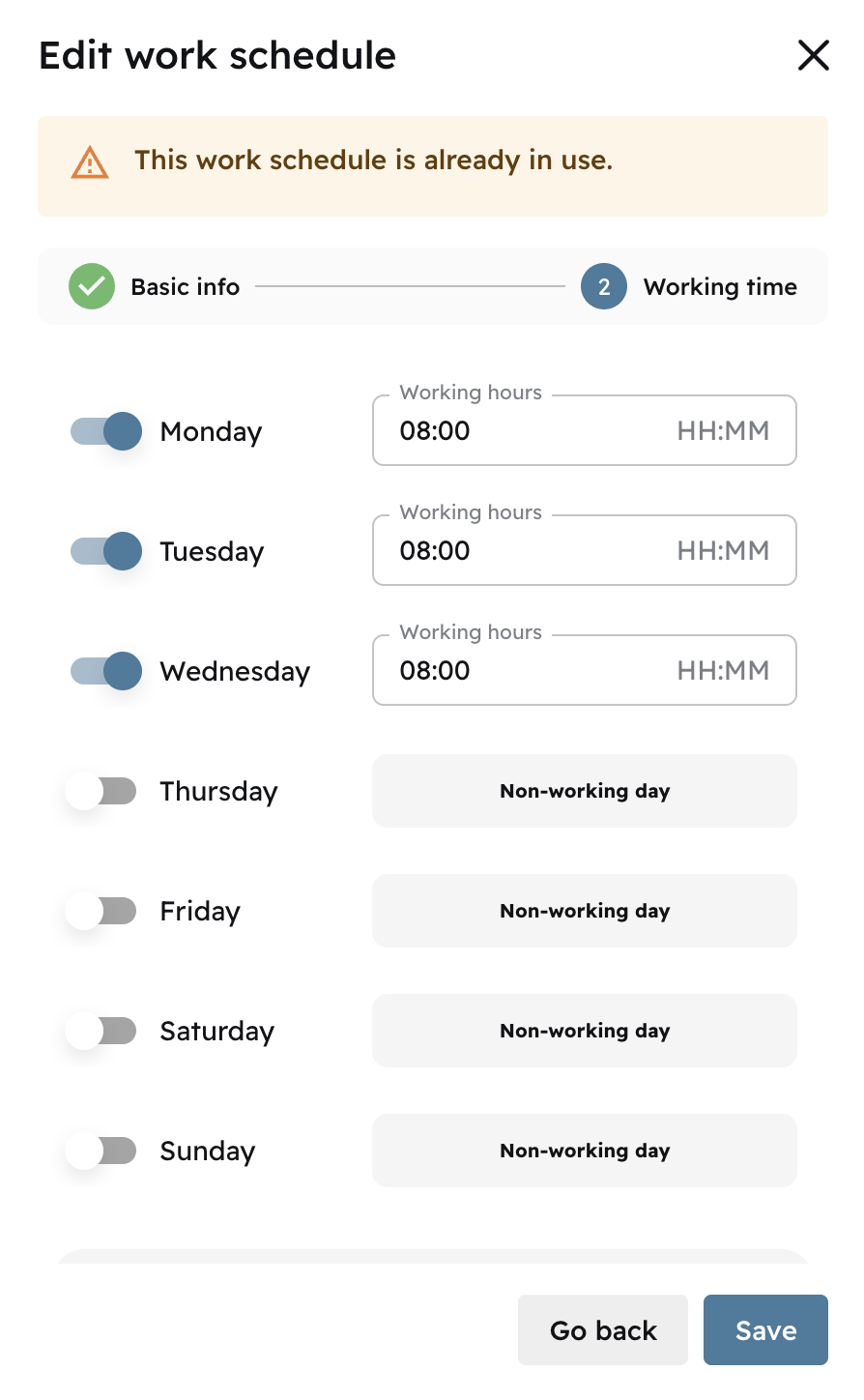
You may see a text reading "This work schedule is already in use". This means that edits will be applied to the team members assigned to this scheduled.
Deleting Work Schedules
Work schedules cannot be deleted by team members or HR Managers directly. Contact Cercli Support for it. This is a precaution taken by the team to make sure every team member is always assigned to a work schedule.