Admin - How to Add and Manage Public Holiday Calendars
Last updated: April 17, 2026
TLDR 🍿
Overview
The Public Holidays section in Cercli allows you set up country or region-specific holiday calendars and assign them to the relevant team members. This ensures each team member's time off accurately reflects the public holidays that apply to them.
Navigating to Public Holidays
In the left-hand navigation bar, click
Time off.Select
Public holidaysfrom the submenu.
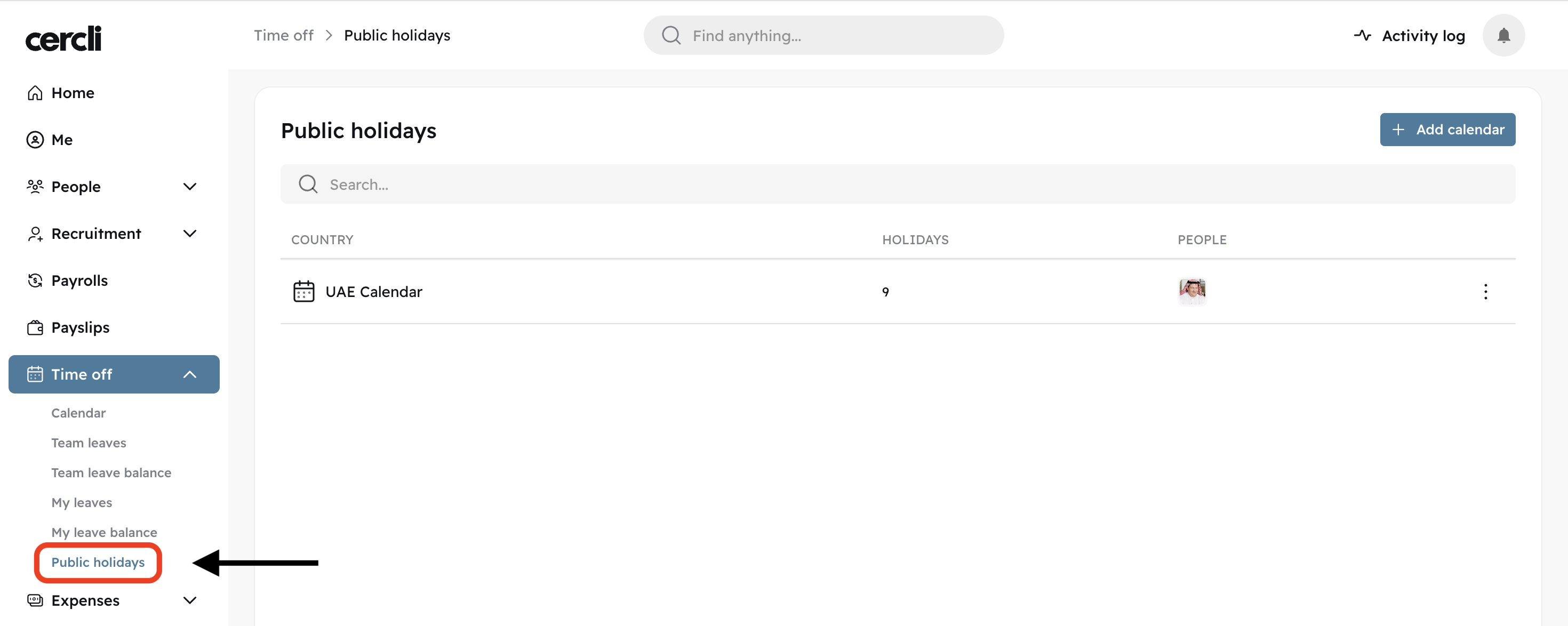
Adding a New Calendar
Click the
+ Add calendarbutton in the top-right corner of the Public Holidays page. This opens the Add calendar module.Choose one of the following two options:
Option | Description |
Use existing calendar | Select a predefined public holiday calendar based on country or region. Cercli provides ready-made calendars for a range of countries. |
Create custom calendar | Build your own calendar by naming it and adding custom holidays with specific dates. You can optionally base it on an existing country calendar. |
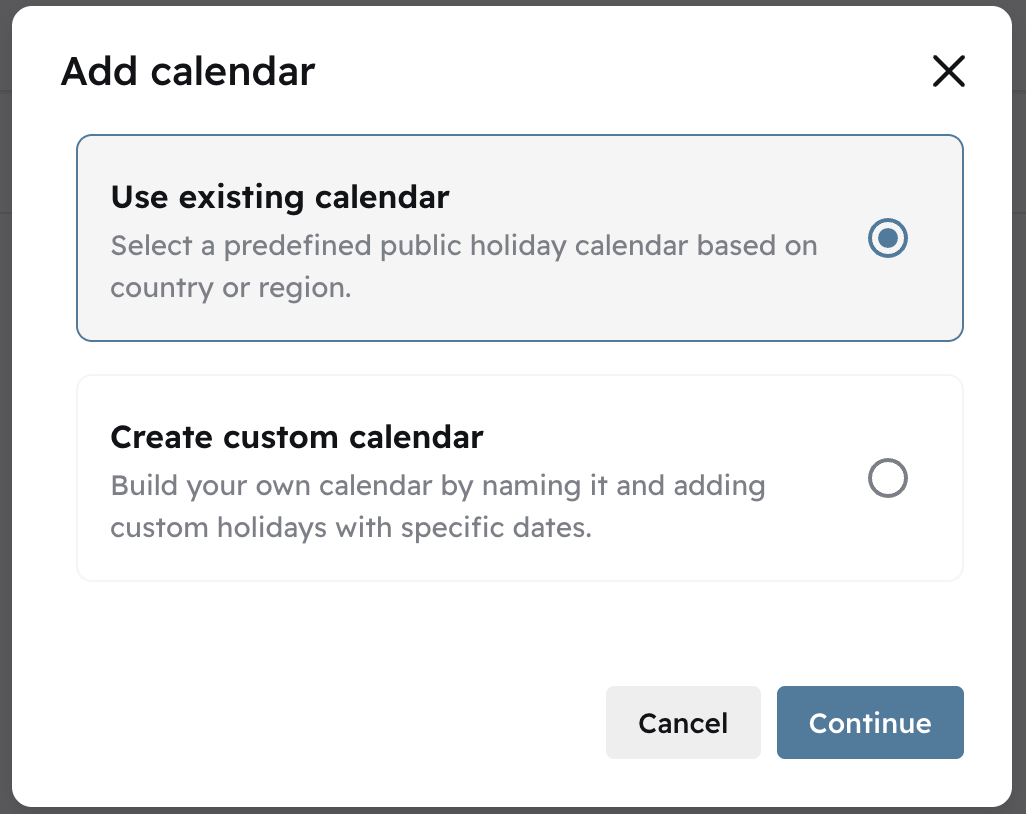
Select the option that applies and click
Continue.
Using an Existing Calendar
Select
Use existing calendarand clickContinue.In the next step, use the
Public holiday calendardropdown to search for and select the country or region calendar you want to add.Click
Continueto proceed to the team member assignment step.
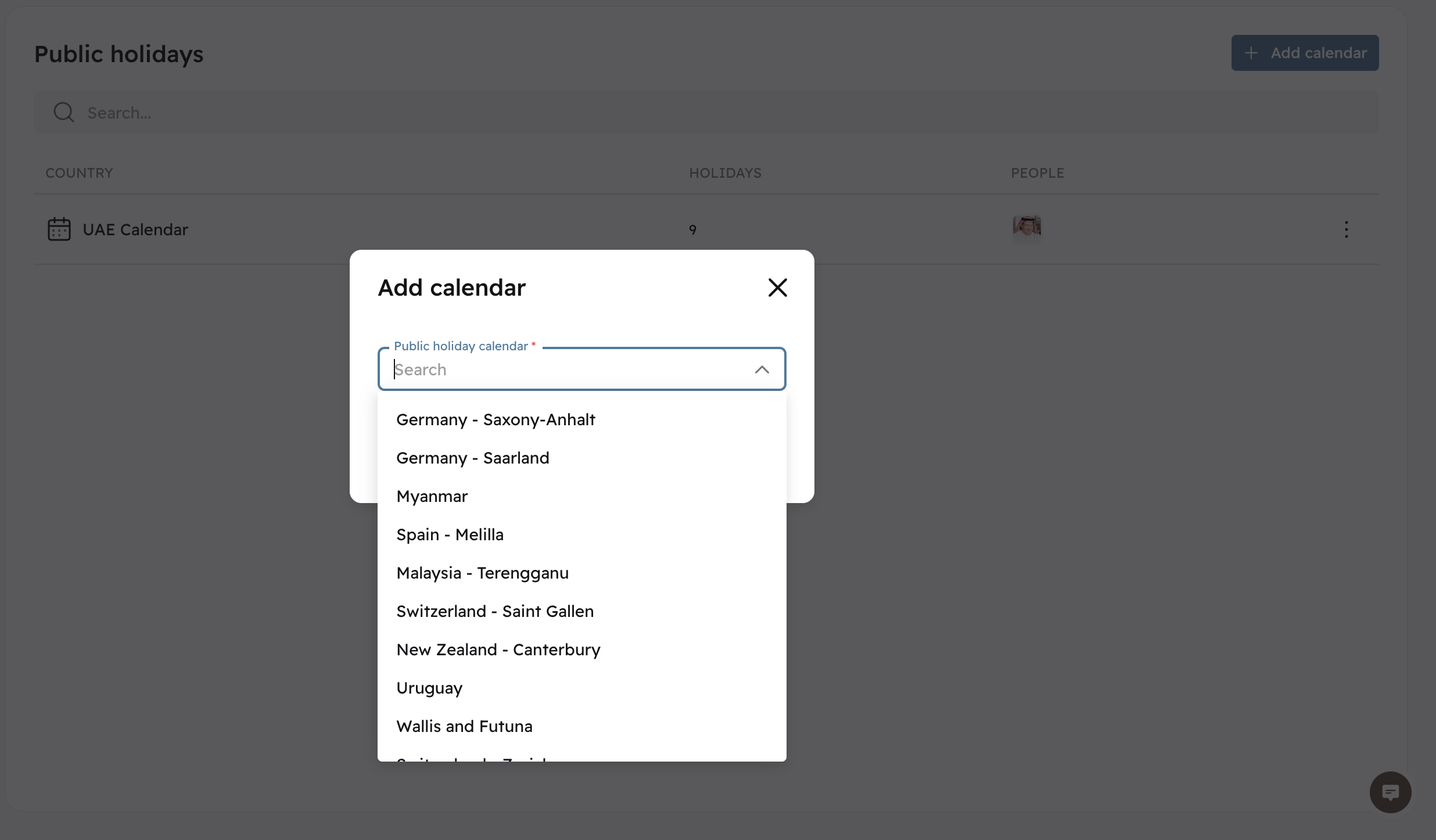
Creating a Custom Calendar
Select
Create custom calendarand clickContinue.Fill in the following fields:
Field | Description |
Calendar name | Enter a name for your custom calendar |
Public holiday calendar | Optionally select an existing country calendar to use as a base for your custom one. |
Holidays | Add individual holidays by entering a Holiday name and a Date for each one. Click + Add holiday to add more rows. |
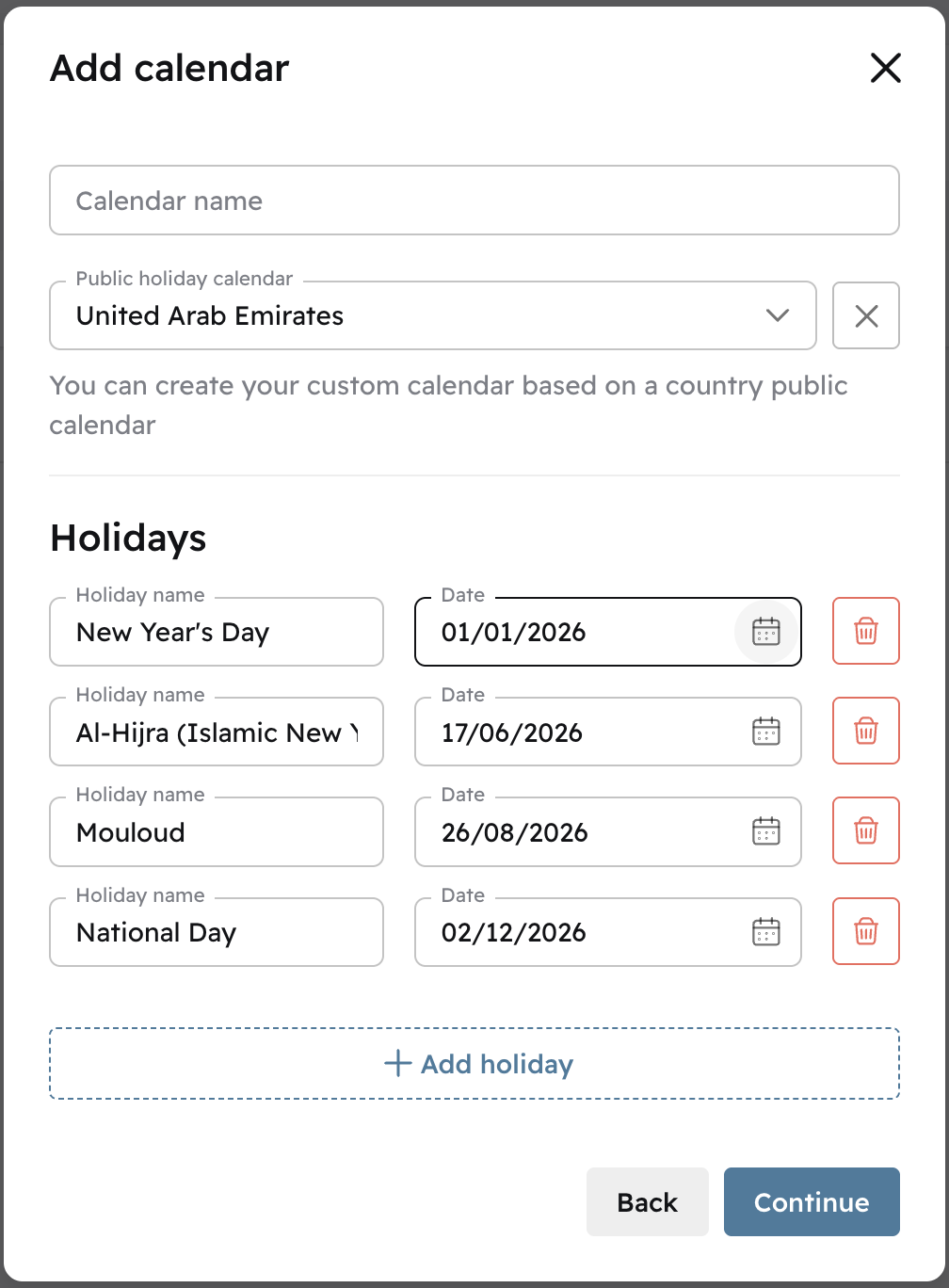
Once all holidays have been added, click
Continueto proceed to the Team Member assignment step.
Assigning Team Members to a Calendar
After configuring the calendar (either existing or custom), the final step is to assign team members to it.
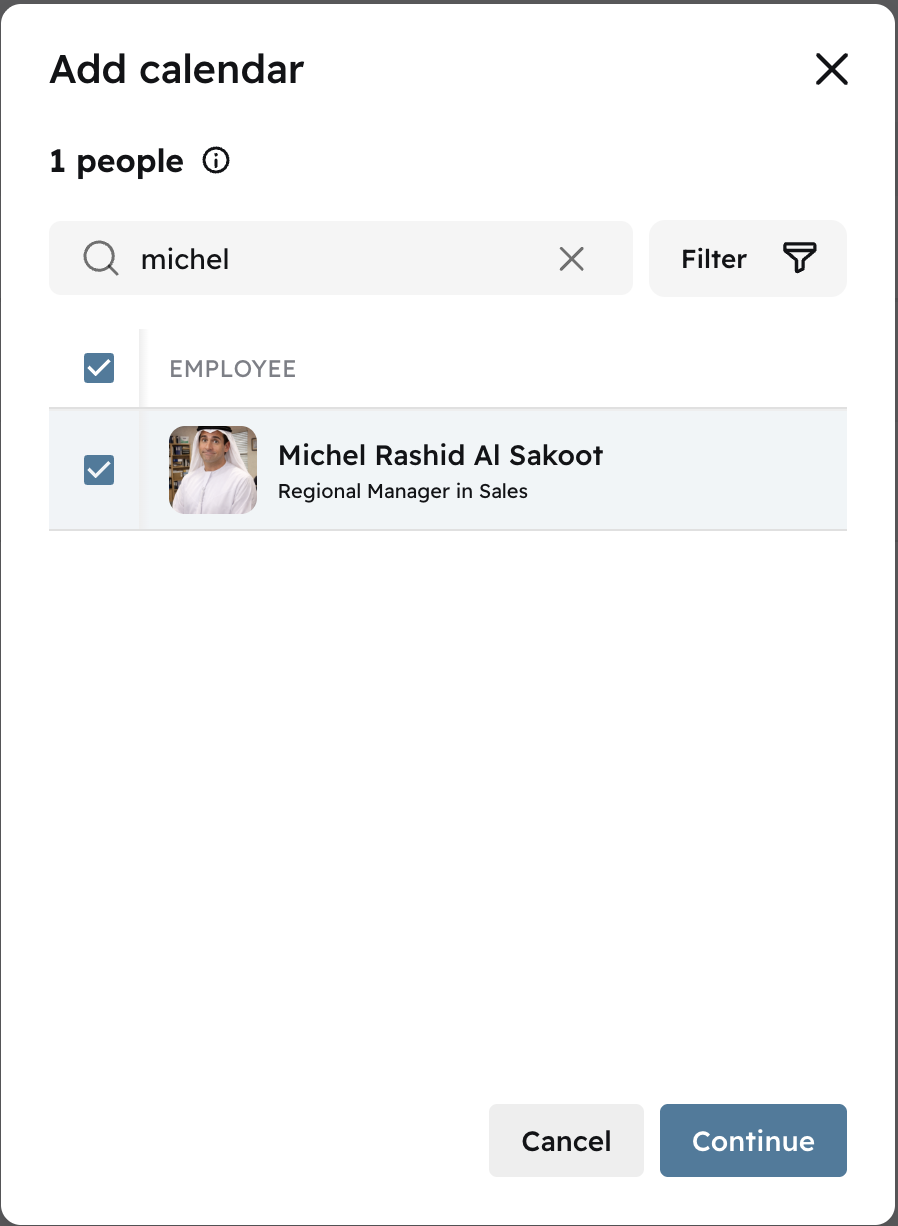
Click continue to confirm the assignment.