Admin - How to Update Payrun Dates in a Payroll
Last updated: April 14, 2026
You can now manage your payroll cut-off & pay dates directly in Cercli.
Cercli will no longer send them to you via Slack, Teams, or WhatsApp.
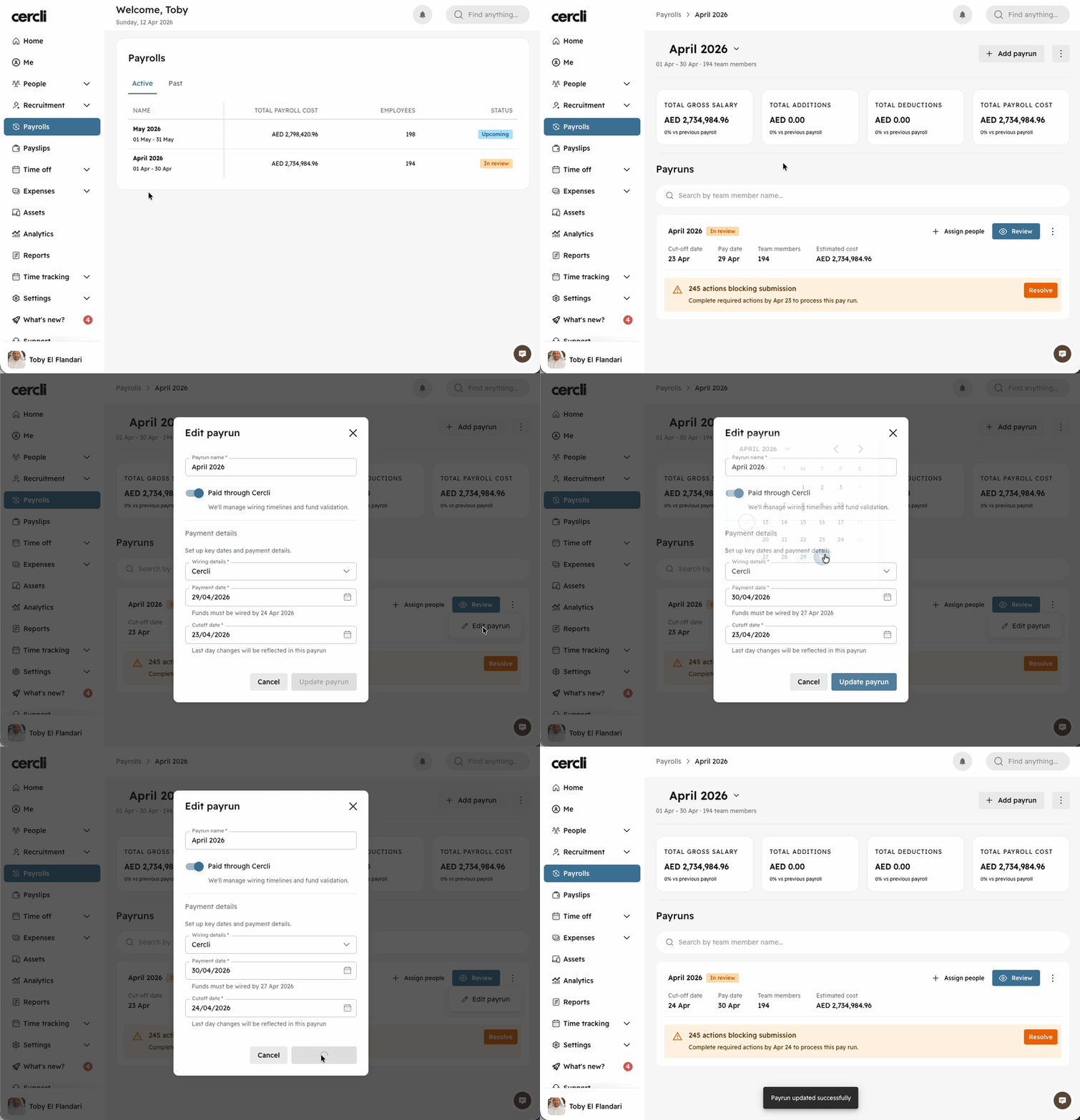
Step by Step Guide
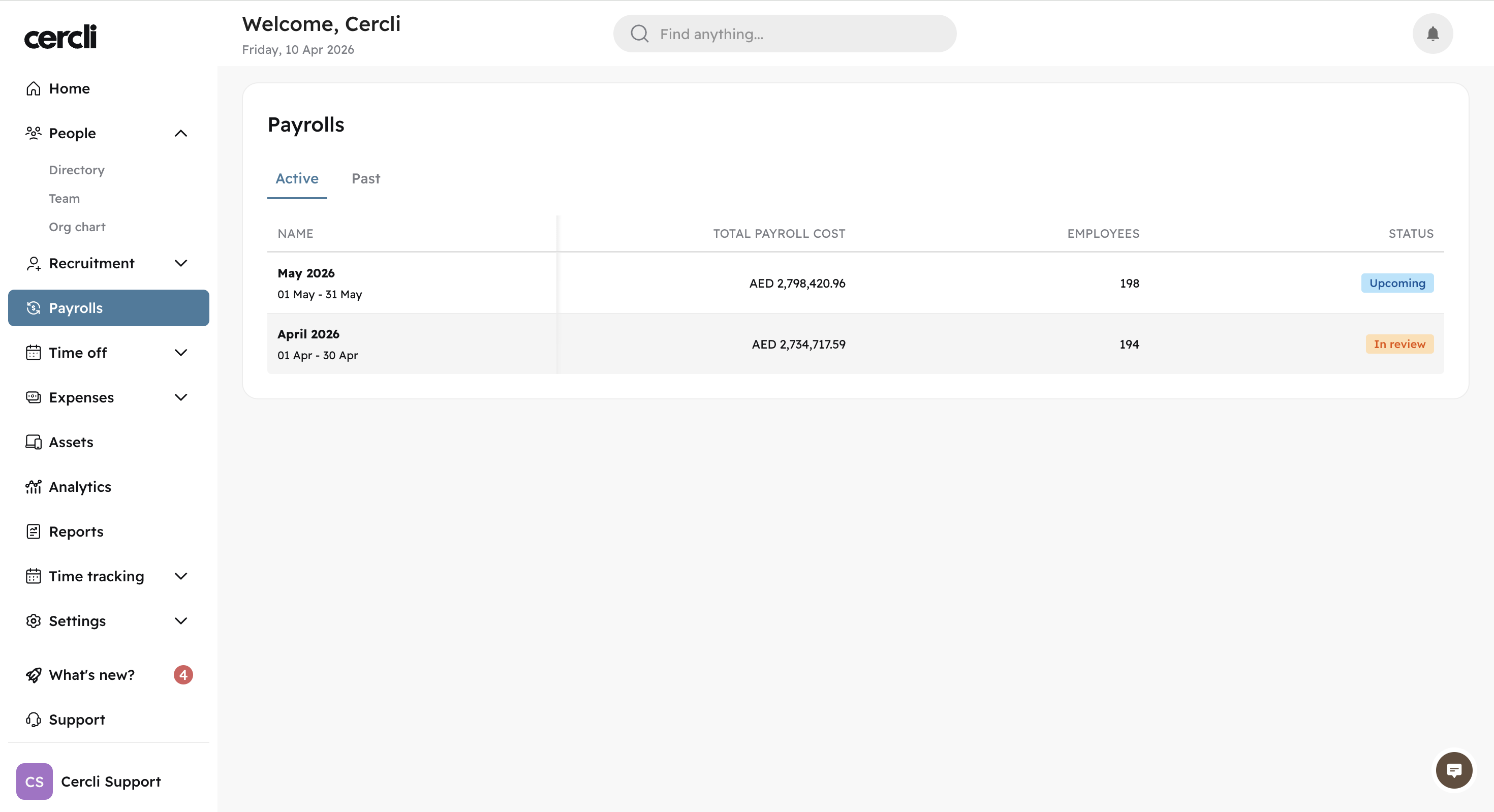
On the left side bar, click on Payrolls. Then click on the current payroll.
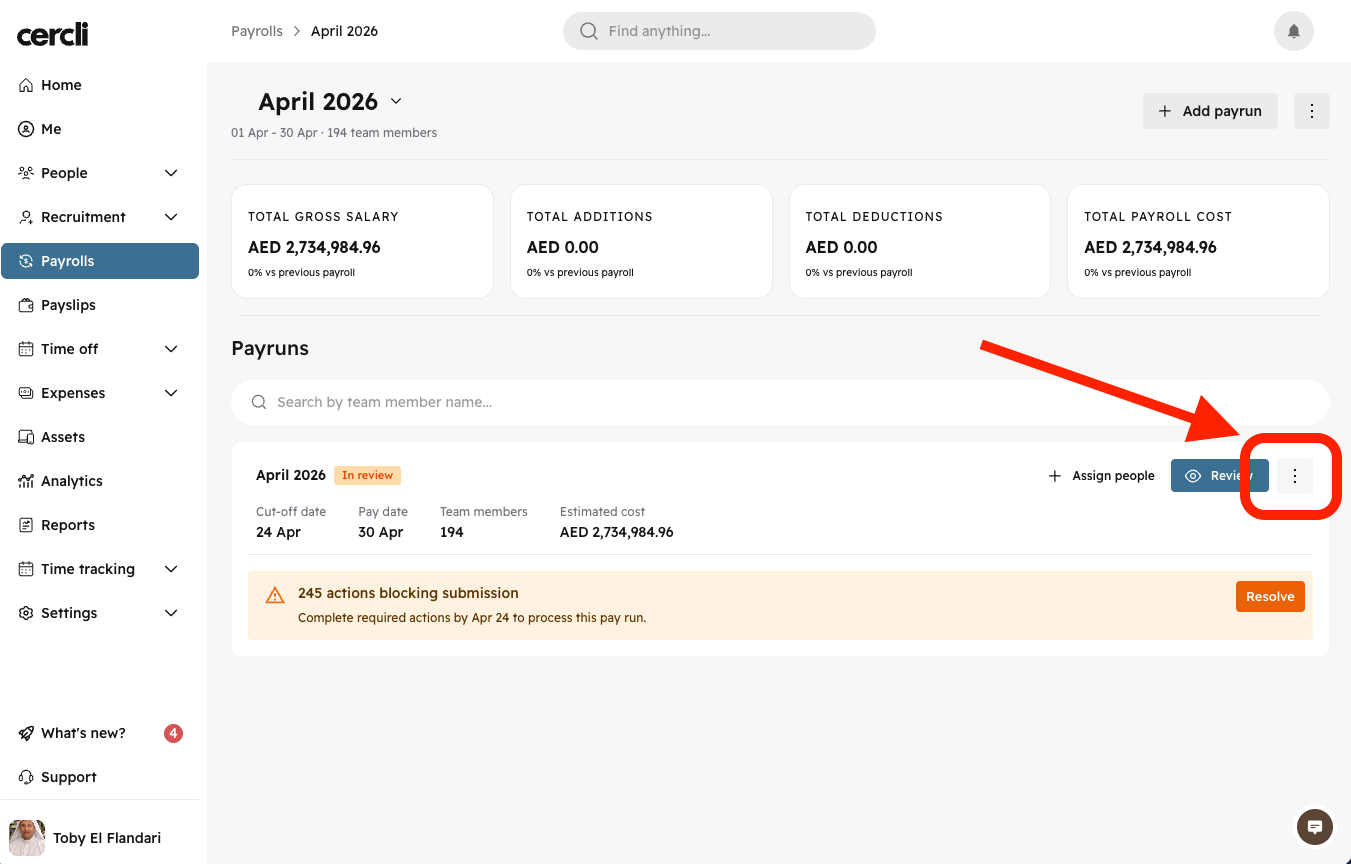
Click the ⠇ button on the right and select Edit payrun.
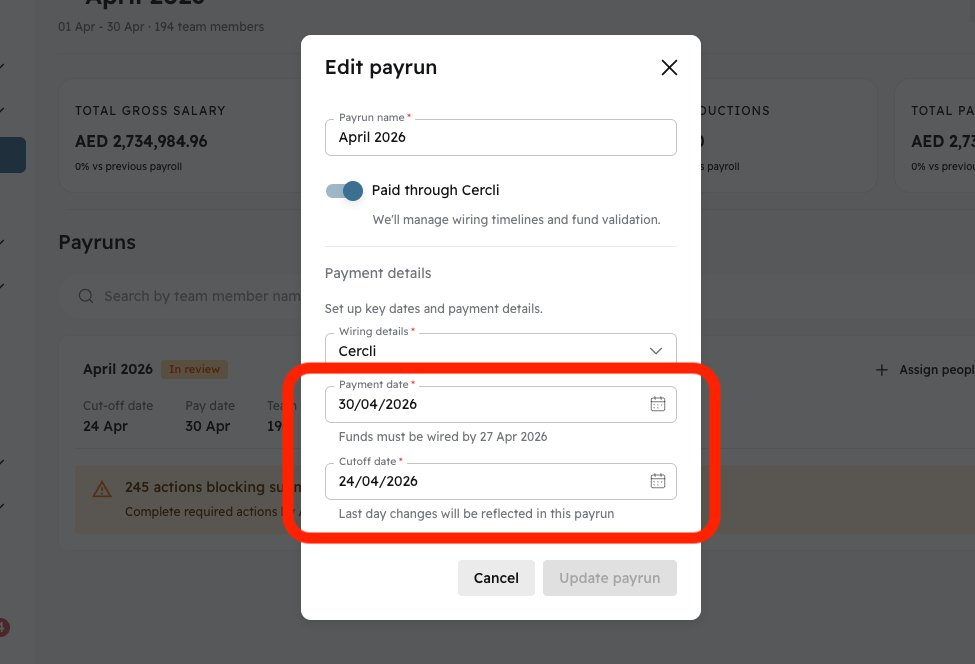
Update the Payment date and Cut-off date.
Then click Update payrun.
Default Payroll Settings
Where do the default cut-off and payment date come from?
On your left navigation bar, navigate to Settings, then Payroll.
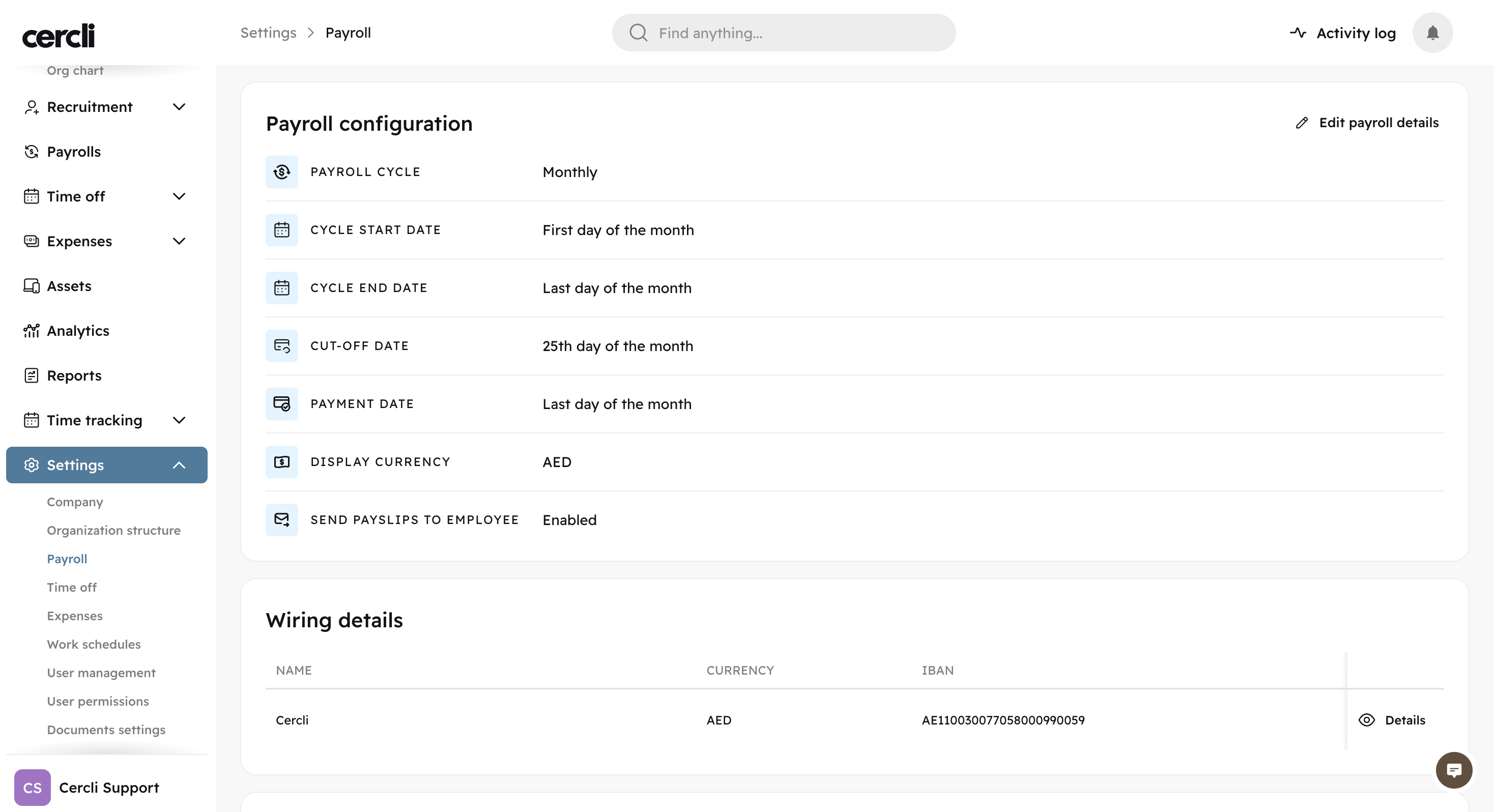
Click Edit payroll details on the top right of the screen.
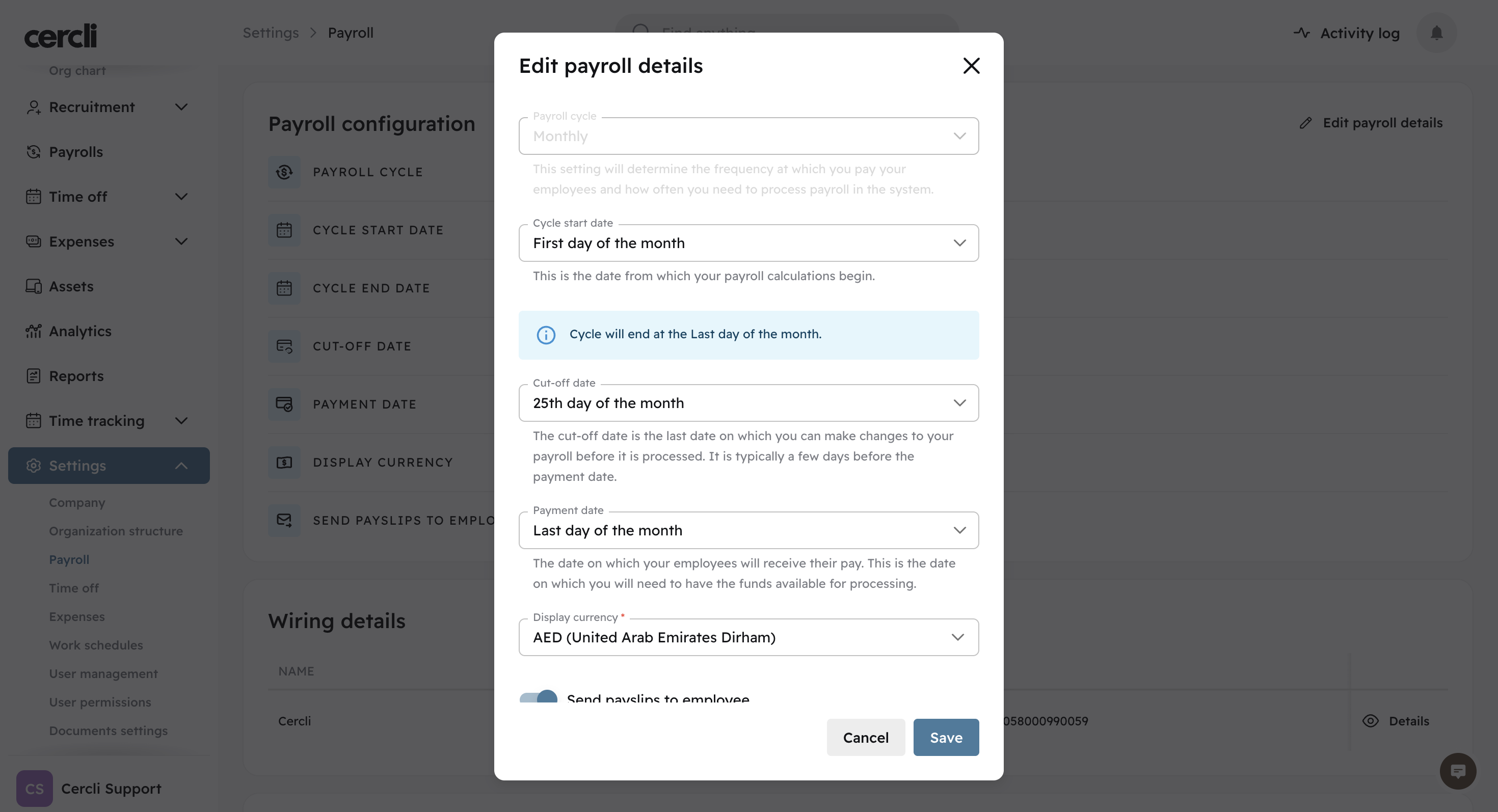
On this screen above, update the Cutoff date and the Payment date. Then Save.
Payroll Settings Limitations
If the dates you're looking for are not available (i.e. 28th, 29th, 30th and 31st), you will have to manually adjust them every month in the payrun directly.
Same case when the dates fall on a weekend or a public holiday.
We are working on removing these limitations as soon as possible