How to Attach Interview Kits to a Job
Last updated: July 25, 2026
Related Articles
📄 How to Create & Manage Interview Kit Templates
Once you've created an interview kit template, you can attach it from the library to the appropriate stage. There are two ways to do this.
How to Attach an Interview Kit from the Library
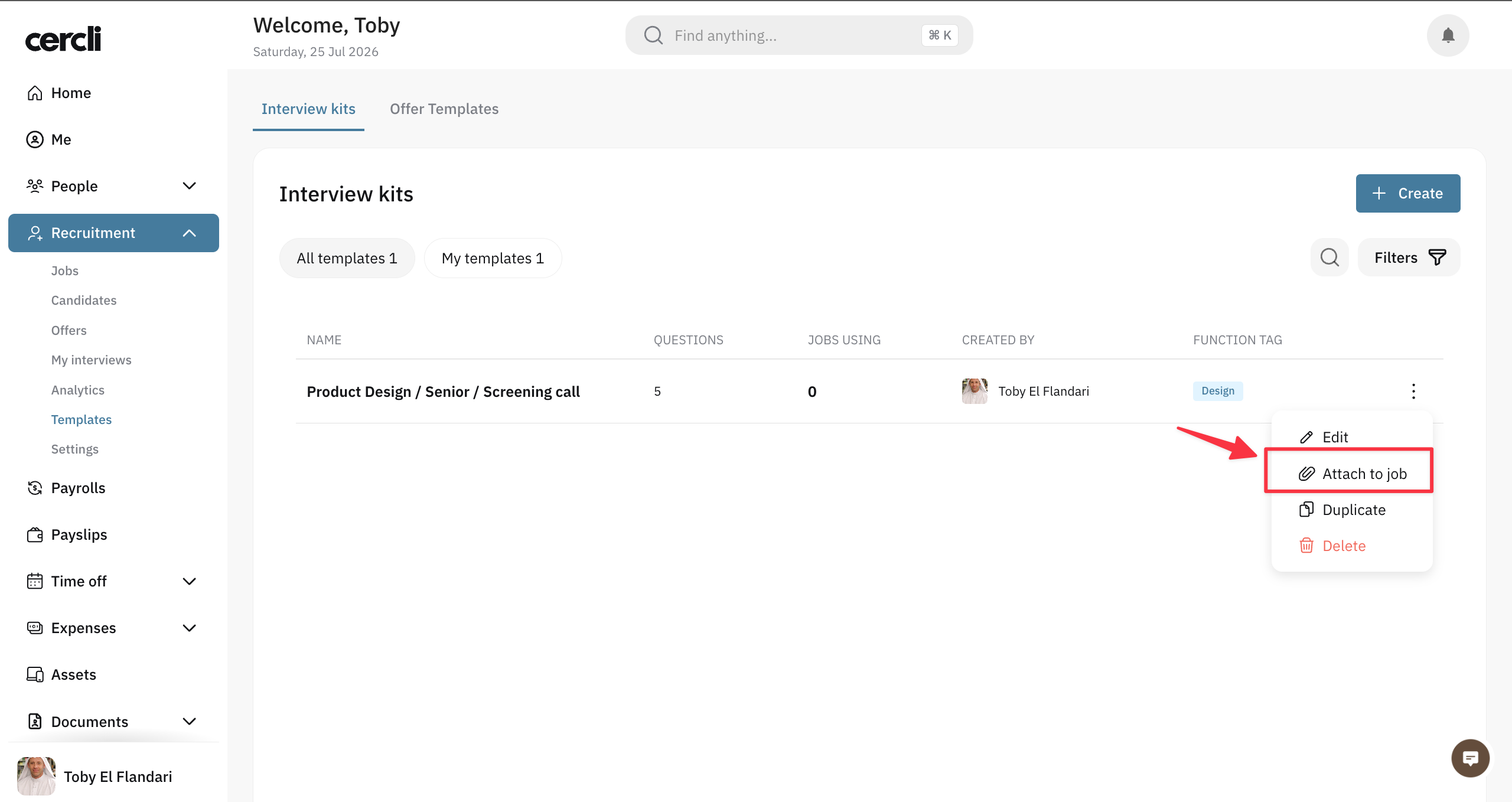
Click the three-dot action menu next to the kit, then select Attach to Job.
In the modal that appears, select the job and the stage you want to attach the kit to.
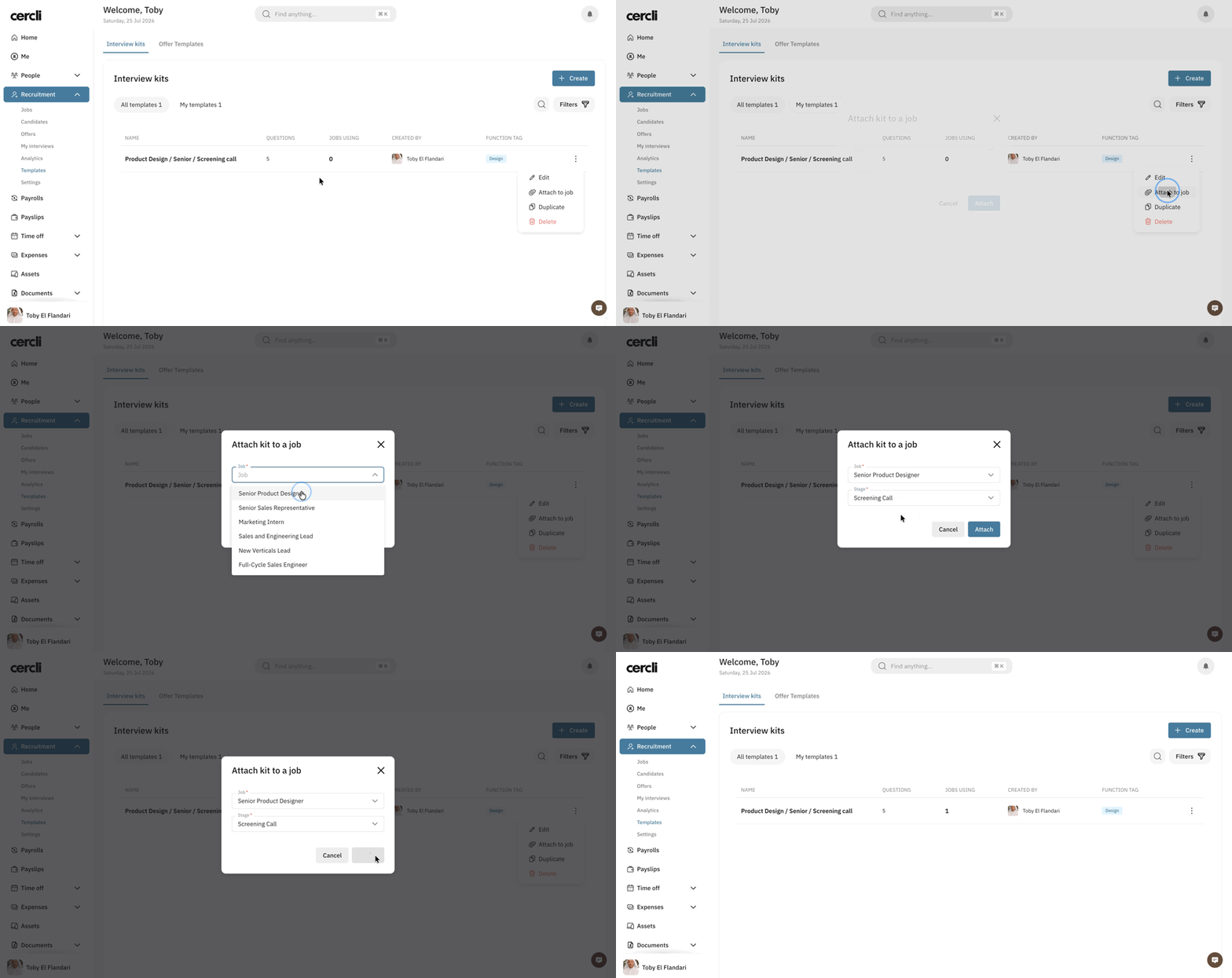
Done — the interview kit is now attached to that job and stage.
How to Attach Interview Kits During Job Creation
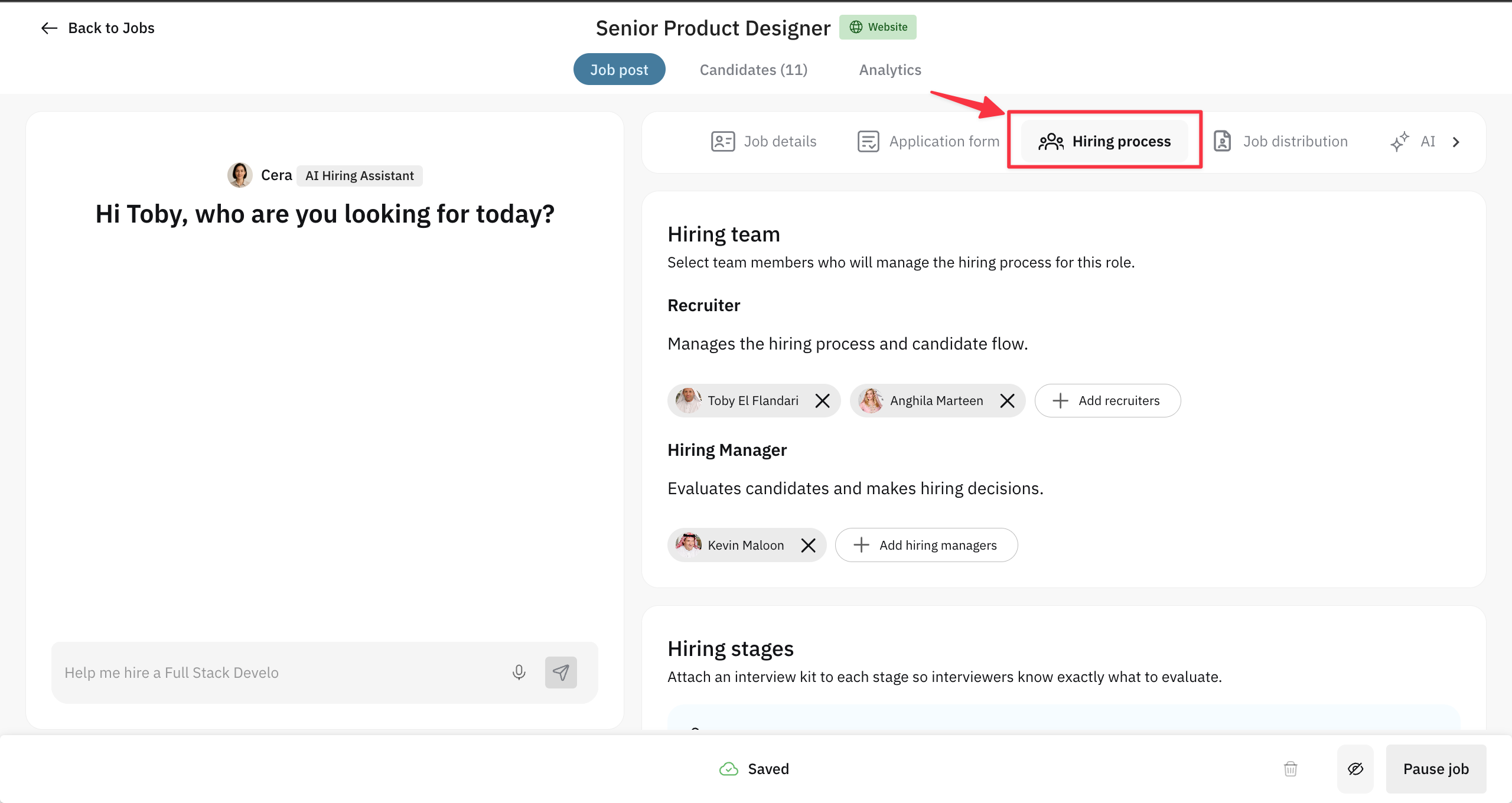
Create a new job, or open an existing draft or published one, and go to the Hiring Process tab.
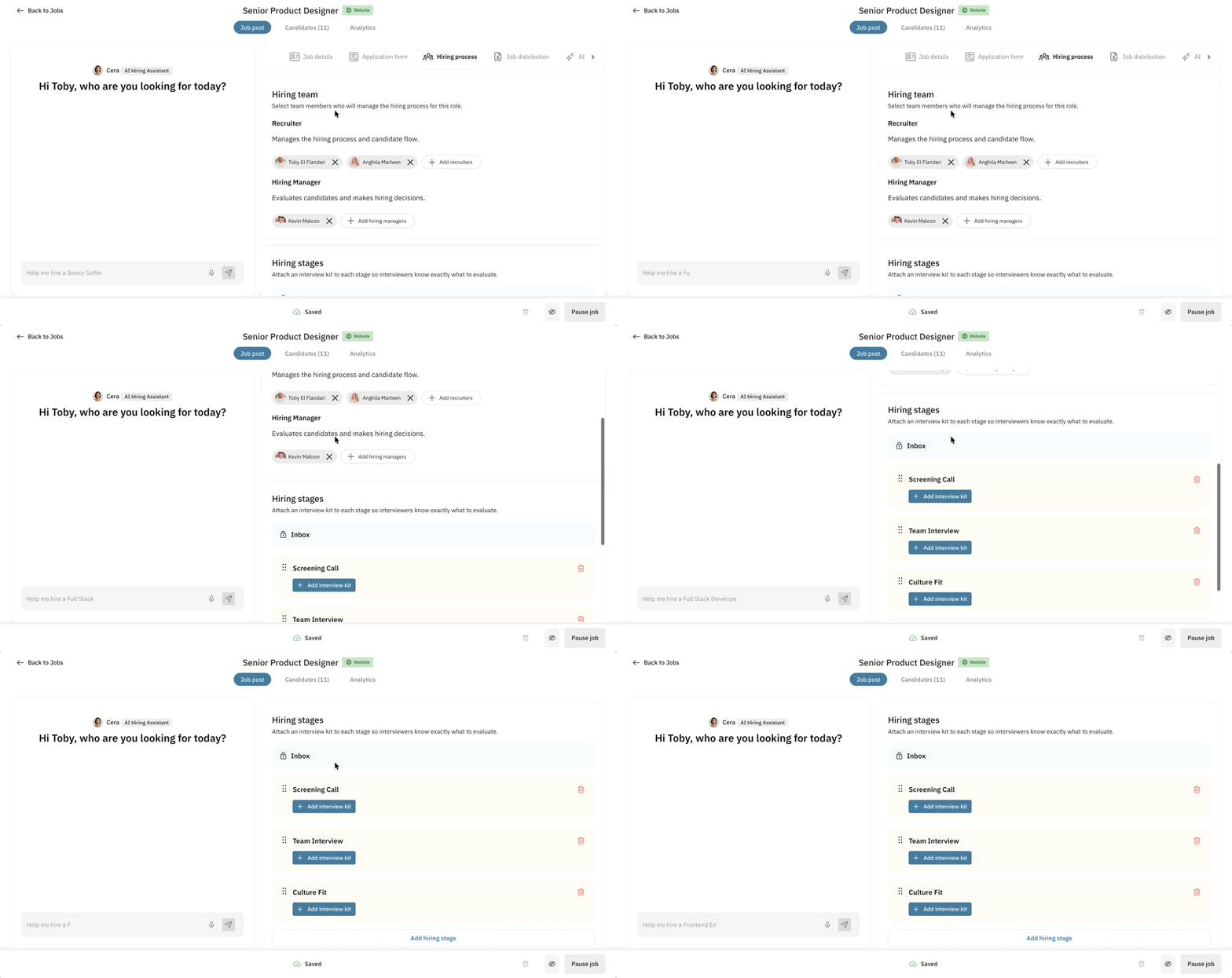
Scroll down to the Hiring Stages section, find the stage you need, and click Add Interview Kit to attach the appropriate kit.
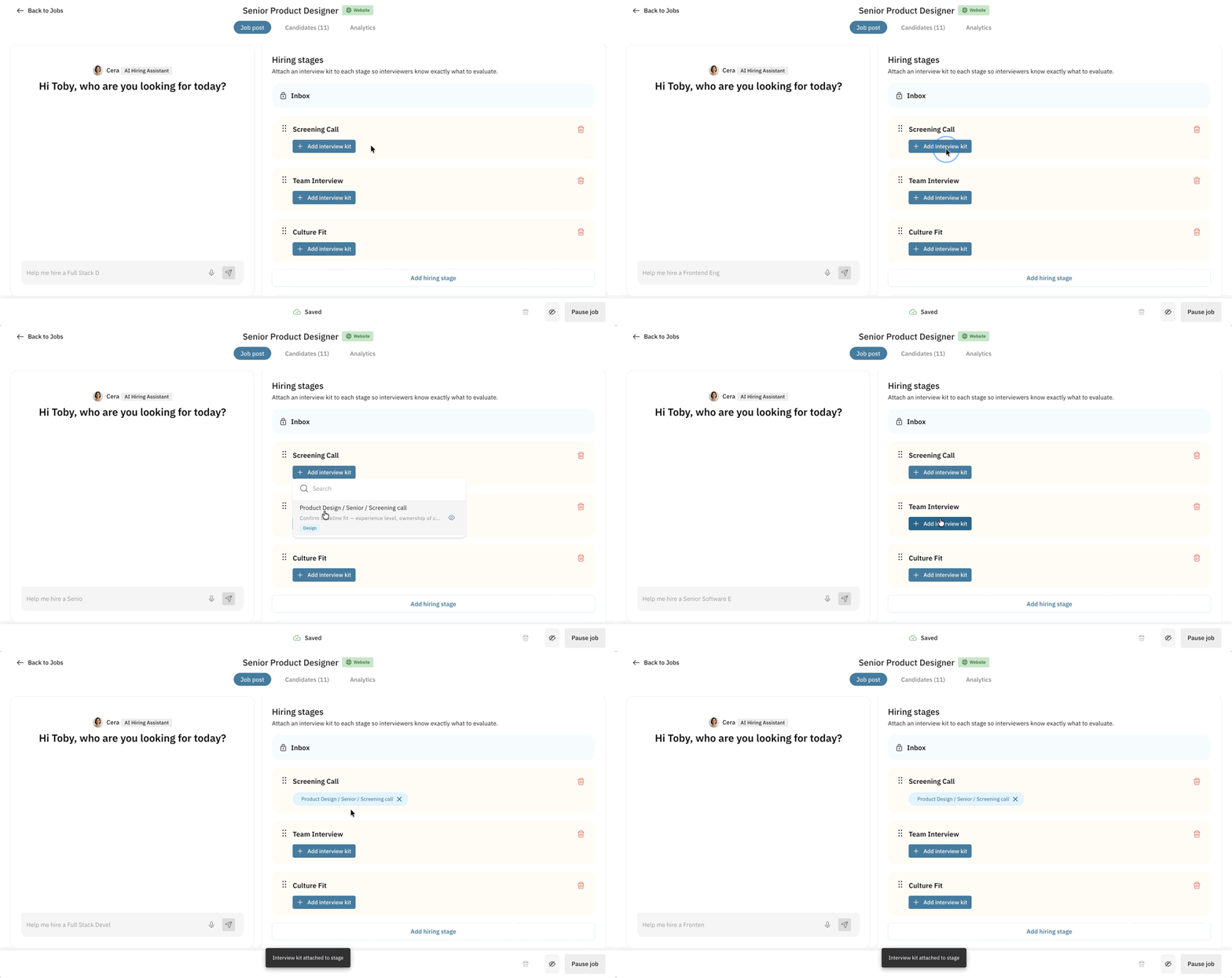
You can preview or edit an attached interview kit by hovering over its chip to see the available actions.
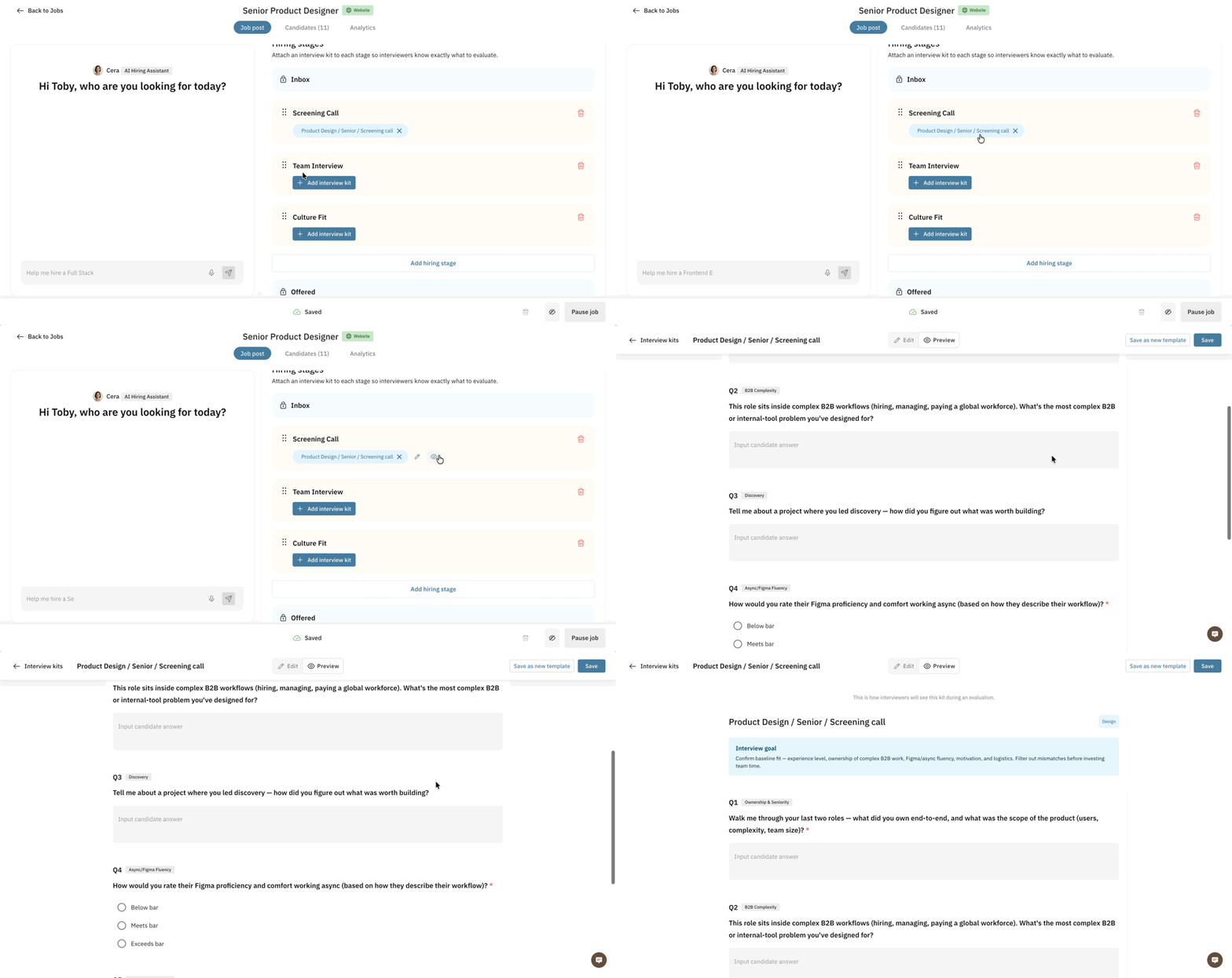
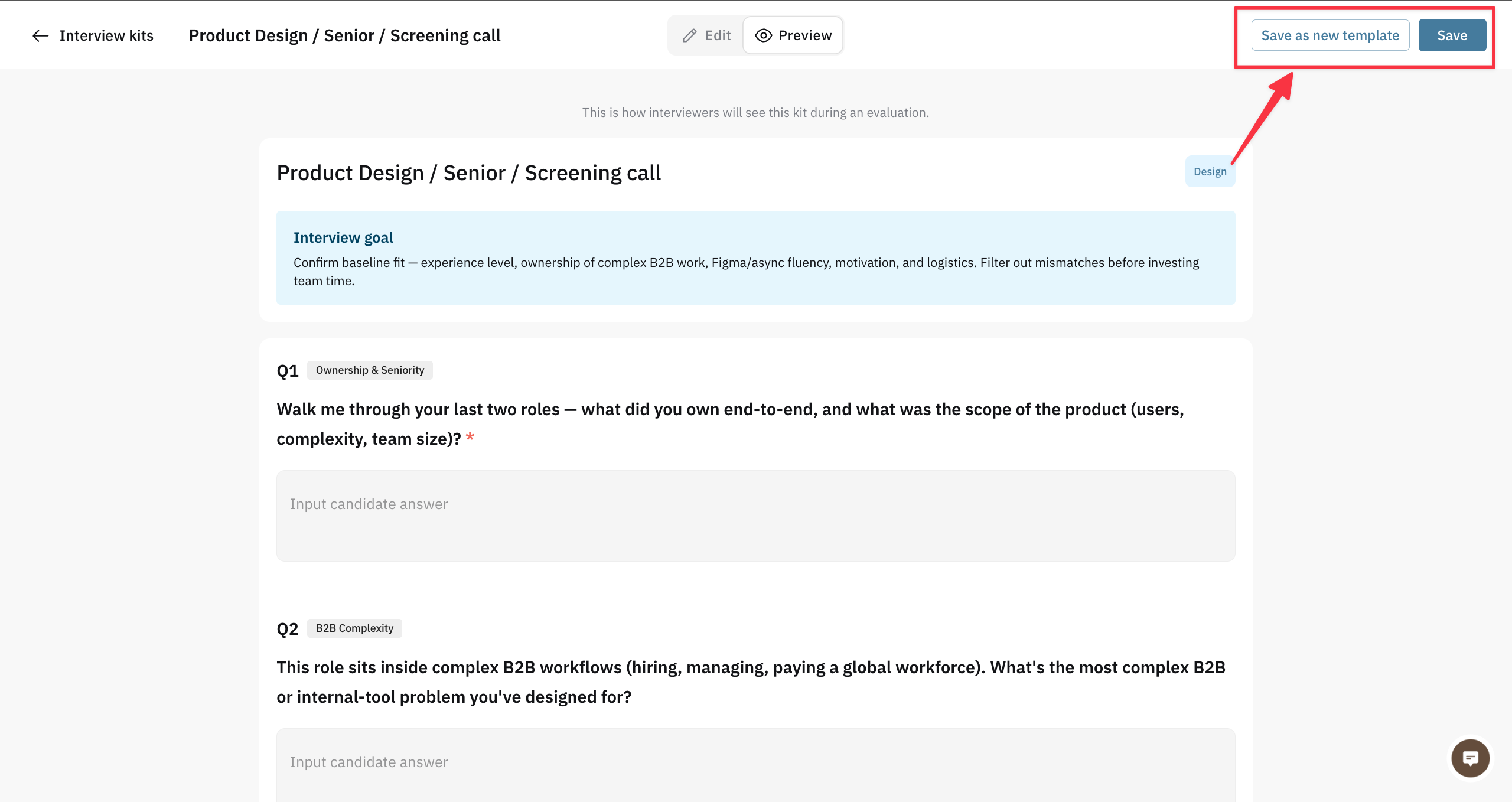
If you need to make changes, you can do so directly — either save the kit as a new template, or update the original one.
During the interview, interviewers get access to the candidate's profile for the interview they're conducting, where they'll see the interview kit attached to that stage.