Recruiter - How to Connect Your Calendar for an Interview
Last updated: May 14, 2026
Before scheduling any interview, recruiters and team members participating in interviews must connect their calendars. This is required to schedule interviews and receive calendar invitations.
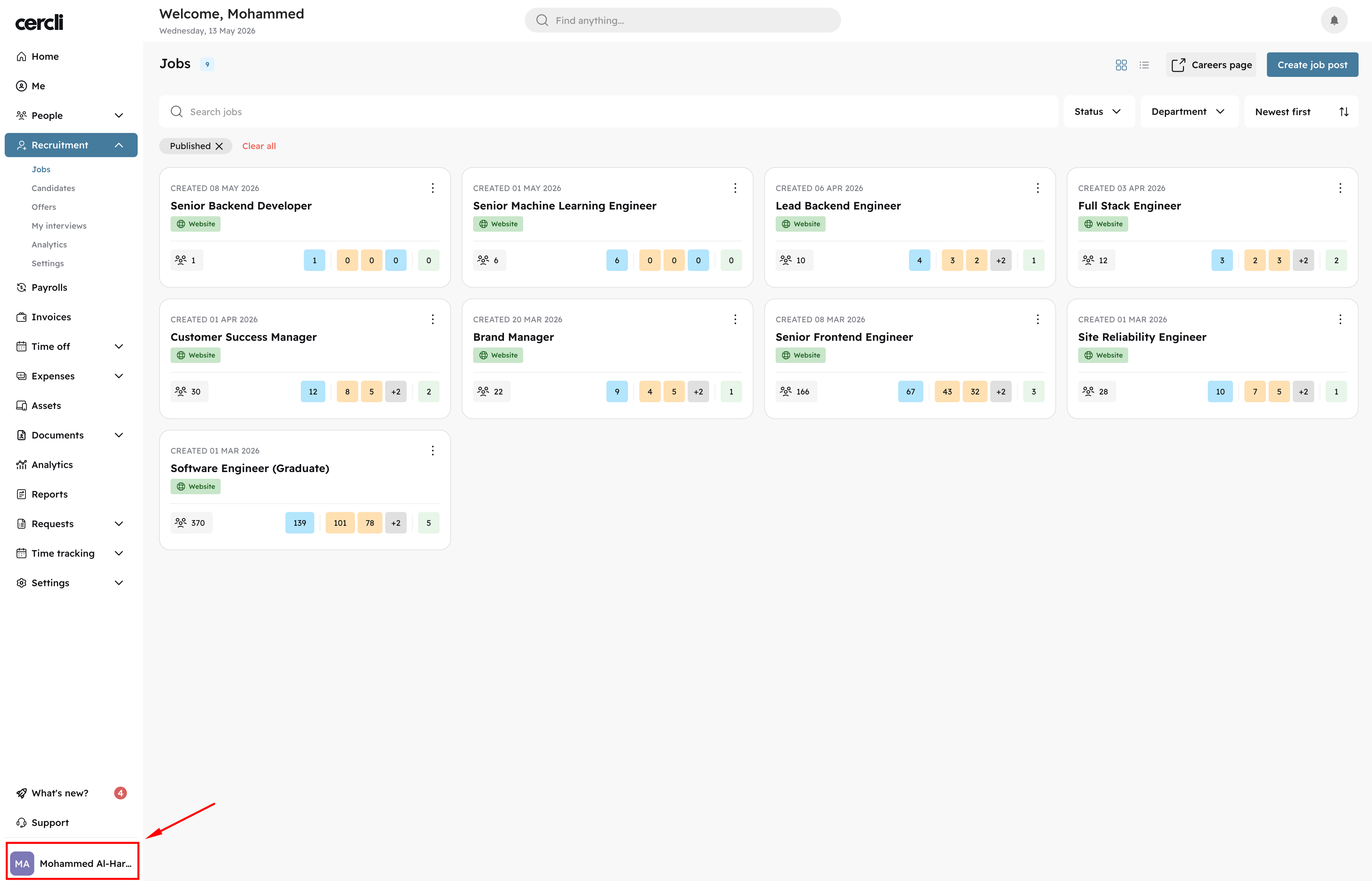
Click on your profile icon in the bottom-left corner.
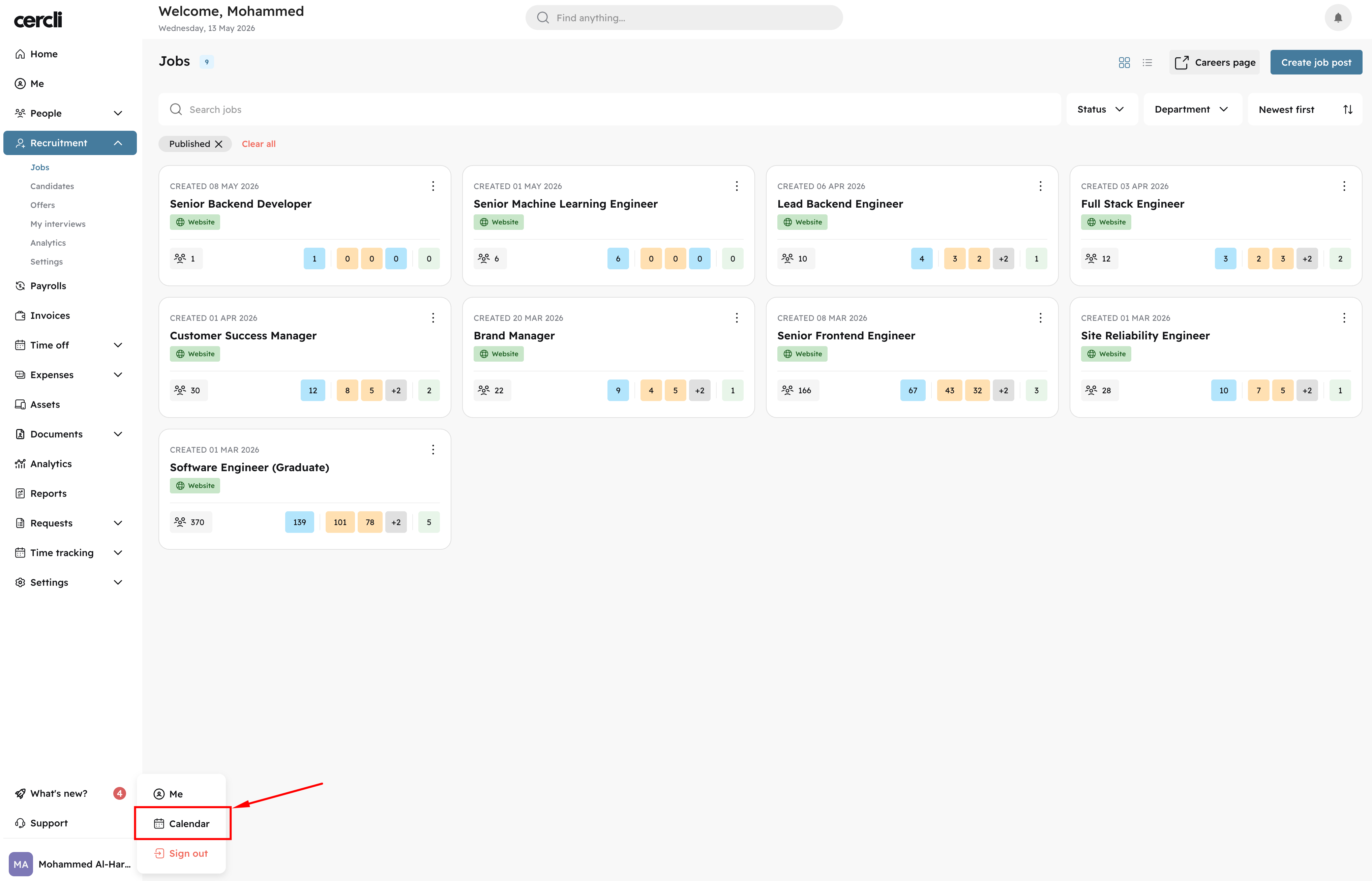
In the menu, select Calendar.
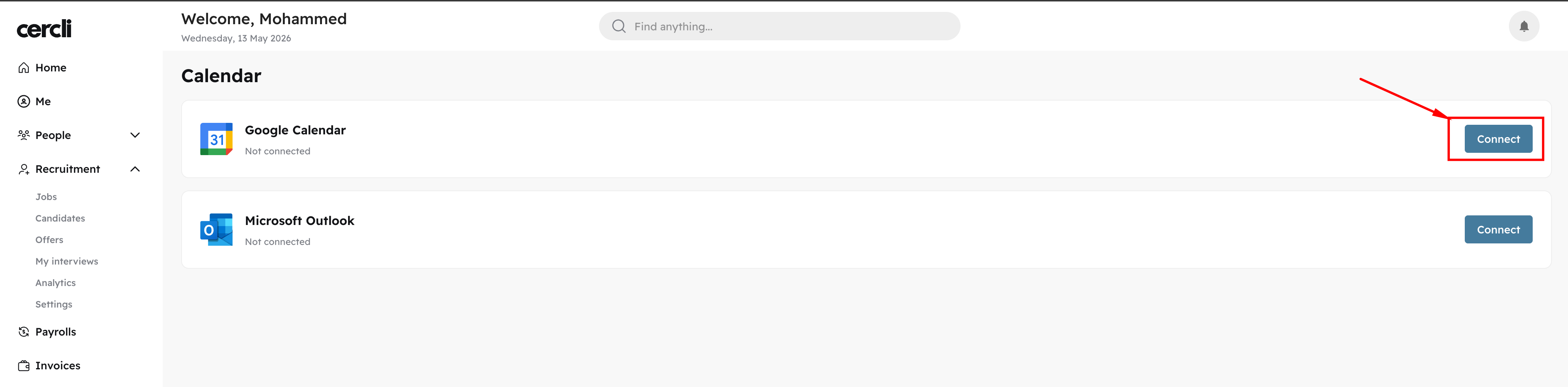
Choose your calendar provider — Google or Microsoft are currently supported.
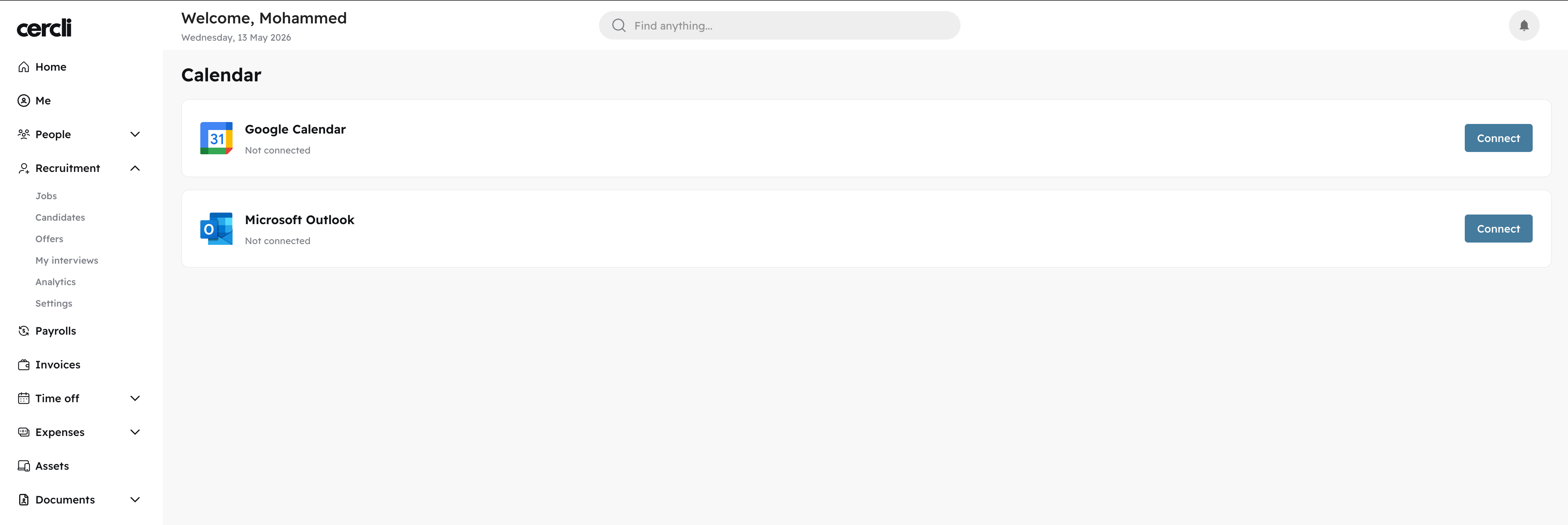
Select your preferred provider and click Connect.
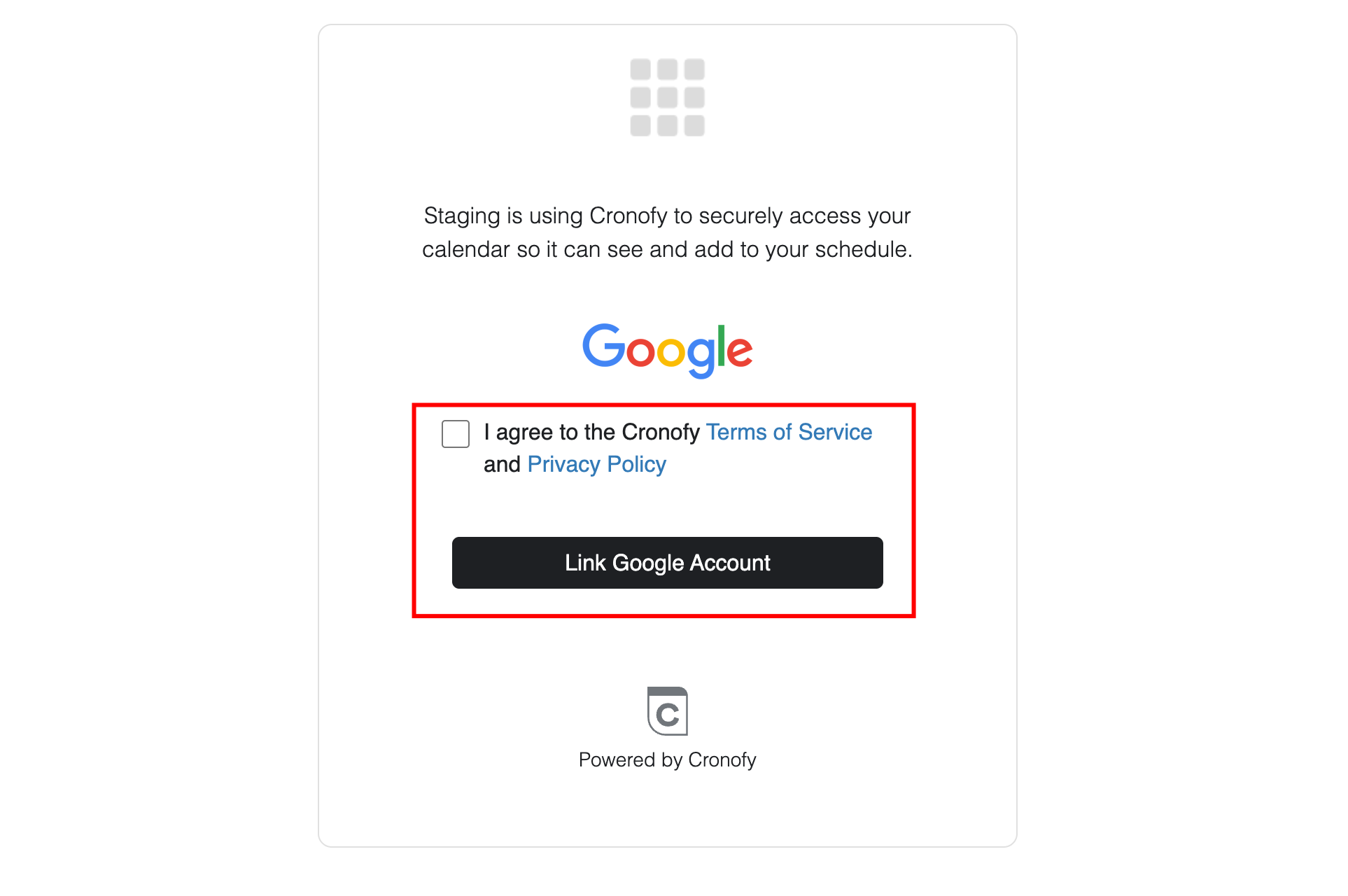
Review the Privacy Policy & Terms of Service, then click Link your account.
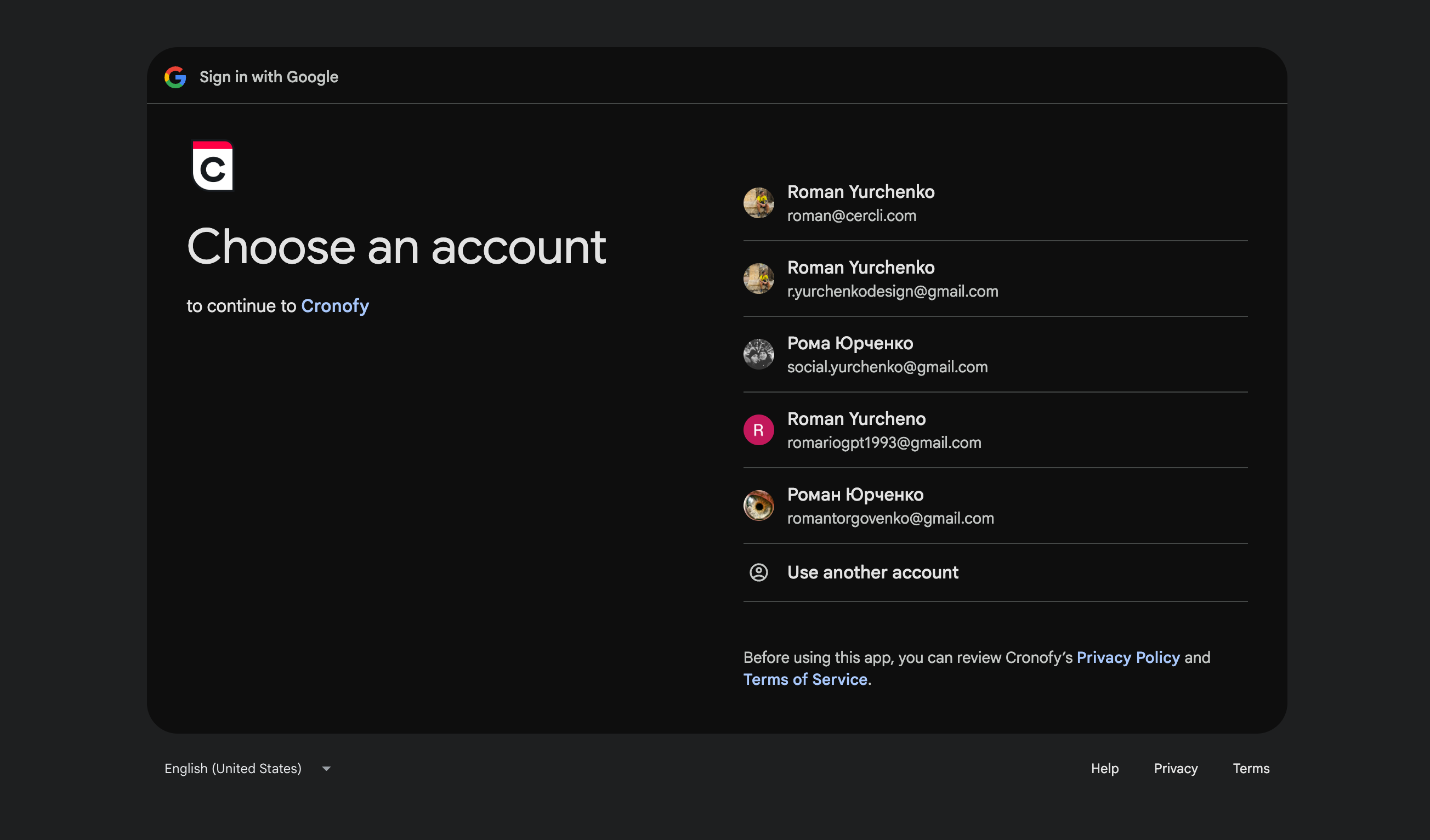
Select the work account you'll use for calendar invitations.
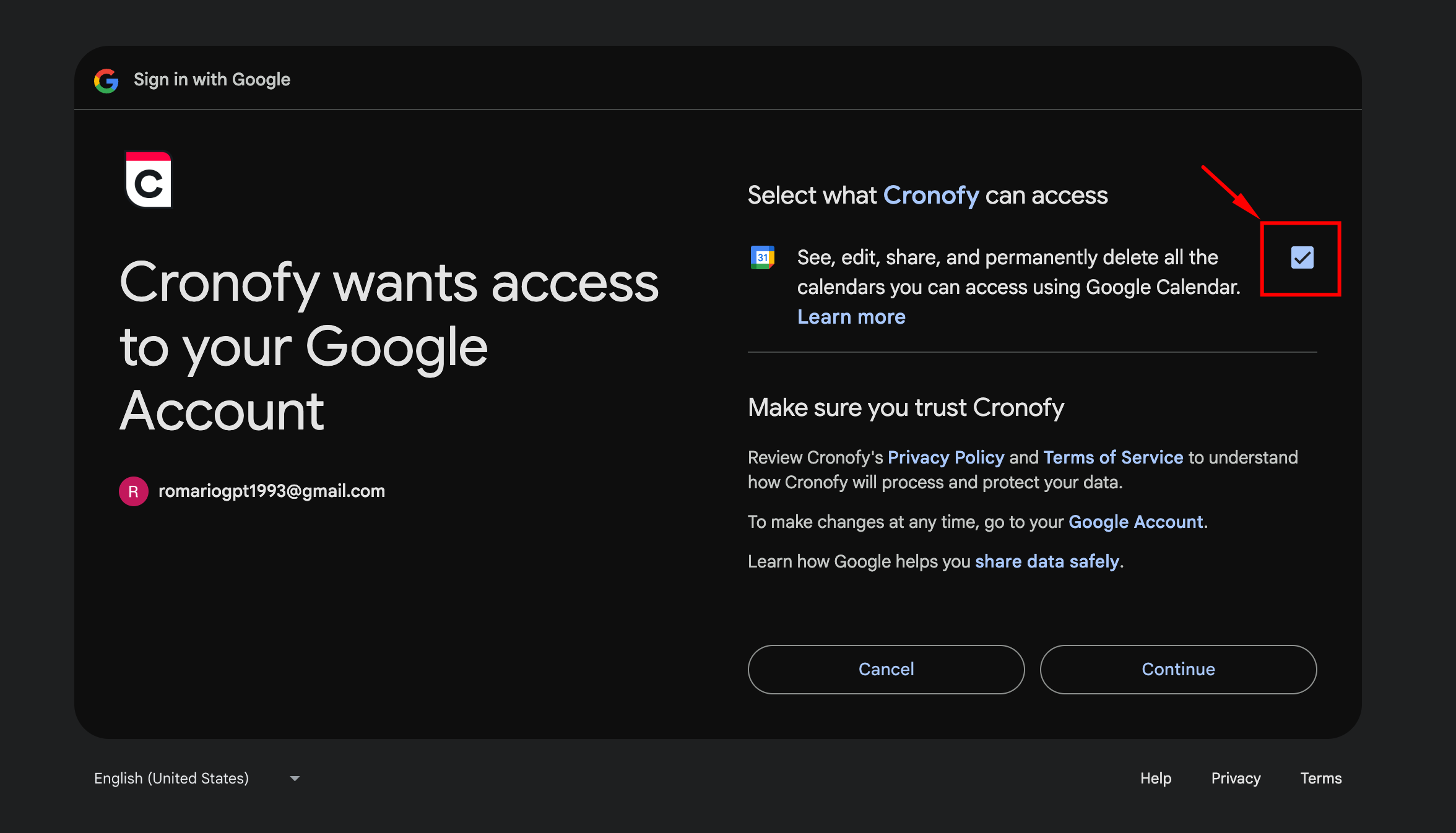
You'll be redirected to Cronofy Google authentication, our calendar integration partner. Grant the requested permissions to allow calendar management.
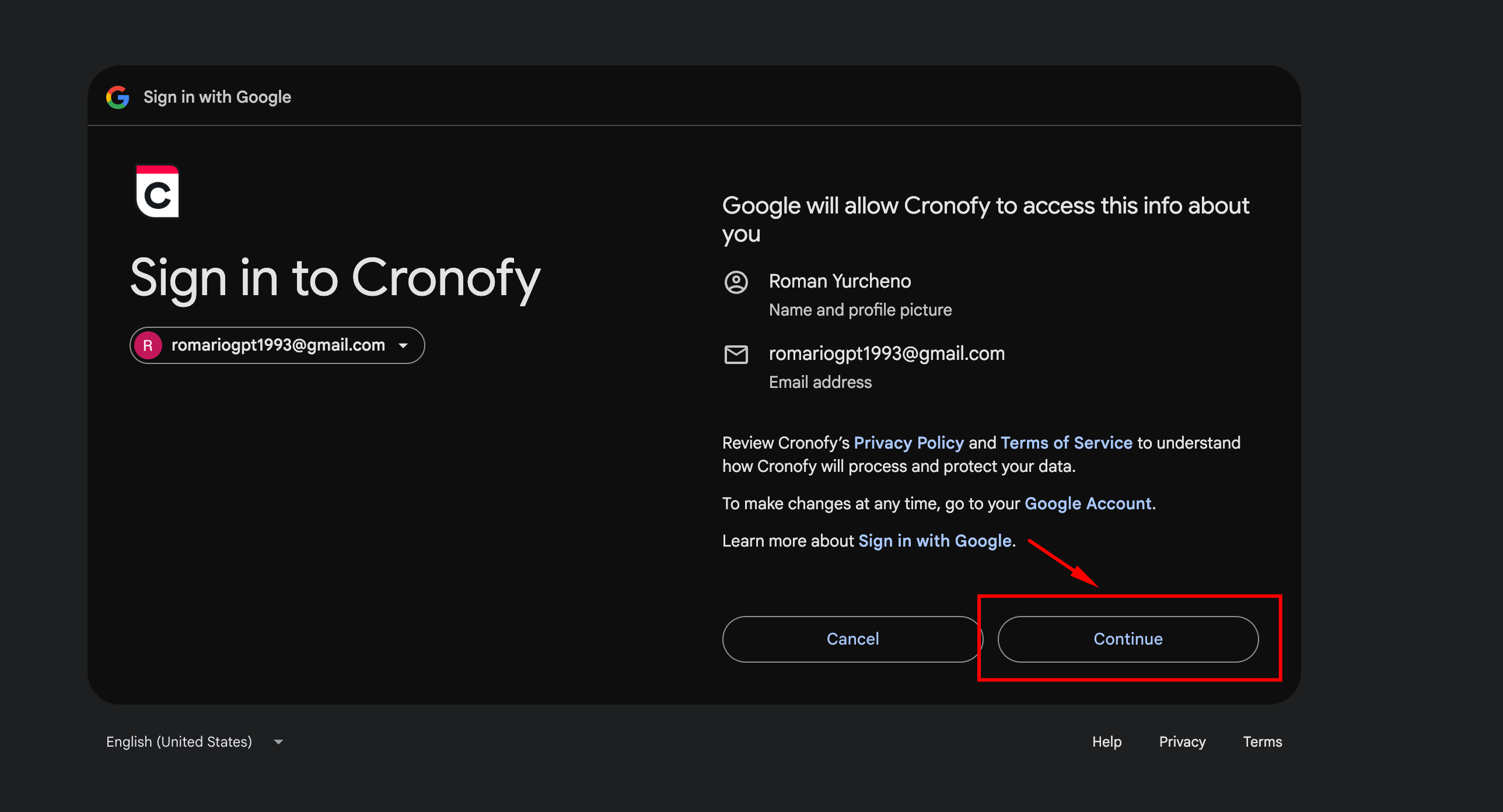
Make sure to check the box granting edit access to your calendar — this is required to send and receive calendar events.
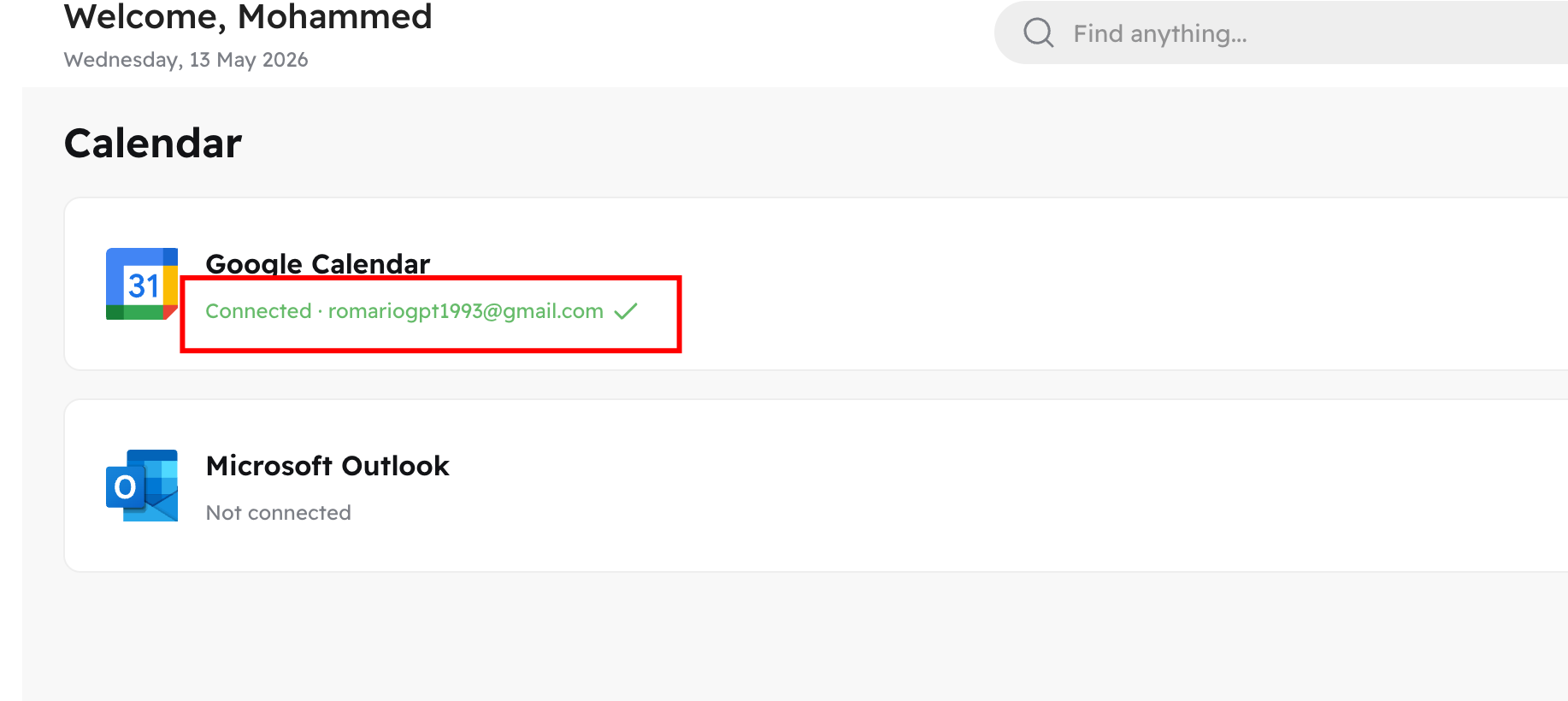
Once authorization is complete, you'll be returned to the app and see a success confirmation. You're now ready to schedule interviews and receive invitations in your email and calendar.