Recruiter - How to Schedule an Interview
Last updated: May 22, 2026
Before scheduling, make sure you and all participating interviewers have connected their calendars. See how to do that here:
📄 How to Connect Your Calendar for an Interview
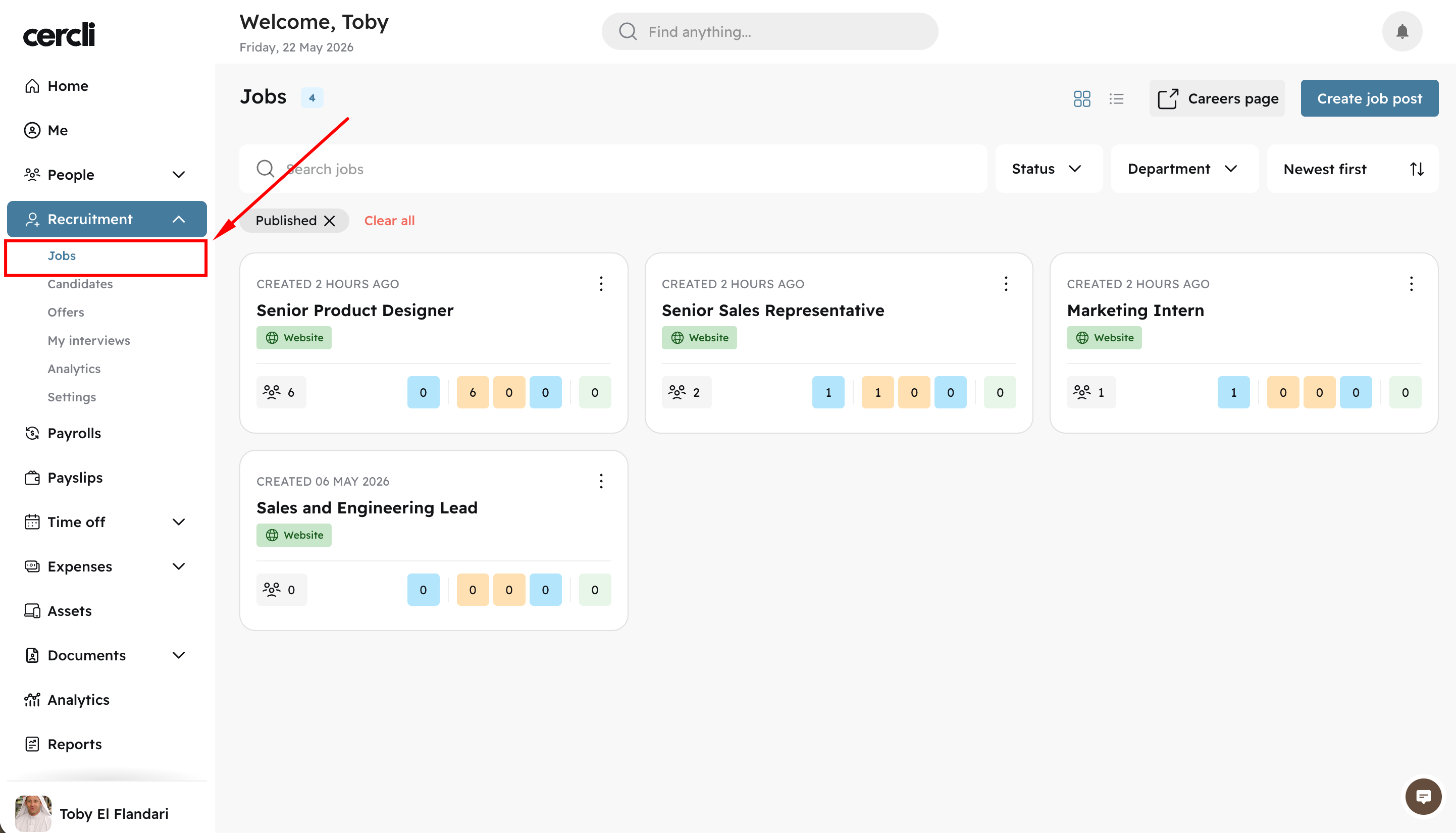
In the left navigation bar, click on Recruitment and find Jobs .
Click on any of the jobs.
Scheduling an Interview
Open the Pipeline for any published job or a job on hold.
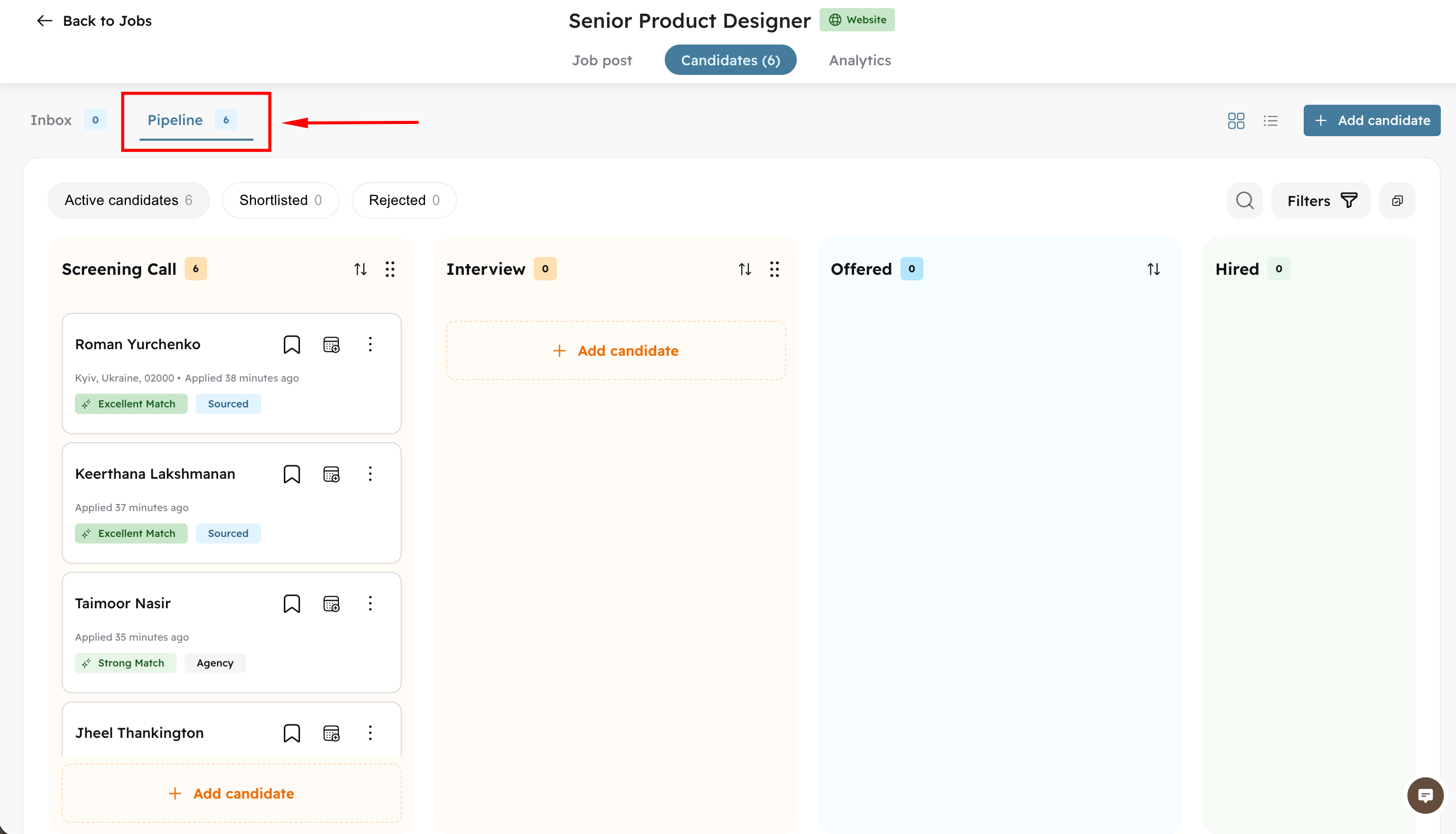
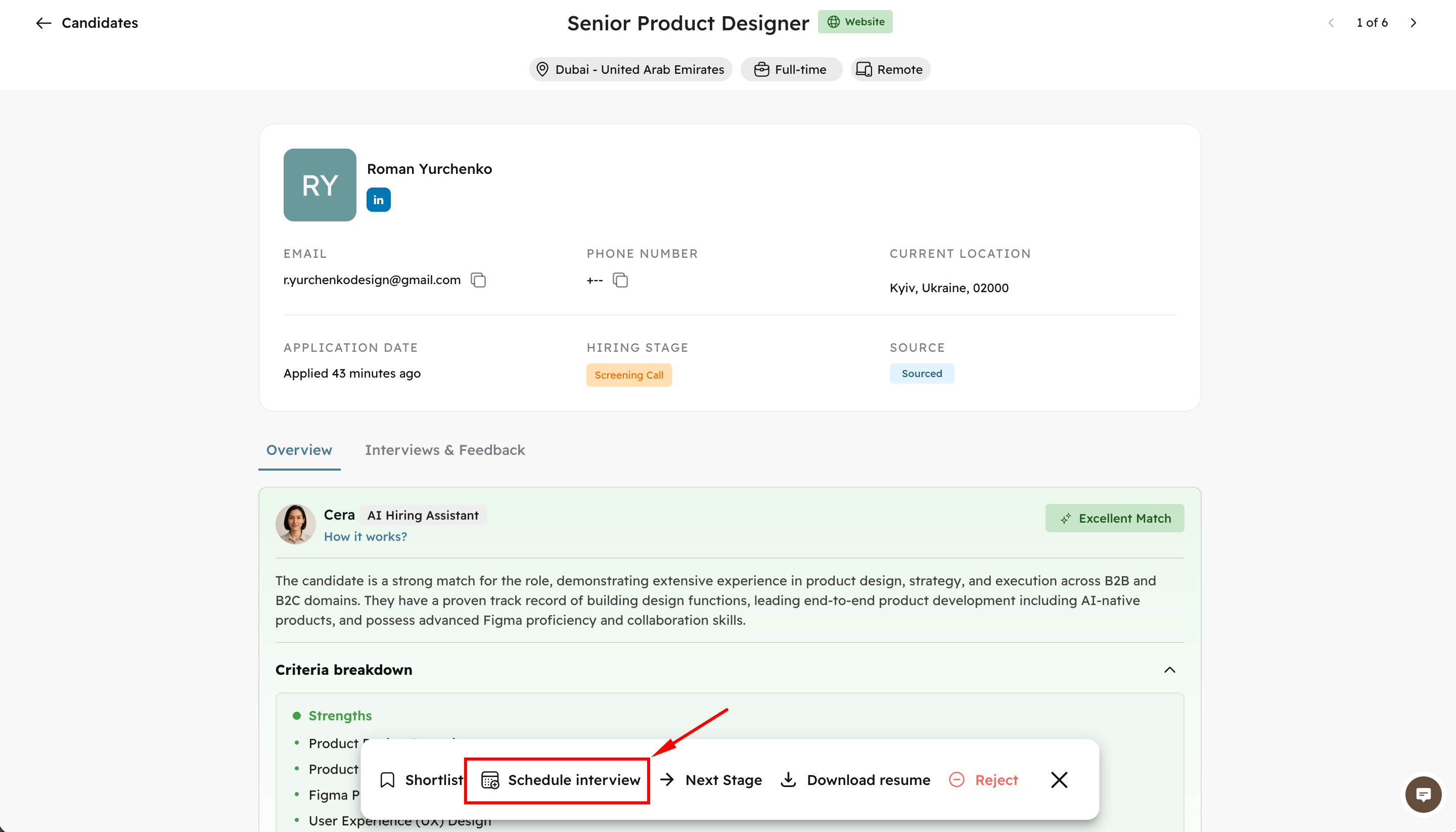
There are three ways to trigger the interview scheduling flow:
Click the Calendar icon on the candidate card or row (list view)
Click the three-dot menu in the candidate details sidebar
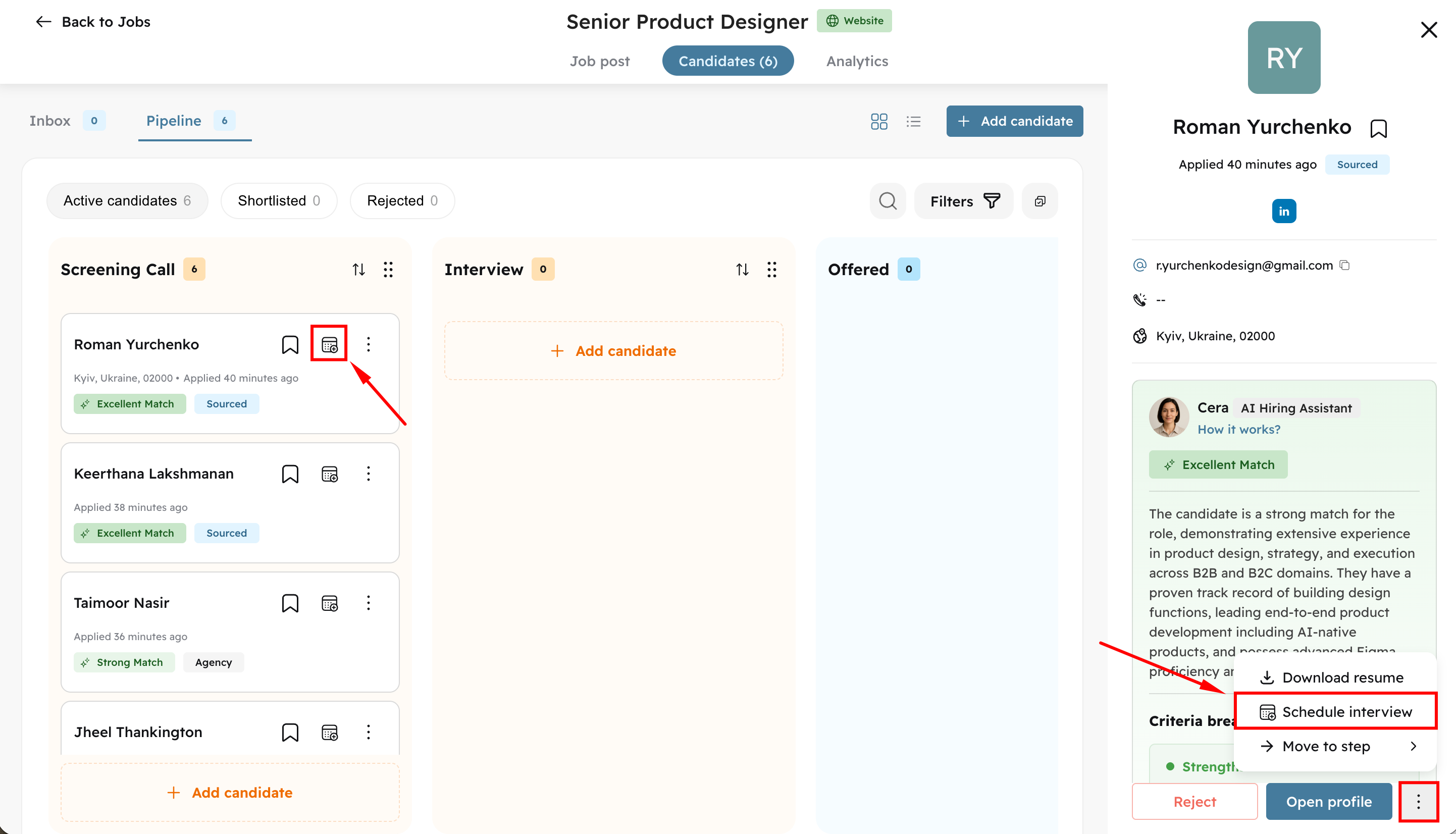
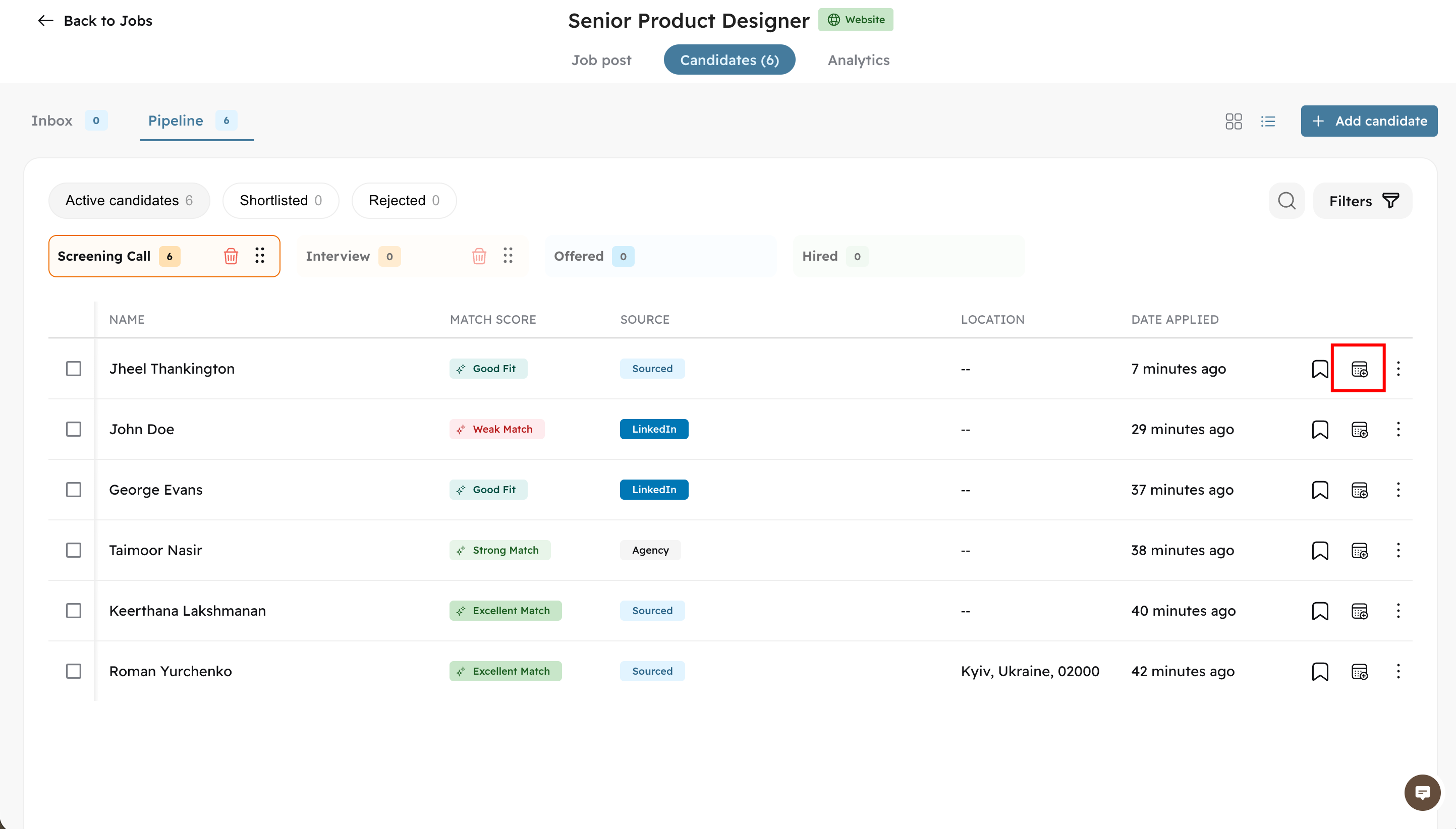
Click Schedule Interview in the full candidate profile
A scheduling modal will open.
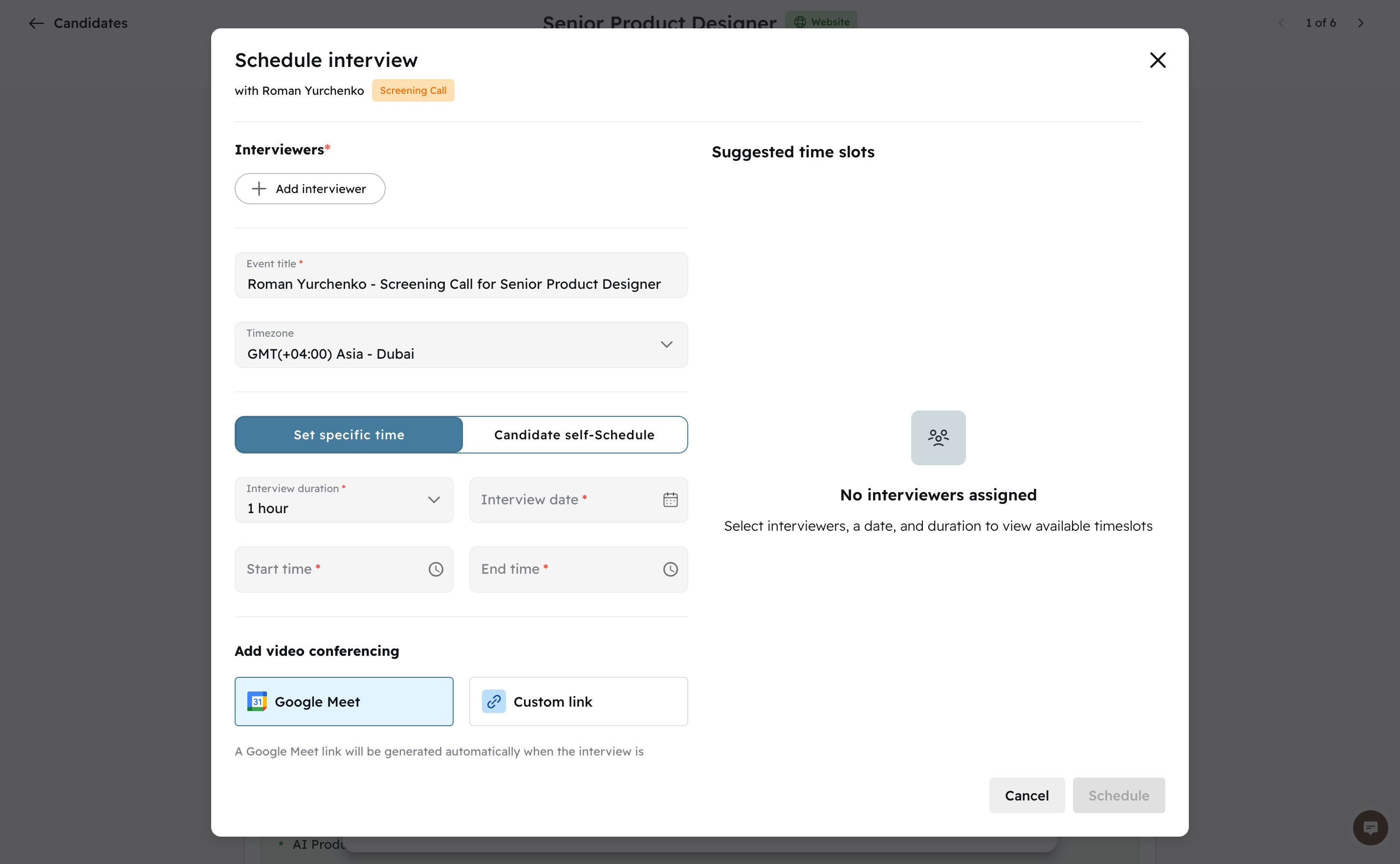
Assign interviewers — this can be any team member added to the HRIS. You can assign one interviewer or multiple for a panel interview.
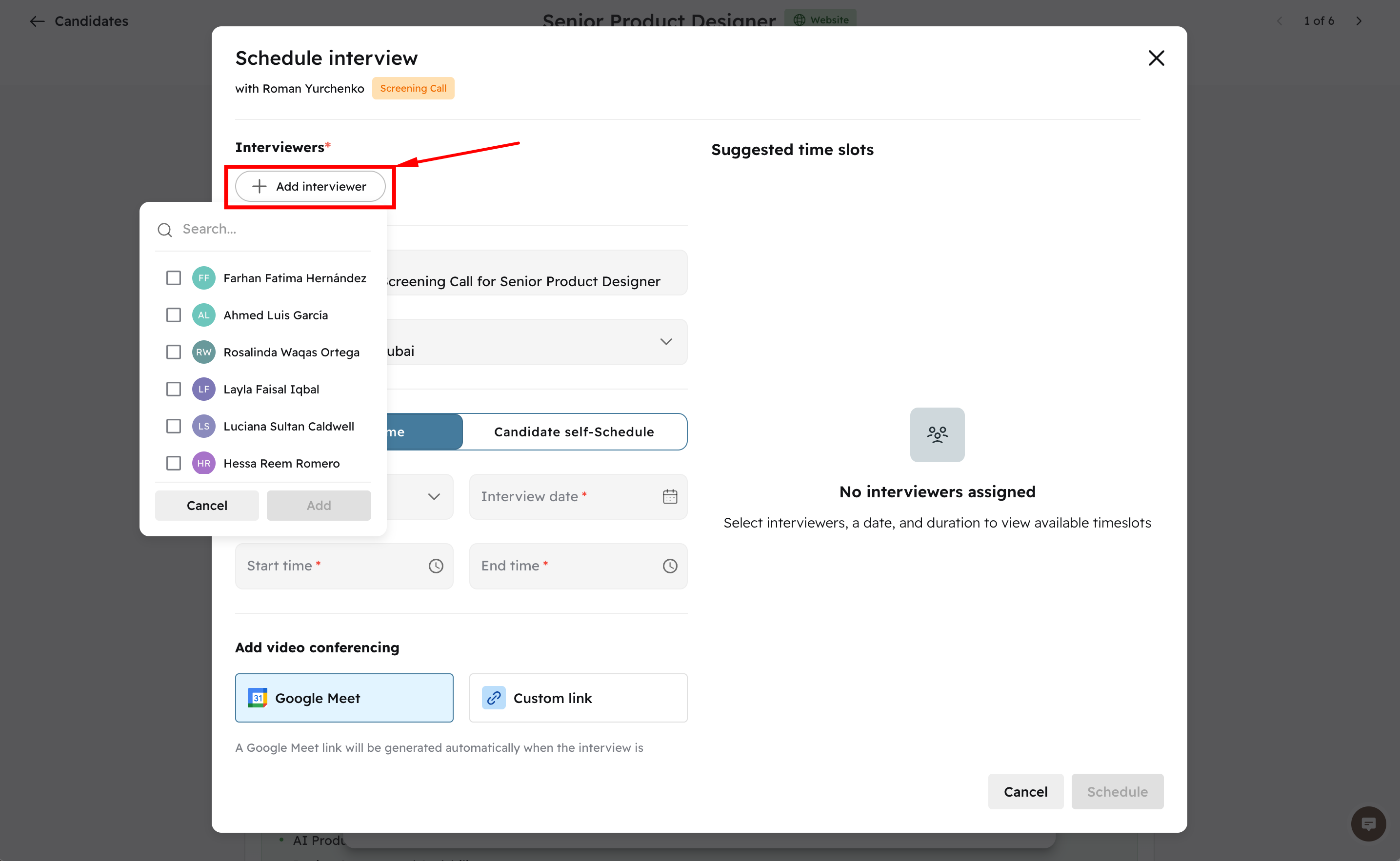
If any assigned interviewers haven't connected their calendars, the system will flag this. You'll have the option to send them a nudge.
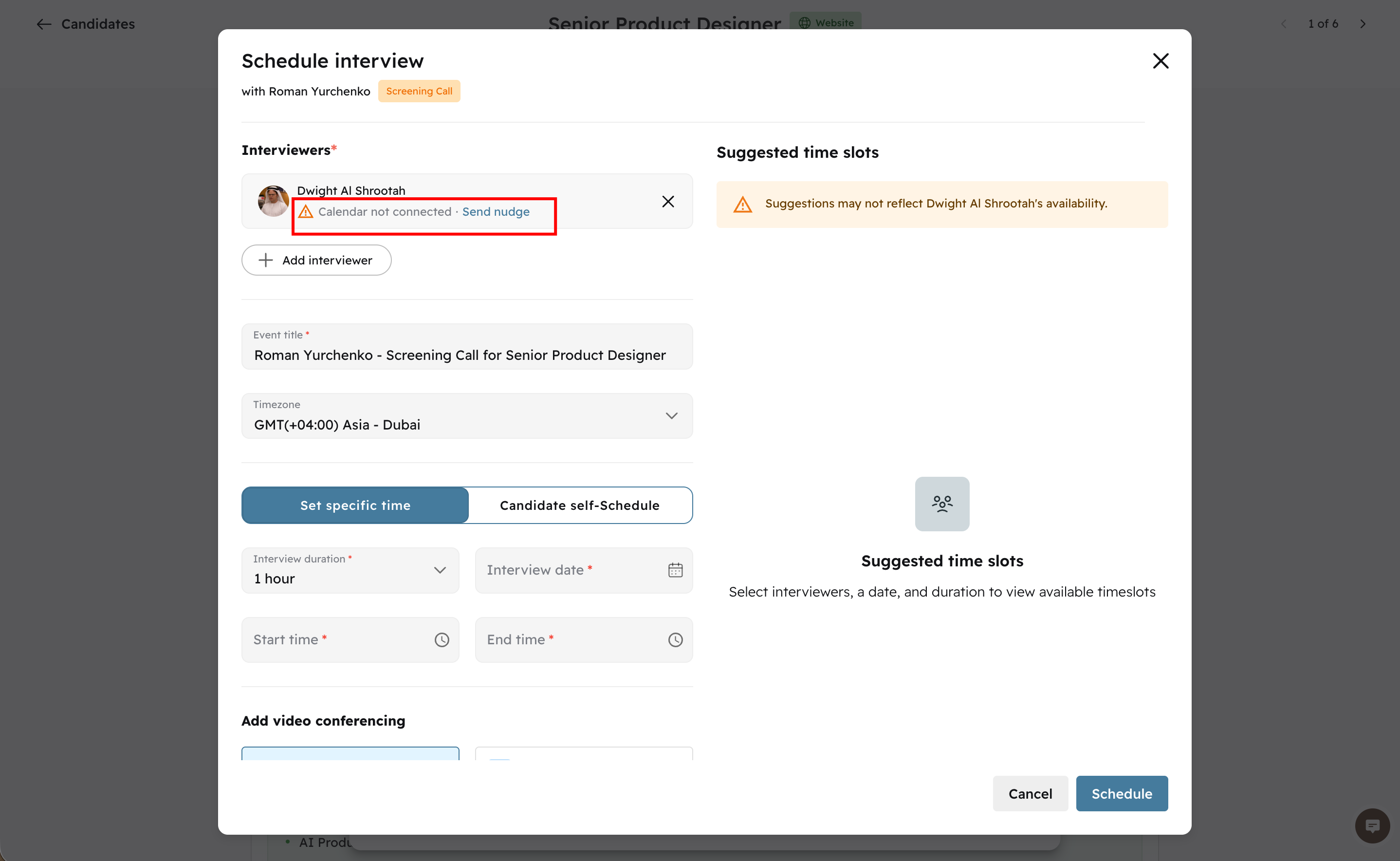
The calendar event title is auto-generated, and the time zone is set based on your location. The default interview duration is 1 hour and can be adjusted.
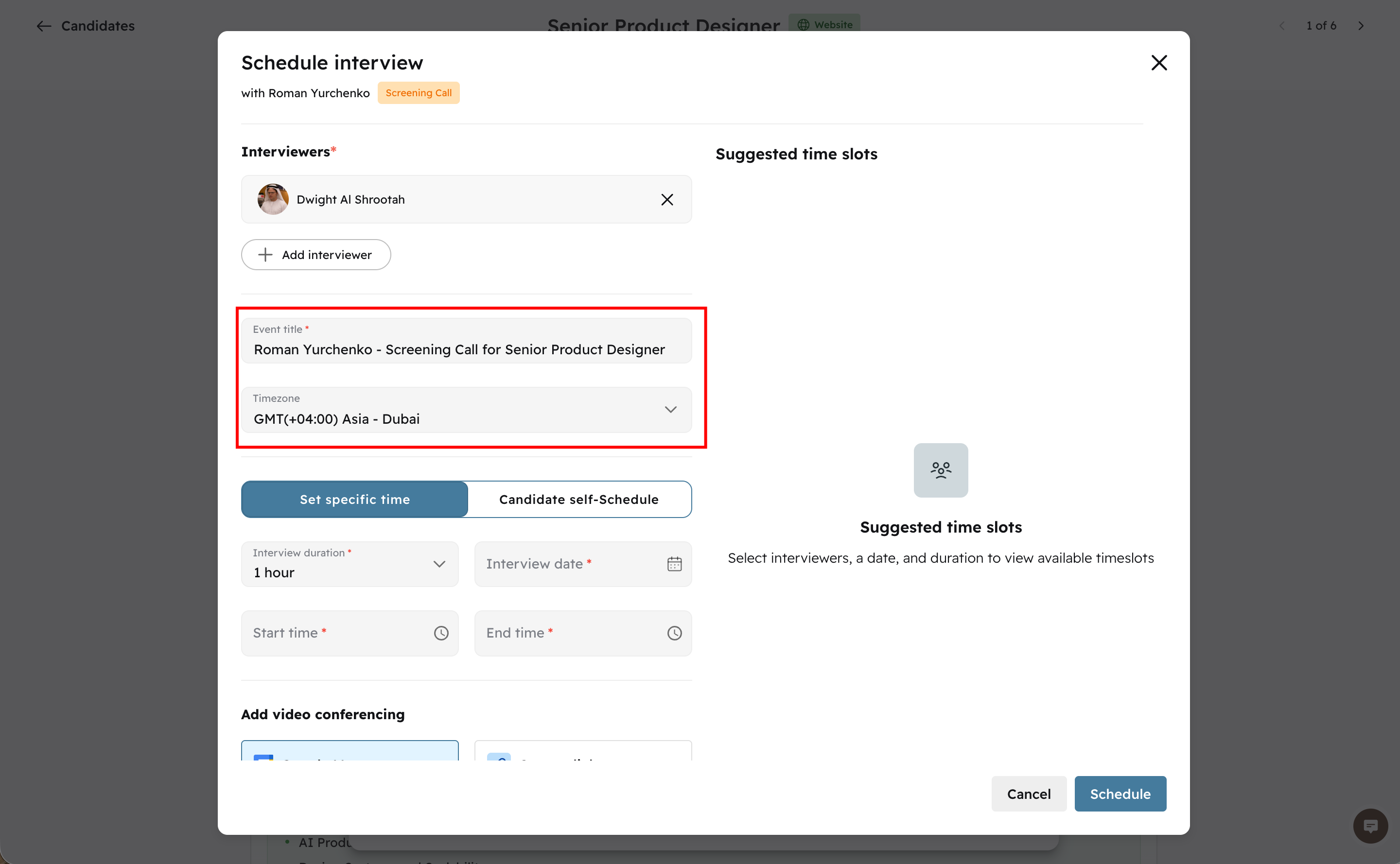
You have two ways to schedule an interview:
Set a specific interview date and time
Generate and send a self-scheduling link to the candidate
Use the toggle button to switch between the approaches you want to go with
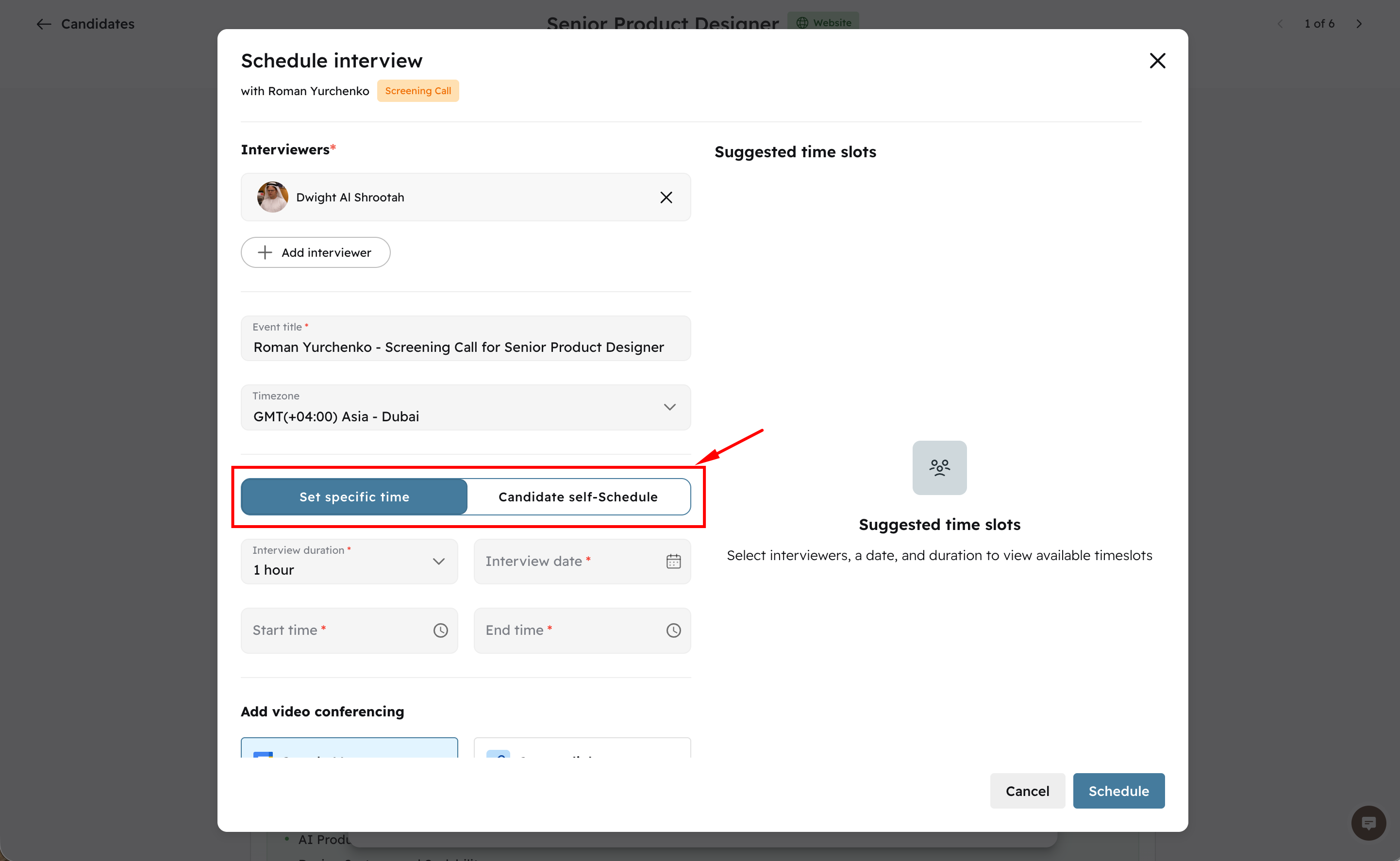
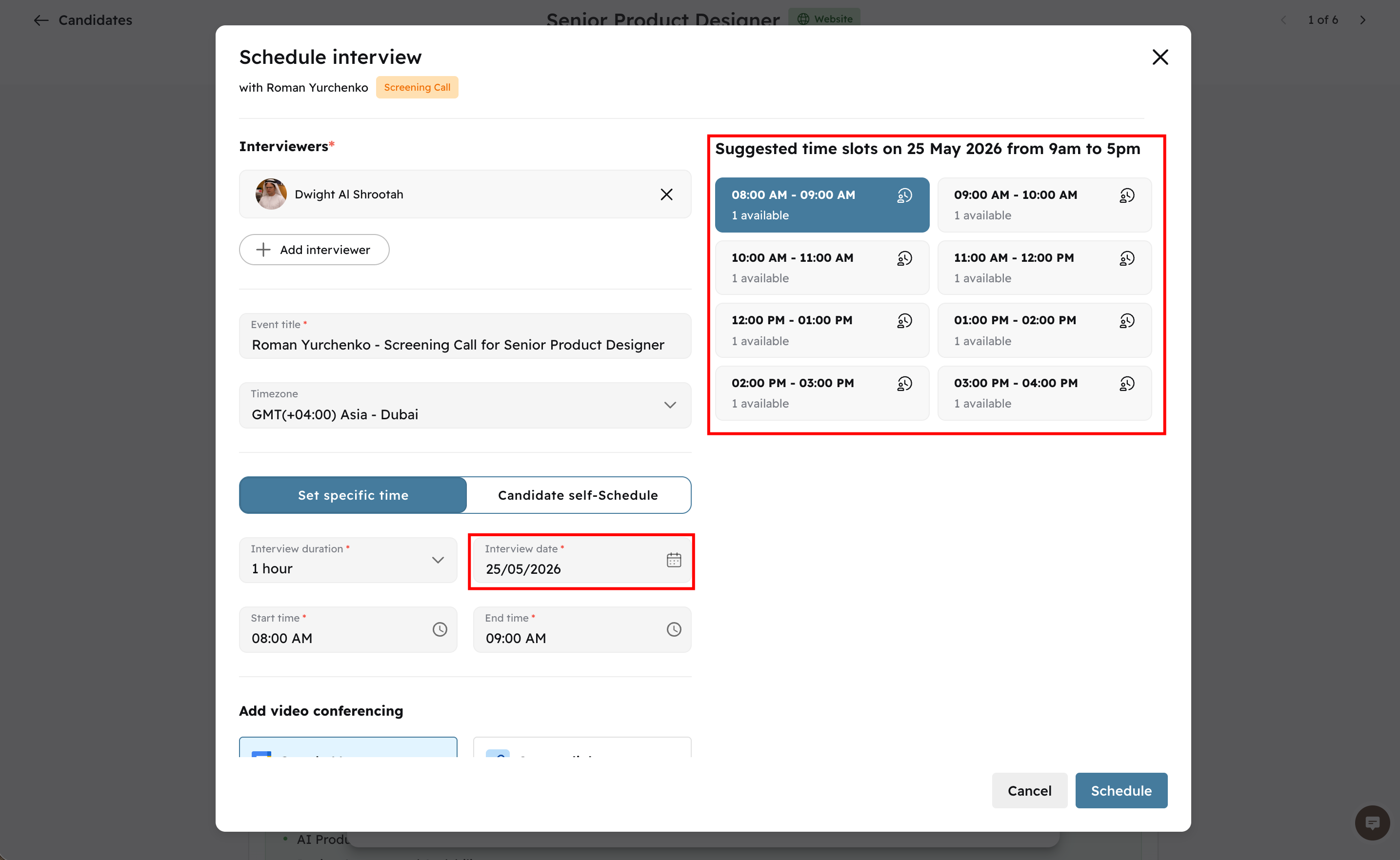
Set a specific date
Select your preferred date. Available time slots will appear immediately based on the interviewers' calendar availability. Select a time slot you want to create an interview for.
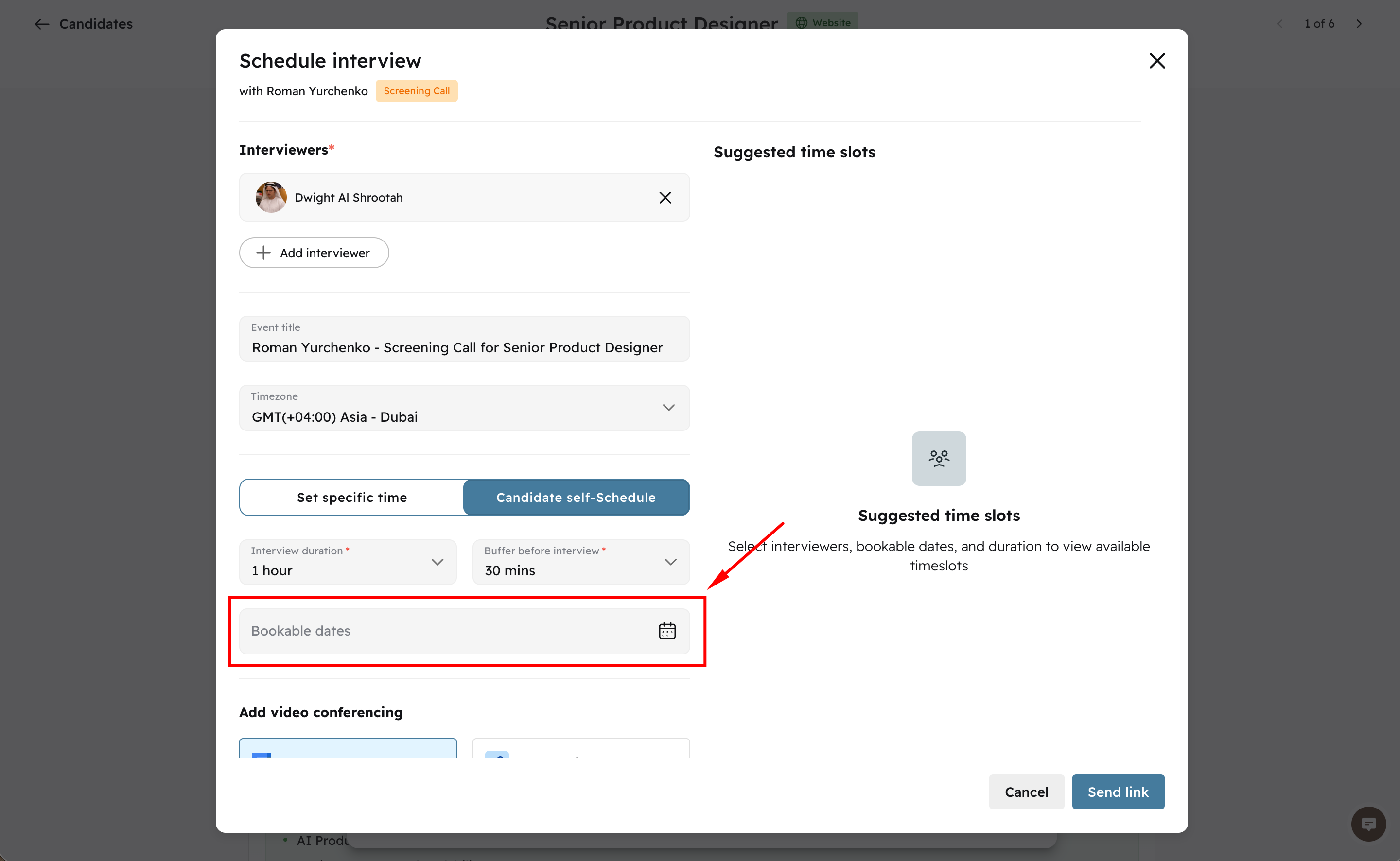
Candidate Self-Scheduling
To generate the link for a candidate, define the bookable dates first
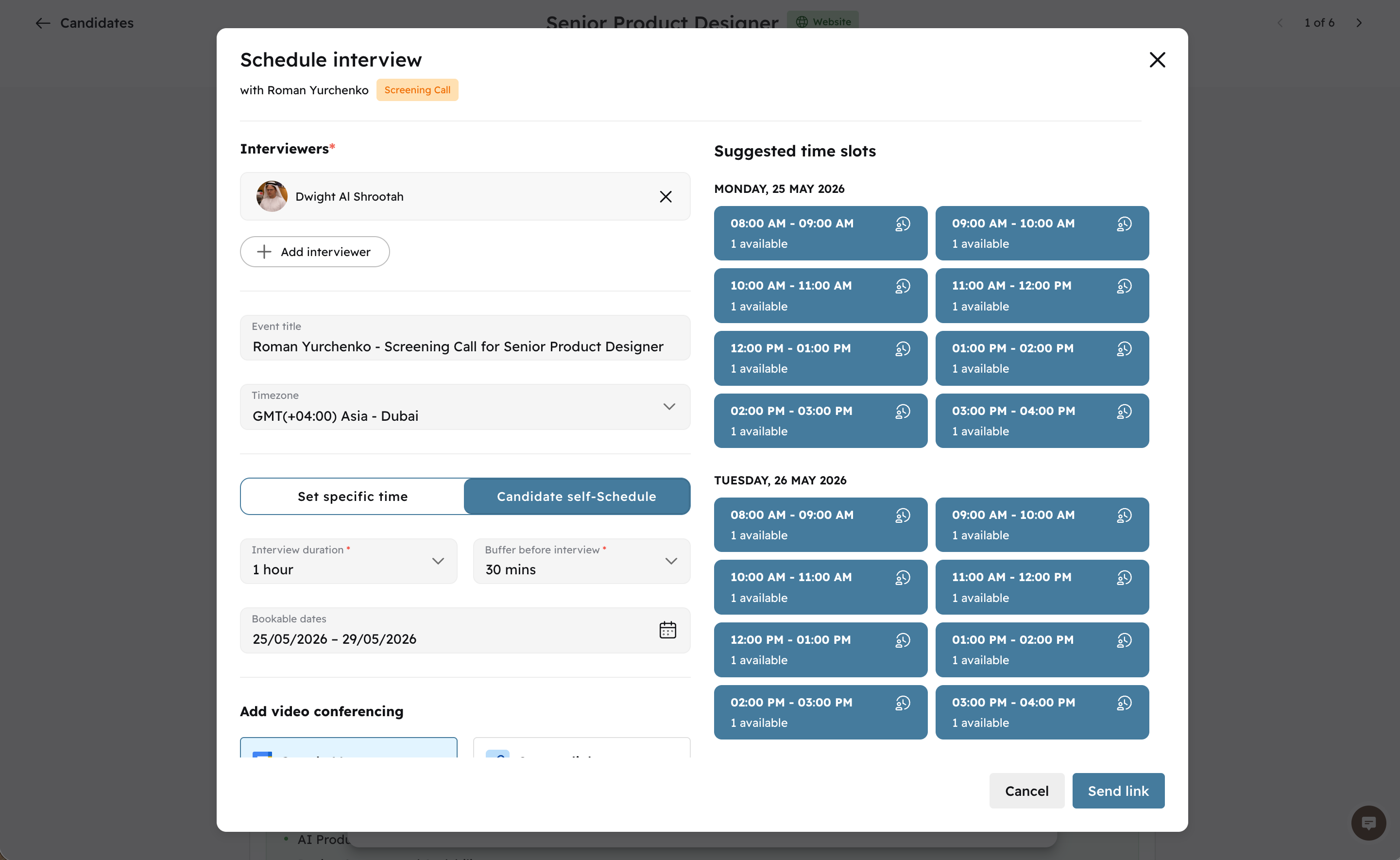
After the bookable dates are defined, you will see the list of time slots for each day based on interviewers' availability
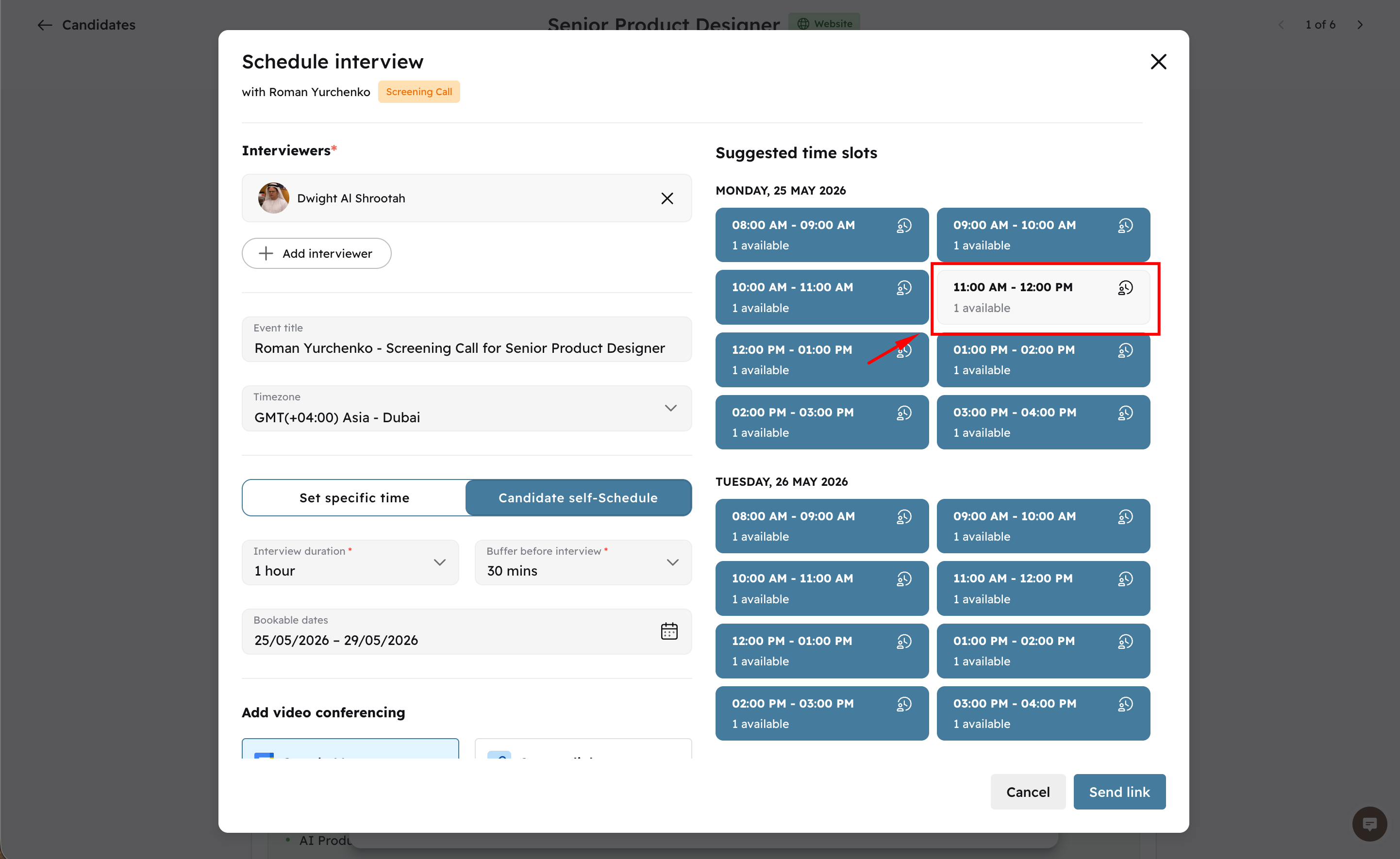
You can exclude the time slot from the list by clicking on it.
A video conferencing link will be automatically generated based on your connected calendar provider.
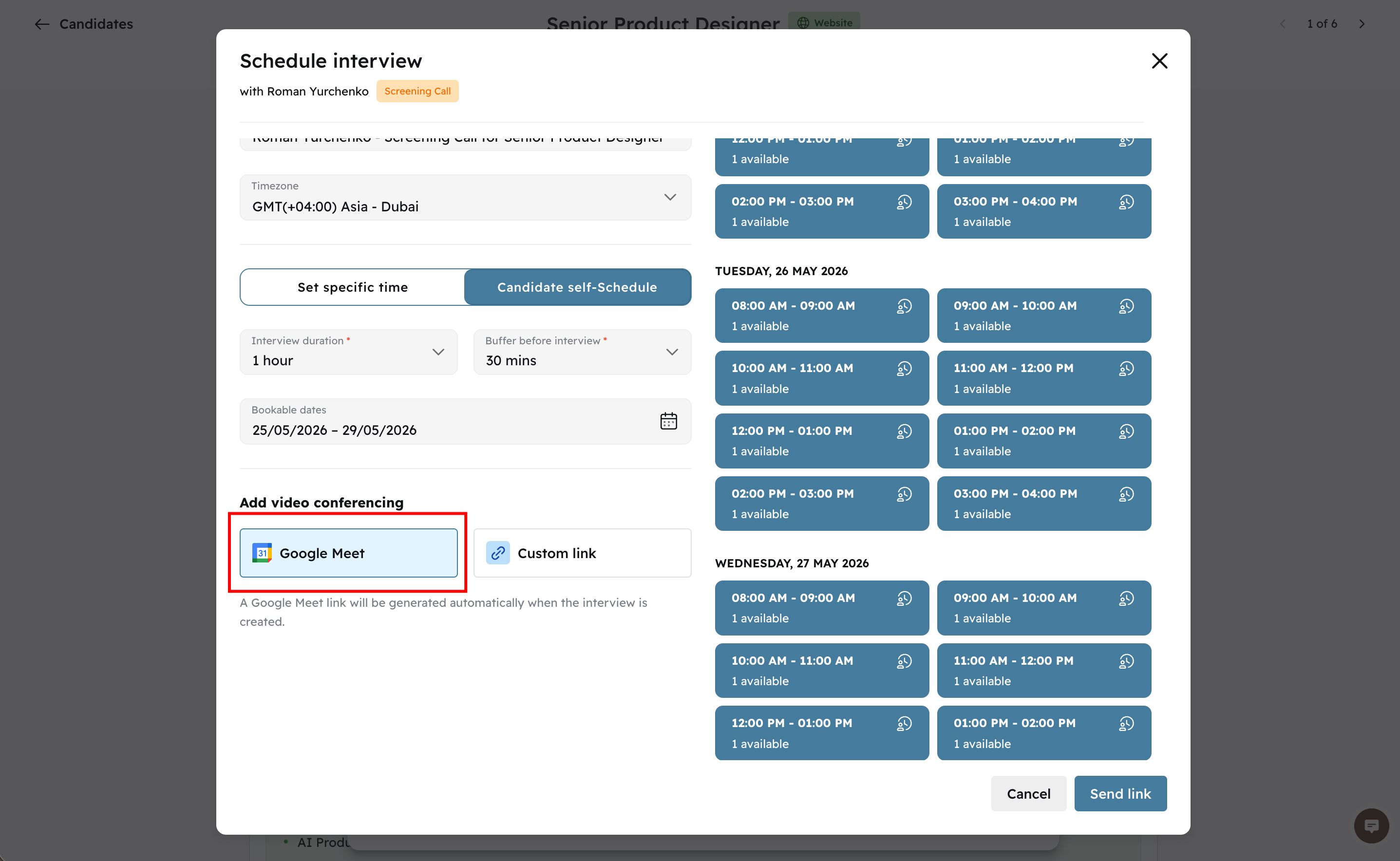
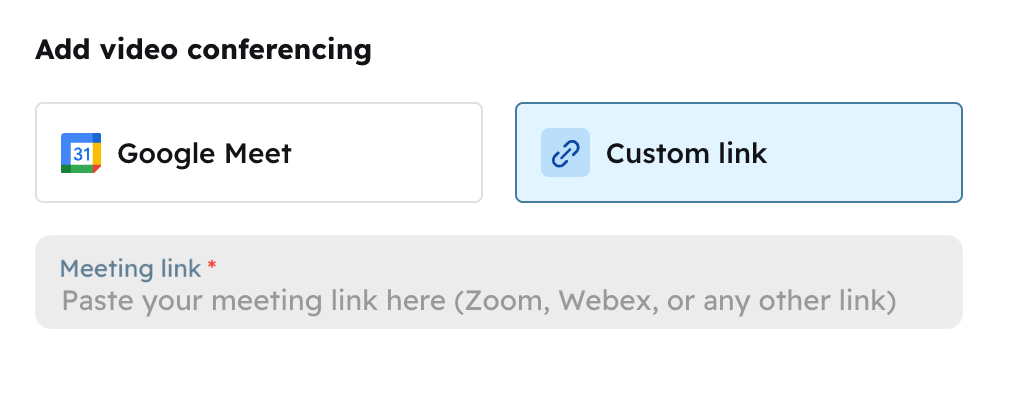
To use a custom meeting link instead, toggle on Custom link and paste your URL. The link will be added to the calendar event description.
Once everything is set, click the Schedule / Send link.
In case you set a specific date - after scheduling, all participants will receive an email notification with the calendar event set for the selected date and time slot.
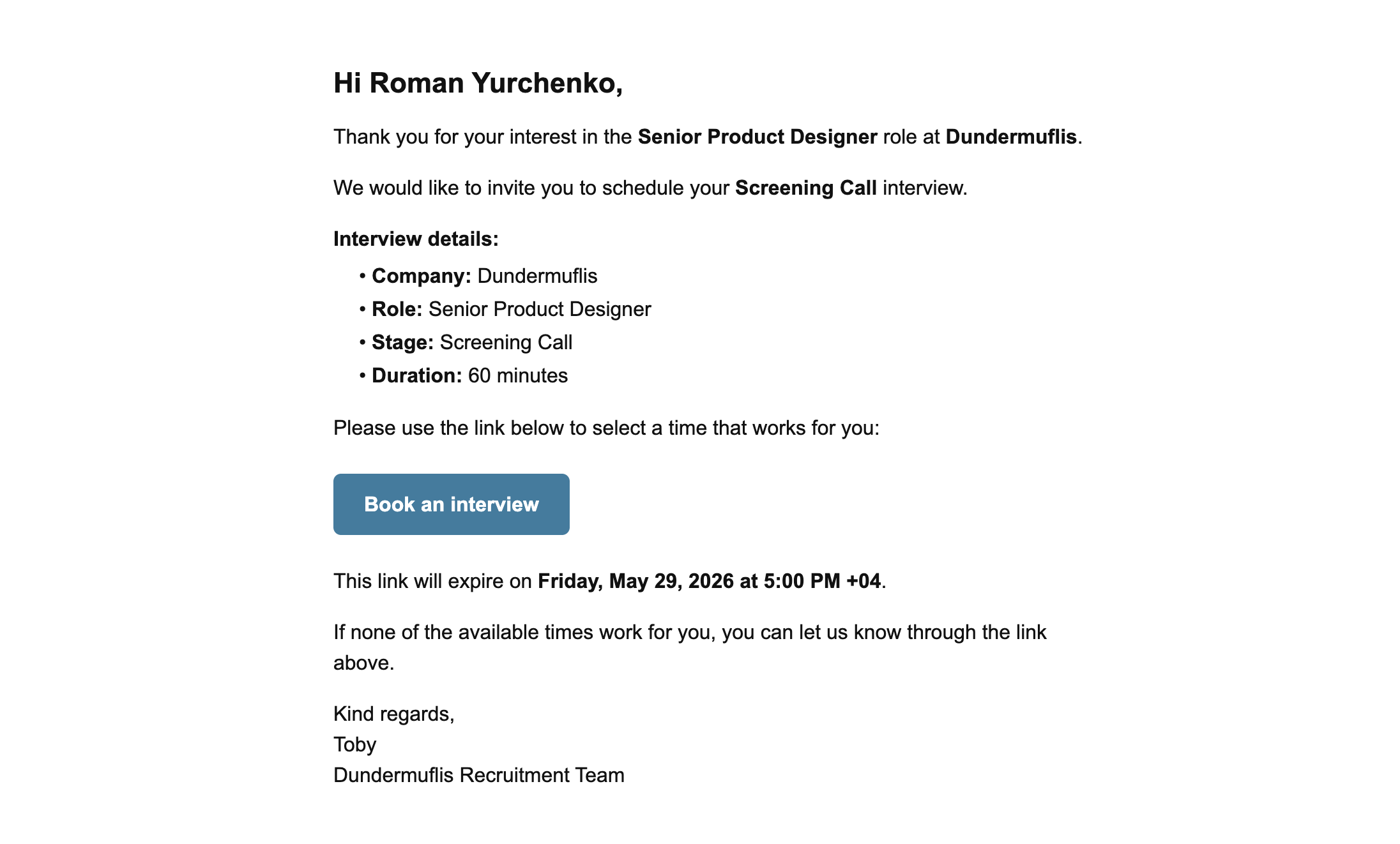
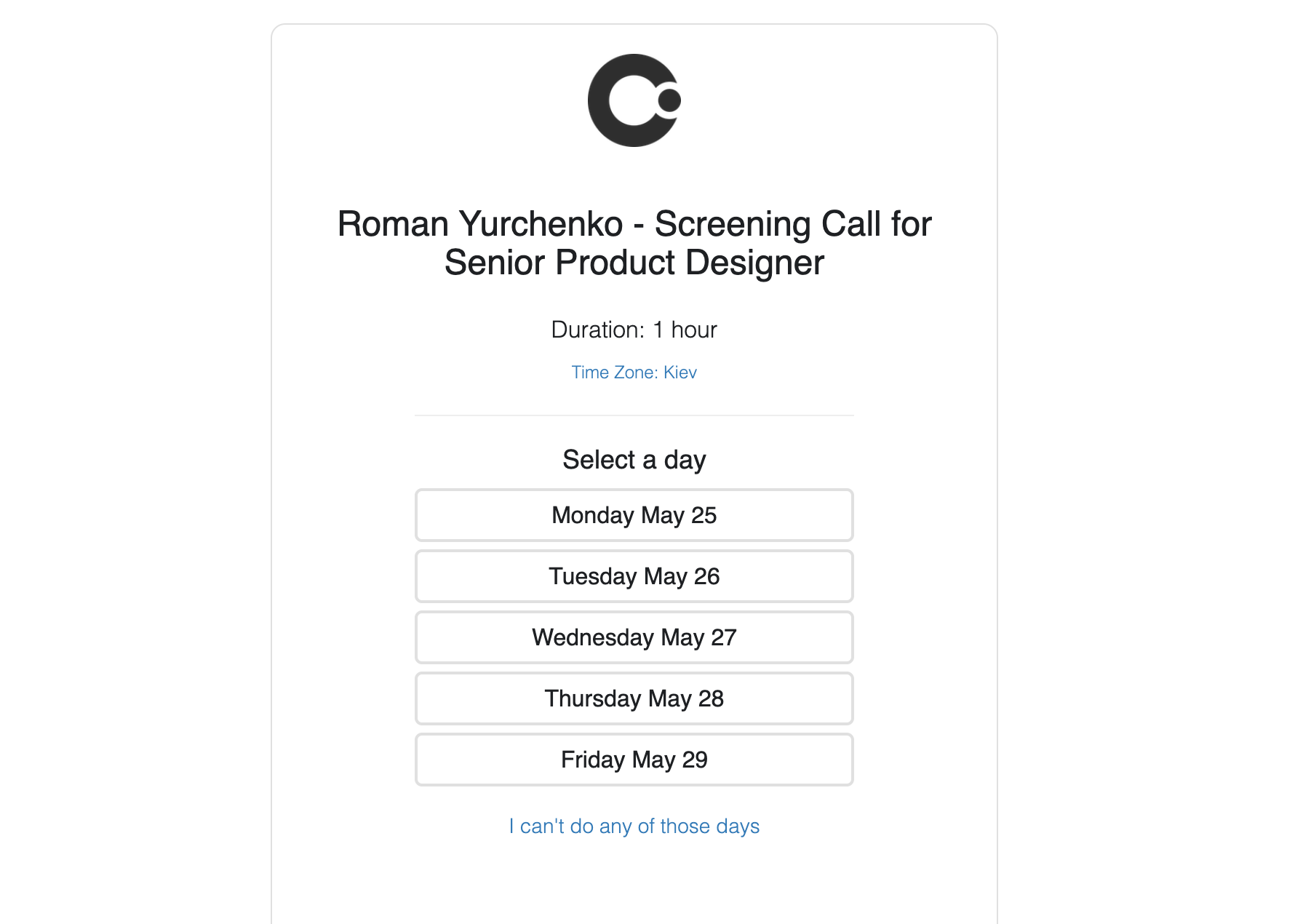
In case you went with a self-scheduling approach, the candidate will receive the email notification with the link to book an interview. After booking, all participants will receive an email notification with the calendar event set